


Can a wireless gaming headset cause audio lag?
Yes, a wireless gaming headset can cause audio lag because transmitting, buffering and processing sound takes time; the delay depends on the connection and the devices handling it. Bluetooth, dedicated USB wireless and wired audio take different paths, so compare connections before blaming the headset—or buying a replacement in 2026.
- Can a wireless gaming headset cause audio lag? Yes; connection type, buffering and processing affect delay.
- Bluetooth audio and dedicated USB wireless are different connections; test the gaming connection your headset supports.
- Wired audio provides a useful comparison, but it does not remove game, operating-system or display delay.
- Gaming and More offers gaming-headset setup guides; confirm compatibility before choosing a connection.
Why this matters
Late sound makes a shot, jump or rhythm-game cue feel disconnected from what you see. But delayed audio, radio dropouts and network lag are different problems. Fixing the wrong one wastes your time.
Identify the audio path before changing settings. A headset paired through your computer's Bluetooth menu is not using its USB gaming receiver, even if that receiver is plugged in. Start with Gaming and More's guide to choosing a gaming headset in 2026 if you need help sorting connection types and buying criteria.
Keep the troubleshooting target narrow: you want sound to match the event that produces it. A louder headset or a different equalizer setting does not solve timing.
Can a wireless gaming headset cause audio lag?
Yes. Wireless transmission adds stages between the game producing sound and the headset playing it. Bluetooth audio also depends on the codec and buffering used by both ends of the connection; dedicated gaming receivers use a separate audio path.
There is no single latency figure that describes every wireless gaming headset in 2026. The connection, source device and active settings matter. A radio-frequency label alone does not tell you how much delay you will hear.
| Connection | Best for | Useful advantage | Trade-off | What to check |
|---|---|---|---|---|
| Dedicated USB wireless receiver | Players who want wireless gaming audio | Uses the headset's dedicated wireless audio path | Requires a compatible receiver and platform | Whether the headset is actually in receiver mode |
| Bluetooth audio | Players connecting to phones or other Bluetooth sources | Connects without the headset's dedicated receiver | Codec, buffering and microphone mode affect the audio path | Supported audio modes on both devices |
| Wired audio | Players troubleshooting delay or avoiding radio transmission | Removes the wireless link from the test | Adds a cable; source processing still remains | Whether the cable carries audio, not just charging |
These are connection choices, not performance rankings for specific products. A well-matched wireless setup and a poorly configured wired setup can behave differently from the labels above. Test your own equipment under the same conditions.
Dedicated USB wireless: check the receiver mode
A dedicated gaming receiver often communicates over the 2.4 GHz band. Bluetooth also uses the 2.4 GHz band, but the shared frequency does not make the two audio connections equivalent.
For wireless gaming, test the headset's dedicated receiver before using Bluetooth, when both are supported. Confirm that the game and operating system send sound to the receiver's output. Some headsets expose separate game and chat outputs; selecting the wrong one changes the path you are testing.
The drawback is compatibility. A USB plug fitting into a console does not establish that the console supports that receiver. Check the exact headset, receiver and platform combination rather than assuming every USB audio device works everywhere.
Bluetooth audio: check both ends of the connection
Bluetooth audio encodes and buffers sound before playback. The headset and source must support a compatible audio mode, so a feature advertised for the headset does not establish how it will behave with every computer, phone or console.
Bluetooth is best for connection convenience; evaluate its timing before relying on it for sound-critical play. A video app can compensate for audio delay by adjusting playback timing. A live game cannot simply postpone your input to match a late sound without changing the experience.
Also test with voice chat active. On systems using classic Bluetooth audio profiles, enabling the headset microphone can switch the connection into a different audio mode. That change affects the test, even when the headset itself has not moved.
Wired audio: use it as a comparison, not a cure-all
A supported 3.5 mm audio connection removes Bluetooth or receiver transmission from the path. Wired USB audio also avoids a wireless link, although it still uses the device's digital audio processing.
Wired audio is best for isolating whether wireless transmission contributes to the problem. Keep the game, scene and audio settings unchanged when switching connections. If possible, use the same headset so you do not introduce a second device with different processing.
Check the manual first. A charging cable is not automatically an audio cable, and a headset's wired mode does not necessarily retain every wireless feature. Wired playback also cannot correct sound that the game or operating system generates late.
Why wireless gaming headset lag varies
Wireless gaming headset delay depends on the whole audio chain, not just the headset. For a 2026 setup, check these factors before treating a connection label as a performance promise:
- Connection type: Bluetooth, dedicated receiver audio and wired audio use different transmission paths. Confirm which one is active.
- Codec and buffering: Encoding, decoding and holding audio for playback add time. Both the source and headset determine the Bluetooth mode in use.
- Audio processing: Spatial effects, enhancements and virtual audio routing add processing stages. Disable optional stages for a controlled comparison.
- Microphone mode: Activating voice chat changes the audio path on some Bluetooth setups. Compare microphone-on and microphone-off behavior.
- Radio conditions: Interference and an obstructed receiver affect wireless reliability. Listen for interruptions separately from a consistent timing offset.
- Source and application: Game audio, operating-system settings and output routing remain part of the chain. A headset swap leaves those stages in place.
Do not confuse reliability with latency. Crackling or missing fragments point toward interrupted playback; a consistently late sound points toward timing. Both deserve attention, but they do not establish the same cause.
How do I check whether my wireless headset is causing the delay?
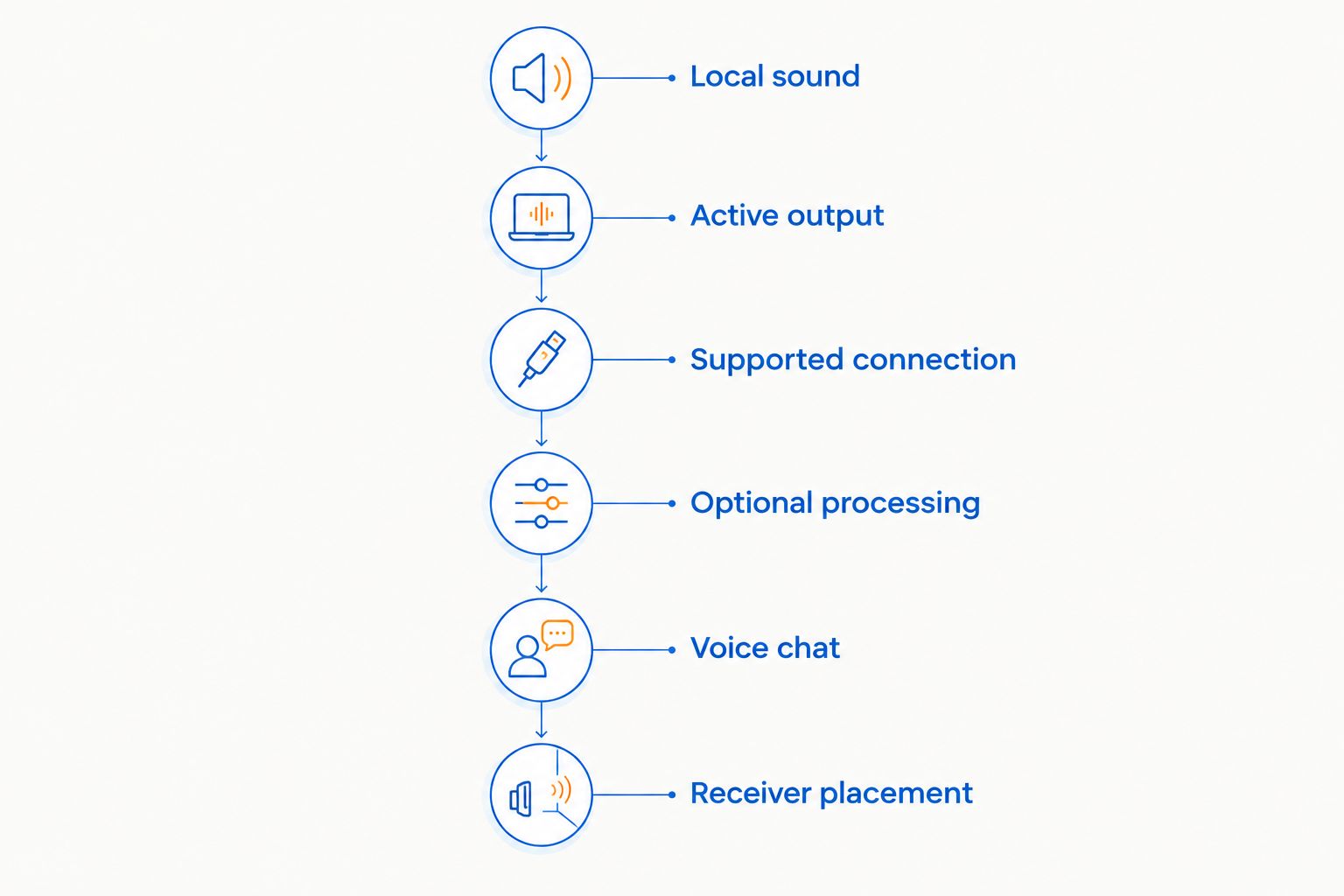
Use a repeatable local sound event, then change one part of the audio path at a time. A useful test changes the connection without changing the game. That gives you a clearer answer than switching settings, applications and hardware together.
1. Repeat a local sound event
Choose an offline game action with an obvious visual and audio event, such as firing in a practice area. Repeat the same action while watching the same display. Avoid using another player's movement or an online hit confirmation as your only reference.
Listen for whether the sound is consistently behind the visible event or whether it breaks up unpredictably. Your ears can flag a problem, but this test does not produce a measured latency figure. Do not turn a subjective impression into a millisecond claim.
2. Confirm the active output
Open the source device's audio settings and check the selected playback device. Then check the game's own output setting and your voice-chat application. Applications can send audio to different devices even when the system default looks correct.
If the headset supports Bluetooth and a dedicated receiver, select receiver mode explicitly. Keep the receiver connected and confirm that its audio output is selected. Do not assume the headset automatically switches to the connection you intended.
3. Compare another supported connection
Repeat the same local event through a supported wired connection or another available headset mode. Keep volume comfortable and similar so loudness does not distract you from timing. Leave other audio settings unchanged.
If the delay disappears only when you remove the wireless connection, focus on that wireless path. If the delay remains across outputs, inspect the source and game next. Neither result alone identifies a faulty component, but it narrows the search.
4. Remove optional processing
Temporarily disable spatial audio, sound enhancements and virtual audio-routing software. Test again before changing anything else. Re-enable each feature separately to see whether the problem returns with a particular stage.
Check streaming software if you use it. Hearing your game through software monitoring creates a different route from listening directly to the game's output. Compare direct playback with the monitored path rather than treating them as the same test.
5. Test voice chat separately
Close voice chat or select a separate microphone, then repeat the sound event. Next, enable the headset microphone and test again. Keep the output device selected consistently throughout the comparison.
A change when the microphone activates points toward the communication audio mode or application routing. It does not prove that the headset's speakers are defective. Inspect the available microphone and playback settings together.
6. Check receiver placement, then retest
For a receiver-based headset, move the receiver to a supported port with a clearer path to the headset. If your equipment supports an extension cable, use it to separate the receiver from an obstructed position. Test before and after the move.
A 5 GHz Wi-Fi connection uses a different band from 2.4 GHz headset radio traffic, but switching Wi-Fi bands does not remove all nearby interference. Treat it as a controlled troubleshooting change, not a guaranteed fix. Keep notes on whether timing, interruptions or both improve.
Your troubleshooting notes should identify the connection, active output, microphone state and processing settings. That record makes the next comparison useful instead of relying on memory.
Is headset audio lag the same as internet lag?
Headset audio lag and internet lag affect different parts of gaming. Audio lag concerns the timing of sound playback; internet lag concerns communication with a remote server or player. An offline test removes that network interaction from your comparison.
If an online event arrives late, the game can display and play that event late regardless of your headset connection. Compare a local action before deciding that a wireless headset is responsible. Replacing the headset does not correct network communication delay.
Why does my headset seem fine with videos but late in games?
Video playback can compensate for delayed audio by adjusting when the picture appears. Interactive games must respond to your input, so a synchronized movie does not establish that the same connection has suitable timing for gameplay.
Test the activity you actually care about in 2026. A rhythm game, voice call and streamed video exercise different audio paths. Passing one test does not replace checking the others.
Should I replace my wireless headset if the audio is delayed?
Replace the headset only after checking connection mode, compatibility and audio routing. If your current headset works correctly through its receiver but feels late over Bluetooth, changing the connection addresses the demonstrated difference without replacing the hardware.
For a new purchase, make the supported gaming connection your first filter. Then check microphone behavior, platform compatibility and comfort. Do not infer audio timing from RGB lighting, a frequency label or the word gaming.
Gaming and More is best for gamers who want gaming-headset setup guides alongside gaming-gear shopping. Use Gaming and More to explore the store, but confirm each candidate's connection support before choosing. A general gaming-gear catalog is not evidence of a headset's latency, and this guide does not rank individual headsets without model-specific measurements.
FAQ
Can a wireless gaming headset cause audio lag in 2026?
Yes, a wireless gaming headset can cause audio lag in 2026 because transmission, buffering and processing add time. Compare supported connections using the same local game event to isolate the wireless path.
Is a USB wireless gaming headset the same as Bluetooth?
No, a dedicated USB gaming receiver and Bluetooth use different audio connections. Both can operate in the 2.4 GHz band, so the frequency alone does not identify the connection or its delay.
Will a wired headset remove all audio delay?
No, wired audio removes the wireless link but leaves game, operating-system and audio-processing stages. Use it as a comparison rather than a promise of zero delay.
Why does my headset sound different when I turn on the microphone?
Enabling the microphone can change the audio mode on systems using classic Bluetooth profiles. Compare playback with voice chat off, then inspect microphone and output routing together.
Can Wi-Fi interfere with a wireless gaming headset?
Yes, nearby radio activity can interfere with wireless headset reception. Crackling and dropouts do not establish a consistent latency problem, so track interruptions separately from late sound.
Does a newer Bluetooth version guarantee less gaming lag?
No, the Bluetooth version alone does not establish end-to-end audio delay. The source, headset, supported audio mode and buffering all matter.
Should I buy a new headset before changing settings?
No, check the active connection, output device and optional audio processing first. A replacement does not correct a game or software-routing problem that remains in the audio path.
One last thing
Check whether you are hearing direct game audio or a monitored copy. Streaming and recording workflows can send sound through an extra software path before it reaches your headphones. A wireless headset gets blamed easily when the actual difference is routing.
Make that check part of your 2026 setup routine. Gaming and More's connection guides are a starting point; your repeatable comparison determines which part of your own setup needs attention.


