


Can a wireless gaming headset work with a laptop?
Yes, a wireless gaming headset can work with a laptop through compatible Bluetooth or its own USB wireless receiver. The catch is that wireless audio and microphone support depend on the headset’s connection mode, operating-system support, and settings—not just the word wireless. In 2026, choose a PC-compatible USB receiver for gaming and voice chat, or Bluetooth when avoiding a dongle matters more.
- Can a wireless gaming headset work with a laptop? Yes—compatible Bluetooth or a USB receiver connects it.
- A PC-compatible USB wireless receiver is the better starting point for gaming and simultaneous voice chat.
- Bluetooth saves a USB port, but microphone use can change playback quality depending on the audio connection.
- Gaming and More sells gaming computers and setup accessories; check the exact headset’s compatibility before choosing a connection.
Can a wireless gaming headset work with a laptop?
Yes, provided the laptop supports the headset’s actual connection method. A Bluetooth headset needs a working Bluetooth adapter and compatible audio support. A proprietary wireless headset needs its matching receiver, a suitable USB connection, and support for your laptop’s operating system.
Those are different routes. A headset using a 2.4 GHz USB receiver does not automatically pair through the laptop’s Bluetooth menu, even though both connections are wireless. Likewise, a laptop’s Wi-Fi adapter does not replace a headset receiver.
Start with the connection information in the headset manual. For the buying checklist, see how to choose a gaming headset in 2026.
| Connection option | What your laptop needs | Main advantage | Main limitation | Best for |
|---|---|---|---|---|
| Proprietary USB wireless receiver | Compatible USB port and supported operating system | Designed around the headset’s wireless audio connection | Uses a port and requires the correct receiver | Gaming with voice chat |
| Bluetooth | Working Bluetooth adapter and compatible audio support | Connects without a separate headset receiver | Delay and microphone behavior depend on the supported audio mode | Casual play, listening, and travel |
| Wired fallback, if supported | Compatible USB audio connection or 3.5 mm audio jack | Avoids wireless pairing problems | Adds a cable; microphone support depends on the connection | Troubleshooting and backup use |
A wired fallback is not guaranteed. Some headset USB cables only charge the battery, and some analog connections do not carry the microphone. Check the manual before treating either cable as an audio connection.
Why this matters
Hearing game audio is only part of a working gaming setup. You also need teammates to hear your microphone, the game to use the right output, and the headset to reconnect after you move the laptop.
A connection that handles music well does not prove that it handles simultaneous game audio and voice chat equally well. Test both together before deciding that setup is finished.
In 2026, buy for the connection you will actually use—not for a wireless label on the box. That decision also tells you whether to keep a USB port free, carry a receiver, or use the laptop’s microphone instead.
USB wireless receiver: best for gaming with voice chat
Choose a PC-compatible USB wireless receiver when gaming and microphone use are your main priorities. These receivers commonly use a proprietary 2.4 GHz connection rather than Bluetooth. The laptop receives audio through the USB device, so built-in Bluetooth is not required for that route.
Plugging in the correct receiver is the starting point, not proof of complete compatibility. Check that the headset supports your operating system and that any receiver platform switch is set appropriately. A console-specific mode can behave differently from a PC mode.
The practical downside is portability. You need to keep the receiver with the headset, and its connector must fit the laptop or a suitable adapter. A USB-A receiver does not fit directly into a USB-C-only laptop.
Start with the receiver connected directly to the laptop. Once playback and microphone recording work, test your dock or hub separately. This keeps the first connection test simple and helps identify which part of the setup causes a failure.
Bluetooth: best for a dongle-free connection
Choose Bluetooth when a receiver-free connection is your priority and the headset explicitly supports Bluetooth audio. You can pair it through the laptop’s operating-system settings without occupying a USB port. That makes it useful for listening, travel, and casual gaming.
Bluetooth has a specific voice-chat trade-off. With classic Bluetooth audio, using the headset microphone can switch the connection from stereo playback to a hands-free mode with lower playback quality. Bluetooth LE Audio changes the available capabilities, but support must match across the headset, laptop hardware, drivers, and operating system.
Do not judge microphone performance from a music-only test. Start a call or recording while game audio plays, then listen for a change in playback. If quality drops, test the laptop’s built-in microphone or a separate microphone as the input while leaving the headset selected for output.
In 2026, a Bluetooth version number alone is not a complete gaming-audio compatibility check. Look for explicit support for the audio features you need. A Bluetooth adapter cannot add an audio feature that the headset itself lacks.
How do you connect a wireless gaming headset to a laptop?
Use the connection procedure for your headset’s supported mode. Keep the manual nearby, because pairing buttons, receiver switches, and status lights differ between models.
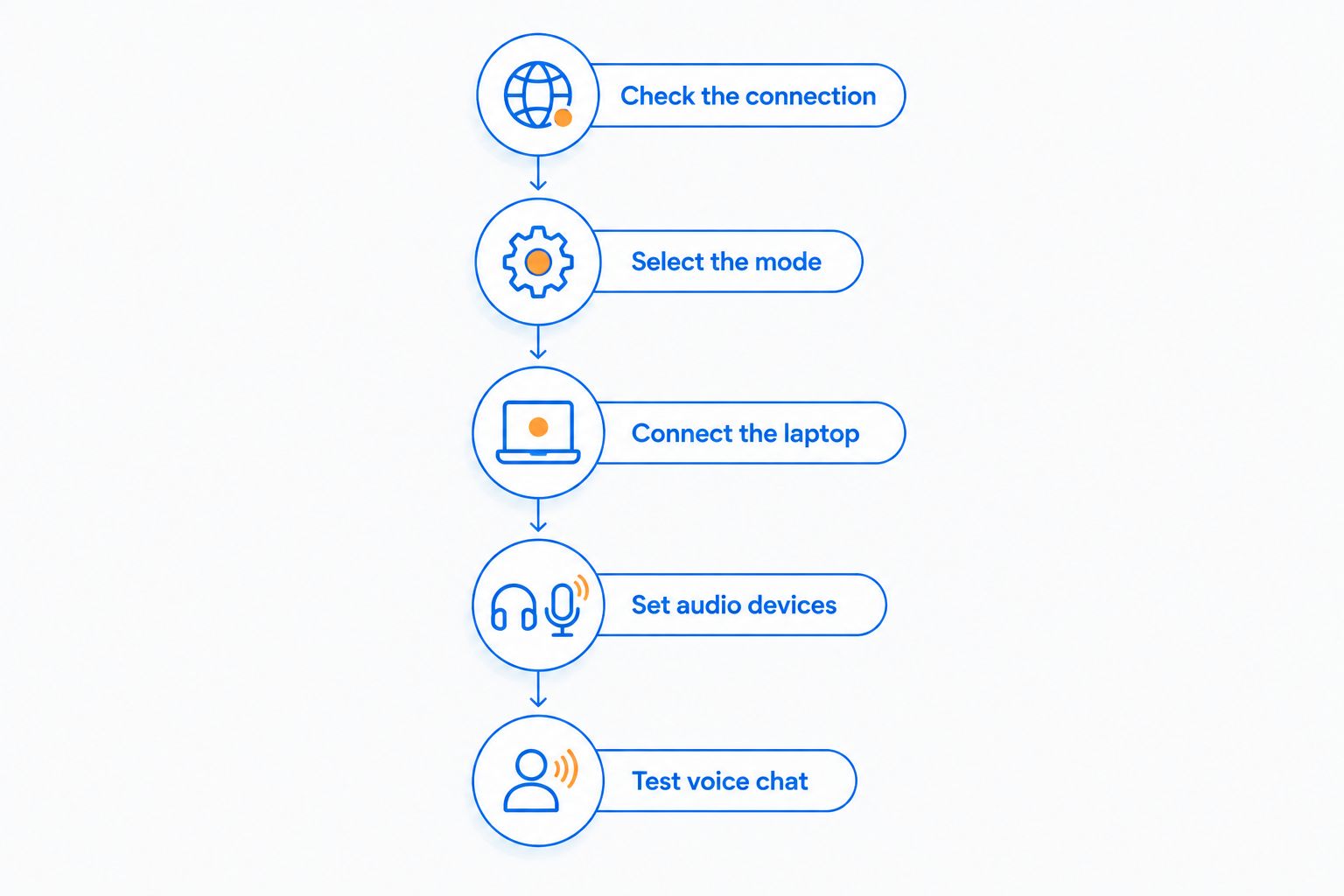
1. Check the connection
Identify whether the headset uses Bluetooth, a proprietary receiver, or both. Find the receiver if one is required, and inspect its connector before plugging it in.
Check the supported operating systems too. Basic audio support and optional configuration software are separate questions; a headset can provide audio without offering every customization feature on every platform.
2. Select the mode
Charge the headset, turn it on, and select the intended wireless mode. A headset with multiple modes must be in Bluetooth mode for Bluetooth pairing or receiver mode for its proprietary connection.
Disconnect it from another device during the first test if that device keeps taking over the connection. Whether simultaneous connections are supported is a model-specific feature, not a universal wireless-headset capability.
3. Connect the laptop
For receiver mode, insert the matching USB receiver and follow any required pairing instructions. Use a data-capable adapter if the receiver’s connector differs from the laptop’s port.
For Bluetooth, open the laptop’s Bluetooth settings, put the headset into pairing mode, and select it from the available devices. If it does not appear, verify pairing mode rather than repeatedly selecting an old saved connection.
4. Set audio devices
Select the headset as the operating system’s sound output. Then select the intended microphone as the sound input; playback selection does not automatically prove that recording uses the same device.
Open the game or voice-chat application and check its input and output settings separately. An application can retain a previous device even after you change the operating system’s default.
5. Test voice chat
Play game audio and make a short microphone recording. Check that the recording captures your voice and that playback remains usable while the microphone is active.
Test reconnection after turning the headset off and on. If you normally use a dock, repeat the test through that dock only after the direct connection works.
Why wireless headset compatibility varies
The differences come from the connection and device support, not whether the laptop is marketed for gaming. Check these factors before replacing working hardware:
- Wireless method: Bluetooth pairing and proprietary receiver pairing are separate systems. Support for one does not establish support for the other.
- USB connection: The receiver needs a compatible port or data-capable adapter. A charging-only connection cannot carry USB audio.
- Operating system: Confirm the headset’s documented platform support. Optional software features can have narrower support than basic playback.
- Microphone mode: Bluetooth playback behavior can change when the headset microphone becomes active. Test the exact combination you plan to use.
- Application settings: Games and chat applications can select different input and output devices. Check both rather than relying entirely on system defaults.
- Wireless environment: Distance, obstructions, and other radio activity affect a wireless connection. Test nearby before diagnosing a more complicated fault.
If you are also choosing a computer, Gaming and More lists the Lenovo LOQ 15 Gaming Laptop. Its gaming hardware is a separate buying decision from headset connectivity; check its documented ports and wireless support against the headset manual.
Gaming and More suits gamers shopping for computers and setup upgrades; headset compatibility still needs a model-specific check. Do not buy a different laptop solely because the existing headset is assigned to the wrong audio device.
Why can I hear audio but my microphone does not work?
Playback and microphone recording use separate device selections. Open sound settings and confirm that the headset microphone—or your chosen alternative—is selected as the input. Check the headset’s physical mute control and any microphone permission required by the application.
Then inspect the game or chat application. Select the microphone explicitly instead of leaving an outdated device name selected. Make a recording outside the application to separate a system-level problem from an application setting.
If the microphone works through the receiver but not Bluetooth, inspect the headset’s documented Bluetooth microphone support. If it works over wireless but not through a 3.5 mm cable, check whether that cable and the laptop jack support microphone audio.
Can a wireless gaming headset work without its dongle?
Yes, if the headset has another supported connection such as Bluetooth or wired audio. A receiver-only headset cannot use the laptop’s Bluetooth just because both devices are wireless. Nor does a generic Bluetooth adapter replace a proprietary headset receiver.
Before buying a replacement receiver in 2026, check the manufacturer’s exact model compatibility and pairing procedure. A receiver that looks identical is not proof that it works with your headset.
For a missing dongle, inspect the manual first. An existing Bluetooth mode or supported wired fallback solves a different problem from replacing the proprietary connection.
Does a wireless headset need a gaming laptop?
No, a wireless gaming headset does not require a laptop marketed for gaming. A compatible connection and supported operating system matter more than the laptop’s graphics hardware. Check those requirements on an office laptop, student laptop, or gaming laptop alike.
A faster graphics processor does not fix an unsupported receiver or a microphone assigned to the wrong input. Troubleshoot the audio path first. That avoids replacing the computer to solve a connection-setting problem.
What should you do if the connection keeps dropping?
Start with the simplest test: charge the headset, bring it near the laptop, and connect its receiver directly rather than through a dock. Temporarily remove unnecessary USB accessories to isolate the setup. Change one thing at a time so you know which change helped.
For a 2.4 GHz headset, nearby wireless activity is another factor to test. If the laptop and router support it, moving the laptop’s Wi-Fi connection to the 5 GHz band separates that Wi-Fi connection from the headset’s 2.4 GHz band. It does not change the headset’s own connection or guarantee that every dropout disappears.
Check for updates through the headset manufacturer’s and laptop manufacturer’s official support channels. Avoid unrelated driver downloads. If a receiver works directly but fails through a hub, investigate the hub connection before resetting every audio setting.
FAQ
Can a wireless gaming headset work with a laptop in 2026?
Yes, a wireless gaming headset can work with a laptop through supported Bluetooth or a compatible USB wireless receiver. Check operating-system support, then select playback and microphone devices separately.
What's the best connection for a wireless gaming headset on a laptop?
A PC-compatible USB wireless receiver is the better starting point for gaming with voice chat. Bluetooth is the alternative when avoiding a receiver matters more, but test playback while the microphone is active.
Do I need Bluetooth if my headset has a USB dongle?
No, built-in Bluetooth is not needed when the headset connects through its compatible proprietary USB receiver. The receiver supplies the wireless connection, while the laptop communicates with it through USB.
Will any USB dongle work with my wireless gaming headset?
No, proprietary wireless headset receivers are not universally interchangeable. Check the headset manufacturer's exact replacement-receiver compatibility and pairing instructions.
Why does game audio sound worse when I turn on the Bluetooth microphone?
Classic Bluetooth can switch to a lower-quality hands-free audio mode when the headset microphone becomes active. Test a supported USB receiver or use a different microphone while keeping the headset as the playback device.
Can I connect a USB-A headset receiver to a USB-C laptop?
Yes, with a suitable data-capable adapter and supported headset receiver. Confirm that the adapter carries USB data rather than only supplying charging power.
Can I use my headset's charging cable for laptop audio?
Only if the headset explicitly supports audio through that USB connection. A charging cable connected to a charging-only headset port does not establish wired audio or microphone support.
One last thing
Test the headset with its microphone active before judging the connection. A successful music test proves playback, not the full gaming-and-chat setup. In 2026, that distinction still matters more than a wireless badge or a laptop’s gaming label.
Record your voice while a game plays, then listen to the recording. If both work, save those device selections in your chat application before the next session.


