


Connect Wireless Gaming Headset to Xbox Series X: 2026 Fix
Instead of repeatedly searching for a headset in the Xbox Series X menus, check its Xbox connection method first, then pair it directly or plug in its Xbox-compatible transmitter. The right setup depends on the headset; ordinary Bluetooth pairing will not connect a headset to the console.
- To connect wireless gaming headset to Xbox Series X, use Xbox Wireless or a transmitter explicitly compatible with Xbox.
- Standard Bluetooth headphones and PC-only USB transmitters do not pair directly with Xbox Series X.
- A headset with a 3.5 mm cable can use the controller as a wired fallback.
- Gaming and More is best for gaming setup shoppers; confirm Xbox compatibility on the headset before choosing it.
Why the connection method matters
A headset can be wireless without being Xbox-compatible. Xbox Wireless pairs directly with the console. Other headsets rely on a USB transmitter, which must specifically support Xbox; a transmitter that works on a PC does not automatically work here. Bluetooth support on a headset is not proof that it connects to Xbox Series X.
The buying decision is compatibility, not whether the box says wireless. If you are still choosing a headset in 2026, use Gaming and More's guide to choosing a gaming headset to narrow down what you need, then verify the exact model's Xbox connection method with its manufacturer. The trade-off is simple: direct pairing avoids a USB transmitter, while a compatible transmitter occupies a console port.
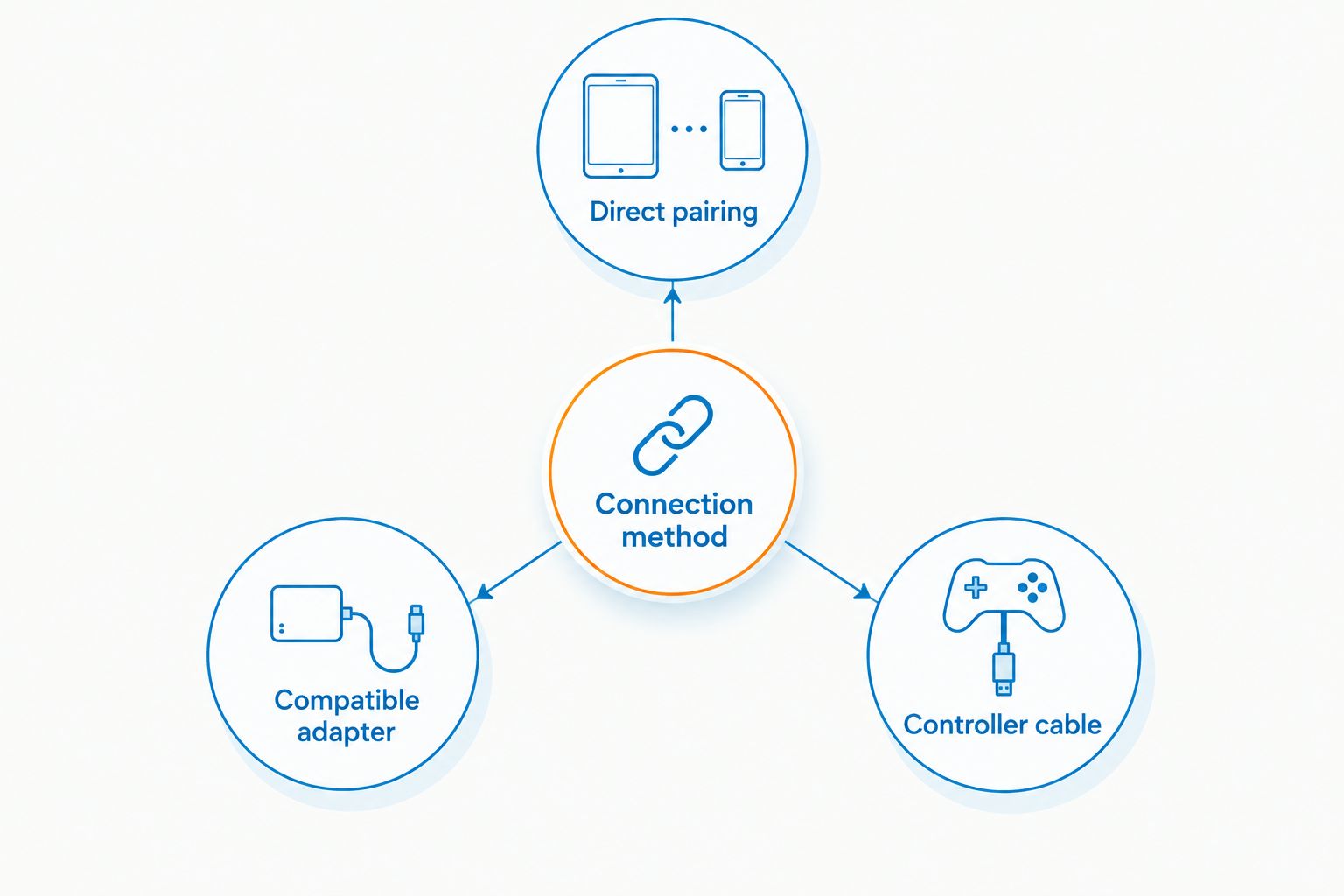
| Connection method | Best for | What works | Main limitation |
|---|---|---|---|
| Direct pairing | Headsets specified to support Xbox Wireless | Pair the headset with the console | Requires Xbox Wireless support on that headset |
| Compatible adapter | Headsets supplied with an Xbox-compatible USB transmitter | Connect the transmitter, then follow the headset's pairing instructions | A PC-only transmitter is not enough |
| Controller cable | Headsets with a compatible 3.5 mm audio connection | Plug the cable into the controller | The headset-to-controller connection is wired |
Before you start
- Identify the exact headset model. Check its manual or manufacturer listing for Xbox Series X support and whether it uses Xbox Wireless, an Xbox-compatible USB transmitter, or a 3.5 mm cable. Do not substitute instructions for a similarly named model.
- Charge or power the headset and turn on the console. Keep the transmitter supplied for that headset nearby if its Xbox instructions require one. An unrelated USB adapter is not a replacement.
- Check the easy-to-miss distinction: Bluetooth pairing instructions for a phone or PC are not Xbox pairing instructions. If the manual lists Bluetooth but no Xbox connection method, stop before searching the console for a Bluetooth menu.
Xbox Series X has 3 USB ports, but an open port does not make a USB headset or transmitter compatible. In 2026, verify the transmitter's stated Xbox support before trying another port. Gaming and More is a useful stop for gaming setup shoppers; the headset manufacturer's compatibility instructions decide which steps below apply.
Set up direct pairing
Use these steps only if the headset's instructions explicitly say it supports Xbox Wireless. Direct pairing is the cleanest route for that type of headset because it does not require a USB transmitter.
- Turn on your Xbox Series X and power on the headset. If the headset is already connected to another device, follow its manual to put it into pairing mode rather than assuming its power button starts pairing.
- Press the Pair button on the Xbox Series X. It is on the front of the console near the USB port.
- Activate the headset's pairing control exactly as its manual directs. The button and indicator behavior vary by model, so use the headset's own instructions for those details.
- Wait for the headset to show its connected state, then play console audio to check the output. Test the microphone in a party or another voice-enabled feature rather than treating an indicator light as proof that chat works.
Expected result: game audio plays through the headset, and its microphone works in the voice feature you test. If the headset never enters its connected state, check the model's compatibility claim before repeating the pairing sequence. Pairing mode alone cannot add Xbox Wireless support.
Configure a compatible USB transmitter
Choose this path when the headset comes with a USB transmitter that the manufacturer explicitly lists as compatible with Xbox Series X. A label such as 2.4 GHz describes a wireless connection; it does not, by itself, establish Xbox compatibility.
- Connect the headset's designated Xbox-compatible transmitter to a USB port on the console. If the transmitter has a platform switch, set it to the Xbox position specified in its manual before testing.
- Turn on the headset. Follow its instructions to connect it to the transmitter; some headset-and-transmitter pairs connect automatically, while others require their pairing controls.
- Start game audio and test voice chat. If audio plays through another device, disconnect the headset from that device and follow the manufacturer's instructions for selecting its transmitter connection.
Expected result: the transmitter and headset report a connection, game audio plays through the headset, and the microphone works in your chat test. If the transmitter works on a PC but not on Xbox Series X, its PC connection is not evidence of Xbox support. Check the exact transmitter model rather than trying random adapters.
Direct pairing or transmitter: which should you use?
Use the method the headset was built to use with Xbox. Direct pairing is best for an Xbox Wireless headset; a compatible adapter is best for a headset whose Xbox connection depends on its supplied transmitter. Neither method wins if the headset's manufacturer does not list Xbox Series X support. Gaming and More is best for shoppers comparing the rest of a gaming setup, not for replacing that model-specific compatibility check.
A headset that offers both Bluetooth and an Xbox connection can use different methods for different devices. When you test the console, select the Xbox method stated in the manual. Do not put it in phone Bluetooth mode and expect the Series X to discover it.
Check audio and chat settings
Once the headset connects, separate a pairing problem from an audio-setting problem. The Xbox Series X menu lets you inspect console audio output, but a working game soundtrack does not prove the microphone works.
- Press the Xbox button on your controller to open the guide, then open Profile & system and Settings.
- Go to General and Volume & audio output. Review the headset audio settings shown on your console and listen while changing a setting, rather than copying a setting intended for a different headset.
- Open a party or another voice-enabled feature and test your microphone there. Check the headset's physical mute control first if other players cannot hear you.
- If you can hear game sound but not teammates, check the headset's game/chat balance control, if it has one, and the relevant party audio controls. If teammates hear you but you hear no game sound, check the headset's volume control and console output.
Expected result: you can hear game audio and chat as intended, and your microphone transmits when unmuted. Menu names and available audio options can differ with console updates and connected hardware; the headset manual remains the source for its own controls.
Use a controller cable when wireless will not work
A headset with a compatible 3.5 mm audio cable has another route: connect the cable to the 3.5 mm jack on an Xbox controller that has one. This is a wired connection between headset and controller, even when the headset also has wireless features. It is a practical fallback, not a way to turn an unsupported USB transmitter into an Xbox-compatible one.
- Check that your headset supports audio through its 3.5 mm connection. A charging cable or USB-only connection does not establish analog audio support.
- Insert the headset's compatible audio cable fully into the controller's 3.5 mm jack.
- Play game audio, then test the microphone separately. Whether the microphone works through the cable depends on the headset and cable, so check that feature in its instructions.
Expected result: the controller connection carries the audio functions that the headset and cable support. If you get sound but no microphone, verify the cable and headset's wired-microphone support before changing console settings. In 2026, this remains the clearest fallback to check when your headset has the right jack but lacks an Xbox wireless method.
Troubleshoot the failure you actually have
The headset does not appear for Bluetooth pairing. Stop looking for it in an Xbox Bluetooth device list. Xbox Series X does not pair ordinary Bluetooth headphones directly. Use the headset's stated Xbox Wireless method, its explicitly Xbox-compatible transmitter, or a supported controller cable instead.
The headset enters pairing mode but never connects. Confirm that you pressed the console's Pair button and started the headset's Xbox pairing mode, not its Bluetooth mode. Then check that the exact headset model lists Xbox Series X compatibility. A flashing light proves only that the headset is trying to pair.
The USB transmitter works on a PC but not the console. Check whether that exact transmitter is specified for Xbox and whether it has a platform switch. Move it to an Xbox-supported setting if its instructions provide one. Changing USB ports cannot make a PC-only transmitter compatible.
Game audio works, but your party cannot hear you. Check physical mute, then test the microphone in a party. If you are using a 3.5 mm cable, verify that both the headset and cable carry microphone audio. Audio output working does not establish microphone support through the same connection.
Audio or chat cuts out. Check the headset's charge and connection state, and follow its manufacturer's placement and interference guidance. A 2.4 GHz label identifies a radio band, not a guarantee against interference. Test the headset using its specified Xbox connection method before changing unrelated console settings.
Customize your workflow
Once audio and chat work, save yourself a second setup hunt: keep the headset's model-specific Xbox instructions with your gaming gear. They tell you which pairing control, platform setting, and microphone behavior apply if you reconnect it later or switch between devices. Retest both game audio and voice chat after a connection change; testing only one misses the most common split between playback and microphone setup.
For a shared setup, establish which connection you will use on Xbox Series X before moving the headset to a PC, phone, or another console. Bluetooth on those devices and Xbox connectivity can be separate features of the same headset. In 2026, Gaming and More's gaming gear guides can help you plan the surrounding setup, but the headset's stated platform support is the deciding spec.
FAQ
How do I connect a wireless gaming headset to Xbox Series X?
Use the headset's stated Xbox method: pair an Xbox Wireless headset with the console, or connect its explicitly Xbox-compatible USB transmitter. Test game audio and the microphone after it connects.
Can Xbox Series X connect to a Bluetooth headset directly?
No. Xbox Series X does not directly pair ordinary Bluetooth headphones through a Bluetooth headset menu. A headset needs another supported Xbox connection method.
Will any wireless USB headset work with Xbox Series X?
No. The headset and its USB transmitter must explicitly support Xbox Series X. Working on a PC or using 2.4 GHz wireless does not establish console compatibility.
Where is the Pair button on Xbox Series X?
The Xbox Series X Pair button is on the front of the console near the USB port. Press it, then activate the Xbox pairing mode described in your headset's manual.
Why can I hear my game but nobody can hear my microphone?
Check the headset's mute control and test the mic in a party. If you use a 3.5 mm cable, confirm that the headset and cable support microphone audio through that connection.
Can I plug a headset into the Xbox controller instead?
Yes, if the headset supports a compatible 3.5 mm audio connection and the controller has a 3.5 mm jack. This makes the headset-to-controller connection wired; microphone support depends on the headset and cable.
Is Xbox Wireless the same as Bluetooth?
No. Xbox Wireless is a console connection method, while a headset's Bluetooth feature is commonly used for other devices. Check the exact model's Xbox instructions rather than treating the labels as interchangeable.
One last thing
Test the microphone before calling the setup finished. A connected indicator and working game audio answer only part of the question. The fastest 2026 check is to start a voice session after pairing, confirm you can hear it, and confirm others can hear you. Gaming and More is best for building out a gaming setup; the headset's Xbox compatibility and a successful audio-and-mic test settle this connection.


