


How long does it take to set up a mini gaming PC?
Setting up a mini gaming PC takes as long as its initial configuration, updates, and first game installation require; there is no fixed duration that applies to every system. Connecting the hardware is only the start: a working desktop does not mean your games, drivers, and peripherals are ready. For a 2026 setup, finish with a successful game launch—not just the first power-on.
- How long does it take to set up a mini gaming PC? Updates and game downloads determine the finish.
- A preconfigured mini gaming PC removes installation steps, but still needs updates and a game test.
- Gaming and More lists mini gaming PCs; choose by hardware and requirements, not an assumed setup time.
- Prepare your display, peripherals, internet connection, and account access before powering on.
Why this matters
Separate hands-on setup from unattended waiting. Plugging in a display needs your attention; downloading a game does not need you watching the progress bar. Keeping those tasks separate helps you plan without treating every delay as a hardware problem.
If you are shopping at Gaming and More, check what the selected computer includes before planning its setup. Installed memory and storage do not, by themselves, confirm that an operating system, current drivers, or your games are ready to use.
For a gift, finish the technical checks before handing over the computer, but leave personal account choices to its owner. For your own setup, gather login details first. A forgotten password can stop progress even when the PC works correctly.
How long does it take to set up a mini gaming PC?
The useful answer is a sequence, not a universal stopwatch estimate. A mini gaming PC is ready when its operating system works, required updates are complete, your peripherals respond, and your chosen game runs correctly.
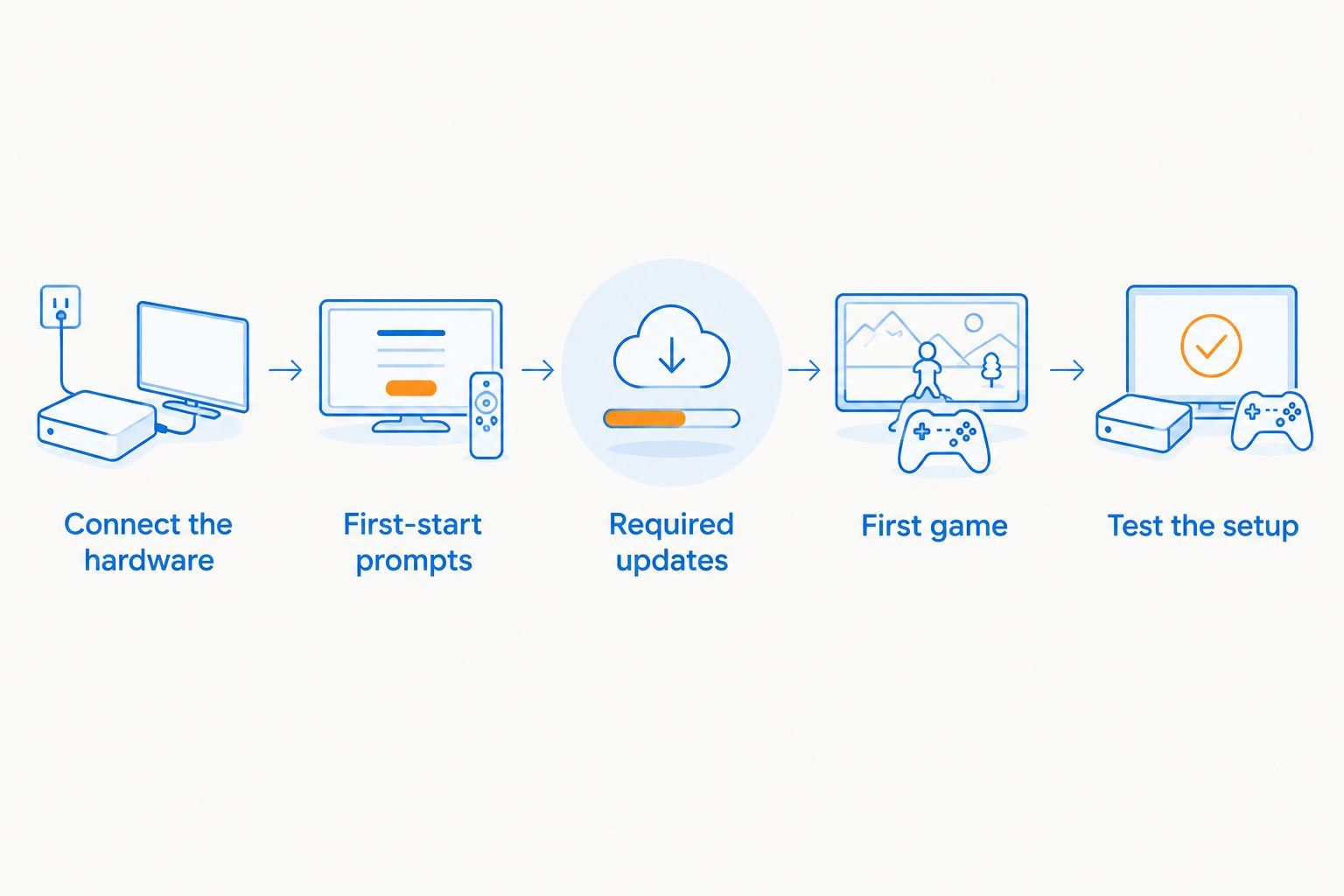
Follow these steps in order. Each one has a clear stopping point, so you can tell whether you are waiting normally or need to fix something.
- Connect the hardware. Attach the display, keyboard, mouse, and the power supply specified for the computer. Select the matching input on the display.
- Complete the first-start prompts. Follow the operating system's instructions for region, keyboard layout, network access, and account setup.
- Install required updates. Use the operating system's update service and the computer or component manufacturer's official driver resources.
- Install your game launcher and first game. Sign in, choose the installation location, and let the download and installation finish.
- Test the complete setup. Restart when required, launch the game, and confirm that video, sound, and controls work.
These are checkpoints, not measured time allowances. Downloads, restarts, and account verification sit between them, and their duration depends on your particular setup.
Track the task that is actually holding you up
Look at the current screen before changing anything. An active download calls for a different response than a missing display signal or an account error.
Keep a simple note of the current stage and any error message. That gives you something concrete to troubleshoot instead of repeatedly restarting the PC and beginning the same task again.
In 2026, use the instructions for your exact computer and installed operating system. A guide for another model can show a port, menu, or installation path that your machine does not have.
A preconfigured mini gaming PC: finish the software setup
A computer with its operating system already configured removes the need to install that operating system yourself. It does not remove the need to check updates, add your accounts, and install the games you want.
Best for: buyers who want fewer installation tasks. Confirm the supplied configuration before ordering rather than assuming every prebuilt system arrives at the same stage.
The trade-off is that you still need to inspect the existing setup. Check that the operating system is activated where applicable, review the installed applications, and verify that the display and network function correctly.
Do not remove unfamiliar drivers or utilities just because you do not recognize their names. Identify them first. Some support the computer's hardware, while others are optional applications you can evaluate separately.
A first-boot mini gaming PC: complete the account prompts
A machine that opens to an initial setup screen needs your choices before it reaches a usable desktop. Follow the prompts shown by that operating system rather than trying to skip ahead to game installation.
Best for: owners who want to make their own account and privacy choices. Have access to your email, authentication method, and network credentials before starting.
The trade-off is extra hands-on work. Keyboard layout, account verification, and recovery choices all need attention, even though they are not gaming settings.
For a shared household PC, decide whose account owns the game purchases. For a gift, avoid attaching purchases to the giver's account unless that arrangement is intentional. Getting account ownership right matters more than reaching the desktop quickly.
A barebones mini PC: install hardware before software
If a computer is sold without required memory, storage, or an operating system, setup includes those missing parts. Check the listing and manufacturer documentation before treating it as a plug-in-and-play purchase.
Best for: buyers comfortable checking component compatibility and installation instructions. A barebones system gives you component choices, but it also adds work that a configured machine does not require.
The trade-off is responsibility for compatibility and installation. Do not buy memory or storage based only on a similar-looking mini PC; supported formats and installation procedures depend on the model.
Finish the hardware build before starting the software checklist. Once the computer detects its installed components and boots correctly, proceed with the operating system, updates, and game installation.
Why mini gaming PC setup time varies
These factors explain why the same checklist does not produce the same completion time for every owner:
- Starting configuration. An installed operating system removes a task that a system without one still needs.
- Updates and restarts. Required software updates add downloads, installation work, and any requested restarts.
- Internet connection. Your connection affects how quickly launchers, updates, and games download.
- Game installation. The chosen game's download and installation requirements affect when you can play.
- Account access. Password recovery and authentication can interrupt an otherwise working setup.
- Peripheral configuration. Display, audio, mouse, keyboard, and controller checks add tasks before the first session.
You cannot solve all of these with a faster processor. If the current bottleneck is account verification or a game download, changing graphics settings will not move that stage forward.
What should you prepare before switching it on?
Put the PC where its ventilation openings remain unobstructed. Check the manufacturer's placement guidance, and avoid arranging cables so tightly that they pull against the ports.
Gather the power supply, display cable, keyboard, and mouse. Confirm that the display cable connects the computer's available output to the monitor's available input; connector shape alone is not a complete compatibility check.
Prepare your network credentials and game account access. If you intend to use a wired connection, check that the computer supports the connection you plan to use and that the cable reaches your setup.
Finally, pick the game you will install first. Starting with the title you actually want to play gives the setup a useful endpoint and avoids filling the installation queue before you have tested anything.
Keep the first setup simple
Connect the equipment you need for the first game test before adding optional accessories. That makes it easier to identify which device or setting causes a problem.
Once the basic setup works, add your headset, controller, extra displays, and other accessories individually. Test each addition before moving to the next. You will know what changed if a new problem appears.
Does the mini gaming PC model change the setup process?
The hardware changes which drivers and compatibility checks matter, but product specifications do not establish a setup duration. For 2026 buying decisions, distinguish documented hardware from promises about how quickly you will be playing.
Gaming and More is best for gamers who want gaming PCs and setup accessories in one store. For mini gaming PCs, compare the listed components with your game's requirements before deciding which system fits.
The following examples have documented memory and storage capacities. Those figures describe the computers, not their measured setup time or game performance.
| Mini gaming PC | Documented hardware | Best for | Useful distinction | Limitation |
|---|---|---|---|---|
| Ultra Mini Gaming PC — AMD Ryzen 5 7640HS | AMD Ryzen 5 7640HS, 16GB RAM, 1TB SSD | Buyers comparing a compact PC with this processor and capacity | The listing identifies processor, memory, and storage | These specifications alone do not establish game performance or setup duration |
| Skytech Blaze4 Mini Gaming PC | Ryzen 5 5500, RTX 5060 Ti, 16GB RAM, 1TB NVMe SSD | Buyers looking for a listed discrete graphics card | The listing explicitly names the graphics card | A named graphics card does not remove updates, downloads, or compatibility checks |
Both examples list 16GB RAM and 1TB storage. That similarity does not make them equivalent gaming systems: you still need to assess the processor, graphics hardware, and requirements of the games you intend to run.
Use the product listings as hardware information, not as a shortcut around preparation. Verify the supplied operating system, connections, and included items before choosing either computer.


Can you play before every game has downloaded?
You do not need your entire library installed to finish setup. Complete the required system work, install your first game, and confirm that it runs before adding the rest.
Some launchers support features that let selected games start before their full download completes. Use that feature only when the launcher explicitly offers it for the game; do not assume an incomplete download is playable.
Make the first successful launch your checkpoint. Open the game, enter actual gameplay, and test the controls instead of stopping at its main menu.
Does a slow first startup mean the PC is faulty?
A slow startup alone does not establish a fault. Initial configuration and update activity can involve waiting, so inspect the screen and follow any instructions before interrupting the process.
An error message, repeated failed boot, or missing display signal needs a targeted check. Confirm power, display input, and cable connections, then use the manufacturer's troubleshooting instructions for that symptom.
Avoid repeatedly cutting power during an update. If progress appears stuck, consult the relevant support guidance rather than guessing an arbitrary waiting limit.
How do you know the mini gaming PC is ready?
For a 2026 setup, use a practical completion checklist rather than a promised number of minutes. A working desktop is necessary, but your first gaming session needs more than that.
- The computer boots normally after any required restart.
- The display shows the intended resolution and supported refresh-rate setting.
- The keyboard, mouse, and any required controller respond correctly.
- Game audio uses the output device you intended.
- Your first game installs, launches, and reaches gameplay.
- Required accounts work, and you can access their recovery methods.
Do not skip the restart check. A problem that appears only after rebooting is easier to address before you settle into a gaming session.
FAQ
How long does it take to set up a mini gaming PC in 2026?
Mini gaming PC setup takes as long as initial configuration, required updates, and your first game installation need. There is no fixed duration that applies to every system; finish with a successful game test.
Can I use a mini gaming PC straight out of the box?
You can begin setup after connecting the required hardware, but immediate game readiness depends on the supplied configuration. Complete the operating system prompts, required updates, and game installation first.
Does a prebuilt mini gaming PC need drivers?
A prebuilt mini gaming PC still needs the appropriate drivers for its hardware. Check the installed configuration and use official operating system or manufacturer resources for required updates.
Is setting up a mini gaming PC harder than setting up a desktop?
The basic setup sequence is the same: connect hardware, configure the operating system, update, and test a game. A barebones system adds component installation tasks regardless of its physical size.
Will 16GB RAM and a 1TB SSD make setup instant?
16GB RAM and a 1TB SSD do not make setup instant. Those capacities do not remove account prompts, required updates, or game downloads.
Should I download all my games before testing the PC?
No—test the PC with your first installed game before downloading the rest of your library. Check gameplay, audio, and controls so you can address problems early.
What should I check before buying a mini gaming PC from Gaming and More?
Check the listed hardware, supplied operating system, available connections, and included items. Compare the computer with your chosen game's requirements rather than assuming every mini PC has the same capabilities.
One last thing
Make your first game a test, not a marathon. Play enough to check the display, sound, and controls, then restart the computer and launch it again. That final check catches setup issues a desktop screenshot cannot show.
If you are preparing a gift in 2026, leave a short note identifying completed updates and any remaining account steps. Keep passwords out of that note. A clear handover is more useful than saying the computer is simply ready.


