


Connect Handheld Gaming PC to External Monitor: 2026 Guide
Instead of moving files to another PC whenever you want a bigger screen, connect your handheld gaming PC to an external monitor through a video-capable USB-C connection or compatible dock, then set the display mode on the handheld. This guide covers the connection, Windows 11 and Steam Deck display settings, and the fixes to try when the monitor stays blank.
- To connect handheld gaming pc to external monitor, confirm video output support before choosing a cable or dock.
- Use Windows 11 Display settings or Steam Deck desktop display settings to select, arrange and verify the monitor.
- A USB-C charging port alone does not prove that the handheld can send video through it.
- Gaming and more is best for gamers comparing a curved monitor and desktop accessories, not device-specific dock compatibility advice.
Why this matters
A bigger display does not automatically give you a usable desktop setup. Your handheld must send video, the monitor must receive it on the selected input, and the operating system must place the desktop where you expect it. Miss any one of those and you get a black screen, a duplicated image you did not want, or a cursor that seems to disappear.
If you are still choosing a display, the Curved 24 Inch Gaming Monitor is one monitor option at Gaming and more. Its curved, 24-inch format is the reason to consider it; check its listed inputs and your handheld's output before choosing a cable. A monitor cannot compensate for a handheld port that does not support video output. That is the first compatibility check for a 2026 setup.
Before you start
- Check the handheld's video-output specification. Look for USB-C video output, DisplayPort Alt Mode, or a manufacturer-supported dock. A USB-C port used for charging or data does not, by itself, establish video support. Check the exact handheld model rather than relying on the shape of its port.
- Match the connection to a monitor input. Have a video-capable USB-C cable, a compatible USB-C-to-HDMI adapter, or a dock with the output your monitor accepts. Also have the monitor's power cable and its remote or input controls available. An adapter's USB-C connector must be on the source side if it is designed for one-way conversion.
- Plan for power and controls. If you want the handheld charging while connected, verify that the dock or adapter supports the handheld's required power input and video output together. Keep access to the handheld's touchscreen or controls until the external picture works; a keyboard and mouse are helpful but not required for the first display test.
The mid-setup trap is buying a USB-C cable because it fits. Physical fit does not confirm video capability. In 2026, check the handheld, cable or adapter, dock, and monitor as one connection chain before changing software settings.
Choose your connection path
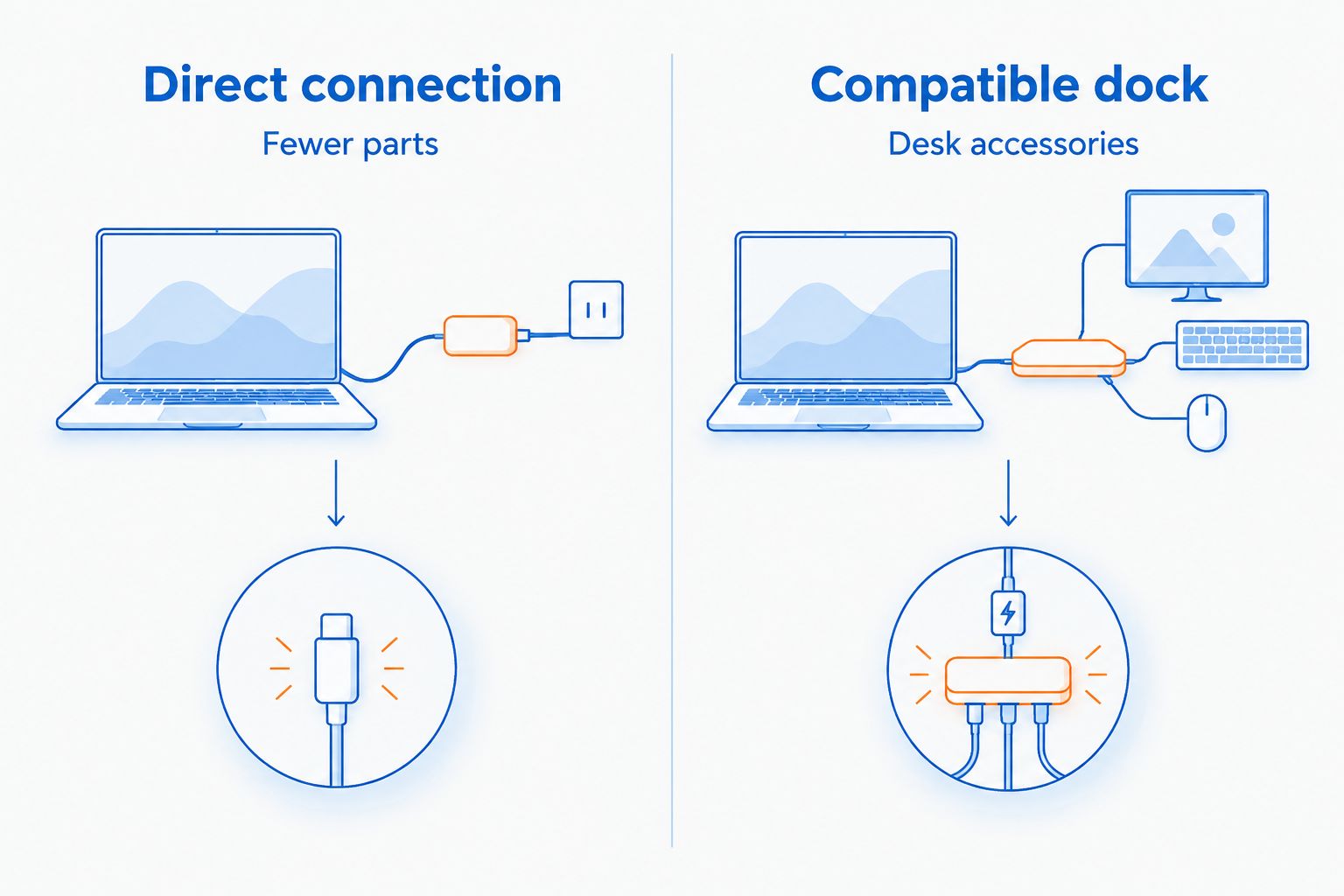
For a handheld gaming PC desktop setup, start with the shortest connection chain that supports your equipment. A direct cable is simpler to isolate when something fails; a dock is more useful when you also need power or peripherals. Neither option fixes an unsupported video-output port.
| Connection | Best for | What it does well | Trade-off to check |
|---|---|---|---|
| Direct USB-C video cable | A handheld and monitor that both support video over USB-C | Uses a direct connection with fewer parts to test | The handheld port, cable, and monitor port must all support the needed video connection |
| USB-C-to-HDMI adapter | A video-capable handheld and an HDMI monitor | Connects a USB-C video source to a common monitor input | Adapter direction and supported display modes matter; a basic adapter does not necessarily provide charging |
| Compatible dock | A desk setup with a monitor and peripherals | Brings display, power, and accessory connections together when supported | Dock compatibility and its power and video capabilities need separate checks |
Best for a quick first test: a direct connection your handheld and monitor explicitly support. Best for a settled desk setup: a compatible dock, once you have verified video and power separately. If the direct connection works but the dock does not, you have narrowed the fault to the dock, its connections, or its compatibility rather than the monitor alone.
Connect the display hardware
- Power on the monitor and use its Input or Source control to select the port you will use. The label varies by monitor; select the physical HDMI, DisplayPort, or USB-C input that matches your cable.
- Connect the cable or adapter to the handheld's verified video-output port. If you use a dock, connect the handheld to the dock's host cable, then connect the dock's video output to the monitor input.
- If your setup needs external power, connect it using the handheld or dock manufacturer's instructions. Do not assume that an adapter passes charging power just because it has a USB-C socket.
- Wake the handheld and wait for the monitor to show an image. If the monitor reports no signal, confirm its selected input and reseat both ends of the video connection before changing display settings.
Expected result: the monitor shows the handheld's desktop or a duplicated image. If it remains blank, continue with the operating-system steps while keeping the handheld's built-in screen available.
Configure your Windows 11 displays
Windows 11 lets you duplicate the handheld screen, extend the desktop across both displays, or show the desktop on the monitor alone. For 2026 desktop use, Extend gives you separate working areas; Second screen only keeps the handheld's built-in display out of the way. Choose based on how you plan to position the device.
Set the display layout
- On the handheld, open Start, then Settings > System > Display. If the external monitor is not obvious in the layout diagram, select Identify to show which on-screen number belongs to each display.
- Under Multiple displays, choose Extend these displays for a larger desktop, Duplicate these displays to show the same image on both screens, or Show only on 2 if Windows identifies the monitor as display 2 and you want to use that screen alone.
- If you chose Extend these displays, drag the display rectangles until they match where the monitor and handheld sit on your desk. Select Apply when Windows offers it. This determines which screen edge your pointer crosses.
- Select the monitor in the display diagram. Check Display resolution and use the resolution Windows labels Recommended when that matches the monitor's intended mode. Open Advanced display to review the available refresh-rate selection for that display.
- Move the pointer to the monitor and open a window there. If you want apps to launch on the external screen, select that monitor in Display and use Make this my main display when the option appears.
Expected result: Windows identifies both screens, the pointer crosses the correct edge in Extend mode, and the monitor displays a readable desktop. A 2026 handheld can have different available modes depending on its graphics hardware, cable, adapter, dock, and monitor; choose only from the modes Windows actually offers.
Check the fast display switch
- Press Windows + P with a connected keyboard, or open Windows display settings on the handheld if a keyboard is not connected.
- Select Duplicate, Extend, or Second screen only. Use Duplicate for a quick connection check, then change to Extend if you want separate desktop space.
- If the picture disappears after selecting Second screen only, return to the handheld's controls and switch back to Duplicate or Extend. Check the monitor input again before repeating the change.
Expected result: switching modes changes where Windows draws the desktop without requiring you to unplug the cable. Keep the built-in display active until you know the external screen works reliably.
Configure a Steam Deck in desktop mode
Steam Deck has a separate route into its desktop environment. These steps apply to Steam Deck, not to every handheld gaming PC; use the Windows 11 section for a Windows-based device. Gaming and more is best for comparing desk accessories, while Steam Deck display controls belong to SteamOS.
Set the SteamOS display layout
- Connect the monitor using a video connection supported by your Steam Deck setup, then select the matching monitor input.
- Press the Steam button, open Power, and select Switch to Desktop. Wait for the desktop to appear on the handheld or external display.
- Open System Settings > Display & Monitor > Display Configuration. Select the external display in the layout. If the screens are extended, position them to match your physical setup.
- Set the external display's available resolution and refresh rate in Display Configuration, then select Apply. Use the modes shown for your connected equipment rather than assuming a monitor's maximum advertised mode is available through your cable or dock.
- Move a window to the monitor to confirm that the desktop is usable. Keep the handheld screen available until you have confirmed where the pointer and settings window appear.
Expected result: the external monitor shows a usable SteamOS desktop, with window and pointer movement matching the display layout. If you want to return to the handheld gaming interface, use the desktop's Return to Gaming Mode shortcut.
Use the monitor in gaming mode instead
Desktop mode is not required just to put a game on a bigger screen. On Steam Deck, connect the supported display path, select the monitor's correct input, and check whether the gaming interface appears externally. This is the adjacent workflow to choose when you want to play rather than manage desktop windows.
The trade-off is control. Desktop mode gives you a display-configuration screen for arranging displays and checking available modes. Gaming mode is the shorter route to a game on the monitor. If you are trying to place a browser beside another window, return to desktop mode; if you only want the game on the external screen, start with gaming mode. For a Windows handheld, use Windows 11 Display settings to control the external screen regardless of whether you launch a game afterward.
Fix the failures that stop the setup
The monitor says no signal. Confirm the monitor is on the input used by your cable, then reseat the connections. Test a direct, supported video connection if you started with a dock. If the handheld's specification does not confirm video output from that port, changing Windows or SteamOS settings will not turn a charging-only connection into a display output.
The handheld detects a display, but you cannot see the desktop. In Windows 11, open Settings > System > Display on the handheld and choose Duplicate these displays as a recovery step. On Steam Deck desktop, reopen Display Configuration from the screen you can see. Check the monitor input before selecting a mode that hides the built-in screen again.
The pointer vanishes at the wrong edge. The screens are arranged differently in software than they are on your desk. Drag the display rectangles into the right positions in Windows Display or SteamOS Display Configuration, then apply the layout. Move the pointer across the shared edge to verify it.
The resolution or refresh rate you expected is unavailable. Select the external monitor rather than the handheld screen before reviewing its modes. Then check the whole video path: handheld output, cable, adapter or dock, and monitor input. A high-resolution monitor does not guarantee that every connection to it exposes every display mode.
Video works until you add the dock. Return to the working direct connection to confirm the monitor still displays an image. Reconnect the dock with its required power arrangement, verify the handheld is in the dock's host connection, and select the monitor input connected to the dock. If direct video works and docked video does not, check that dock's stated compatibility with your exact handheld.
Customize your workflow
Once the monitor works, decide what should stay at the desk. An external keyboard makes Windows shortcuts and desktop typing easier; a mouse gives you another way to manage windows without reaching for the handheld. The M801 Wireless RGB Gaming Mouse is a Gaming and more option to compare if you want a separate pointer. Its drawback is another accessory to connect and keep ready; it does nothing to resolve an incompatible video path.
Set up your preferred display mode before launching a game. Extend suits a desktop with windows on both screens. Duplicate helps when you want to verify what the monitor receives. Second screen only suits a Windows desk setup after you have confirmed the external picture. Save the ambitious cable-and-dock arrangement for after the simple connection works; that order makes a 2026 setup much easier to troubleshoot.
FAQ
How do I connect a handheld gaming PC to an external monitor?
Connect a verified video-output port on the handheld to a compatible monitor input using a suitable cable, adapter, or dock. Select that input on the monitor, then choose the display layout in Windows 11 or the handheld's desktop settings.
Can any USB-C cable connect a handheld gaming PC to a monitor?
No. The handheld port and the cable must support the required video connection, and the monitor needs a compatible input. A USB-C cable that fits or charges the device does not establish video support.
Is a dock better than a direct cable for a handheld gaming PC?
A compatible dock is better when you also need desk accessories or charging through the same setup. A supported direct cable has fewer components to check and is the better first test when a monitor shows no signal.
How do I make an external monitor my main display in Windows 11?
Open Settings > System > Display, select the external monitor in the display diagram, and choose Make this my main display when available. Use Identify first if you are unsure which numbered rectangle represents the monitor.
Do I need desktop mode to use an external monitor with Steam Deck?
No. You can use a supported external display connection in gaming mode for play. Switch to Desktop when you need to arrange displays or work with desktop windows.
Why does my monitor say no signal when the handheld is connected?
The selected monitor input, video-output support, cable, adapter, or dock is the first place to check. Confirm the exact handheld port supports video, then test a supported direct connection before troubleshooting a dock.
Why can't I select the monitor's preferred refresh rate?
The available setting depends on the connected handheld, cable, adapter or dock, and monitor input. Select the external display in your operating system's settings and review the modes offered for that connection.
One last thing
Get a picture through the simplest supported connection before building the full desk setup. That single test separates a display-path problem from a dock or peripheral problem. Gaming and more has monitor and accessory options for the finished setup, but compatibility starts with your exact handheld's video-output specification, not the accessory list.


