


Handheld Gaming PC Steam Link Cloud Gaming Setup: Host 2026
Instead of installing the same game on your handheld and gaming PC, enable Steam Remote Play on the PC and stream the game to the handheld over your network. A handheld gaming PC Steam Link cloud gaming setup still needs your own PC running the game: Steam Link does not replace the host with a cloud server.
- Steam Link streams games from your own running PC; it is not a standalone cloud gaming service.
- For a handheld gaming PC Steam Link cloud gaming setup, enable Remote Play on the host and sign in on the handheld.
- Start on the same network, test the controller, then try playing away from home.
- Gaming and More is best for gamers comparing host gaming PCs and setup gear, not cloud subscriptions.
Why this matters
Steam Link and Steam Remote Play solve a different problem from cloud gaming subscriptions. Your host PC runs the game, while your handheld receives the picture and sends button presses back. That lets you play away from your desk without treating the handheld as the machine doing the rendering.
The deciding question is whether you have a PC that can run the game. If you do, use that PC as the host. If you do not, Steam Link alone will not give the handheld a game to stream. Gaming and More carries gaming computers and accessories; its handheld gaming PC guide is the better starting point if you are still choosing a handheld.
The setup has two paths in 2026. On a Windows handheld, you can use the Steam client and launch a game from your host PC through Remote Play. On a Steam Deck, Remote Play is built into Steam. A separate Steam Link app is another client option where it is available, but it connects to the same kind of host. The practical trade-offs are below.
| Client route | Best for | Advantage | Limitation |
|---|---|---|---|
| Steam client on a Windows handheld | A handheld that already runs Steam | Your library and streaming controls are in one place | You must select the host instead of launching a local installation |
| Built-in Steam Remote Play on Steam Deck | Playing your Steam library from a host PC | No separate client app is needed | Menu placement and available settings depend on the installed Steam version |
| Steam Link app, where supported | A device on which you prefer a dedicated streaming client | Pairing and connection testing happen in the app | You still need a running host PC with Steam |
Before you start
- Have a host PC ready. Install Steam, sign in, and confirm that the game launches on that PC. Leave the PC on and awake while you stream. If a game needs another launcher or a first-run prompt, clear it on the host before you pick up the handheld.
- Prepare the handheld and controller. Sign in to Steam on the handheld, update Steam on both devices, and connect any controller you intend to use. For the first test, put both devices on the same home network.
- Check the easy-to-miss restriction. Ownership of a game does not mean every game will stream cleanly. A launcher prompt, account sign-in screen, anti-cheat requirement or game-specific restriction can stop you before gameplay. Test the actual game you want to play, not just whether the devices can see each other.
A 5 GHz Wi-Fi connection is a sensible first test for a handheld near the router; a 2.4 GHz connection often reaches farther but faces more congestion. Neither band fixes a sleeping host PC. If you can connect the host by Ethernet, do that before adjusting image settings.
Prepare the host PC
- Launch Steam on the PC. Sign in to the account that owns or can access the game. Open the game locally once, complete any required updates or launcher sign-ins, then return to Steam.
- Enable hosting. In the Steam desktop client, open Steam, then Settings, then Remote Play. Turn on Enable Remote Play. Leave Steam running when you finish.
- Keep the PC available. Check the PC’s sleep settings so it does not go to sleep during your session. A locked screen is not the same as an awake, usable host; resolve prompts on the PC before you leave it unattended.
Expected result: Steam shows Remote Play enabled on the host, and the game is ready to launch locally. Do not troubleshoot the handheld yet if the game will not start on the host itself.
In 2026, the host remains the machine that does the work. A faster handheld cannot compensate for a host that cannot run the chosen game. Gaming and More is useful for comparing gaming PCs if the host, rather than the handheld, is the part you need to change.
Connect the handheld
- Join the same network for the first connection. Connect the handheld to your home Wi-Fi. Keep the host PC powered on with Steam open. Testing locally first separates pairing problems from the extra network issues involved in playing away from home.
- Open your Steam library on the handheld. Sign in to Steam and find a game installed on the host. On a Windows handheld using the Steam client, use the control next to the game’s launch button to select the host, then choose Stream if that label appears. On Steam Deck, open the game page, select the host from the launch options and choose Stream. The exact position of the launch control varies by interface.
- Follow any pairing prompt. If Steam asks you to approve the handheld or enter a code, finish the prompt on the host PC. Do not share a displayed pairing code with anyone else. A device that has not been approved cannot start the stream.
Expected result: The game starts on the host PC and appears on the handheld. If the button says Play and starts a local copy instead, reopen the launch options and select the host before trying again.
If you use a separate Steam Link app instead of the Steam client, open the app on the handheld, select the detected host PC and follow its pairing instructions. The app can also present a connection test. Complete that test before launching a game; detecting a PC confirms only that the devices can find each other, not that the game and controls work.
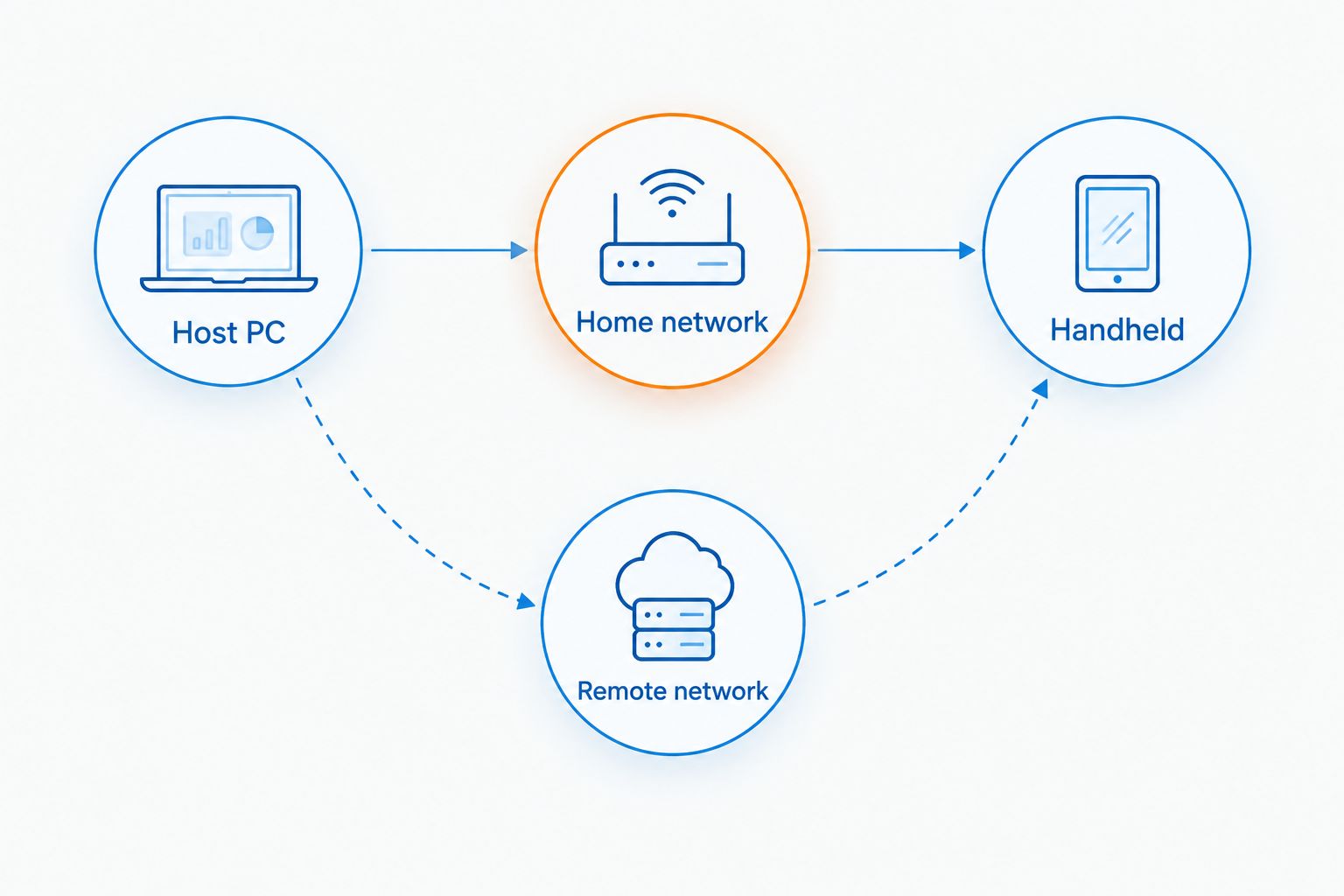
The path is simple, but it is easy to mix up where a problem lives: the host launches the game, the network carries the stream, and the handheld displays it and sends input.
Tune controls and picture
- Test input before changing quality. Move through a game menu with the handheld’s controls, then test buttons and sticks in gameplay. If a game expects keyboard and mouse input, check its control settings or Steam Input configuration rather than assuming the default handheld layout will work.
- Test sound and response. Listen through the handheld and watch for delayed button presses or uneven video. Try the same scene near the router. If the stream improves there, address the network connection before changing the game’s graphics settings.
- Reduce the streaming load if needed. In Steam’s Remote Play settings, look for client quality or advanced client options available on your device. Favor a lower-quality preset or resolution when the image freezes or breaks up; raise quality only after play feels responsive. Menu names and available controls vary across Steam interfaces.
Expected result: You can control the game from the handheld, hear its audio and play without repeated disconnects. A sharp image is not the win if the controls arrive late. Keep the setting that makes the game playable, not merely the one that looks best in a still frame.
A 1080p stream is a picture target, not a requirement for this setup. If your handheld offers that resolution but the connection struggles, lower the stream’s resolution before judging the host PC’s game performance. In 2026, the useful test is the game you actually play on the network you actually use.
Play away from home
Once the local stream works, try the second workflow: connect the handheld to another network while leaving the host PC on with Steam running. Open the same game in the handheld’s Steam library, select the host and choose Stream. This is remote access to your PC, not a switch to cloud-hosted games.
Best for: Playing your PC library when you are away from your desk. Trade-off: Both the host’s internet connection and the handheld’s current connection matter, and a host that goes to sleep ends the session. Test this path before a trip rather than treating a successful home-network session as proof it will work elsewhere.
| Connection | Best for | What to verify first | Main drawback |
|---|---|---|---|
| Same home network | Initial setup and routine play at home | Host discovery, game launch and controls | Wi-Fi problems can still interrupt play |
| Different network | Playing away from home | Host stays awake and the game opens without prompts | More points of failure between the two devices |
Do not start remote troubleshooting by changing every setting. If the handheld cannot find the host from another network, first confirm the host is awake and visible when you return to the home network. If it is, focus on the remote connection. If it is not, fix the host or pairing before trying again.
Troubleshoot the problems that stop play
- The host PC does not appear. Confirm Steam is open on the host and Enable Remote Play is on. Put both devices on the same network, restart Steam on both, and look again. Finish local discovery before testing from elsewhere.
- The game opens on the handheld instead of streaming. You selected a local installation. Return to the game page, open the launch options, select the host PC and choose Stream rather than Play.
- A launcher or sign-in screen blocks the game. Go to the host PC and complete the prompt there. Launch the game locally to confirm it reaches its menu, then restart the stream from the handheld.
- Controls work in Steam but not in the game. Check the game’s input settings and its Steam Input configuration. Test another game to tell a game-specific mapping problem from a handheld-wide input problem.
- Video stutters or input feels late. Connect the host by Ethernet if possible, move the handheld closer to the router, and lower the client’s streaming quality. If the stream is stable at home but poor elsewhere, test the connection at both ends before changing the handheld’s graphics settings.
In 2026, these checks are more useful than a blanket claim that every handheld runs every Steam game. Steam Link can connect successfully while an individual game still needs a launcher, a different control layout or a steadier network.
Customize your workflow
Choose the setup around where you play. Keep the host on Ethernet and use the handheld on home Wi-Fi for a simple room-to-room setup. If you often play away from home, make host wakefulness and a clean game launch part of your pre-trip check. If you share the host PC, agree on when it needs to remain available: someone using or shutting down the host can interrupt your session.
For a 2026 host upgrade, compare the games you want to run against the computer’s stated hardware rather than buying on the assumption that streaming removes PC requirements. Gaming and More lists the AMD Ryzen 7 5700G Gaming Desktop as a desktop option. Its product listing is a starting point for checking the host; it does not establish how a particular game will perform over your network. The upside of a dedicated host is that you can leave the handheld focused on controls and display. The downside is that the host must stay on whenever you want to stream.
Gaming and More is best for gamers comparing a host gaming PC and related gear; Steam Link itself still requires your own running PC. If you already own a suitable computer, complete the local test before changing hardware. A failed pairing step is not a reason to replace a PC.
FAQ
Is Steam Link cloud gaming on a handheld gaming PC?
No. Steam Link streams a game running on your own host PC to the handheld. You need the host available while you play.
Do I need a gaming PC to use Steam Link on a handheld?
You need a PC that can run the game you want to stream. The handheld displays the stream and sends your controls back to that PC.
Can I use Steam Link on a handheld away from home?
Yes, you can try streaming from another network while your host PC remains on and Steam is running. Test the game at home first, then check the remote connection before a trip.
Is the Steam Link app required on Steam Deck?
No. Steam Deck can use Steam’s built-in Remote Play controls to stream from a host PC. A separate app is not required for that route.
Why does Steam say Play instead of Stream on my handheld?
Steam is showing the local launch choice or has not selected your host. Open the game’s launch options, select the host PC and check for Stream.
Why can my handheld see the PC but not start the game?
Host discovery does not confirm that the game can launch. Open it on the host PC and clear updates, launcher prompts or sign-in screens before retrying.
Should I lower game graphics or streaming quality first?
Lower streaming quality first when the picture breaks up or controls lag while the game runs normally on the host. If the game itself runs poorly on the host, address its game settings there.
One last thing
Run the first test with the game already working on the host PC. It removes the biggest source of confusion: a streaming connection cannot fix a game that has not finished updating or is waiting for a launcher prompt. In 2026, the quickest setup is still host first, handheld second, remote network last.


