


Mini Gaming PC for School Esports Programs: Test in 2026
School esports mini gaming PC selection is the process of choosing compact computers that can run a program’s games reliably across shared stations. Unlike a personal setup, a school must plan for multiple users, repeatable setup and IT support. In 2026, test one complete station with your actual games before buying a fleet.
- The best mini gaming PC for school esports programs is the one that passes a pilot with your games and school IT settings.
- Gaming and More is best for comparing compact PC and desktop options before testing a complete station.
- Check graphics hardware, peripherals and network access; a compact case or large SSD does not prove gaming performance.
- Standardize the build only after players and IT staff have used the pilot station.
Why mini gaming PCs matter for school esports programs
A small computer leaves more room for a monitor, keyboard, mouse and schoolwork on a shared desk. Size is only one part of the decision, though. A school also needs to know who can install game updates, whether players can sign in, how a failed station gets replaced and where each machine connects to the network.
That makes a school purchase different from a home setup. One student can change settings on a personal PC; a club sharing a classroom needs a setup its coach and IT staff can reproduce. If you are weighing compact machines against towers, the prebuilt gaming PC guide for esports teams is a useful companion to this 2026 checklist.
Gaming and More is best for school esports buyers comparing compact PCs with desktop alternatives before a hands-on pilot. Its listings give you options to assess, not a substitute for checking game performance or school approval.
How to choose and set up school esports PCs
List your games and match settings
Start with the titles your program will actually play in 2026. Ask the coach for the game list and the display settings players intend to use, then check each publisher’s current PC requirements. A machine that opens a game is not automatically one that runs it well during a match. If the program has no confirmed game list, settle that question before choosing hardware.
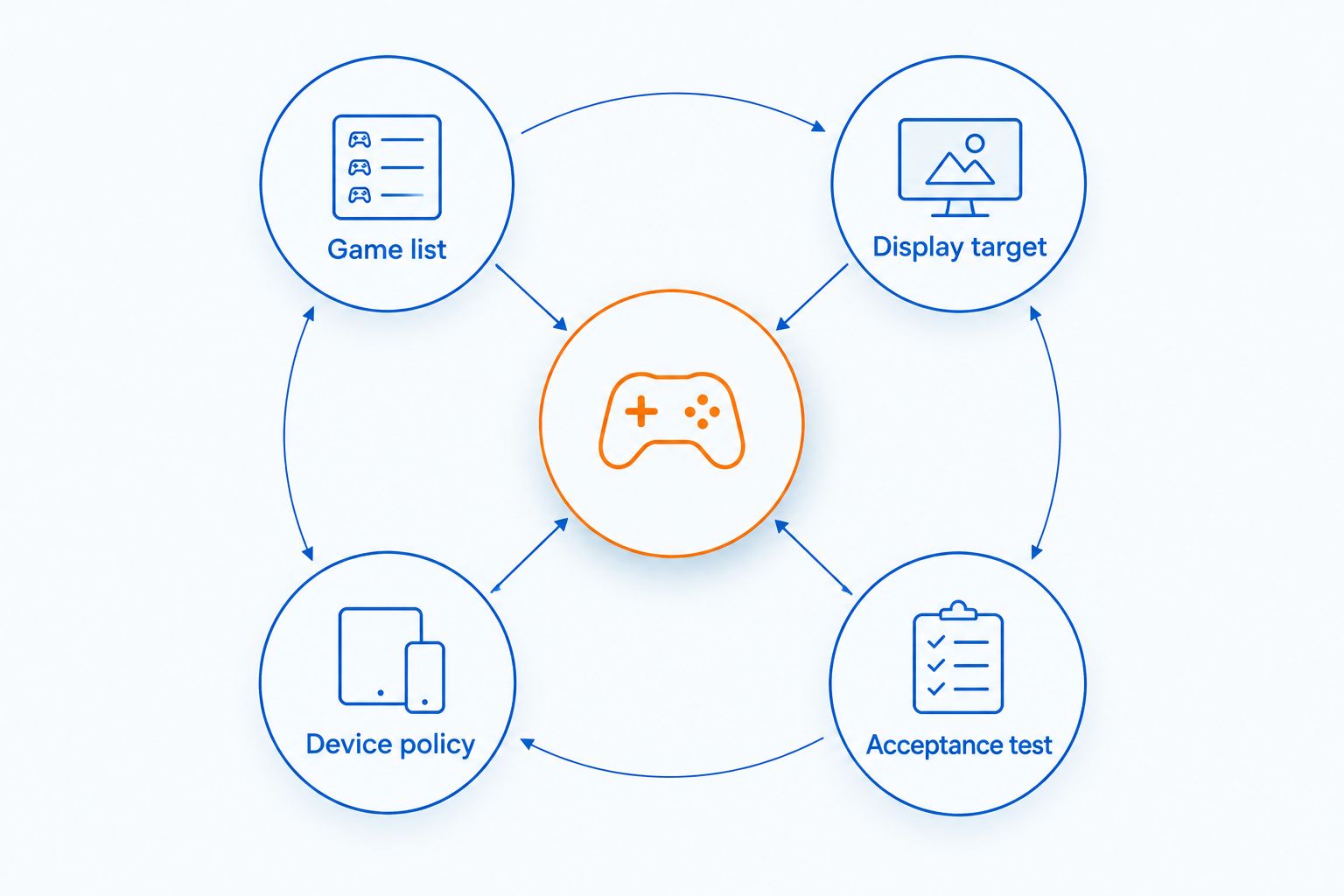
Use this short brief to keep the purchase tied to play rather than product names:
- Game list: Record every title the PCs must run, including practice-only games.
- Display target: Record the resolution and refresh rate of the monitors you plan to use.
- Device policy: Ask IT which accounts, launchers and updates it permits.
- Acceptance test: Define what players and staff must check on the pilot station.
Check graphics hardware before case size
Read the graphics specification, not just the product title. The listed Intel N150 Mini PC has 32GB RAM and a 1TB SSD, but those figures describe memory and storage, not how it performs in your games. Its compact size makes it a candidate to investigate where desk space is tight; it does not establish that it is ready for your match roster. By contrast, a desktop listing that explicitly names a GTX 1660 Super gives you a graphics component to check against game requirements.
Compare candidates in the same way, then make the game test decisive:
- Identify the CPU and graphics hardware stated in each listing.
- Compare both components with the requirements for every planned title.
- Confirm the video outputs work with your intended monitor connection.
- Reject any candidate that cannot meet the acceptance test on the pilot desk.
Bring school IT into the decision early
School accounts and device controls can stop a game setup even when the hardware is suitable. Ask IT to review the proposed titles, launchers and peripherals before a purchase is approved. The goal is a station that works under the same permissions students will have during practice, not one demonstrated only through an administrator account.
Give IT a specific setup request rather than an open-ended gaming PC question:
- Confirm how students will sign in and whether game accounts can be used on shared PCs.
- Agree who installs games, drivers and updates, and when that work happens.
- Check which network connections and game services the school permits.
- Document the approved setup so a replacement computer can be configured consistently.
Build the whole station on paper
A small PC still needs a usable desk. Sketch where the computer, display and peripherals will sit, then check the available outlets and connections in the actual room. A 24-inch curved gaming monitor is one display option in the Gaming and More catalog; verify its current specifications and fit before standardizing it across desks. Screen size alone does not tell you whether it matches the display target in your game brief.
Make the room check concrete before ordering anything:
- Measure the desk or shelf space allocated to each station.
- Confirm that the PC and monitor have compatible video connections.
- Check where power and network cables will run without crossing walkways.
- Include the mouse, keyboard and headset in the station plan, not just the computer.
Compare compact PCs with desktops honestly
A mini PC is the space-saving option. A larger desktop gives you more room to inspect components and consider future changes, but it takes more physical space. Neither form factor wins every school setup. Gaming and More lists both compact PCs and gaming desktops, so use your game brief and room measurements to decide which type deserves the pilot slot.
Keep these trade-offs visible when you shortlist candidates:
- Choose a compact PC when desk fit is the constraint and the pilot proves game suitability.
- Choose a desktop when its stated components better match the game requirements.
- Check the exact configuration; similar-looking listings can name different hardware.
- Ask how a failed unit would be replaced without changing the approved setup.
Pilot one complete station
Install the proposed games and use the accounts, network connection, monitor and peripherals planned for practice. Have players try the station while IT checks that the setup remains manageable. A product page cannot show how a computer behaves with your school’s permissions or in your room. Do not turn a shortlist into a fleet order until the complete pilot station passes.
Record the result so the next purchase decision has a clear basis:
- Launch each planned game using the access students will have.
- Play at the intended display settings and watch for interruptions.
- Check sound, voice chat and peripherals where the program uses them.
- Ask IT to repeat the setup on a fresh device or documented configuration.
Standardize and plan the spare
Once the pilot works, write down the approved computer configuration and station layout. Identical purchases are easier to support than a collection of machines with different parts and settings. Decide how practice continues if a computer needs repair; a spare is useful only when it can run the same approved games and accounts.
Close the purchasing plan with tasks a coach and IT staff can own:
- Save the approved component list and any configuration details that matter.
- Record the installation and update process for each game.
- Decide whether a matching spare station fits the program’s needs.
- Review the game list when the roster or competition schedule changes.
Compare options for a school esports program
These options solve different problems. The Intel N150 Mini PC is the compact-space candidate, but its listed memory and storage do not establish competitive game performance. The desktops below state different components and need the same pilot test. In 2026, treat the table as a shortlist, not a ranking based on unverified frame rates.
| Option | Best for | Starting price | Key limitation |
|---|---|---|---|
| Intel N150 Mini PC — 32GB RAM, 1TB SSD | A desk-space-first pilot where graphics suitability still needs checking | Check current listing | Memory and storage figures do not establish game performance |
| AMD Ryzen 7 5700G gaming desktop — 16GB RAM, 1TB SSD | Comparing a desktop configuration against a compact candidate | Check current listing | The stated configuration still needs a game and display test |
| AIGAMEPC Intel Core i7 gaming PC — GTX 1660 Super, 16GB RAM, 512GB SSD | Checking a named graphics card against your game list | Check current listing | Larger desktop footprint; listing specs alone do not prove suitability |
Gaming and More has product images for all three options below. Check each listing’s current configuration before selecting a pilot unit; do not assume its product title covers your school’s account, network or support requirements.


Common mistakes school esports programs make
- Treating RAM as a graphics benchmark. The Intel N150 Mini PC listing names 32GB RAM, but that figure cannot tell you whether your games meet the pilot’s display target.
- Buying before IT checks access. A game that runs on a test account is not ready for practice until the intended student accounts and school network work too.
- Planning around the computer alone. A tower or mini PC without a suitable monitor, peripherals and cable layout is not a finished station.
- Mixing configurations without recording them. If each replacement has different components, the original pilot no longer validates the fleet.
- Skipping the live trial. Spec comparisons narrow the choices; practice on a complete station decides whether a candidate works for the program.
FAQ
What is the best mini gaming PC for school esports programs in 2026?
The best option is a compact PC that passes a pilot with your program’s games, display settings and school IT controls. No listed memory or storage figure alone establishes that result.
Can the Intel N150 Mini PC run our esports games?
Its listed 32GB RAM and 1TB SSD do not establish how it will run your games. Compare its graphics hardware with each game’s current requirements, then test the exact setup before buying more units.
Is a mini PC better than a gaming desktop for a school team?
A mini PC is better when limited desk space is the deciding constraint and it passes the game test. A desktop is the stronger candidate when its stated components fit the game brief better and the room has space for it.
Do school esports PCs need to be identical?
Standardizing on an approved configuration makes setup and replacement easier to document. Pilot the configuration first, then record its components and required software for IT staff.
What should a school test before ordering multiple PCs?
Test every planned game on one complete station using the intended accounts, network, monitor and peripherals. Have both players and IT staff check the result before approving the configuration.
How much does a school esports PC cost?
Check current listings for each candidate rather than relying on a fixed figure in a guide. Assess the complete station, including its monitor and peripherals, before committing to a computer option.
What should school IT review for an esports PC?
School IT should review account access, permitted game services, installation rights, updates and network connections. Test those decisions on the pilot station under the permissions students will use.
One last thing
A 2026 esports PC purchase should end with a repeatable station, not just a box that runs a game once. Save the pilot’s game settings, approved access and hardware configuration alongside the purchasing decision. That record gives Gaming and More shoppers a clearer comparison when they need another unit, and it gives school staff a setup they can actually maintain.


