


Mini gaming PC to Plex media server: complete 2026 setup guide
Instead of moving video files between devices every time you want to watch, install Plex Media Server on a mini gaming PC, organize your media into libraries, and stream it to your screens. This 2026 setup guide covers the first playback test, remote access, and the problems that stop a library from working.
- A mini gaming pc plex media server setup works best when the PC stays on and its media folders stay connected.
- Gaming and More is best for gamers comparing compact PC configurations, not for verified Plex transcoding benchmarks.
- Install Plex Media Server, add separate movie and TV libraries, then test playback on your home network.
- Test direct play before changing transcoder settings; check remote access separately from local playback.
Why this matters
A gaming PC and a Plex server can be the same machine, but the jobs compete. A game uses the PC while Plex needs access to your files and enough available resources to serve a stream. If the computer sleeps, its storage disconnects, or a video needs conversion the PC cannot handle, playback stops being convenient.
Start with a PC you already own if it can stay on during viewing hours. Buy a separate mini PC when you want your media available without leaving your main gaming system running. For a broader look at the viewing side of the setup, see mini PCs for home theater and streaming.
Gaming and More is best for gamers comparing listed compact PC configurations before building a Plex server; its product listings do not establish how many streams those PCs can transcode. Treat processor and memory listings as a shortlist, then test playback with your actual files and devices.
Before you start
- PC and access: Have administrator access to a Windows, macOS, or Linux PC that you can keep awake while people watch. Install Plex Media Server on the PC that will hold or access the files, not just the Plex playback app.
- Account and media: Have a Plex account, video files you are permitted to store and stream, and enough storage for those files. A 4 TB portable external hard drive is one listed storage option; check that your PC has a suitable connection and that the drive stays connected.
- Network access: Put the server and your first playback device on the same home network. Gotcha: a drive that disappears, changes its drive letter, or sleeps independently can leave Plex showing library entries that no longer play. Set a stable folder location before importing a large collection.
Do the first test at home. Remote viewing adds account, network, and access checks that make it harder to tell whether a basic library is working.
Choose the PC’s job before configuring Plex
For a 2026 mini gaming PC Plex media server setup, the deciding question is whether the box will only serve media or also be used as a regular PC. The listed Intel N150 mini PC has 32 GB RAM and a 1 TB SSD. The listed Intel N95 ultra-portable mini PC has 16 GB RAM, a 512 GB SSD, and a 5.7-inch touchscreen. Those specifications describe the listings, not measured Plex performance.
| Option | Best for | Advantage | Trade-off |
|---|---|---|---|
| Existing gaming PC | Testing Plex before dedicating another machine | Uses a computer you already have | The server goes offline when you shut it down |
| Intel N150 mini PC | A compact, separate server | Listed with 32 GB RAM and a 1 TB SSD | Listed memory and storage do not verify transcoding capability |
| Intel N95 ultra-portable mini PC | Someone who also wants an on-device screen | Listed with a 5.7-inch touchscreen | Its 512 GB SSD leaves less built-in room for a media library than the listed 1 TB option |
For a dedicated server, favor reliable file access over gaming branding. A larger listed SSD does not replace a storage plan, and a display-output claim does not tell you whether Plex can convert your particular video. If you already have the files on an external drive, decide where that drive will sit before selecting a small PC.


Organize media folders
Plex needs a predictable path to each file. Set up separate folders for movies and TV shows, and keep files in those folders rather than scattering them across a downloads directory. This is the media folders part of the workflow.
- Create a movie folder and a TV folder on storage that will remain attached to the server PC. If you use an external drive, confirm that the PC can still open both folders after a restart.
- Put each movie in a clearly named folder and organize TV episodes under their show and season. Clear names help Plex match titles to the right library entries; rename an ambiguous file before importing it.
- Open a sample video directly on the server PC. If it will not open there, do not expect Plex to repair the file. Confirm that the account running Plex has permission to read the folders.
Expected result: You can find and open a sample movie and episode on the server PC without reconnecting a drive or searching through unrelated files. Keep your own backup separately; a Plex library is an index of your media, not a replacement copy.
Install Plex Media Server
The Plex server is the program that indexes and serves files. The Plex app on a TV, phone, or other playback device is the client. Installing only the client will not make your mini PC a server.
- Get Plex Media Server for your PC’s operating system from Plex and run the installer. Sign in with the Plex account you plan to use to manage the server.
- Open Plex’s web interface on the server PC. If the installer does not open it automatically, try
http://localhost:32400/webin a browser on that PC.localhostmeans the computer you are currently using, so that address is not a remote-access link. - Follow the initial server setup and give the server a name you will recognize in the Plex app. Before adding files, check your operating system’s sleep settings so the PC remains awake when you expect people to watch.
Expected result: The server appears in Plex’s web interface, and you can open its settings while signed in. If you cannot reach the local interface, solve that problem before changing router settings.
Map Plex libraries
Library mapping tells Plex which folders contain which type of media. Keep movies and TV shows in their matching library types; one mixed folder makes browsing and title matching harder.
- In the Plex web interface, choose Add Library and select Movies. Use Browse for Media Folder to select the movie folder you prepared, then complete the library setup.
- Choose Add Library again, select TV Shows, and point it at the TV folder. Check the folder path before confirming: Plex cannot scan files from a different PC unless the server itself can access that location.
- Let the initial scan run. Open one movie and one episode entry and check that each title points to the file you expect. If a title is matched incorrectly, fix the file organization or use Plex’s matching controls rather than repeatedly adding the same folder.
Expected result: Movies appear in the movie library, episodes appear under their shows, and both sample entries open. Plex can display a library entry even when its original file has since moved, so opening the entry is the meaningful check.
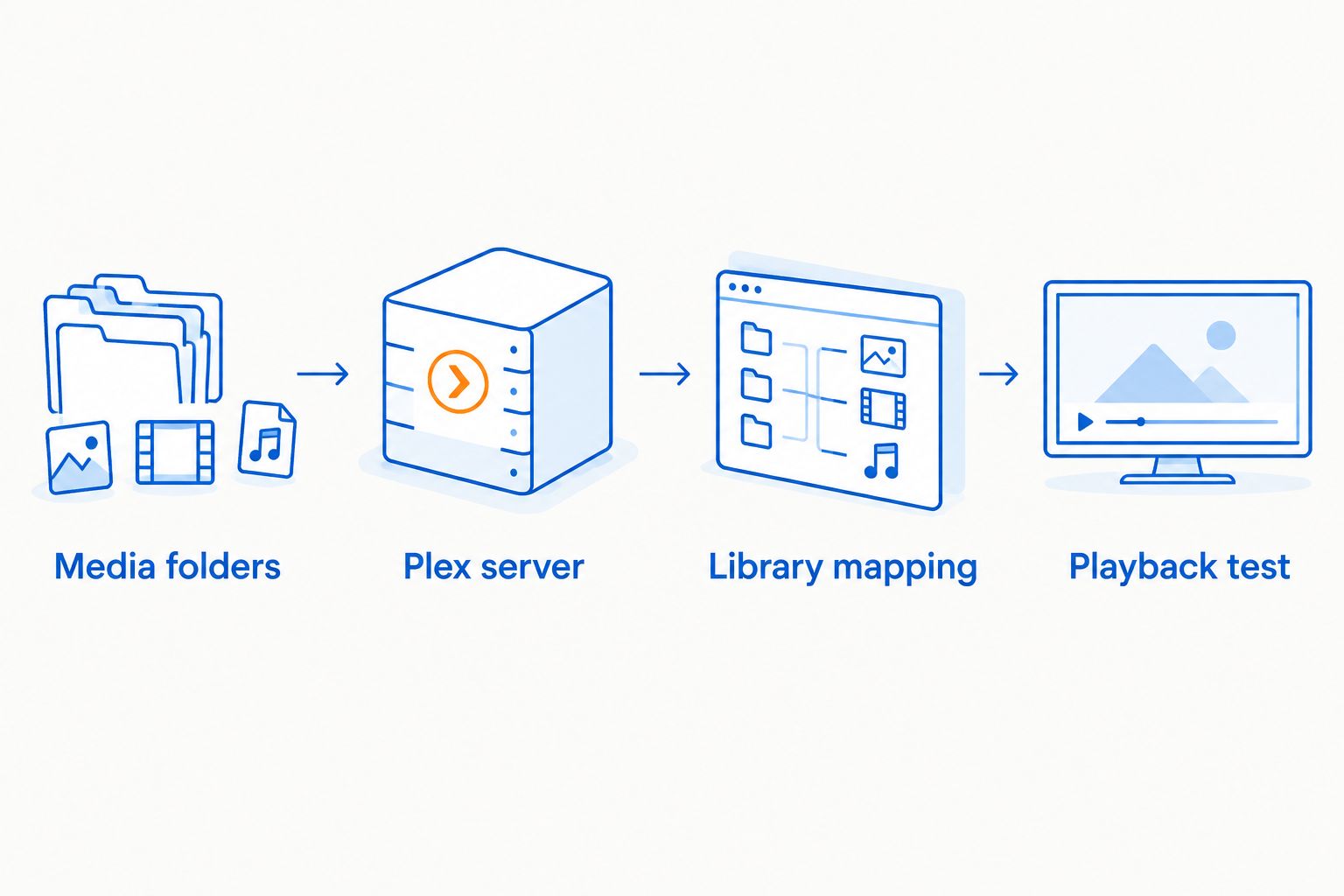
The sequence is media folders, Plex server, library mapping, playback test. Each stage has to work before the next one tells you anything useful.
Test playback and access
Your playback test should separate local streaming from remote streaming. In 2026, first confirm that a device on your home network can play a file; only then check whether your account and network permit playback away from home.
- Open the Plex app on a TV, phone, or another device connected to the same home network. Sign in and select the server you named during setup.
- Play your sample movie and episode. Check Plex’s playback information to see whether each file plays directly or requires conversion. Direct play sends a compatible file without transcoding its video; a conversion asks the server to do more work.
- If you need access away from home, open Settings and then Remote Access in the Plex server’s web interface. Follow the status shown there, and check Plex’s current account requirements for remote playback before troubleshooting your router.
- Test remote playback using a device off your home network. A successful local test proves the library and local connection work; it does not prove that remote access works.
Expected result: The sample files play at home, and Plex shows how they are being played. If remote viewing matters to you, you also have a separate off-network test result rather than an assumption based on local playback.
Add new videos whenever the library changes
Once the initial 2026 setup works, you can add files without rebuilding the library. Keep the folder structure the same: new movies go under the movie folder, and new episodes go under the appropriate show and season.
- Copy a new file into the existing media folder and wait for the transfer to finish. Do not rename or disconnect its drive during a scan.
- In Plex’s Settings, check Library for Scan my library automatically. That setting can detect supported file-system changes, but some storage arrangements do not report changes reliably to Plex.
- If the new title does not appear, use Scan Library Files on the relevant library. Open the new entry and play it to confirm Plex found the actual file, not just a title match.
Expected result: New media appears in the correct library without adding that folder again. If manual scanning works but automatic scanning does not, focus on how the storage reports changes rather than reinstalling Plex.
Troubleshooting
- The server does not appear on your TV: Confirm Plex Media Server is running on the mini PC, then open its web interface on that PC. Check that the TV and server share the home network and that you signed into the intended Plex account.
- A title appears but will not play: Open the file on the server PC and verify that the original drive is connected. If you moved the files, restore the original folder path or update the library’s media folder, then scan again.
- Plex picked the wrong movie or episode: Check the file and folder names, and confirm that the library type matches the content. Correct the naming before trying Plex’s matching controls; repeated scans alone will not fix an unclear filename.
- Local playback works, but remote playback fails: Check Remote Access status and your current Plex account eligibility. Then test from outside your home network. Do not change router settings to solve a problem that only affects a single file.
- One device buffers while another plays: Compare playback information on both devices. If the buffering device triggers conversion, test a compatible file or playback setting before treating the server PC as the confirmed cause.
Customize your workflow
After the basic library works, decide whether the mini PC should be a dedicated server or a shared gaming machine. A dedicated box avoids shutting down media access when you finish gaming. A shared PC avoids another computer, but anyone watching depends on that PC remaining awake and able to reach its files.
For 2026, Gaming and More’s compact PC listings are starting points for that decision, not substitutes for a test with your own media. Keep a small sample set that includes the files and playback devices you actually use. Test it again after changing storage, server hardware, or playback settings; a successful movie on one screen does not establish that every file works on every screen.
You can also split storage from the PC’s built-in SSD. Keep the server software on the computer and store media in a stable, accessible folder on an attached drive. Confirm the drive path after a restart before importing more titles. If other people use the library, agree on who can change files: renaming or removing a file outside Plex changes what the server can play.
FAQ
Can a mini gaming PC run Plex Media Server in 2026?
Yes, a mini gaming PC can run Plex Media Server in 2026 if it can access the media files and remain on during playback. Test your actual files and viewing devices before relying on it for conversion-heavy streams.
Do I need a gaming graphics card for Plex?
No, a gaming graphics card is not required to install Plex or serve files that play directly. Conversion requirements depend on the files, playback devices, and server configuration.
Is the Intel N150 or Intel N95 mini PC better for this setup?
The listed Intel N150 mini PC offers more listed RAM and built-in SSD space than the listed Intel N95 ultra-portable mini PC. Neither listing verifies Plex transcoding performance, so choose based on the role you need and test your media.
Should Plex movies and TV shows share one folder?
No, put movies and TV shows in separate folders and add them as separate Plex libraries. This makes it easier to check paths and correct mismatched titles.
Why does Plex show a movie that will not play?
Plex can retain a library entry when its original file is unavailable. Check whether the drive is connected, the folder path still exists, and the server can open the file.
Why does Plex work at home but not away from home?
Local playback and remote playback use different access paths. Check Plex’s Remote Access status and current account requirements, then test on a device outside your home network.
Will adding a new video require setting up Plex again?
No, add the file to a folder already included in the correct library. If it does not appear automatically, run Scan Library Files and test the new entry.
One last thing
A visible Plex library is not proof of a working server. In your 2026 mini gaming PC Plex media server setup, the decisive check is whether a real file plays after the PC restarts and its storage reconnects. Do that test before spending time tuning remote access or expanding the library.


