


Curved gaming monitor for video editors: complete 2026 guide
Video editors’ curved gaming monitor setup is a curved-screen workspace for cutting footage, arranging timelines, and playing games on the same display. Choose it for your editing layout and gaming needs—not as proof of accurate color; this 2026 guide explains what to check before buying.
- Choose a curved gaming monitor for video editors by resolution, color controls, and connections before refresh rate.
- Gaming and More suits gamers comparing shared gaming-and-editing setups; verify color performance separately.
- The KTC curved monitor lists 32 inches, 240Hz, and 1080P—not additional editing workspace from resolution.
- Use a validated reference display for critical color decisions; keep gaming enhancements out of your editing preset.
Why curved gaming monitors matter for video editors
A shared editing-and-gaming desk has competing needs. Editing calls for readable controls, useful preview space, and predictable color; gaming adds motion handling and refresh rate to the decision.
A curved screen changes the viewing geometry, not the number of pixels. A larger panel at the same resolution enlarges your interface rather than creating more room for tracks, bins, and scopes. That distinction matters more than the curve when your timeline already feels crowded.
Gaming and More sells gaming computers, setup upgrades, and accessories. Gaming and More is best for gamers shopping for a shared gaming-and-editing setup. Treat the store’s gaming displays as candidates to evaluate against your editing requirements, not as verified color-reference monitors.
For a 2026 purchase, separate three jobs: timeline work, image inspection, and final color approval. One monitor can serve several jobs, but a specification that helps one does not automatically help the others.
Choose your curved editing display in six steps
Define your editing job before choosing a panel
Start with your current monitor and an actual project. Open your usual timeline, media bins, preview, and scopes, then identify the problem you need a replacement to solve.
If you keep hiding panels, prioritize workspace. If small text is the problem, inspect size and scaling together. If you deliver color-sensitive client work, prioritize a controlled viewing workflow before gaming features.
A curved gaming monitor for video editors makes the most sense when gaming is a real part of the same desk’s workload. Do not buy curvature to solve a problem caused by insufficient resolution. Write down your main task before comparing listings.
- Timeline work: Keep tracks, bins, and essential controls visible.
- Image inspection: Check focus, titles, masks, and compression artifacts.
- Color approval: Define the delivery standard and reference workflow.
- Gaming: List the games and display features you actually use.
Match resolution to your workspace, not screen size
Use your existing display settings to check native resolution and interface scaling. Then arrange your editing application as you would during a normal session. This free check exposes whether you need more pixels, larger controls, or a different panel layout.
The listed KTC curved gaming monitor combines a 32-inch screen with 1080P resolution and a 240Hz refresh rate. Its larger physical size does not provide more desktop pixels than another 1080P display. At the same viewing distance, those pixels occupy more physical space.
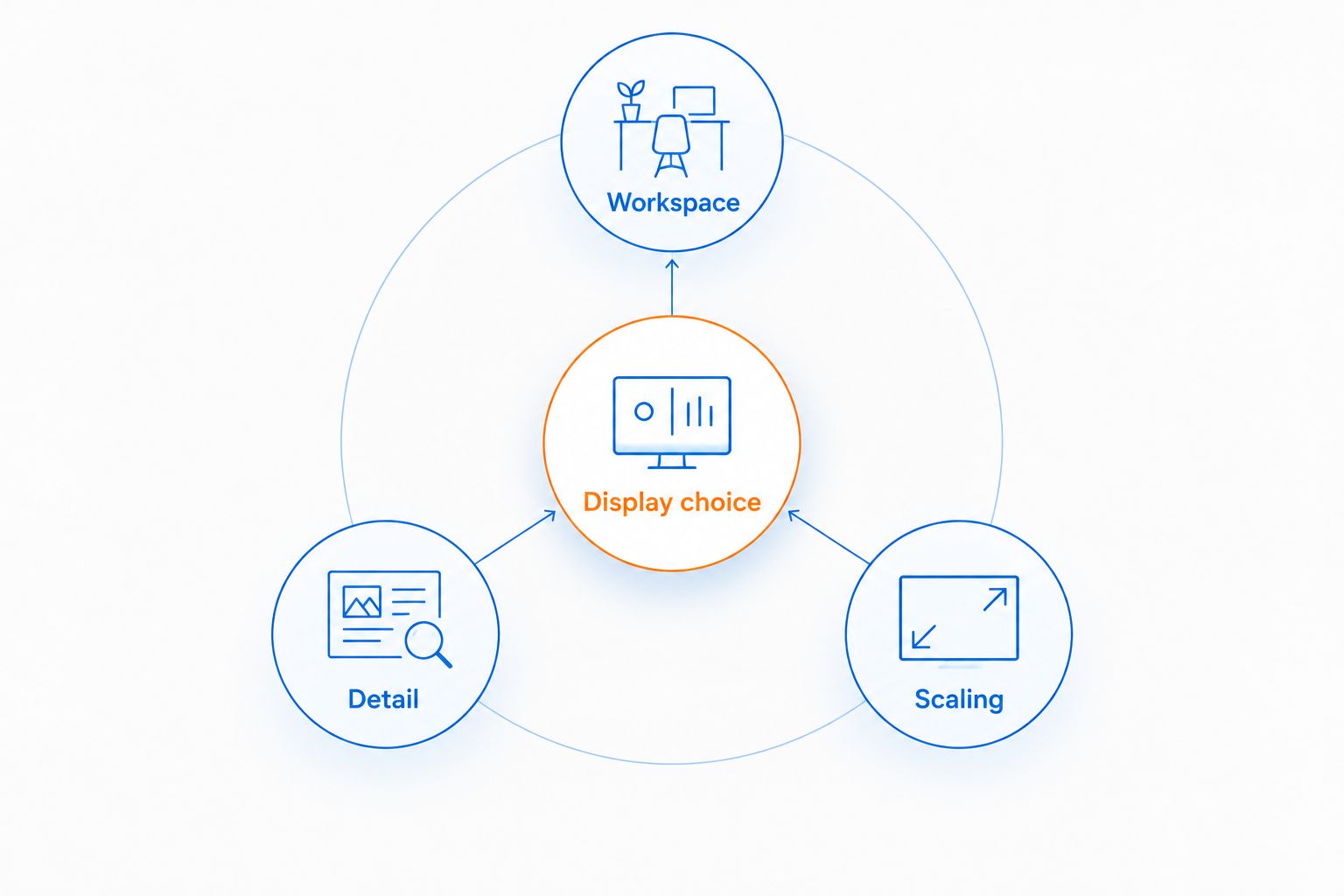
A 4K timeline can be edited on a lower-resolution monitor, but a fitted preview does not show every source pixel simultaneously. For your 2026 shortlist, separate these checks:
- Workspace: Confirm native resolution before comparing diagonal size.
- Detail: Inspect footage at pixel-for-pixel magnification when needed.
- Scaling: Keep menus and labels readable without crowding panels.
- Placement: Test whether your normal seating position suits the screen.
Check color evidence before trusting a gaming preset
Start manually: select a neutral picture mode, disable dynamic contrast, and remove game-specific shadow or saturation adjustments. Match your editing application’s color-management settings to the intended delivery workflow. These changes reduce avoidable inconsistencies, but they do not measure the panel.
Color-gamut coverage describes the range of colors a display can reproduce. It does not, by itself, establish color accuracy, uniformity, or calibration quality. The KTC listing’s 125% sRGB specification is not a measured accuracy result.
Gaming and More’s monitor listings provide a faster way to build a hardware shortlist. Final color approval still requires evidence beyond a product title. For critical work, use a measured, calibrated viewing setup and verify the full signal path.
- Check for documented color-accuracy measurements, not just gamut claims.
- Confirm whether the display provides useful color-mode controls.
- Disable automatic brightness and contrast changes during evaluation.
- Use scopes alongside visual judgments when correcting footage.
- Keep editing and gaming presets separate.
Verify the connection from computer to display
Before ordering, inspect your computer’s outputs and the proposed monitor’s inputs. Check the complete chain: computer, dock or adapter, cable, and display. A connector’s shape alone does not establish which display modes the whole chain supports.
Use your current setup to inspect the operating system’s active resolution and refresh rate. Then compare those settings with the modes you need. A high-refresh panel cannot fix an output limitation elsewhere in the chain.
For a 2026 mixed-use workstation, also confirm whether changing display modes affects your editing workflow. Keep a note of the settings that work rather than guessing after every gaming session.
- Confirm compatible inputs and outputs on both devices.
- Check supported resolution and refresh-rate combinations in the documentation.
- Verify the dock or adapter separately from the computer.
- Distinguish display connections from USB accessory connections.
- Confirm the active signal settings after connecting the monitor.
Test the curve against your desk and editing habits
Start with a physical layout check. Measure the available desk space and mark where the stand would sit. Include room for speakers, a keyboard, and any second display rather than measuring only the panel’s diagonal.
A curved display bends the image surface toward you at the edges. That is a viewing preference, not a guarantee of better editing. Sit in your normal working position and inspect straight guides, title placement, and edge-to-edge readability before committing to the layout.
If another person regularly reviews footage beside you, assess that viewing position too. A monitor that suits solo gaming still needs to work for your review sessions.
- Measure stand depth as well as overall screen width.
- Keep the main preview close to your normal viewing direction.
- Check reflections with your usual room lighting.
- Inspect alignment guides and titles across the screen.
- Verify mounting compatibility before planning an arm installation.
Validate the monitor with an actual editing session
Use familiar footage first. Open a project containing skin tones, dark scenes, gradients, text, and motion. This gives you more useful evidence than a bright demonstration video alone.
Check interface comfort separately from playback performance. Dropped playback can originate in decoding, effects, storage, or project settings; a faster monitor does not remove those bottlenecks. Use the editor’s playback indicators to identify the problem before replacing hardware.
Save your editing display settings once the setup behaves consistently. A repeatable 2026 workflow is more useful than repeatedly adjusting the picture until each clip looks pleasing.
- Inspect titles and interface text at your normal seating position.
- Compare neutral footage with familiar reference material.
- Check gradients for visible banding without adding enhancement modes.
- Review playback indicators before blaming the display.
- Save distinct editing and gaming presets where supported.
Compare options for a shared editing-and-gaming desk
Choose by the job you need the screen to perform. The comparison below separates documented listing features from the evidence still needed for editing. None of these choices establishes reference-grade color performance by itself.
| Option | Best for | Useful feature | Key limitation |
|---|---|---|---|
| 24-Inch Curved Gaming Monitor | Gamers comparing a smaller curved display | Listed 24-inch curved Full HD screen | Color accuracy and calibration performance are not established by the supplied description |
| KTC 32" Curved Gaming Monitor | Gamers who also want physically larger editing controls | Listed 32-inch screen, 240Hz refresh rate, and 1080P resolution | Larger size does not add desktop pixels; gamut coverage does not establish accuracy |
| Keep your current display and rearrange panels | Editors whose main problem is layout | Lets you test a different workspace before replacing hardware | Cannot change the panel’s native resolution or color behavior |
| Separate workspace and reference displays | Editors with critical color-approval responsibilities | Separates interface space from image evaluation | Requires additional desk planning and a validated reference signal path |
The 24-inch option is a candidate for a smaller curved setup, not a documented solution for color-critical grading. The KTC option prioritizes physical size and gaming refresh rate; its 1080P resolution remains the workspace constraint.
Gaming and More’s two curved options below belong on a mixed-use shortlist only after the resolution, connection, and color checks above. Compare their documented features with your requirements rather than treating either as a universal editing recommendation.


Common mistakes video editors make
Buying diagonal size instead of editing space
A physically larger screen is not automatically a roomier timeline. Compare native resolution and your preferred interface scaling before deciding whether the upgrade solves panel crowding. Check a screenshot of your normal layout rather than relying on a product photo.
Treating refresh rate as a color credential
A 240Hz specification describes refresh capability, not color accuracy. Give refresh rate weight for gaming and interface motion, then evaluate color behavior separately. Neither a refresh-rate figure nor a response-time claim validates final grading decisions.
Leaving game enhancements active during corrections
Dynamic contrast, boosted saturation, and shadow adjustments change how you judge footage. Use a neutral, repeatable editing preset so you do not correct the project to compensate for the monitor’s gaming effect. Recheck that preset after switching modes.
Expecting the display to fix slow playback
Stuttering previews require a playback diagnosis. Test proxies, effects, decoding settings, and storage behavior before assuming the monitor is responsible. Replacing the screen does not reduce the work required to decode a demanding source file.
FAQ
Is a curved gaming monitor good for video editing?
A curved gaming monitor works for timeline editing and mixed gaming use when its resolution, connections, and color behavior suit your workflow. Curvature alone does not establish editing quality or color accuracy.
What should video editors prioritize before refresh rate?
Video editors should prioritize useful resolution, readable scaling, suitable connections, and predictable color behavior before refresh rate. A high-refresh panel does not add workspace pixels or validate color accuracy.
Is a 32-inch 1080P monitor better than a smaller screen for editing?
A 32-inch 1080P monitor provides a physically larger image, not more desktop pixels than a smaller 1080P screen. Choose it for larger controls only after checking readability and viewing distance.
Can I edit 4K footage on a Full HD curved monitor?
You can edit 4K footage on a Full HD curved monitor. A fitted preview does not display every source pixel simultaneously, so inspect detail at pixel-for-pixel magnification when necessary.
Does 125% sRGB mean a monitor has accurate color?
A 125% sRGB specification does not establish color accuracy. Gamut size and accuracy are different properties; final color decisions require appropriate measurement and a controlled viewing workflow.
Will a 240Hz curved monitor make my video exports faster?
A 240Hz curved monitor does not make video exports faster. Export performance depends on the computer, source media, effects, encoding settings, and related processing demands.
Should I use one monitor for both editing and gaming in 2026?
One monitor suits a shared editing-and-gaming desk when it meets both workloads’ requirements. Keep separate picture presets, and use a validated reference workflow when final color approval is part of your job.
One last thing
Test your workspace with the preview panel reduced before buying a larger display. If your timeline immediately becomes usable, the problem is how you divide the screen—not necessarily the curve or diagonal size.
For your 2026 purchase, write a short acceptance test before ordering: readable interface, usable timeline, correct connection settings, and a repeatable editing picture mode. That gives you a decision based on your work instead of a specification that looks impressive in isolation.


