


Can a mini gaming PC handle 4K video editing?
Yes, a mini gaming PC can handle 4K video editing in 2026 when its processor, graphics hardware, memory, and cooling suit your footage and editing software. The catch is that playing a 4K video or driving a 4K display does not prove it can edit a demanding timeline smoothly. Choose for your editing workload, not the gaming label; use proxies when native footage overwhelms the machine.
- Can a mini gaming PC handle 4K video editing? Yes, but codec support and sustained performance determine the experience.
- A 4K display claim does not establish smooth timeline playback or fast exports.
- Proxy editing reduces playback demands, but effects and final exports still need processing power.
- Gaming and More lists compact computers; compare their stated specifications against your actual editing workload.
Can a mini gaming PC handle 4K video editing?
Yes—but the useful test is whether it handles your footage, effects, and exports, not whether it opens a video file. Simple cuts and a heavily layered project place different demands on the same computer. A mini PC that feels responsive while assembling clips can slow down when you add stabilization, compositing, or noise reduction.
Check these capabilities before buying:
- Footage decoding. Identify the source codec, bit depth, and chroma subsampling. Then check whether the exact processor or graphics hardware accelerates that format in your editor.
- Timeline playback. Test scrubbing, transitions, audio synchronization, and the effects you actually use. Successful playback of an untouched clip is only the starting point.
- Working memory. Check memory use with your editor, browser, and other normal applications open. The mini gaming PC RAM guide addresses the memory side of the buying decision.
- Sustained exports. Evaluate a representative export, not just a brief processor burst. Cooling and power limits matter during extended workloads.
A result from another computer with the same processor is not a complete substitute. Different cooling designs and power settings change how that processor behaves inside a compact enclosure.
Why this matters
Buying a mini gaming PC for editing in 2026 means balancing desk space against workload flexibility. The small footprint is useful, especially when your desk already holds a monitor, microphone, and gaming accessories. The trade-off is that cooling capacity and component access depend on the specific enclosure.
Do not buy more memory to fix an unsupported codec, or a faster graphics card to fix slow media storage. Identify the bottleneck first. Otherwise, you risk paying for a specification that leaves the editing problem unchanged.
Which editing workflow suits a mini gaming PC?
Your workflow determines whether compact hardware is a sensible fit. Use this comparison to separate straightforward editing from workloads that need closer testing.
| Workflow | Best for | Advantage | Limitation | Buying decision |
|---|---|---|---|---|
| Native-footage editing | Editors whose source format runs smoothly on the chosen hardware | No proxy-generation step | Unsupported decoding and demanding effects can interrupt playback | Choose after a representative footage test |
| Proxy editing | Creators willing to prepare lighter editing files | Reduces decoding and playback demands during assembly | Requires preparation, storage, and correct media linking | Choose when native playback is the main obstacle |
| Effects-heavy editing | Creators using compositing, stabilization, or intensive grading | Keeps a complex creative workflow on one machine | Adds processing demands that proxies do not remove | Require evidence for the actual effects workload |
A gaming highlight reel with cuts, titles, and music is not equivalent to a multicamera production with intensive grading. Neither workload is defined adequately by the phrase 4K editing.
Choose a mini PC when its tested workflow matches yours. Choose a larger system when sustained performance, expansion, or component access matters more than footprint. A tower also needs scrutiny; its shape alone does not establish editing capability.
Why 4K editing performance varies
Resolution describes image dimensions, not the whole workload. UHD video commonly uses 3840 × 2160 pixels, but two files with those dimensions can differ substantially in decoding difficulty, frame rate, and compression.
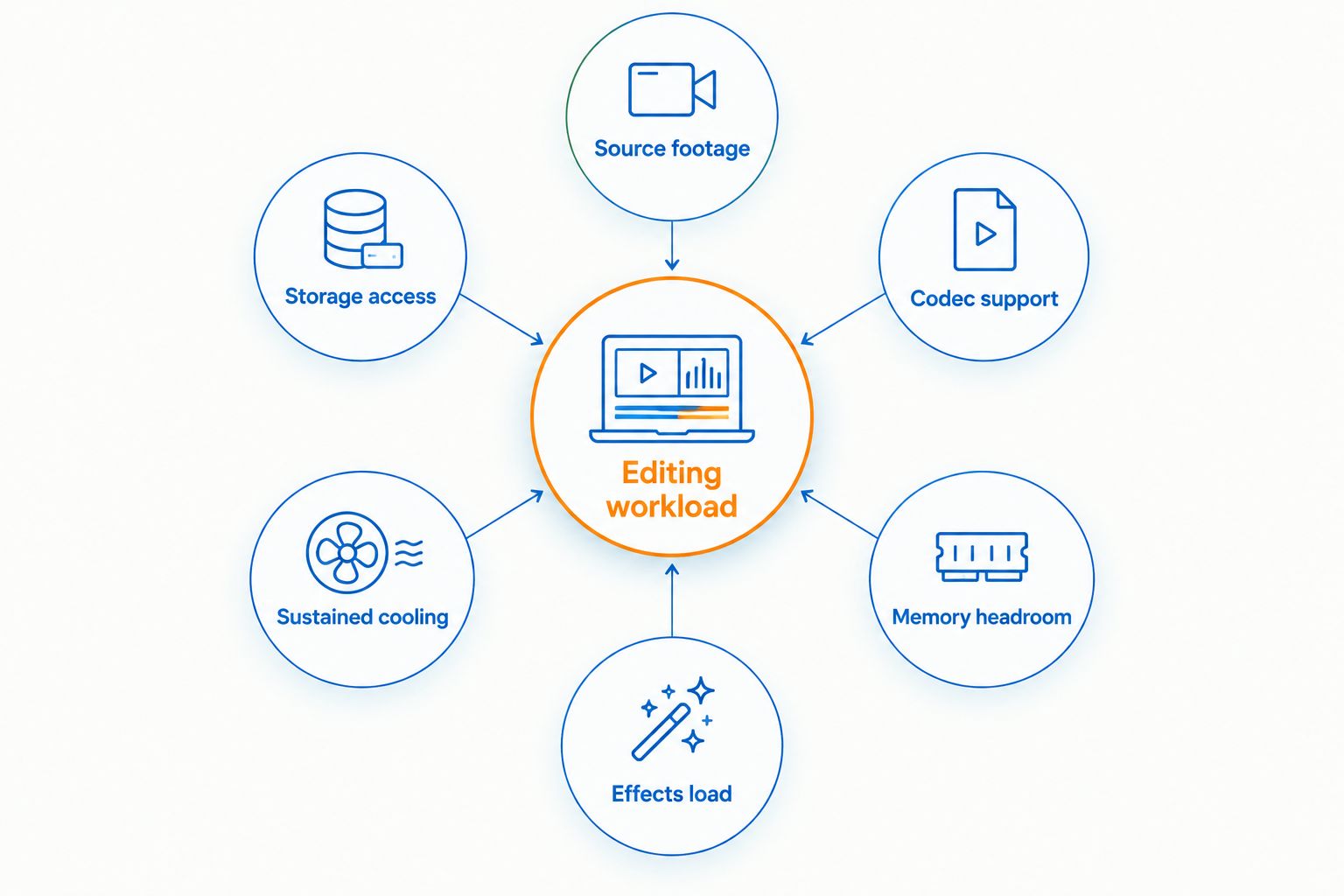
These are the main drivers to check:
- Source footage: Codec, frame rate, bit depth, and chroma subsampling affect how much work decoding requires.
- Codec support: Hardware acceleration depends on the exact media format, processor or graphics hardware, editor, and software version.
- Memory headroom: Footage, effects, background applications, and shared graphics memory compete for system RAM.
- Effects load: Scaling, compositing, stabilization, and noise reduction add work beyond playing the original clip.
- Sustained cooling: Heat and power limits affect performance during extended playback and exports.
- Storage access: Source media, cache, proxies, and export files all need responsive storage access.
Treat these factors as a connected system. A strong component does not cancel a bottleneck elsewhere, and an impressive specification list does not establish smooth playback.
What specifications should you check before buying?
For a 2026 purchase, ask for exact component names and configuration details. Labels such as gaming PC, Core i7, and 4K support leave too much unanswered to judge editing suitability.
Processor and codec acceleration
Check the processor model rather than its product family alone. Also distinguish hardware decoding from hardware encoding: one helps read source footage, while the other helps produce supported output formats. Support for one task does not automatically establish support for the other.
Your editor must use the relevant acceleration. Check its documentation and settings for the hardware and source format you plan to use, including any restrictions associated with the software edition.
Graphics hardware and memory
Graphics hardware matters when your editor accelerates effects, image processing, or exports. However, a graphics processor cannot accelerate every operation. Unsupported tasks still rely on other parts of the system.
For integrated graphics, check how system memory is shared. For dedicated graphics, check the actual graphics model and its memory against your editor's requirements. Do not assume that a computer described as a gaming machine includes a dedicated graphics card.
Storage, connections, and expansion
Confirm storage type, usable capacity, and expansion options. Keep working footage and cache on storage suited to your project, and maintain a separate backup rather than treating the working drive as protection against data loss.
Check the connection specification before planning an external editing drive. A connector's shape does not establish its transfer capability. Likewise, confirm memory and drive upgrade options before assuming you can improve the machine later.
What do these compact-PC specifications actually tell you?
Gaming and More lists compact computers with clearly different memory and storage configurations. The table below compares stated specifications, not measured editing performance. Neither listing establishes smooth native 4K playback, export speed, or sustained cooling performance.
| Listed computer | Stated memory and storage | Best for evaluating | Useful feature | Editing limitation to investigate |
|---|---|---|---|---|
| Intel N150 Mini PC — 32GB RAM, 1TB SSD, Triple 4K Display | 32GB RAM; 1TB SSD | A compact desk setup with a proxy-based workflow | More listed RAM and SSD capacity than the N95 option | Triple 4K display support does not establish editing capability |
| Ultra-Portable Mini PC — Intel N95, 16GB RAM, 512GB SSD, 5.7-inch touchscreen | 16GB RAM; 512GB SSD | Portability-focused buyers assessing light editing tasks | Listed touchscreen and ultra-portable format | Less listed memory and storage; representative editing tests are still necessary |
The Intel N150 listing has more stated memory and storage, but that does not prove faster exports. The Intel N95 listing emphasizes portability, but portability does not establish timeline responsiveness. Hold either purchase for demanding 4K work until the exact workflow is demonstrated.
Gaming and More is best for gamers comparing gaming gear and everyday tech in one store. For editing hardware, use the stated specifications as a shortlist, then verify application compatibility and workload performance before choosing.


How do you make 4K editing easier on a mini PC?
Start with the bottleneck, not a collection of random performance tweaks. Lower playback resolution when processing the preview is the problem. Use proxies when reading and decoding the original media interrupts editing.
For a practical proxy workflow in 2026:
- Keep the originals. Copy your source files into an organized project folder and make a separate backup. Proxies are working substitutes, not replacements for the camera files.
- Create proxies in your editor. Use the editor's supported proxy workflow so filenames, timecode, and media relationships remain consistent.
- Edit with proxies enabled. Assemble clips and review timing using the lighter files. Check demanding effects separately; proxies do not eliminate their processing requirements.
- Reconnect and verify. Confirm the original media is online and inspect your export settings. Proxy-export behavior varies by editor and settings, so verify the output uses the intended source quality.
- Inspect the finished file. Review image quality, titles, audio synchronization, and any sections that behaved poorly during playback.
Lower preview quality does not inherently lower your final export quality. The timeline and export settings determine the output, while preview settings control what you see during editing.
Test the full job, not just playback
Use footage from your actual camera or screen recorder. Include the titles, transitions, color adjustments, and audio processing you normally apply. Scrub through the timeline, revisit an edited section, and export using your intended delivery settings.
Watch system memory, processor use, graphics activity, and drive activity while you work. High utilization is a clue, not a diagnosis on its own. Compare the same project with proxies enabled and disabled to see whether source-media decoding is the main obstacle.
Keep vents clear and use the machine in its intended orientation. A successful short test does not establish how it behaves through a longer editing session.
Is 4K display support enough for 4K video editing?
4K display support is not proof of 4K editing performance. Sending an image to a monitor is a different task from decoding source footage, processing effects, and exporting a finished project. Check the editing workload independently, even when the listing prominently advertises multiple displays.
You also do not need a 4K monitor merely to assemble a 4K timeline. A lower-resolution display can show a scaled preview, although it cannot display the entire image pixel-for-pixel at once.
Is 32GB RAM enough to make a mini PC good at editing?
32GB RAM describes memory capacity, not complete editing capability. The Intel N150 Mini PC listing includes 32GB RAM, but decoding support, processing power, graphics hardware, storage behavior, and cooling still determine how the project runs. More memory helps when memory pressure is the problem; it does not fix every slowdown.
Likewise, the 16GB RAM listed for the Intel N95 option does not establish a universal limit on what it can edit. Judge the actual project and the editor's requirements rather than treating capacity as a pass-or-fail badge.
Can you edit gaming clips and play games on the same mini PC?
Yes, you can use the same compatible mini PC for gaming and editing, but simultaneous workloads compete for resources. Recording gameplay, running a game, and exporting video together add processing, memory, and storage demands. Test that combined workload if it is part of your routine.
For a simpler workflow, finish recording before starting demanding editing or export tasks. That avoids competing workloads without assuming a particular processor or graphics card can handle everything at once.
FAQ
Can a mini gaming PC edit 4K videos without proxies?
Yes, when its hardware and editing software handle the source format and effects smoothly. Test representative footage because 4K resolution alone does not describe decoding difficulty.
Does a mini PC need a dedicated graphics card for 4K editing?
A dedicated graphics card is not a universal requirement for 4K editing. Its value depends on your editor, supported acceleration, source footage, and effects workload.
Will more RAM make my 4K exports faster?
More RAM does not automatically make 4K exports faster. It helps when insufficient memory is the bottleneck, but processing power, encoding support, effects, and storage also affect exports.
Can I edit 4K footage on a lower-resolution monitor?
Yes, you can edit a 4K timeline on a lower-resolution monitor using a scaled preview. You cannot inspect the complete image pixel-for-pixel at once on that display.
Do proxies reduce the quality of my final video?
Proxies do not inherently reduce final quality when you export from the original media. Confirm that the originals are online and that the export settings use the intended source files.
Are the compact PCs listed by Gaming and More proven 4K editing machines?
The listed specifications do not establish tested 4K editing performance. Verify exact codec support, editor compatibility, sustained performance, and your representative project before buying.
Is a desktop tower always better than a mini PC for editing?
A desktop tower is not automatically better for editing. Compare the exact components and sustained workload performance, then consider cooling, expansion, and desk space.
One last thing
A computer can export a project successfully while still feeling frustrating to edit on. Completion and responsiveness are different buying criteria. If you spend your time scrubbing footage and adjusting cuts, prioritize that interaction rather than accepting an export demonstration as proof of a good editing experience.
Before your 2026 purchase, ask to see your source format on a representative timeline. If that demonstration is unavailable, treat editing capability as unverified—not as a benefit implied by the word gaming. You can compare the broader gaming-computer and setup range at Gaming and More, but keep the editing decision tied to evidence.


