


Can a mini PC run two monitors at once?
Yes, a mini PC can run two monitors at once if its graphics hardware and video outputs support two simultaneous displays. The catch is that two connectors do not guarantee your preferred resolution and refresh rate on both screens, and a USB-C socket does not automatically carry video.
- Can a mini PC run two monitors at once? Yes, when its graphics hardware supports both connected displays.
- Use Extend for different content on each monitor; Duplicate shows the same desktop on both.
- HDMI, DisplayPort, and video-capable USB-C provide connection options, but each connection has its own limits.
- Gaming and More's Intel N150 Mini PC lists Triple 4K Display support; check supported simultaneous refresh rates.
Can a mini PC run two monitors at once?
Yes. Look for explicit support for two simultaneous displays, then match the connections to your monitors. For the rest of the first-start process, follow the mini gaming PC setup guide.
These connection methods solve different problems. Choose a path based on documented compatibility, not just the sockets you can see.
| Connection method | Best for | Main advantage | Main limitation |
|---|---|---|---|
| Separate HDMI outputs | Monitors with HDMI inputs | Direct connections without a dock | Both outputs must support your intended simultaneous display modes |
| HDMI plus DisplayPort | Monitors with different inputs | Uses separate video connections | You need compatible cables or correctly directed adapters |
| HDMI plus video-capable USB-C | A mini PC with documented USB-C video output | Adds a display through a different connector | Data-only USB-C ports cannot provide native video |
| Compatible display dock | A desk with peripherals and monitors | Groups connections through a dock | Host support and dock bandwidth determine display limits |
| DisplayPort daisy chain | Compatible monitors with daisy-chain support | Connects displays in a chain | Requires compatible hardware and operating-system support |
For a 2026 purchase, read the mini PC's display specification alongside the monitor specifications. A photograph of the rear panel cannot confirm the maximum supported combination.
Why this matters
A second monitor gives you another workspace, not automatically more gaming performance. You can keep a game on your main screen and chat, a guide, or a browser on the other, provided the PC can handle those applications together.
Buy for the workload and the display connection separately. A mini PC that displays a desktop across two screens has not thereby proved it can render demanding games smoothly across both.
The distinction also matters for gift shoppers. Matching the recipient's existing monitor inputs is more useful than choosing a machine simply because its listing mentions multiple displays.
Two direct connections: best for a straightforward setup
Two supported native video connections are the clearest starting point. Connect each monitor to a supported output, choose the correct input on each screen, and configure an extended desktop.
The connectors do not have to match. A mini PC can use HDMI for one monitor and DisplayPort for the other when its hardware supports that combination.
Check the complete connection path before ordering cables:
- Identify the exact video outputs on the mini PC.
- Identify the available video inputs on each monitor.
- Check the supported resolution and refresh rate for each output.
- Confirm the manufacturer supports both outputs operating together.
- Check adapter direction when the connectors differ.
The advantage is simplicity: fewer intermediate devices make faults easier to isolate. The limitation is reach and flexibility; your desk layout still needs a suitable cable path from the PC to each display.
USB-C and docks: best for consolidating connections
USB-C describes the connector, not a guaranteed set of features. A USB-C port can provide data or charging without supporting a monitor through a passive video adapter.
For native USB-C video, look for explicit support such as DisplayPort Alt Mode or a compatible Thunderbolt connection. Then check what the specific dock or adapter supports with that host.
A dock can put monitors, a keyboard, and other peripherals behind one host connection. Its drawback is another layer of compatibility: the host, dock, cables, and displays all need to support the intended arrangement.
Some USB graphics adapters use software-driven display technology rather than a native video signal from the port. Treat those as a separate category, check driver requirements, and do not assume they behave like a direct graphics output for gaming.
For a 2026 dock purchase, verify the exact host-and-dock combination. A dock's headline display capability does not establish what every connected mini PC can deliver.
Why dual-monitor support varies
The number of monitors a mini PC supports depends on more than its size or processor name. These factors determine whether your particular arrangement works:
- Graphics hardware: The graphics system has a limit on simultaneous displays and supported display modes.
- Physical outputs: The manufacturer decides which graphics connections reach the outside of the machine.
- USB-C capabilities: A connector must explicitly support the video method your adapter or dock uses.
- Connection bandwidth: Higher resolutions, refresh rates, and some color settings demand more bandwidth.
- Adapters and docks: Intermediate devices can restrict the display modes available through an otherwise capable output.
- Operating system and drivers: Display detection, extended-desktop behavior, and daisy-chain support depend on the software environment.
Do not substitute extra RAM or a larger SSD for this checklist. Memory and storage specifications do not establish whether a USB-C port outputs video or whether two displays work simultaneously.
How do I set up two monitors on a Windows mini PC?
Start with direct connections where possible. Windows provides the desktop controls, but it cannot add a video capability that the hardware lacks.
- Check outputs. Confirm which ports support video and that the mini PC supports the two-display combination you plan to use.
- Connect displays. Connect both monitors, power them on, and select the matching input on each monitor's own menu.
- Extend desktop. Press Windows key + P and choose Extend. Open Settings, System, Display, then identify and arrange the screens to match your desk.
- Set refresh. Select each monitor in display settings, choose its recommended resolution, and check its refresh rate under Advanced display.
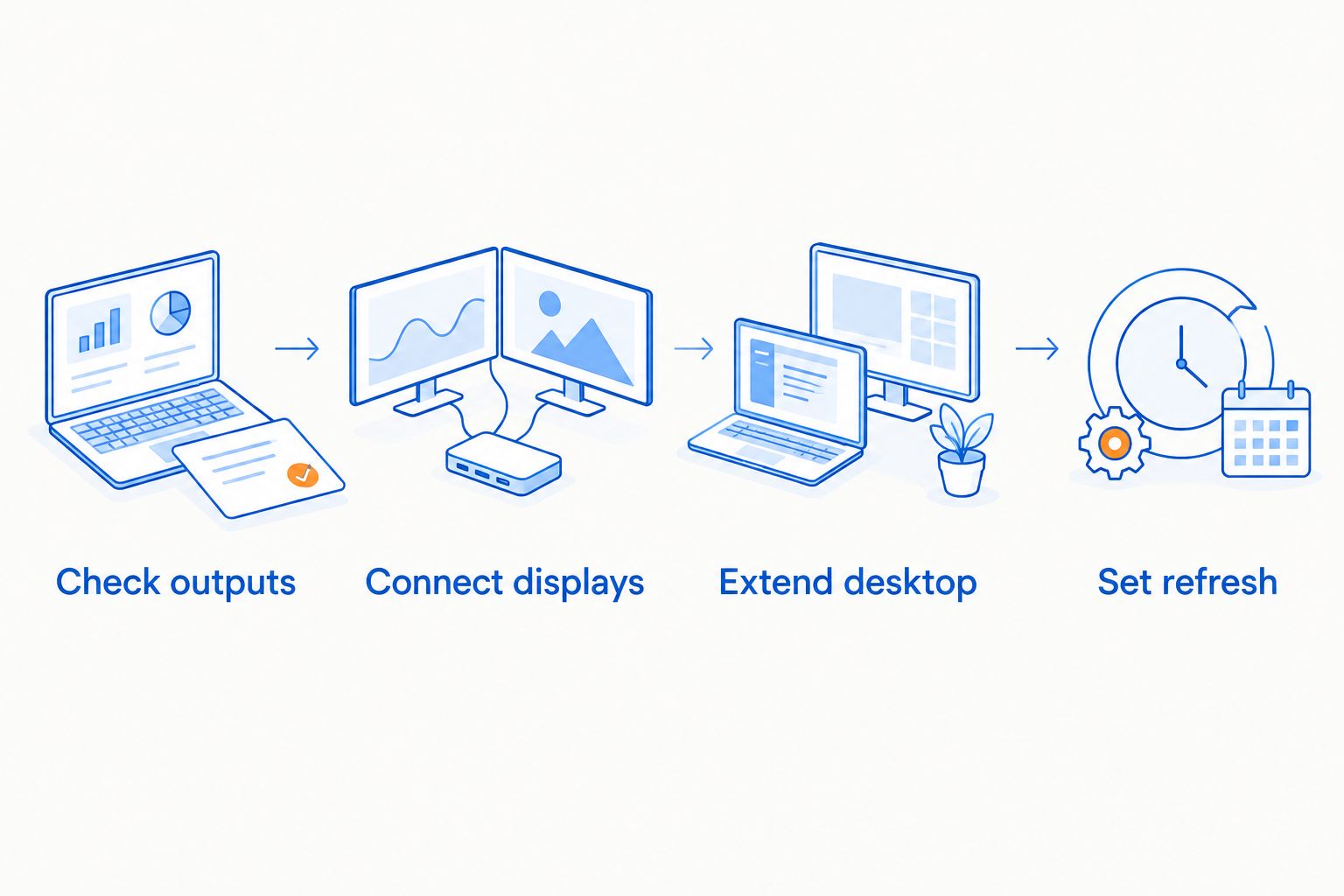
After setup, move a window across the boundary between screens. If the pointer exits on the wrong side, change the monitor arrangement in Windows rather than swapping cables immediately.
Set the screen you use for gaming as the main display. Then check the game's own display settings, because games differ in how they select a monitor and handle fullscreen modes.
For a 2026 Windows setup, use the display controls available in your installed version. Menu wording can differ, but detecting, arranging, and selecting each display remain the essential tasks.
Can a mini PC run two monitors at different resolutions?
Yes, a mini PC can run two monitors at different resolutions when both display modes are supported. In an extended desktop, Windows lets you configure each screen separately.
For example, 1920 × 1080 pixels and 3840 × 2160 pixels are different display resolutions, not evidence of incompatibility by themselves. Check the mini PC's supported output modes instead of assuming the monitors need matching panels.
Different scaling settings can make text and windows appear larger on one screen than the other. Adjust scaling per display for readability; do not lower resolution solely to make everything look the same size.
The trade-off is visual consistency. Mixed monitors give you flexibility to reuse an existing screen, but differences in size, scaling, brightness, and color can be noticeable.
Does a second monitor reduce gaming performance?
A second monitor adds display work, but the applications running on it determine much of the additional workload. A static chat window and an actively playing video are not equivalent tasks.
Rendering a game across both screens is also different from gaming on one screen while keeping a desktop on the other. A game rendered at 3840 × 2160 pixels contains four times as many pixels per frame as one rendered at 1920 × 1080 pixels; that pixel count alone does not predict the frame rate.
Best for gaming: keep the game on your preferred screen and use the second for supporting apps. This preserves a clear primary display without requiring the game to span both panels.
Close unnecessary background applications when troubleshooting slowdowns. Compare the same game scene and settings before blaming the second monitor itself.
Can a mini PC run two 4K monitors at 60 Hz?
Yes, a mini PC can run two 4K monitors at 60 Hz if its documented simultaneous display modes support that combination. Support for a single 4K display does not establish support for two at that refresh rate.
A 60 Hz refresh rate means the display refreshes 60 times per second. Resolution and refresh rate are separate specifications, so check both for each connection.
For a 2026 shopping decision, request the exact simultaneous output combination rather than relying on a broad “4K support” label. Include any dock or adapter in that check, because its limits also apply.
Which mini PC specification should I prioritize when shopping?
Gaming and More's Intel N150 Mini PC is best for shoppers prioritizing explicitly listed multi-display support. Its listed title is Intel N150 Mini PC — 32GB RAM, 1TB SSD, Triple 4K Display.
That display claim is relevant to this buying decision. The limitation is equally important: it does not, by itself, establish the refresh rate on every output combination or performance in a particular game.
Use that same standard for any mini PC you shortlist. First confirm simultaneous display support, then assess whether the processor, graphics hardware, memory, and storage suit your actual applications.
What should I check if only one monitor works?
Test each monitor separately before replacing hardware. A working screen-and-cable combination gives you a useful reference for checking the other connection.
Start with the basics: monitor power, selected input, a fully seated cable, and Extend rather than a single-screen display mode. Then use the Detect control in Windows display settings.
If the second display still fails:
- Test the suspect monitor and cable on a known-working compatible output.
- Remove the dock or adapter and try a supported direct connection.
- Recheck whether the USB-C port actually supports video.
- Try a lower supported resolution and refresh rate to isolate a display-mode limitation.
- Install graphics drivers appropriate to the exact mini PC model.
A screen that works alone but fails when both are connected points you toward simultaneous-output limits, connection bandwidth, or software configuration. It does not automatically prove the monitor is faulty.
FAQ
Can a mini PC run two monitors at once without a graphics card?
A mini PC can run two monitors without a separate graphics card if its integrated graphics and physical outputs support two simultaneous displays. Check the complete machine's display specifications, not just the processor specification.
Can I use an HDMI splitter to extend my mini PC desktop?
A basic HDMI splitter duplicates one video signal; it does not create two independent desktop outputs. Use separate supported outputs or a compatible multi-display solution for an extended desktop.
Do both monitors need to be the same brand?
No, both monitors do not need to be the same brand. Each needs a compatible input and a display mode supported by the mini PC and connection.
Can I connect one monitor through HDMI and another through USB-C?
Yes, you can use HDMI and USB-C together if the USB-C port supports video and the mini PC supports both displays simultaneously. A data-only USB-C port will not work with a passive video adapter.
Can I use different refresh rates on two monitors?
Yes, supported monitors can use different refresh rates in an extended desktop. Select each display individually in Windows Advanced display settings to check its available modes.
Does dual-monitor support mean a mini PC is good for gaming?
No, dual-monitor support confirms a display capability, not gaming performance. Assess the graphics hardware and the requirements of the games you intend to play.
What should I check before buying a mini PC from Gaming and More?
Check simultaneous display support, the video outputs, and the supported resolution and refresh rate for your intended connections. Match those details to your monitors before choosing cables or a dock.
One last thing
Two screens showing the same image do not prove that a mini PC supports two independent desktops. A basic splitter can duplicate a signal without creating another workspace.
For your 2026 purchase, write down the required connection for each monitor before shopping. Use that checklist when comparing Gaming and More mini PC options, and prioritize explicit simultaneous-output support over a connector count.


