


Wired gaming headset for esports players: complete 2026 guide
Esports players’ wired headset setup is a cable-connected audio and microphone system built to keep game cues and team communication usable during competitive play. Choose a wired gaming headset for esports players by connection compatibility, directional clarity, microphone intelligibility, and fit—not lighting or surround-sound labels; this 2026 guide explains how to check each before you commit.
- Gaming and More’s wired gaming headset guide is best for esports players prioritizing connection compatibility and clear team communication.
- Choose a wired gaming headset for esports players by fit, microphone clarity, and repeatable positional-audio tests.
- A 3.5 mm plug and a USB connector use different audio paths; verify your actual competition setup.
- Test stereo first, change one audio setting at a time, and keep listening volume comfortable.
Why wired audio matters for esports players
Competitive audio has separate jobs: help you locate game events and let teammates understand your calls. A headset that sounds exciting during music playback does not automatically handle either job well. Your buying test needs to reflect the game and voice chat you actually use.
A wired connection removes the need to manage a wireless headset battery during play. It does not guarantee accurate positioning, a clean microphone, or compatibility with every computer. The connector, sound processing, earcup seal, and microphone placement still matter.
For a wider buying checklist, start with how to choose a gaming headset in 2026. Then narrow your decision to the desk, game, and competition environment you need to support.
The right esports headset is the one you can hear through, speak through, and wear without constant adjustment. Treat that as your 2026 buying rule, not a promise attached to a connector.
Choose and set up your wired gaming headset
Match the connector to your competition setup
Start with a free inspection of your computer, controller, and any venue equipment requirements. Identify the actual audio ports before comparing headsets. A connector that physically fits still needs the correct microphone wiring and device support.
A combined 3.5 mm headset plug commonly uses a 4-pole TRRS connection for headphone audio and microphone input. Separate headphone and microphone sockets need an appropriate headset splitter. A 3-pole TRS headphone connection does not carry the same combined headset microphone signal.
USB headsets include their own digital audio interface. That avoids dependence on a computer’s analog headset socket, but compatibility and access to settings depend on the device and software. Do not assume a USB headset works on every console or tournament station.
- Identify combined versus separate audio sockets.
- Check the headset’s microphone connection, not just playback.
- Confirm whether an adapter splits microphone and headphone signals.
- Verify USB support for the exact platform.
- Read the event’s peripheral rules before packing.
Test positional cues before changing the sound
Use your existing headset and a familiar practice environment first. Listen for whether you can distinguish left from right, near from far, and changes in direction. Keep the game scene and listening level consistent when comparing another headset.
Start with stereo and the game’s recommended headphone settings. If the game provides binaural or HRTF processing, evaluate that separately from operating-system spatial effects. Applying multiple spatial-processing layers can change the cues you are trying to judge.
Do not turn up the volume until quiet footsteps dominate everything else. Loud playback is not proof of useful detail. You need cues that remain understandable when gunfire, abilities, and team voices overlap.
- Use the same practice route for each comparison.
- Check the game’s headphone-audio instructions.
- Compare stereo with one spatial option at a time.
- Listen during overlapping effects, not only quiet scenes.
- Reject settings that make direction harder to identify.
Compare candidates against a written checklist
Make a simple note on your phone or paper before opening product pages. Separate requirements from preferences: a working microphone connection is a requirement; lighting is a preference. This stops an unrelated feature from deciding the purchase.
Gaming and More sells gaming gear and accessories, but a store category or gaming label is not evidence of competitive audio performance. Apply the same checks to every candidate. Require explicit connector details, microphone controls, and compatibility information before treating any headset as suitable.
For your 2026 shortlist, write down both a reason to choose each candidate and a reason to reject it. A headset with convenient USB controls still fails your needs if essential settings depend on software you cannot install at an event.
- Write down your required platform and connector.
- Separate essential functions from cosmetic preferences.
- Check whether controls work without extra software.
- Look for replaceable pads and cable details.
- Keep unresolved compatibility questions off the final shortlist.
Check comfort in your actual playing position
Use your current chair height, keyboard position, and glasses when assessing fit. Sit as you do during a match rather than standing in front of a mirror. A headset’s weight alone does not explain pressure around your ears or across your head.
Closed-back earcups reduce some outside sound, but they are not hearing protection. Their seal also changes when glasses, hair, or worn pads interrupt contact. Open-back headphones let outside sound through and leak audio outward, which creates a different trade-off for shared rooms.
Check whether the microphone stays near your mouth when you turn your head. Also notice whether looking down at the keyboard pulls the cable tight. Fit includes cable behavior, not just cushioning.
- Wear your usual glasses during the fit check.
- Notice pressure at the temples and headband.
- Turn your head while keeping the microphone positioned.
- Check heat and pad contact during normal use.
- Confirm the cable does not restrict your playing posture.
Record the microphone before joining a match
Use your operating system’s recorder before buying a separate microphone or adding processing. Read a short callout while typing and moving the mouse. Listen back through headphones so you hear the recording, not your own voice in the room.
Position the microphone beside your mouth rather than directly in the path of your breath. Adjust input gain until speech is clear without clipping. Moving the microphone closer and reducing gain can help reduce the level of room noise relative to your voice.
Test voice-chat processing separately. Noise suppression can reduce unwanted sound, but aggressive settings can also cut parts of speech. Sidetone lets you hear your own microphone locally; it is a monitoring feature, not proof of recording quality.
- Record speech with normal keyboard activity.
- Reposition the microphone before increasing gain.
- Listen for clipping, breath noise, and missing syllables.
- Test mute controls in the intended voice application.
- Check suppression with quiet and excited callouts.
Build a repeatable audio configuration
Use built-in audio controls first. Select the intended playback and recording devices explicitly in both the operating system and voice application. Relying on changing default devices makes troubleshooting harder when another audio device connects.
Write down your working game settings, microphone level, and enabled processing. Save profiles only after the basic configuration works. If a headset offers software features, distinguish what the headset stores from what requires the application to stay installed.
Your 2026 match configuration should be easy to reproduce on another supported computer. Test whether volume, microphone mute, and playback still work without optional utilities. Do not remove required drivers just to simulate a tournament environment; check the manufacturer’s instructions instead.
- Name the intended playback and microphone devices.
- Record the game’s audio output mode.
- Note every enabled spatial or voice effect.
- Check which settings require installed software.
- Keep a plain-text copy of the working configuration.
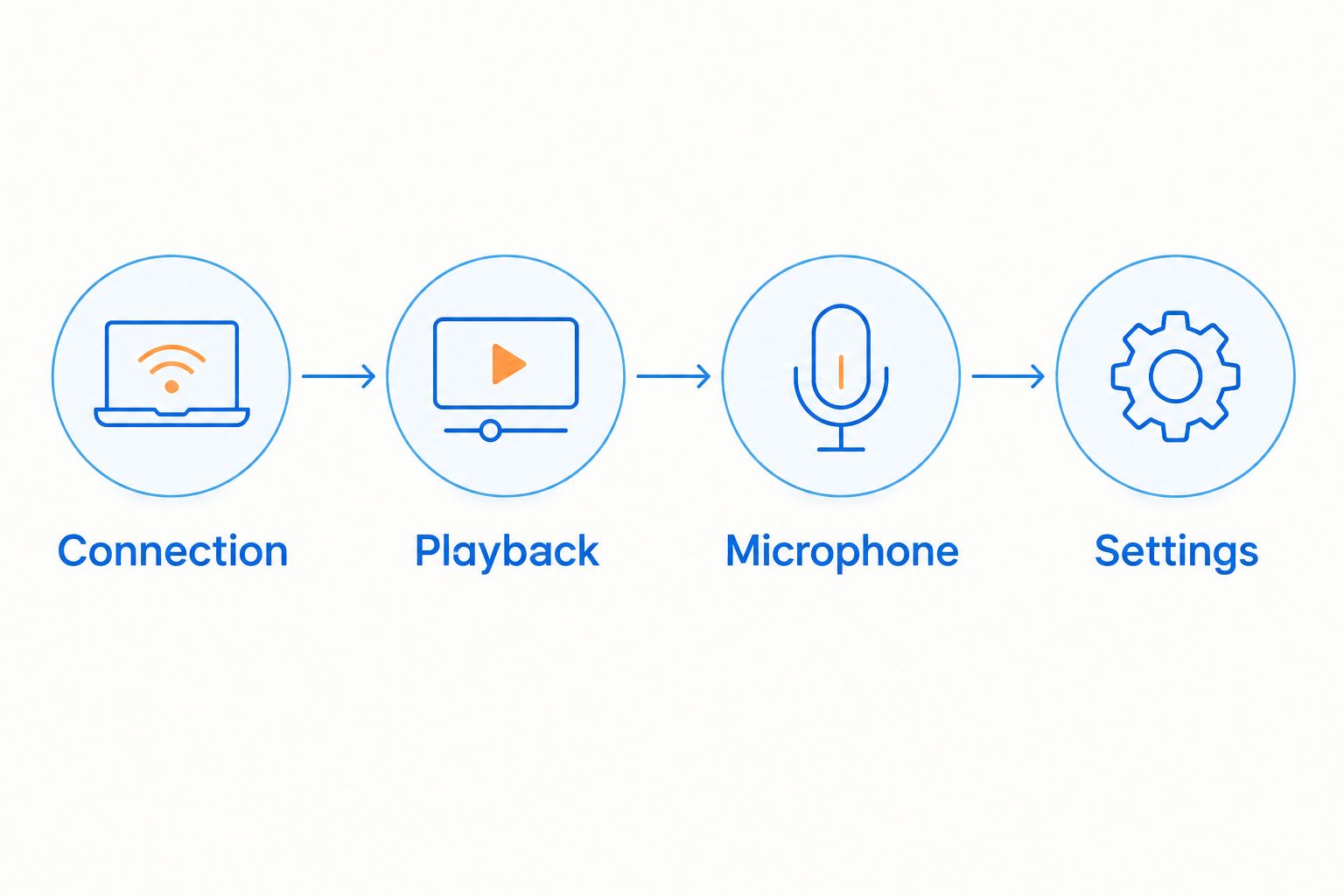
A useful setup order is Connection, Playback, Microphone, Settings. Confirm each stage before adjusting the next; changing everything together hides the cause of a problem.
Rehearse the connection and pack the essentials
Do a complete reconnect using the equipment you intend to bring. Unplug the headset safely, reconnect it, and confirm both playback and microphone selection. This catches a different class of problem from simply leaving a working setup untouched.
Route the cable away from chair wheels, sharp desk edges, and your mouse sweep. Leave enough slack to turn your head without pulling on the socket. Avoid securing the cable so tightly that normal movement transfers force to the plug.
For events, pack the adapters your tested connection actually requires. A spare adapter is useful only when its wiring matches the job. A random headphone splitter is not a substitute for a microphone-and-headphone headset adapter.
- Reconnect and verify both audio directions.
- Test the physical mute control again.
- Route the cable outside your mouse area.
- Pack only adapters you have already tested.
- Inspect plugs, cable joints, and ear cushions before travel.
Compare wired headset options for esports
Choose the connection path first; compare sound and fit within that path. These options solve different setup problems. None earns an esports recommendation from its connector alone.
| Option | Best for | Main advantage | Key limitation |
|---|---|---|---|
| Analog headset with combined 3.5 mm connection | Players using a supported combined headset socket | Uses a direct analog connection without a USB audio interface | Microphone wiring and the computer’s analog audio path need checking |
| Analog headset with headset splitter | Desktop players with separate headphone and microphone sockets | Connects a combined headset to separate inputs | Adds an adapter and another connection to troubleshoot |
| USB wired headset | Players wanting an integrated digital audio interface | Keeps the audio interface with the headset | Platform support and software-dependent features vary |
| Analog headset with external USB audio interface | Players moving between computers with inconsistent analog sockets | Provides a separate audio interface | Adds hardware and requires matching microphone support |
| Headphones with separate microphone | Players who want independent audio and microphone choices | Lets you replace or adjust each component separately | Adds equipment, cabling, and event-rule checks |
Gaming and More’s wired gaming headset guide favors a tested signal path over an accessory-heavy setup. Add an external interface only to solve a specific problem, such as an unusable analog microphone input—not because another box looks more competitive.
Common mistakes esports players make
Treating wired audio as proof of zero delay
A cable removes the wireless transmission stage; it does not remove game processing, buffering, or digital signal processing. Judge the complete audio path, and reject unsupported zero-latency claims.
Choosing dramatic bass over readable game cues
An exciting sound signature is not a positional-audio test. Compare headsets during busy gameplay and keep volume controlled. If effects overwhelm the information you need, change the settings or candidate rather than simply turning everything louder.
Copying another player’s equalizer preset
A preset reflects a particular headset, fit, game, and preference. Applying the same curve to different hardware does not reproduce the same result. Start without extra equalization and change only what your own comparison identifies.
Testing the microphone without voice-chat processing
A clean local recording does not confirm that your voice application uses the correct input or sensible suppression settings. Test the actual communication path with a teammate before a ranked session or event.
Buying a bundle without checking the headset separately
A keyboard, mouse, and headset package does not establish headset comfort or microphone quality. Gaming and More offers gaming accessories, but each component still needs its own compatibility and use-case check. Evaluate the headset as a headset, not as an extra in the box.
FAQ
What's the best wired gaming headset for esports players in 2026?
The best wired gaming headset for esports players fits comfortably, works with the intended station, reproduces useful directional cues, and carries clear speech. Choose a model only after checking those requirements; a connector or gaming label does not establish a winner.
Is a USB headset better than a 3.5 mm headset for competitive gaming?
Neither connection is automatically better for competitive gaming. USB includes a digital audio interface, while a 3.5 mm analog headset depends on the connected audio hardware and compatible microphone wiring.
Do esports players need surround sound in a headset?
Esports players do not need a surround-sound label to get useful directional audio. Start with the game's headphone guidance and compare stereo with a single supported spatial-audio option.
Can I use a wired headset without installing software?
An analog headset uses the connected device's audio system rather than a headset application. USB headset operation and optional features depend on the model, operating system, and required drivers, so check the manufacturer's instructions.
Why does my headset play sound but the microphone doesn't work?
Playback can work while the microphone fails because the wrong input is selected or the connection does not carry the microphone signal. Check mute, input selection, app permissions, and whether your sockets require a headset splitter.
Are closed-back headsets better for LAN events?
Closed-back headsets reduce some outside sound, which makes them relevant to noisy shared environments. They are not hearing protection, and event rules, comfort, and microphone performance still need checking.
Should I increase the volume to hear footsteps better?
Do not use excessive volume as your footstep solution. Check game audio settings, competing sound effects, earcup fit, and processing while keeping playback comfortable.
One last thing
Keep a working audio configuration, not just a favorite headset. Before your next 2026 match, reconnect the headset and ask a teammate to confirm your speech while game audio is playing. A muted microphone or incorrect input can stop communication even when the headset itself works.


