


Can a handheld gaming PC run Steam games?
Yes, a handheld gaming PC can run Steam games in 2026, either by installing them locally or by streaming them from another PC. Not every game works on every handheld: the operating system, hardware requirements, anti-cheat software, and controls determine what you can actually play.
- Can a handheld gaming PC run Steam games? Yes, but compatibility and performance depend on the device and game.
- Windows handhelds run the Windows Steam client; SteamOS handhelds use native Linux support or Proton.
- Steam Deck compatibility ratings describe usability, not a guaranteed frame rate on every handheld.
- Gaming and More serves gamers comparing gaming computers and setup accessories; choose handheld hardware around your must-play games.
Why this matters
Buy for your library, not just for the Steam logo. A handheld that handles your single-player backlog can still be the wrong purchase for an online game with unsupported anti-cheat software.
Your 2026 buying checklist should start with the games you already play, then move to the operating system, controls, and performance. Gaming and More sells gaming computers and setup accessories, but the same decision rule applies across device types: match the hardware to the games before choosing extras.
Also separate portability from independence. A locally installed game uses the handheld's own hardware. A streamed game depends on another computer and a working network connection.
Can a handheld gaming PC run Steam games?
Yes. A compatible handheld gaming PC can install Steam, sign in to your existing account, download supported games, and run them on its own processor and graphics hardware. You do not need a separate Steam account just because you switch from a desktop to a handheld.
The main distinction is how the game reaches your screen:
| Option | Best for | What runs the game | Main advantage | Main limitation |
|---|---|---|---|---|
| Windows handheld | Gamers whose must-play titles support Windows | The handheld itself | Runs the Windows Steam client and compatible Windows games | Desktop prompts and game launchers can need extra input |
| SteamOS handheld | Gamers prioritizing controller-friendly Steam play | The handheld itself, using native Linux support or Proton | Gaming-focused interface and Steam input tools | Some games, launchers, and anti-cheat systems are incompatible |
| Steam Remote Play | Gamers with a suitable host PC and network | Another computer | Uses the host computer's hardware | Network quality affects responsiveness and image quality |
Steam support is not a promise that every game will launch, feel comfortable, or perform well. Those are separate checks.
For local play, use this sequence:
- Check the operating system. Confirm that the handheld supports the appropriate Steam client and that your game supports the operating system or compatibility layer.
- Read the game requirements. Compare the required processor, graphics hardware, memory, and storage with the exact handheld model.
- Check compatibility details. Read Steam Deck compatibility notes where relevant, plus the game's own launcher and anti-cheat requirements.
- Install and launch. Download the game, finish any additional setup, and confirm that it reaches actual gameplay.
- Check the controls. Test movement, aiming, menus, inventory, and text entry rather than stopping at the title screen.
- Tune the settings. Adjust resolution, graphics options, and the frame-rate cap around the experience you want.
A successful download proves that the files fit. A successful launch proves more, but only a real gameplay session tells you whether the game suits handheld use.
Windows handhelds: best for Windows game compatibility
A Windows handheld runs the same Windows Steam client used on conventional Windows PCs. That gives you a familiar route to your library, including games that require additional Windows launchers.
Choose a Windows handheld when your must-play games require Windows support. Still check the exact hardware and the game's current requirements; a shared operating system does not make a small handheld equivalent to a gaming desktop.
The upside is software familiarity. The downside is interaction: installers, account sign-ins, desktop windows, and troubleshooting dialogs are not always designed for built-in controllers.
Before buying a Windows handheld in 2026, check these practical questions:
- Does the game recognize a controller without extra configuration?
- Does an additional launcher require keyboard or mouse input?
- Are interface elements readable on the handheld screen?
- Does the manufacturer provide the drivers and control software the device needs?
Treat a handheld as a small PC with attached controls, not as a console that guarantees uniform behavior across its library. That expectation makes setup problems easier to identify.
SteamOS handhelds: best for a gaming-focused interface
SteamOS handhelds can run native Linux games and many Windows games through Proton, Valve's compatibility layer. Proton allows supported Windows games to run without installing Windows on the device.
The benefit is a gaming-focused interface. The limitation is game-specific compatibility, especially when a title depends on a launcher, unsupported software component, or anti-cheat configuration.
Valve's Steam Deck compatibility guidance groups games as Verified, Playable, Unsupported, or Unknown. Read those labels correctly:
- Verified: The game meets Valve's Steam Deck compatibility checks.
- Playable: The game works but requires extra steps or has usability caveats.
- Unsupported: The game does not currently meet compatibility requirements for Steam Deck.
- Unknown: Valve has not assigned a compatibility result.
These are Steam Deck assessments, not universal certifications for every device running SteamOS. Another handheld can have different graphics hardware, controls, screen characteristics, and software support.
For a 2026 purchase, read the detailed compatibility notes instead of relying only on the badge. A warning about small text matters differently from a warning about a launcher needing touchscreen input.
Unknown does not mean incompatible, and Verified does not guarantee your preferred performance settings. Compatibility and performance answer different questions.
Steam Remote Play: best for using an existing gaming PC
Steam Remote Play lets another computer run the game while the handheld receives video and sends back your inputs. The game is not running locally on the handheld during that session.
That distinction matters when a demanding game exceeds the handheld's hardware capabilities. Streaming shifts the processing work to the host PC, but adds a dependency on network quality.
The advantages are access to the host computer's installed games and use of its processing hardware. The drawbacks are added latency, compressed video, and the need to keep the host available for the session.
Choose Remote Play when you already have a suitable gaming PC and can provide a reliable connection. Choose local installation when you want to play without depending on that host.
Steam Remote Play is also different from a third-party cloud gaming subscription. With Remote Play, your own host computer runs the game; Steam is not supplying a remote gaming machine simply because you own the title.
Why Steam game compatibility and performance vary
A handheld can support Steam while struggling with a particular game. These factors explain the difference:
- Operating system: Windows games need Windows support or a working compatibility route on another operating system.
- Anti-cheat support: Some multiplayer games require anti-cheat configurations that do not support the handheld's software environment.
- Hardware requirements: Processor, graphics hardware, memory, and storage requirements still apply to portable PCs.
- Controls and readability: Mouse-heavy interfaces, small text, and frequent typing can make a technically compatible game awkward to use.
- Launchers and account checks: Additional software and online authentication can add setup steps or prevent offline play.
- Power and graphics settings: Power limits, rendering resolution, and visual settings affect the balance between performance and battery use.
Do not treat these as interchangeable problems. Lowering graphics settings helps with rendering load; it does not fix an unsupported anti-cheat system. Remapping controls helps input; it does not increase storage capacity.
The right fix starts with identifying the actual obstacle.
How do I check whether a Steam game will play well?
Check compatibility first, then assess performance and comfort. Use information for the exact game and handheld model, not a video of another device with a similar name.
A useful performance report identifies the resolution, graphics settings, power configuration, and test conditions. A frame-rate figure without those details gives you little basis for a buying decision.
For example, 30 frames per second and 60 frames per second are different performance targets, not automatic promises made by a Steam compatibility badge. A game rendered at 1280 × 720 pixels also places a different graphics workload on the device than the same game at a higher resolution.
If you adjust settings yourself, change one category at a time:
- Resolution: Reduce the rendering resolution and check image clarity.
- Visual settings: Lower demanding effects and compare the result during gameplay.
- Frame-rate cap: Choose a target that the device can maintain consistently.
- Power profile: Use supported device controls and check the effect on heat and battery use.
Do not copy another player's settings blindly. Your screen, software version, and priorities can differ.
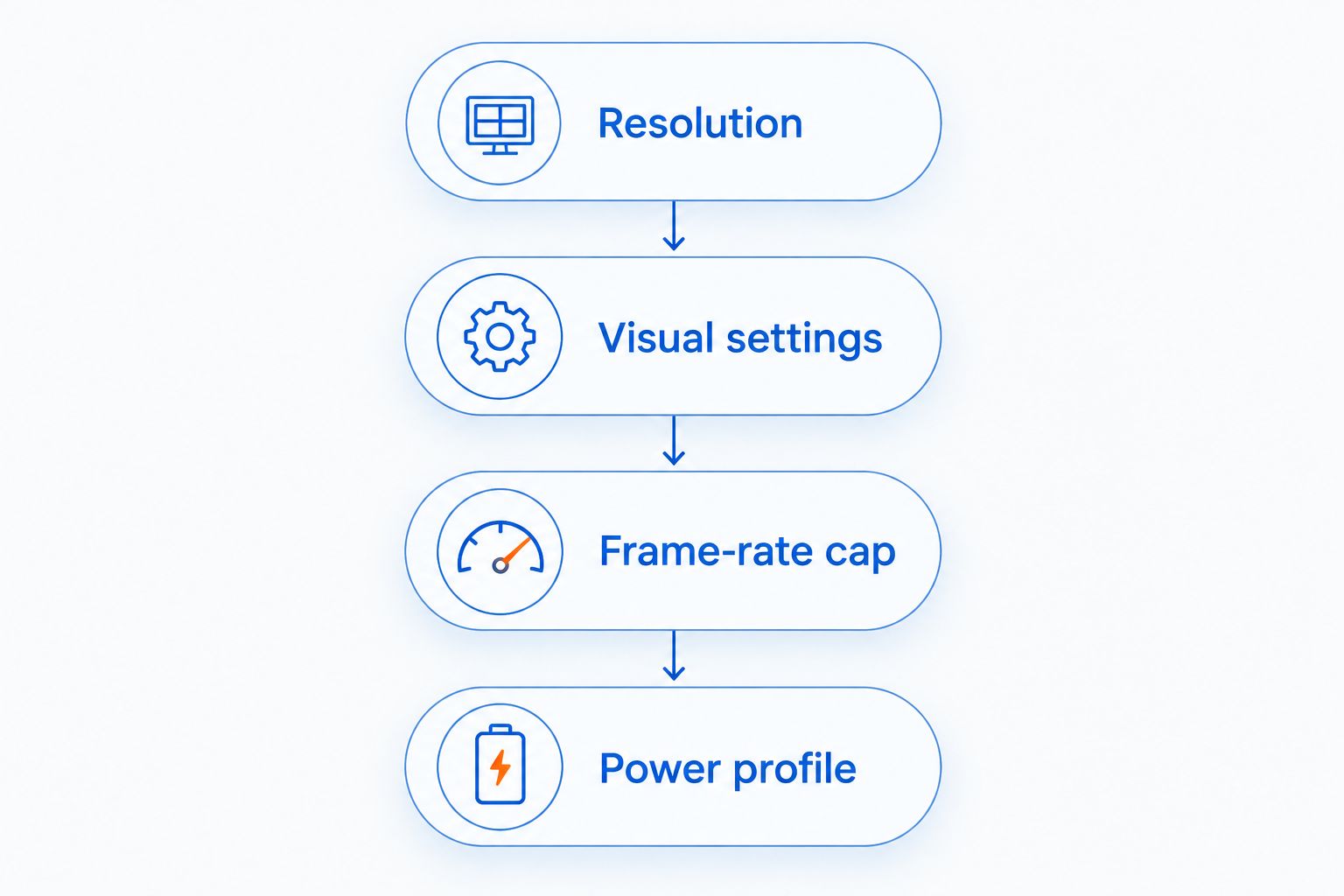
A steady experience matters more than a brief peak in an empty scene. Test the areas where you actually play: combat, busy environments, menus, and transitions.
Can I use my existing Steam library on a handheld?
Yes, your Steam account gives you access to your existing library on a compatible handheld. You install the games that support the device rather than buying a separate handheld edition of each PC game.
Save transfer is a separate question. Games that support Steam Cloud can synchronize supported save data when the relevant settings and connection are in place, but not every game supports it.
Before switching devices, check that synchronization has finished. For games without cloud support, follow the game's documented save-transfer process instead of assuming progress will appear automatically.
Can I play Steam games offline on a handheld?
Yes, compatible games that do not require an online connection can work through Steam's Offline Mode after the necessary setup. Online multiplayer, external account checks, and some launchers still require connectivity.
Test offline play before you travel. Install updates, launch the game while connected, then test it without a network connection. A game sitting in your library is not evidence that it will work offline.
For travel in 2026, make the test match the intended session. Open the save, enter gameplay, and check any launcher prompts rather than just opening Steam.
Do I need a dock, mouse, or keyboard to play Steam games?
No, a handheld with built-in controls can play compatible controller-friendly Steam games without a dock, mouse, or keyboard. Extra input devices are useful for desktop setup, typing, and games designed around keyboard-and-mouse controls.
Gaming and More's M801 Wireless RGB Gaming Mouse is a setup accessory to consider for mouse-based use. Its stated features include adjustable DPI and rechargeability; confirm its connection requirements against your handheld before choosing it.
The benefit of external input is easier pointer control and text-heavy setup. The trade-off is carrying more equipment and needing a suitable surface. An accessory does not solve operating-system incompatibility or insufficient graphics performance.
FAQ
Can a handheld gaming PC run all Steam games?
No, a handheld gaming PC cannot be assumed to run every Steam game. Operating-system support, anti-cheat software, hardware requirements, and controls determine compatibility.
Do I need to buy my Steam games again for a handheld?
No, you normally access your existing Steam purchases by signing in to the same account. The game still needs to support the handheld's hardware and software environment.
Is Windows better than SteamOS for Steam games?
Windows is the better choice when your must-play games require Windows support. SteamOS offers a gaming-focused interface, but compatibility depends on native Linux support or Proton and any additional software the game requires.
Does Steam Deck Verified mean a game runs at 60 frames per second?
No, Steam Deck Verified does not guarantee 60 frames per second. The rating addresses Valve's compatibility criteria, while performance depends on the game, hardware, and settings.
Can I run Steam games without an internet connection?
Yes, games that support offline use can work through Steam's Offline Mode after setup. Games with online multiplayer or required authentication still need a connection.
Will my Steam saves transfer from my desktop to my handheld?
Steam Cloud can transfer supported save data for games that use it. Check the game's cloud support and synchronization status before switching devices.
Does Steam Remote Play install the game on my handheld?
No, Steam Remote Play runs the game on the host computer and streams the session to the handheld. The connection carries video to the handheld and inputs back to the host.
Can a handheld play Steam games on an external monitor?
Yes, a handheld with suitable video-output support can use an external monitor. Check the exact device, adapter or dock, and display requirements; connecting a monitor does not increase the handheld's processing power.
One last thing
The best pre-purchase test is your least convenient must-play game. Check the title with the demanding graphics, awkward launcher, required anti-cheat, or mouse-heavy interface first. If that game rules out a device, easier games will not change the decision.
Build your 2026 shortlist around that test. Gaming and More is best for gamers comparing gaming computers and setup accessories; your actual Steam library decides whether handheld play fits your needs.


