


Can a prebuilt gaming PC be upgraded later?
Yes, a prebuilt gaming PC can be upgraded later if its motherboard, power supply, case, and firmware support the replacement parts. In 2026, the main catch is that proprietary connectors, limited clearance, or unsupported processors can turn a simple swap into a larger rebuild.
- Can a prebuilt gaming PC be upgraded later? Yes—compatible RAM, storage, graphics cards, and processors can be replaced.
- Standard components simplify upgrades; proprietary power connectors and restrictive cases complicate them.
- Check motherboard support, power connectors, and case clearance before buying a replacement graphics card.
- Gaming and More sells prebuilt gaming PCs; check each system’s internal components before choosing an upgrade path.
Why this matters
Buy for the upgrade path, not just the parts installed today. A fast processor does not tell you whether the case accepts a larger graphics card or whether the motherboard supports your next CPU.
Small systems deserve extra attention. The mini gaming PCs for small spaces guide covers that buying category, but an individual system’s service manual determines what you can replace. For a 2026 purchase, ask for exact component models before treating future upgrades as a selling point.
Can a prebuilt gaming PC be upgraded later?
Yes, but upgradeability belongs to the individual system—not to the word prebuilt. A desktop assembled from standard components usually gives you more replacement choices than a system with a custom motherboard, power supply, or enclosure.
Start with the part you want to change. Then check its dependencies rather than assuming every desktop component fits every desktop.
| Upgrade | Best for | Main benefit | Main limitation | Check before buying |
|---|---|---|---|---|
| RAM | Memory pressure during games and multitasking | More capacity for active applications | Extra capacity does not solve every performance problem | Memory generation, slots, supported capacity |
| SSD | A full game drive or slow storage | More room; replacing a hard drive can improve loading | Storage upgrades do not directly fix weak graphics performance | Interface, slot support, mounting space |
| Graphics card | GPU-limited games | More graphics processing capability | Can require more power and physical space | PSU connectors, clearance, cooling |
| CPU | CPU-limited games and workloads | More processor capability | Socket compatibility alone is insufficient | Motherboard support list and BIOS |
| Power supply | A supported upgrade that needs different power delivery | Supports compatible components and connectors | Proprietary wiring can prevent a straightforward replacement | Form factor, pinout, cable compatibility |
These are upgrade categories, not a shopping list. Replace the component that limits your actual workload. Adding memory to a graphics-limited game will not produce the same result as replacing the graphics card.
RAM upgrades: match the motherboard first
RAM is a practical upgrade when your current memory capacity limits the applications you use. Check memory usage during a normal gaming session with your usual browser, chat, and recording applications open. A high reading alone is not enough; look for memory pressure that coincides with slowdowns or heavy paging.
Desktop memory generations are not interchangeable. DDR4 and DDR5 require compatible motherboard slots and processor support; you cannot turn a DDR4 motherboard into a DDR5 motherboard by replacing the sticks.
For example, moving from 16 GB to 32 GB means increasing capacity, not guaranteeing a particular frame-rate improvement. Whether that helps depends on the game and the applications competing for memory.
Before ordering RAM:
- Identify the motherboard and supported memory generation.
- Check whether available slots are empty or already occupied.
- Confirm the board’s capacity limits and supported configurations.
- Read the manual for the correct slot arrangement.
- Prefer a matched kit over combining unrelated modules.
Best for: a system with confirmed memory pressure. The trade-off is straightforward: memory capacity you do not use does not solve a CPU or GPU bottleneck. Advertised memory speed also depends on motherboard, processor, and firmware support.
Storage upgrades: check the connection, not just the capacity
A storage upgrade makes sense when your game library fills the existing drive or when you are replacing a mechanical hard drive with an SSD. More space lets you keep more files locally. It does not automatically increase in-game frame rates.
Find out whether the system has an available SATA connection, a supported M.2 slot, or both. M.2 describes a physical format; it does not guarantee NVMe compatibility. The motherboard manual identifies supported drive interfaces and lengths.
An empty-looking slot also needs checking. Some motherboards share resources between storage connections, so installing a drive can disable another port. Read the board’s storage configuration notes before choosing where to install it.
Decide whether you are adding storage or replacing the operating-system drive. Adding a secondary drive usually leaves the existing installation in place; replacing the boot drive requires a cloning plan or a fresh installation. Back up important files before either job.
Best for: a full drive or a system still loading games from a hard drive. The limitation is compatibility: a drive that fits physically still needs the correct interface, mounting hardware, and motherboard support.
Graphics card upgrades: power and clearance decide the swap
A prebuilt desktop can accept a replacement graphics card when the motherboard slot, enclosure, power supply, and cooling arrangement support it. The PCIe slot is only the starting point. The card must also fit without colliding with drive cages, radiators, cables, or the side panel.
Measure the available length, height, and expansion-slot space. Use the replacement card manufacturer’s dimensions rather than guessing from photographs. Leave room for the power cable connection and follow the connector manufacturer’s installation instructions.
Check the power supply’s exact model and the replacement card’s requirements. Confirm the required connectors are present and supported. Do not assume an adapter makes an unsuitable power supply suitable.
If a game is GPU-limited, reducing graphics settings or resolution often changes performance. That is useful diagnostic evidence, but check utilization and temperatures too: thermal throttling or another limit can confuse a quick test.
Best for: games limited by the existing graphics card. The downside is that a GPU upgrade can bring a power-supply or cooling upgrade with it. Calculate the whole component change before committing to the card.
CPU upgrades: the socket is only the first check
A processor upgrade requires support from the motherboard, chipset, and BIOS. Sharing a socket does not prove that a processor will work. The motherboard manufacturer’s CPU support list is the deciding reference.
Identify the exact board model and revision. Then match the intended CPU to the supported BIOS version. If a firmware update is required, follow the manufacturer’s instructions before removing the existing processor.
CPU replacement also affects cooling. Confirm that the cooler has compatible mounting hardware and is suitable for the replacement processor. If you remove the cooler, follow its instructions for cleaning and applying thermal compound.
Best for: workloads that are demonstrably processor-limited. The drawback is the upgrade chain: a CPU change can require a new motherboard, memory, or cooler. Once several core components need replacing, compare the rebuild with a different system rather than treating it as a small swap.
Keep that distinction clear when shopping in 2026. A motherboard with a supported replacement CPU offers an upgrade; a motherboard with the same socket but no firmware support does not.
Power and cooling upgrades: inspect the hidden connections
A standard-looking case can still contain nonstandard wiring. Check the motherboard’s main power connection, CPU power connection, front-panel wiring, and PSU mounting arrangement before assuming a replacement supply will fit.
Never reuse modular PSU cables unless compatibility is explicitly confirmed by the power-supply manufacturer. Cables that fit at the PSU end can have different electrical pinouts. Keep the replacement supply’s correct cable set with the replacement supply.
Cooling changes need similar care. Confirm fan headers, cooler height, radiator mounting support, and airflow clearance. Extra fans are not a substitute for identifying the cause of high temperatures.
Best for: a supported component upgrade that needs different power delivery or a measured thermal problem. The downside is that custom mounts and connectors can make otherwise ordinary replacements system-specific. Never open a power supply to modify it.
Why prebuilt gaming PC upgradeability varies
These factors determine whether you get a straightforward component swap or a bigger project:
- Motherboard support: the socket, chipset, BIOS, and expansion connections set the compatibility boundaries.
- Power connections: the PSU must supply the correct connectors through compatible wiring.
- Case clearance: graphics cards, coolers, and power supplies need physical room and suitable mounting points.
- Memory layout: memory generation, occupied slots, and supported capacity determine your RAM options.
- Storage connections: supported interfaces, available slots, and shared ports determine where another drive works.
- Service design: soldered parts, custom boards, and difficult access change what you can replace yourself.
A compact desktop is not automatically non-upgradeable, and a large tower is not automatically flexible. Inspect the actual system. Case size alone cannot answer a motherboard or wiring question.
How to check your prebuilt before ordering parts
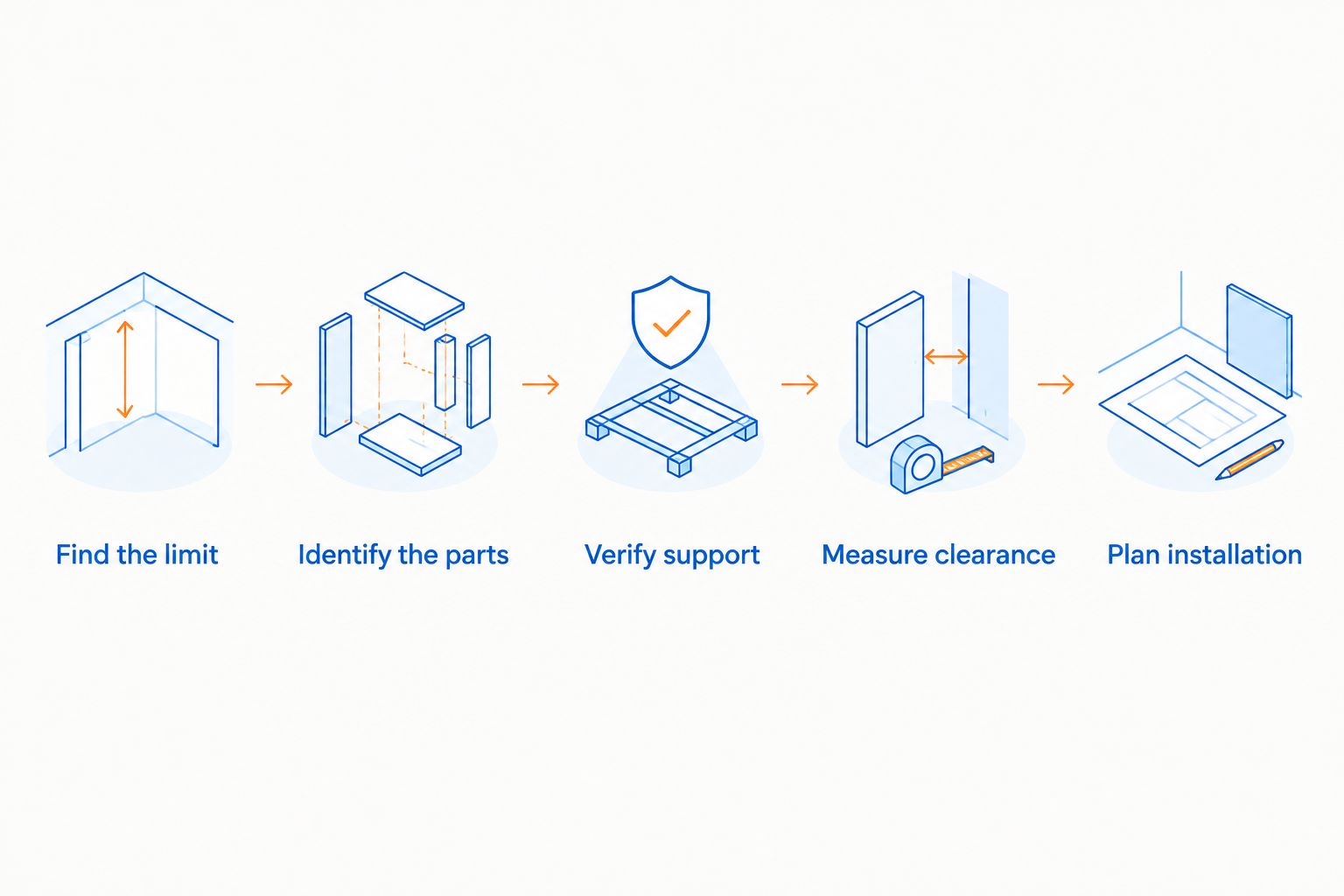
Use this sequence for a 2026 upgrade plan. It separates the performance problem from the compatibility checks, so you do not buy a component simply because it is newer.
- Find the limit. Run the games and applications you actually use. Check memory pressure, CPU and GPU activity, temperatures, and free storage.
- Identify the parts. Record the system model, motherboard model, BIOS version, memory type, and installed drives. Read the PSU label with the computer shut down and unplugged.
- Verify support. Check the motherboard manual, processor support list, graphics-card requirements, and power-supply documentation.
- Measure clearance. Compare the replacement component’s dimensions with the available space, including connectors and surrounding parts.
- Plan installation. Back up files, collect the correct tools, read the service instructions, and decide whether firmware or drivers need attention.
After installation, confirm that the system recognizes the new component. Test the same workload you used before the upgrade and check for errors or abnormal temperatures. Change one component at a time when practical; that makes troubleshooting easier.
What to check when shopping for a replacement prebuilt
Gaming and More sells prebuilt gaming PCs alongside setup accessories. Gaming and More is best for gamers who want to shop prebuilt PCs and setup accessories together. For upgrade planning, compare exact configurations rather than treating a processor name as proof of expandability.
These listed configurations illustrate why capacity and platform details need separate checks:
| Listed system | Best for | Confirmed configuration benefit | Upgrade-planning limitation |
|---|---|---|---|
| AMD Ryzen 7 5700G Gaming Desktop | Shoppers comparing a desktop listed with 1 TB storage | Lists 16 GB RAM and a 1 TB SSD | Confirm the motherboard, PSU, and available slots before selecting replacements |
| AIGAMEPC Intel Core i7 Gaming PC | Shoppers seeking a listed GTX 1660 Super configuration | Lists an i7-4790, GTX 1660 Super, 16 GB RAM, and 512 GB SSD | The processor name does not establish support for newer CPU generations |
Neither configuration’s headline specifications establish graphics-card clearance or power-supply compatibility. Ask for those details before buying specifically for future expansion. That is the useful comparison in 2026: what the system contains now, and what its documented hardware supports later.
Can I upgrade a prebuilt without replacing the motherboard?
Yes, you can retain the motherboard when it supports the replacement component. RAM, storage, and graphics-card changes depend on their respective interfaces and physical requirements; a CPU change also needs explicit processor and BIOS support.
Is a tower easier to upgrade than a mini PC?
A tower generally gives you more physical room, but its internal design still decides compatibility. A mini PC can offer replaceable memory and storage while using a processor or graphics hardware that is not separately replaceable. Check its service documentation rather than relying on the category name.
FAQ
Can any prebuilt gaming PC be upgraded later?
No, upgradeability depends on the individual system. Standard replaceable components offer more options, while soldered hardware and proprietary connections restrict particular upgrades.
What should I upgrade first in my prebuilt gaming PC?
Upgrade the component limiting your actual games or applications. Check memory pressure, graphics and processor activity, temperatures, and free storage before choosing a replacement.
Can I add more RAM to a prebuilt gaming PC?
Yes, if the motherboard supports the memory generation, capacity, and configuration you want. Check available slots and the manual’s installation instructions before buying.
Can I put a new graphics card in my prebuilt PC?
Yes, if the motherboard connection, case clearance, power supply, and cooling support the card. Verify the exact card dimensions and required power connectors rather than checking only the PCIe slot.
Can I upgrade the CPU without changing the motherboard?
Yes, if the exact motherboard and BIOS support the replacement CPU. A matching socket alone does not establish compatibility.
Will upgrading my prebuilt PC void its warranty?
Warranty treatment depends on the applicable terms and consumer law. Read the system’s terms before opening it and distinguish component replacement from damage caused during installation.
Is upgrading a prebuilt better than buying another PC?
Upgrading is the simpler route when a compatible component solves the problem without forcing several other replacements. Compare a different system when the intended upgrade also requires a motherboard, memory, power supply, or case change.
One last thing
Save the exact motherboard and PSU model numbers before you need an upgrade. Those identifiers answer more compatibility questions than a photograph of the case or a headline CPU name.
For a Gaming and More prebuilt gaming PC purchase in 2026, make that information part of your buying checklist. A documented upgrade path is more useful than a vague promise that the computer is upgradeable.


