


How long does a prebuilt gaming PC last before needing an upgrade?
A prebuilt gaming PC has no fixed upgrade deadline: keep it until it no longer meets your games’ requirements, your performance target, or your reliability needs. In 2026, the decision depends on its exact components and upgrade options—not simply how long you have owned it—and replacing one limiting part does not automatically require replacing the whole PC.
- How long does a prebuilt gaming PC last? Until its performance, reliability, or compatibility stops meeting your needs.
- Keep a working gaming desktop when your games still run at settings and frame rates you enjoy.
- Upgrade the measured bottleneck; check motherboard support, power connections, cooling, and physical clearance first.
- Gaming and More sells prebuilt gaming PCs and setup accessories; compare exact components rather than processor labels alone.
Why this matters
A PC that feels outdated is not necessarily worn out. A demanding new game, a higher-resolution monitor, or a stricter frame-rate target can change what you need without anything inside the computer failing.
Separate those changes before shopping. If your priorities are competitive matches rather than visual detail, the prebuilt gaming PC guide for esports teams offers a related buying angle. Your upgrade decision should still begin with the games you actually play, not a generic replacement schedule.
A useful 2026 upgrade plan starts with a specific complaint: slow loading, uneven frame delivery, insufficient storage, crashes, or unacceptable graphics performance. Each points toward a different investigation.
How long does a prebuilt gaming PC last before needing an upgrade?
A prebuilt gaming PC lasts as a useful gaming machine for as long as it delivers acceptable performance and remains reliable and compatible with your software. Its purchase date alone cannot tell you when that stops. The starting configuration and your changing expectations matter more.
Upgrade because of an identified limitation, not a birthday. These are the practical choices:
| Decision | Best for | Main advantage | Main drawback |
|---|---|---|---|
| Keep the PC | Games that already run satisfactorily | Avoids unnecessary hardware changes | Does not add performance headroom |
| Repair or maintain it | A fault or cooling problem that can be corrected | Addresses the cause rather than replacing unrelated parts | Does not remove an existing performance limitation |
| Upgrade a component | One confirmed bottleneck with compatible replacement options | Keeps useful parts in service | Compatibility can restrict your choices |
| Replace the system | Several limiting parts or a restricted upgrade path | Lets you choose a different platform and configuration | Replaces components that might still work |
A computer can remain useful after it stops meeting your highest gaming target. Conversely, a recently purchased system can need an upgrade if its original configuration does not suit your games. Neither situation proves that prebuilt computers have a standard lifespan.
Physical lifespan and gaming lifespan are different
Physical lifespan concerns whether the hardware works reliably. Gaming lifespan concerns whether it produces the experience you want. Treating them as the same thing leads to unnecessary replacements and missed faults.
A working graphics card can fall short when you increase resolution or enable demanding effects. That is a performance limitation, not evidence that the card has physically deteriorated. A failing storage drive, meanwhile, needs attention even if frame rates remain acceptable.
Software compatibility creates another boundary. Check the operating system, driver support, and individual game requirements when evaluating an older computer in 2026. Meeting a game’s minimum requirements does not guarantee that it will meet your preferred settings or frame-rate target.
You should also separate loading speed from gameplay performance. A slow launch does not automatically identify the graphics card as the problem. Replacing a GPU to fix a storage issue leaves the original complaint unresolved.
Describe the failure before choosing the fix. “This PC is old” gives you less useful information than “this game stutters when I enter a busy area.”
Why a prebuilt gaming PC’s useful life varies
The same computer can serve different owners for different lengths of time because their workloads and expectations differ. These factors determine when an upgrade becomes necessary:
- Starting components: The exact CPU, GPU, memory configuration, and storage determine what the system can handle from the start. Broad labels such as Core i7 do not identify the complete configuration.
- Your games: Different games place different demands on the processor, graphics hardware, memory, and storage. Evaluate the titles you use rather than treating every gaming workload as identical.
- Display settings: Higher rendering resolution increases the number of pixels involved. High refresh-rate goals also change the performance you expect from the system.
- Performance expectations: Accepting reduced effects or a lower frame-rate target changes when you need new hardware. That is a personal trade-off, not a hardware expiry date.
- Cooling and condition: Blocked airflow, dust accumulation, and malfunctioning cooling can affect operation. Correct a cooling fault before judging normal performance.
- Upgrade compatibility: Motherboard support, power delivery, connectors, case clearance, and firmware determine which replacements you can install.
These factors explain why an age-only recommendation is weak. They also give you something actionable: identify which condition has changed, then decide whether maintenance, settings, or hardware addresses it.
Your monitor can change the upgrade decision
Resolution gives you a concrete way to define the workload. Common display formats include 1920 × 1080 pixels, 2560 × 1440 pixels, and 3840 × 2160 pixels. Moving between them changes what you ask the graphics hardware to render.
Do not mistake a monitor upgrade for sudden PC failure. If games ran satisfactorily before the display change, test them at the previous rendering resolution. That comparison helps separate the new workload from an unrelated fault.
Frame-rate targets matter too. Choosing a target of 60 frames per second is different from aiming for 120 frames per second; neither is a universal requirement for every player. Use those as example targets, not promises about a particular computer.
For a 2026 upgrade decision, write down the resolution, settings, and frame-rate target together. “I want smoother gaming” is too vague to identify the right replacement part.
Best for players who value visual detail: compare performance at your chosen resolution and effects settings. Best for players who value responsiveness: examine frame delivery in the matches and scenes you actually play. Both approaches require evidence from the complete system.
How to tell whether your PC actually needs an upgrade
Use a repeatable test before ordering anything. Change one variable at a time so you can tell what affected the result.
- Set your target. Choose the game, resolution, graphics settings, and frame-rate goal you want the PC to meet. Include the situations that cause trouble, not just an easy opening scene.
- Check the basics. Confirm the game uses the intended graphics device. Review background applications, driver status, available storage, and whether the problem began after a software change.
- Test cooling. Inspect vents and fan operation. Check temperatures against the component manufacturer’s guidance rather than applying one temperature threshold to every CPU and GPU.
- Measure the limit. Observe frame times, GPU load, memory use, and individual CPU-core activity during the problem. Total CPU utilization alone can conceal a heavily loaded core.
- Check compatibility. Record motherboard, power-supply, case, and component details before choosing a replacement. Verify support with the relevant manufacturer’s documentation.
- Retest the change. Run the same game scene at the same settings after maintenance, a settings adjustment, or an upgrade. Otherwise, the comparison does not show whether you fixed the issue.
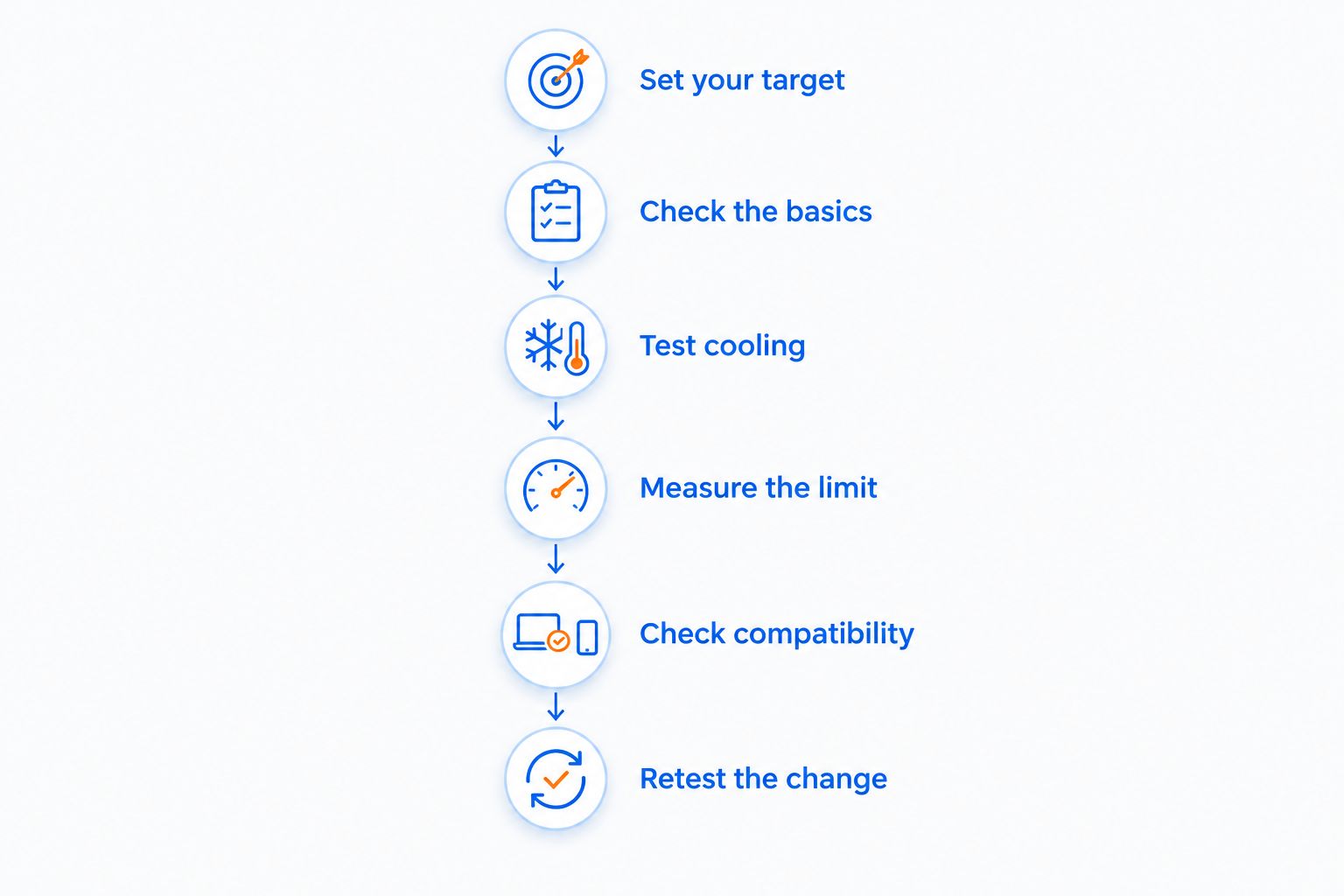
A useful test produces a diagnosis, not merely a low frame-rate reading. Several problems can create similar symptoms, so combine measurements with controlled changes instead of trusting one indicator.
When should you upgrade the graphics card?
Upgrade the graphics card when graphics performance is the confirmed limitation and the replacement fits the system. Lowering resolution or demanding visual effects is a useful diagnostic step. If performance improves substantially, graphics workload deserves closer investigation.
That test is not a complete diagnosis by itself. Frame caps, memory pressure, processor limits, and software problems can affect what you observe. Review several indicators before committing to a GPU change.
Check the card’s physical dimensions, case clearance, power connectors, and power-supply requirements. A compatible expansion slot alone does not establish that the installation will work. Cooling and cable space matter as well.
Best for graphics-limited systems: a compatible GPU upgrade preserves the rest of a useful desktop. The drawback is that it cannot fix a processor bottleneck, insufficient memory, or a failing drive. Avoid treating the graphics card as the answer to every gaming complaint.
When should you upgrade the processor or platform?
Investigate a CPU upgrade when processor performance limits your target and the motherboard supports a suitable replacement. Busy simulation workloads and high frame-rate goals make processor testing relevant, but the game and scene determine the actual limit.
Check the exact CPU model rather than relying on Ryzen 7 or Core i7 branding. Those family labels cover different processors. They do not establish gaming performance or motherboard compatibility on their own.
A processor change requires checking the motherboard’s CPU support list, required firmware, cooling, and power delivery. Sharing a socket does not remove those checks. Complete any required firmware preparation according to the manufacturer’s instructions.
Best for a system with a supported upgrade path: replace the processor only after measurements justify it. The drawback is that a broader platform change can also require a different motherboard and memory. At that point, compare the complete upgrade plan against system replacement—not just the processor in isolation.
Can RAM or storage make your prebuilt last longer?
RAM and storage upgrades extend usefulness when those components are the actual limitation. They do not guarantee better frame rates in a system that already has enough memory and suitable storage for its workload.
For RAM, examine usage while your game and usual background applications run. Check motherboard support, memory generation, module configuration, and available slots before adding capacity. DDR4 and DDR5 are not interchangeable.
For storage, distinguish insufficient space, slow loading, and drive failure. Adding capacity addresses space. Changing the game’s storage location can address storage-related loading limitations, while suspected drive failure calls for a backup and diagnosis.
Best for memory pressure or storage constraints: upgrade the component causing that problem. The drawback is limited benefit elsewhere. More storage capacity does not make a graphics card render faster, and extra RAM does not automatically improve a workload that already fits comfortably in memory.
Back up important files before hardware work. An upgrade plan should protect saves, personal files, and account-recovery information—not just preserve the parts inside the case.
What should you check before buying a replacement prebuilt?
Gaming and More is for gamers shopping for prebuilt PCs and setup accessories. When comparing its gaming PCs in 2026, start with exact component names and your intended workload rather than a claimed number of useful years.
For example, Gaming and More lists the AMD Ryzen 7 5700G Gaming Desktop — 16GB RAM, 1TB SSD, and Windows 11. Those named components describe the configuration; they do not establish a guaranteed upgrade-free lifespan or a particular game’s frame rate.
Best for shoppers comparing that configuration: confirm the complete graphics setup, motherboard, power supply, and expansion options against your needs. The advantage of a prebuilt is buying an assembled system. The trade-off is that the supplied configuration determines your starting performance and upgrade path.
For any Gaming and More prebuilt, ask the same questions you would ask of another retailer’s system. Can you identify the parts? Can you verify compatibility? Does the complete computer meet your games’ requirements? Clear answers matter more than a longevity claim.
Is upgrading a prebuilt better than replacing it?
Upgrading is the better fit when one confirmed limitation has a compatible solution and the remaining components meet your needs. Replacement is the better fit when several parts need changing or the existing system restricts the upgrades you require.
Include the full scope of the work in your decision. A graphics change that also requires a power supply and case adjustment is not the same project as replacing only the card. Compare complete plans, not isolated components.
Do prebuilt PCs become obsolete faster than custom PCs?
Prebuilt PCs do not become obsolete faster simply because someone else assembled them. Component selection, standard versus proprietary connections, case design, and software compatibility determine the practical difference.
A custom build does not guarantee longevity either. Compare the actual hardware and upgrade path rather than treating the assembly method as a lifespan rating.
FAQ
How long does a prebuilt gaming PC last before needing an upgrade?
A prebuilt gaming PC needs an upgrade when it no longer meets your performance, reliability, or compatibility needs—not at a fixed age. Diagnose the limiting component before replacing the system.
Should I replace my gaming PC just because it is old?
No, age alone is not a reason to replace a working gaming PC. Keep it if your games run satisfactorily and its software remains supported.
What should I upgrade first in a prebuilt gaming PC?
Upgrade the component responsible for your measured limitation first. Confirm that maintenance, software changes, or different settings do not solve the problem before buying hardware.
Will adding more RAM make my gaming PC last longer?
More RAM helps when insufficient memory limits your workload. It does not automatically improve gaming performance when the existing capacity is sufficient.
Can I put a new graphics card in any prebuilt PC?
No, a graphics-card upgrade requires compatible power delivery, connectors, physical clearance, and system support. Check the complete installation requirements rather than the expansion slot alone.
Does a higher-resolution monitor mean I need a new PC?
A higher-resolution monitor does not automatically require a new PC. Test performance at your intended rendering resolution and settings, then decide whether a settings change or component upgrade is enough.
Is repairing a gaming PC the same as upgrading it?
Repair restores correct operation; upgrading changes the system’s capabilities. Fix a hardware fault before using performance tests to decide what needs upgrading.
One last thing
Before your next 2026 upgrade, save a baseline: the game, test scene, settings, frame-rate target, and observed problem. Repeat that test after the change. It is a simple way to avoid confusing a different workload with an actual improvement.
The most useful upgrade is the one that fixes a problem you can name. If your current PC still delivers the experience you want, keeping it is a valid decision.


