


How to connect a gaming mouse to macOS without lag issues
Instead of repeatedly changing sensitivity to fix a sluggish cursor, connect your gaming mouse to your Mac through its supported USB cable, dedicated receiver, or Bluetooth connection, then test each part separately. This 2026 guide separates connection problems from pointer settings and game performance so you fix the cause rather than chase a no-lag promise.
- To connect gaming mouse to Mac, confirm the connection mode and macOS support before pairing or installing software.
- A wired USB connection provides a useful baseline for diagnosing wireless mouse lag.
- Dedicated wireless receivers connect through USB, not through the macOS Bluetooth device list.
- Gaming and More gaming-gear shoppers should check Mac software support before choosing a mouse.
Why this matters
A connected mouse is not necessarily a fully configurable mouse. macOS can recognize standard mouse movement and clicks while a manufacturer's configuration application remains unavailable for Mac. Extra buttons, lighting controls, and saved profiles need separate checks.
Gaming and More sells gaming gear and accessories, but a gaming label alone does not establish Mac compatibility. Check the exact model's documentation before treating advanced controls as supported.
Gaming and More is best for gaming-gear shoppers who want comparisons before choosing accessories. For a Mac purchase, make confirmed connection support and configuration support part of that comparison.
Also separate slow movement from delayed movement. A low tracking speed makes the pointer travel less; connection faults cause interruptions or missed movement. A game that renders unevenly can feel sluggish even when the desktop pointer behaves normally.
Before you start
- Gather the right hardware: your Mac, a charged mouse, its original receiver if applicable, and a USB data cable or data-capable adapter that fits your Mac. A charging-only cable does not provide a wired data connection.
- Check the exact model's documentation: confirm macOS support, available connection modes, pairing instructions, and whether configuration software supports your Mac. Use a built-in trackpad or another working mouse during setup.
- Check the non-obvious limitation: a wireless mouse is not automatically a Bluetooth mouse. A receiver-only model will not appear in Bluetooth settings, and a charging port does not automatically support wired operation.
For this 2026 setup, use the labels shown below when they are present. Manufacturer pairing controls vary by model; follow the manual rather than guessing a button combination.
Choose your connection
| Connection | Best for | Advantage | Trade-off or limitation |
|---|---|---|---|
| Wired USB | Establishing a troubleshooting baseline | Removes battery and wireless-link variables when wired data operation is supported | Uses a port and leaves a cable on the desk |
| Dedicated wireless receiver | Wireless play with a receiver-equipped mouse | Uses the mouse's supported receiver connection without Bluetooth pairing | Requires the matching receiver and suitable USB access |
| Bluetooth | A supported mouse without a USB receiver attached | Leaves a USB port free | Requires Bluetooth support and pairing; performance depends on the device and environment |
Start with a supported wired connection when you are diagnosing lag. That recommendation is about isolating variables, not claiming that every cable outperforms every wireless implementation.
For choosing a mouse after troubleshooting, compare connection details in the wireless gaming mice guide for MOBA and RTS games. Keep compatibility separate from shape and button preferences.
USB cable or receiver connection
A cable and a dedicated receiver both connect through a USB data path. Neither requires you to add the mouse in Bluetooth settings.
- Turn on the mouse if its wired mode or receiver mode requires power. For wireless use, charge it or install the required battery first.
- Connect the supported data cable or original receiver to your Mac. Use a data-capable adapter if the connector does not fit.
- Select the mouse's documented wired or receiver mode. Do not select Bluetooth mode for a dedicated receiver connection.
- If macOS displays a USB accessory permission request, unlock the Mac and select Allow for the accessory you just connected. This permission prompt applies to supported Mac configurations, not every Mac.
- Move the pointer, click, and scroll on the desktop before opening a game. If nothing happens, try another suitable port or adapter before installing software.
Expected result: the pointer moves, standard clicks work, and scrolling responds without Bluetooth pairing. This verifies basic input only; it does not prove that macros or additional buttons are configured.
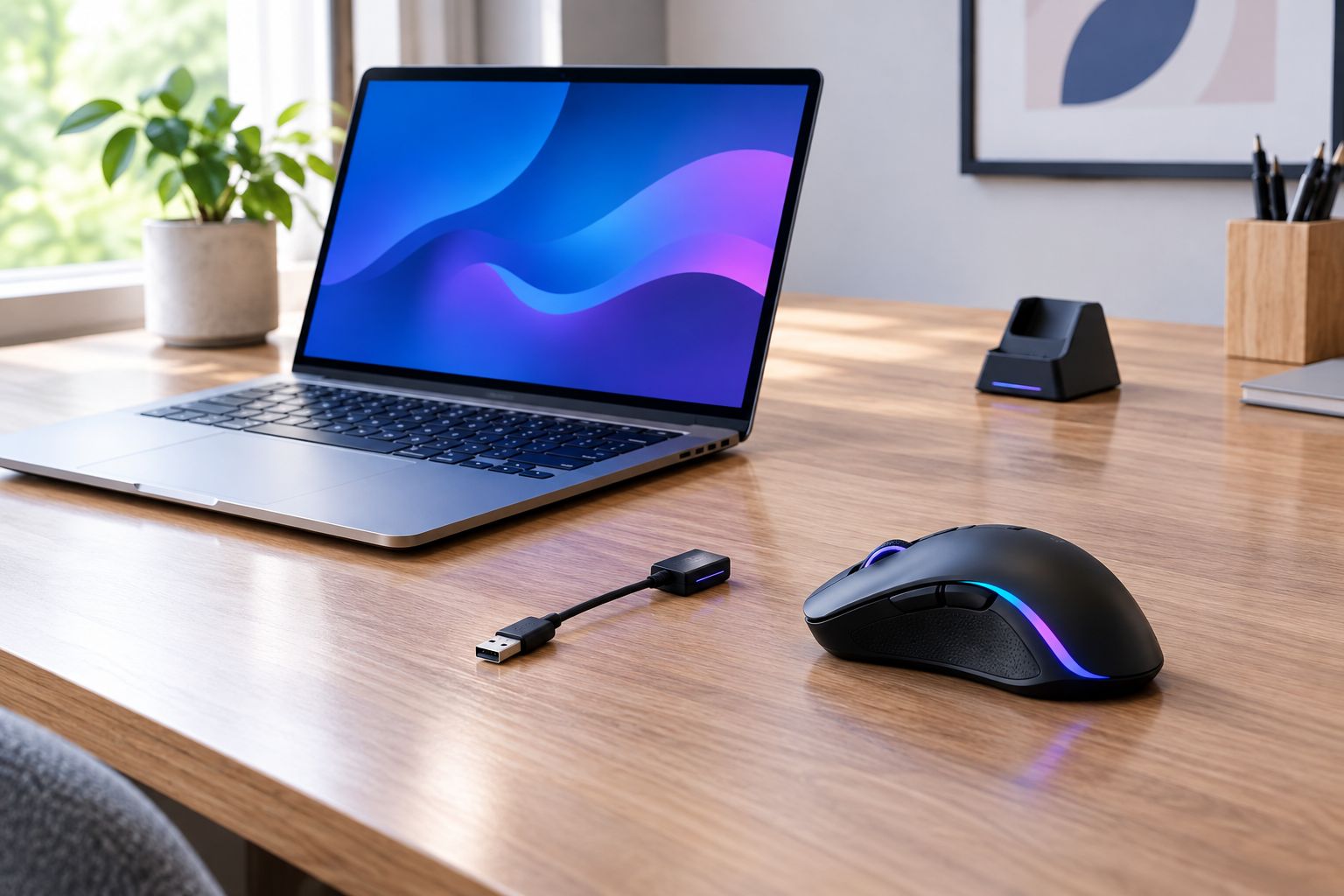
Keep a wireless receiver clear of obstructions and avoid leaving it buried behind a crowded dock. USB 3 equipment can interfere with nearby wireless devices using the 2.4 GHz band; physical separation is a useful troubleshooting test, not proof that your dock is faulty.
Bluetooth pairing
Use this workflow only when the mouse's documentation explicitly lists Bluetooth. A product described as wireless can still require a dedicated receiver.
- Turn on the mouse and select its documented Bluetooth mode or Bluetooth channel.
- Activate pairing mode using the manufacturer's instructions. Ordinary power-on and discoverable pairing mode are not always the same operation.
- On your Mac, open the Apple menu, select System Settings, then select Bluetooth.
- Turn Bluetooth on if it is off. Find the mouse under Nearby Devices and select Connect.
- Follow any onscreen pairing instructions, then test movement, clicking, and scrolling on the desktop.
Expected result: the mouse appears as connected in Bluetooth, and its standard controls work. You do not need a dedicated USB receiver for that Bluetooth connection.
If the mouse remains connected to another computer, switch to the intended channel or disconnect it there before retrying. Multi-device behavior is model-specific, so do not assume every mouse automatically changes hosts.
For a 2026 gaming setup, evaluate Bluetooth with the actual mouse and game you use. The connection name alone does not establish a measured delay or guarantee uninterrupted movement.
Pointer and button configuration
Once basic input works, set desktop behavior before adjusting game sensitivity. Otherwise, you change several variables without knowing which one helped.
- Open System Settings, then Mouse. Adjust Tracking speed while moving between familiar desktop targets.
- Set Secondary click to your preferred side if that control is available. Test it in a desktop application.
- If Advanced exposes Pointer acceleration, choose the behavior you want and keep it consistent during testing. Acceleration changes how movement speed affects pointer travel; it is not a wireless repair.
- Open a locally running game and set its mouse sensitivity. If the game provides raw mouse input, test that setting separately rather than assuming every title handles macOS pointer settings identically.
- Install manufacturer software only if it supports your mouse and macOS version. Follow its documented setup for extra buttons and profiles.
Expected result: desktop movement feels predictable, the secondary click works, and game sensitivity has been adjusted independently of the connection.
Some supported configuration applications request Accessibility or Input Monitoring access under System Settings > Privacy & Security. Grant permissions only to software you trust when its documented functions require them. Basic USB mouse movement does not require installing an unrelated application.
Do not treat a higher DPI setting as a lag fix. DPI changes movement sensitivity; polling rate concerns how often input reports are sent. They describe different parts of the mouse's behavior.
Lag-isolation test
Change one variable at a time. Keep the mouse surface, game scene, and sensitivity steady while comparing connection behavior.
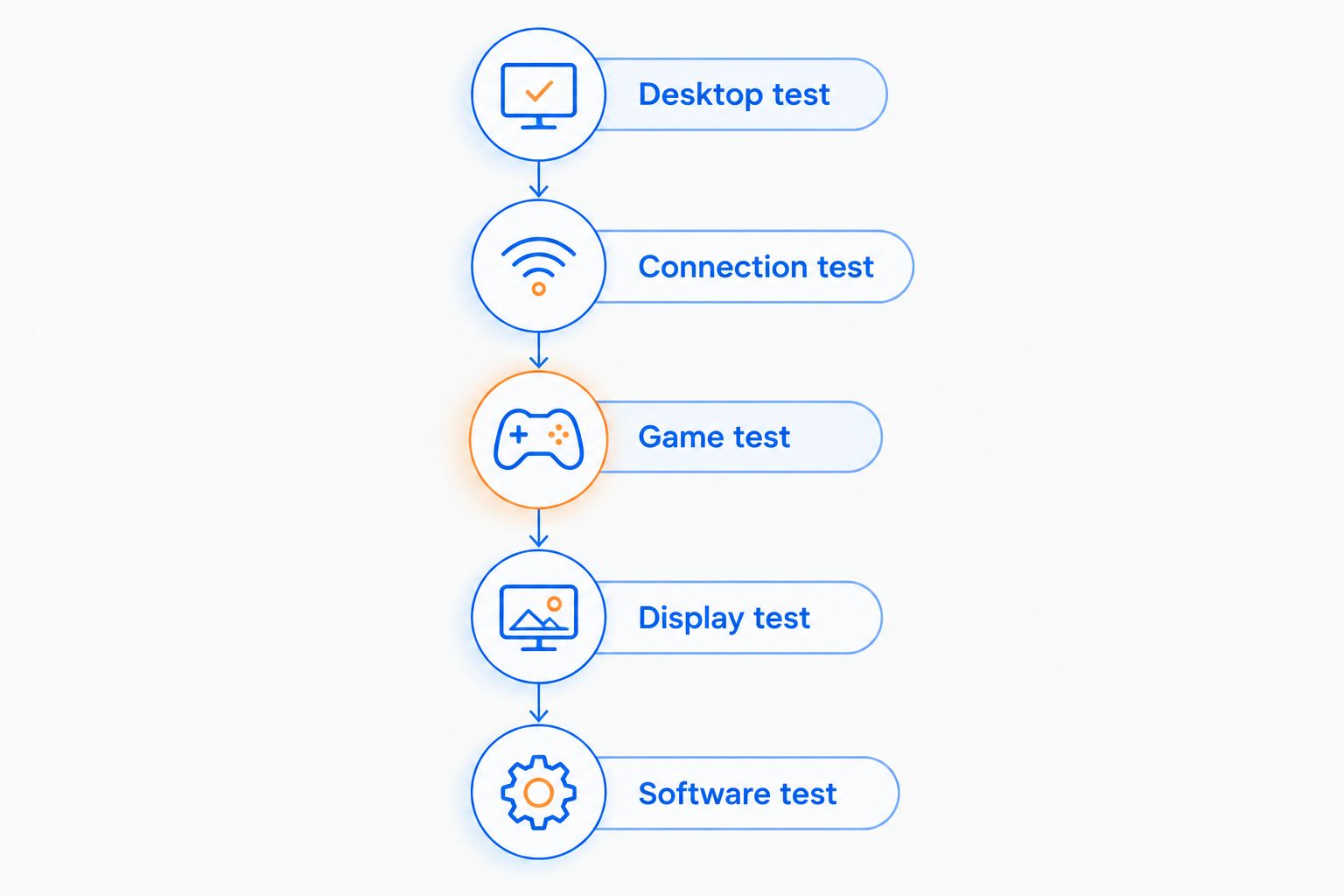
- Desktop test: move across a clean mouse pad, select small targets, and scroll a local document. Note whether the pointer stops, jumps, or merely moves slowly.
- Connection test: if the mouse supports both wired data and wireless operation, compare those modes on the same Mac. Disconnect unused connection hardware during the test.
- Game test: compare desktop behavior with a locally running game. Avoid using cloud gaming as your first input test because streaming introduces additional variables.
- Display test: if the desktop feels normal but the game stutters, check the game's frame behavior and supported display settings rather than repeatedly pairing the mouse.
- Software test: temporarily quit mouse remapping utilities and overlays, then repeat the same movement. Re-enable them separately to identify a reproducible conflict.
Expected result: you can describe where the problem occurs: everywhere, only over wireless, or only inside a game. That description determines the next fix.
If supported configuration software exposes polling rate, use documented settings rather than searching for a macOS-wide polling control. A rate of 125 Hz corresponds to an 8 ms report interval; 500 Hz corresponds to 2 ms; 1,000 Hz corresponds to 1 ms.
Those intervals are mathematical reciprocals of the reporting rates, not measured end-to-end latency. Rendering, display timing, and the mouse's implementation also affect what you experience. None of these figures establishes the capabilities of a particular store product.
Switching between desk and portable use
A second workflow makes sense when your mouse genuinely supports multiple modes: use its receiver or cable at your desk, then Bluetooth when you want fewer attached accessories.
- Establish and test the desk connection first.
- Pair the supported Bluetooth mode with your Mac using the Bluetooth steps above.
- Select the intended mode or channel whenever you change setups. Confirm that the pointer responds before starting a game.
- Keep game sensitivity unchanged while comparing modes. If the mouse stores separate profiles, consult its documentation before assuming the settings carry across.
Expected result: you can switch connection methods deliberately, without repeatedly deleting a working pairing.
The benefit is flexibility. The trade-off is managing modes, receivers, and potentially separate settings. In 2026, buy for that workflow only when the exact model documents the required features.
Troubleshooting
The mouse never appears in Bluetooth
Confirm that the model supports Bluetooth and is in discoverable pairing mode. A receiver-only mouse belongs in a USB port, not the Bluetooth device list. For a supported Bluetooth model, check its selected channel and existing host connection before retrying Connect.
The cable charges the mouse but does not move the pointer
Check both sides of the connection: the mouse must support wired data operation, and the cable must carry data. Try a known data-capable cable and suitable port. If the mouse's port is charging-only, use its documented wireless connection instead.
Wireless movement freezes or skips
Check battery status, receiver placement, and the mouse surface. For receiver mode, separate the receiver from nearby USB equipment and repeat the same desktop test. If the fault disappears over a supported cable, continue investigating the wireless path rather than changing game sensitivity.
The pointer works, but extra buttons do not
Basic input and advanced configuration are separate. Check whether the manufacturer provides compatible Mac software and whether the game recognizes the buttons directly. Add documented permissions only when required; do not promise macro support from the fact that left-click works.
The desktop is smooth, but aiming feels delayed
Check the game's input settings and frame behavior first. Test a local game before blaming the mouse for cloud-streaming delay. If multiple remapping applications are running, quit them and restore them separately to identify conflicting input handling.
Customize your workflow
Keep a short record of the connection mode, desktop tracking setting, and game sensitivity that passed your tests. After a 2026 macOS or configuration-software update, repeat the desktop test before changing those settings.
Expand the setup only after input behaves consistently. Assign supported extra buttons to actions you actually use, then check that ordinary clicking still works outside the game. A complicated profile is not an improvement if it makes everyday controls unpredictable.
For Gaming and More gaming-gear purchases, use compatibility as the first filter and comfort as the next. Choose a mouse you can configure on your Mac, not one whose headline features require software you cannot run.
FAQ
How do I connect a gaming mouse to my Mac?
Use the mouse's supported USB cable, dedicated wireless receiver, or Bluetooth mode. For Bluetooth, open System Settings, select Bluetooth, put the mouse in pairing mode, and select Connect.
Why doesn't my wireless gaming mouse appear in Mac Bluetooth settings?
A receiver-only wireless mouse does not appear as a Bluetooth device. Check the exact model's supported modes; a Bluetooth-capable model must also be in discoverable pairing mode.
Do I need drivers to use a gaming mouse on macOS?
Standard movement, clicking, and scrolling generally work through macOS mouse support without a manufacturer application. Extra buttons, macros, lighting, and profile configuration require separate compatibility checks.
Is wired USB always better than Bluetooth for Mac gaming?
No connection label alone proves that one mouse has lower end-to-end latency than another. A supported wired connection is useful for troubleshooting because it removes battery and wireless-link variables.
Why does my gaming mouse work on the desktop but lag in games?
A game-specific problem needs game-specific testing before you blame the connection. Check input settings, frame behavior, overlays, and whether you are playing locally or through a streaming service.
Does higher DPI fix mouse lag on a Mac?
Higher DPI changes sensitivity, not the underlying connection problem. Test tracking speed and game sensitivity separately from interruptions, missed movement, and wireless faults.
Can I change my gaming mouse polling rate in macOS?
You can change polling rate only when your mouse's supported controls or compatible configuration software provide that setting. macOS Mouse settings do not provide a universal polling-rate selector for gaming mice.
One last thing
A charging light proves power, not data. Before replacing a mouse that charges but never moves the pointer, verify wired-operation support and test the cable's data capability. That simple distinction prevents you from troubleshooting a connection the mouse never supported.


