


Best gaming laptops for streaming in 2026
Best overall from this shortlist: Lenovo LOQ 15. Best compact option to investigate for capture-based streaming: the 14.1-inch Intel Core i9-10980HK laptop. Best fit for remote-play viewing rather than local game broadcasting: the Intel N95 laptop. This 2026 guide separates laptops suited to a gaming-and-streaming shortlist from machines that need much closer checks.
- The Lenovo LOQ 15 leads this best gaming laptops for streaming shortlist with RTX 5050 graphics and 64GB RAM.
- The 14.1-inch Intel Core i9-10980HK laptop needs graphics, cooling, and capture-device checks before a streaming purchase.
- The Intel N95 laptop is not the default recommendation for gaming and broadcasting simultaneously.
- Check OBS encoder support, sustained performance, ports, and upload stability before choosing a streaming laptop.
Why this matters
Playing a game and broadcasting it from the same laptop are different jobs happening together. The machine must render gameplay, compose your stream, encode video, and handle audio without disrupting either experience.
At Gaming and More, the Lenovo LOQ 15 has the clearest listed hardware foundation for that workload. Its dedicated RTX 5050 graphics distinguish it from the other laptops considered here, but a specification sheet is not a streaming benchmark.
Choose the laptop around the workload you will broadcast, not the word gaming in its name. A console capture setup, a demanding PC game, and remote play put different demands on the computer.
What makes the best gaming laptops for streaming?
Use these criteria to judge a 2026 streaming laptop before comparing screen size or lighting:
- Graphics and encoding: Identify the exact GPU and check whether your broadcasting software supports its hardware encoder. Hardware encoding uses dedicated encoding hardware rather than relying entirely on CPU-based encoding.
- Sustained performance: Look for testing under prolonged gaming loads. A processor model alone does not establish how a laptop performs once its cooling system reaches operating temperature.
- Memory headroom: Account for the game, broadcasting software, browser sources, chat, and other apps together. Installed RAM is useful capacity, not proof of higher frame rates.
- Recording storage: Separate space for installed games from space for local recordings. More storage helps you keep files; it does not improve the stream sent to viewers.
- Connections: Check the ports required by your microphone, camera, capture device, display, and network connection. Confirm capabilities rather than counting connectors.
- Workload fit: Decide whether the laptop will run the game, capture another device, or receive a remote-play feed. Those are separate buying decisions.
Gaming laptops for streaming at a glance
These rankings compare the listed configurations, not measured streaming performance. The order favors a clearly identified dedicated GPU for playing and broadcasting on one machine.
| Laptop | Best for | Standout listed feature | Key limitation | Verdict |
|---|---|---|---|---|
| Lenovo LOQ 15 gaming laptop | A single-laptop gaming-and-streaming shortlist | RTX 5050, 64GB RAM, 4TB SSD | Sustained gaming-and-streaming performance needs checking | Buy after configuration checks |
| 14.1-inch Intel Core i9-10980HK gaming laptop | Compact capture-based setups to investigate | 16GB RAM, FHD IPS display, up to 2TB SSD | Confirm graphics, ports, cooling, and selected storage | Hold |
| Intel N95 15.6-inch laptop | Remote-play viewing and everyday use | 16GB RAM, 512GB SSD, 2K display | Not the default choice for simultaneous local gaming and broadcasting | Skip for demanding local streaming |
1. Lenovo LOQ 15: best gaming laptop here for a single-machine setup
The Lenovo LOQ 15 configuration pairs a 13th Gen Intel Core i5 with RTX 5050 graphics, 64GB RAM, and a 4TB SSD. It is the strongest starting point in this shortlist when you want the laptop to run your PC game and broadcasting software together.
The Lenovo LOQ 15 is Gaming and More's clearest gaming laptop choice for buyers who want dedicated graphics for a single-machine streaming setup. That verdict rests on the listed configuration, not an assumed frame-rate result.
Lenovo LOQ 15 pros
- The RTX 5050 identifies a dedicated GPU rather than leaving graphics capability unspecified.
- The listed 64GB RAM provides capacity for games, broadcasting software, and supporting applications.
- The 4TB SSD offers room to divide between installed games and local recordings.
Lenovo LOQ 15 cons
- The specification list does not establish sustained performance while gaming and broadcasting together.
- The GPU name alone does not establish the laptop's graphics power limit or cooling behavior.
- Large memory and storage capacities do not compensate for unsupported accessories or an unstable upload connection.
Best for: PC gamers choosing one laptop for gameplay, OBS, chat, and recording.
Before buying in 2026, confirm the exact configuration, supported encoder options, display outputs, and accessory connections. Then look for testing that resembles your game and stream settings, rather than a gaming-only result.
Verdict: Buy after checking the exact configuration and sustained-load performance.
2. Intel Core i9-10980HK 14.1-inch laptop: best compact candidate to investigate
The 14.1-inch Intel Core i9-10980HK gaming laptop lists 16GB RAM, an FHD IPS display, Windows 11, and storage options up to 2TB. Its smaller screen makes it a compact-screen alternative to consider when the laptop will manage a broadcast captured from another device.
A capture-based setup changes the workload: the console or separate computer runs the game, while the laptop handles capture, scenes, audio, and encoding. It does not eliminate the need to check the laptop's graphics hardware and sustained performance.
Intel Core i9-10980HK 14.1-inch laptop pros
- The 14.1-inch display suits buyers who specifically want a smaller screen.
- The listed 16GB RAM gives you a concrete memory specification to compare against your software requirements.
- Storage options extend to 2TB for buyers who also plan to retain recordings.
Intel Core i9-10980HK 14.1-inch laptop cons
- The Core i9 label does not establish dedicated graphics or broadcasting performance.
- Up to 2TB describes an option, not every configuration.
- Capture-device compatibility and usable port bandwidth need confirmation before purchase.
Best for: Buyers investigating a compact laptop for a console or separate-PC capture workflow.
Do not buy this model because Core i9 sounds more powerful than Core i5. Processor naming does not replace a comparison of the complete systems, particularly when one lists a dedicated GPU and the other needs further graphics checks.
Verdict: Hold until graphics, capture compatibility, and cooling are confirmed.
3. Intel N95 laptop: best considered for remote play, not local broadcasting
The Intel N95 laptop lists a processor running up to 3.4GHz, 16GB RAM, a 512GB SSD, and a 15.6-inch 2K display. Treat those as individual specifications, not evidence that the laptop can run a demanding game and broadcast it smoothly.
Remote play is a different use case because another machine renders the game. The laptop receives the video feed and sends your inputs back, making connection quality part of the experience.
Intel N95 laptop pros
- The 15.6-inch display provides a larger built-in viewing surface than the compact alternative above.
- The 512GB SSD gives a stated capacity for apps and files.
- The listed 16GB RAM lets you check memory requirements before choosing software.
Intel N95 laptop cons
- The N95 processor specification is not a reason to assume demanding gaming-and-streaming capability.
- A 2K display does not establish the resolution at which games will run well.
- The 512GB SSD leaves less listed storage capacity than the LOQ configuration for combining games and recordings.
Best for: Buyers evaluating everyday computing and remote-play viewing, with compatibility checked first.
For a 2026 purchase focused on broadcasting locally rendered PC games, keep the Lenovo LOQ 15 ahead of this option. Choose the N95 model only around a workload its hardware and software requirements support.
Verdict: Skip for demanding local gaming and streaming; consider separately for remote play.
Match the laptop to your streaming workflow
Before choosing hardware, decide where the game runs. That single decision determines whether the laptop needs to handle gameplay as well as the broadcast.
| Workflow | Laptop's job | Advantage | Trade-off |
|---|---|---|---|
| Local gaming | Run the game and broadcast | Keeps the setup on one computer | Gaming and broadcasting share resources |
| Console capture | Capture and broadcast console output | Console handles game rendering | Requires a compatible capture device and connections |
| Remote play | Receive gameplay from another machine | Game rendering happens elsewhere | Connection quality affects responsiveness and image quality |
Use this sequence: Choose workload, Check hardware, Connect accessories, then Test broadcast. It prevents you from buying a laptop first and discovering that the intended setup needs different connections or graphics capability.
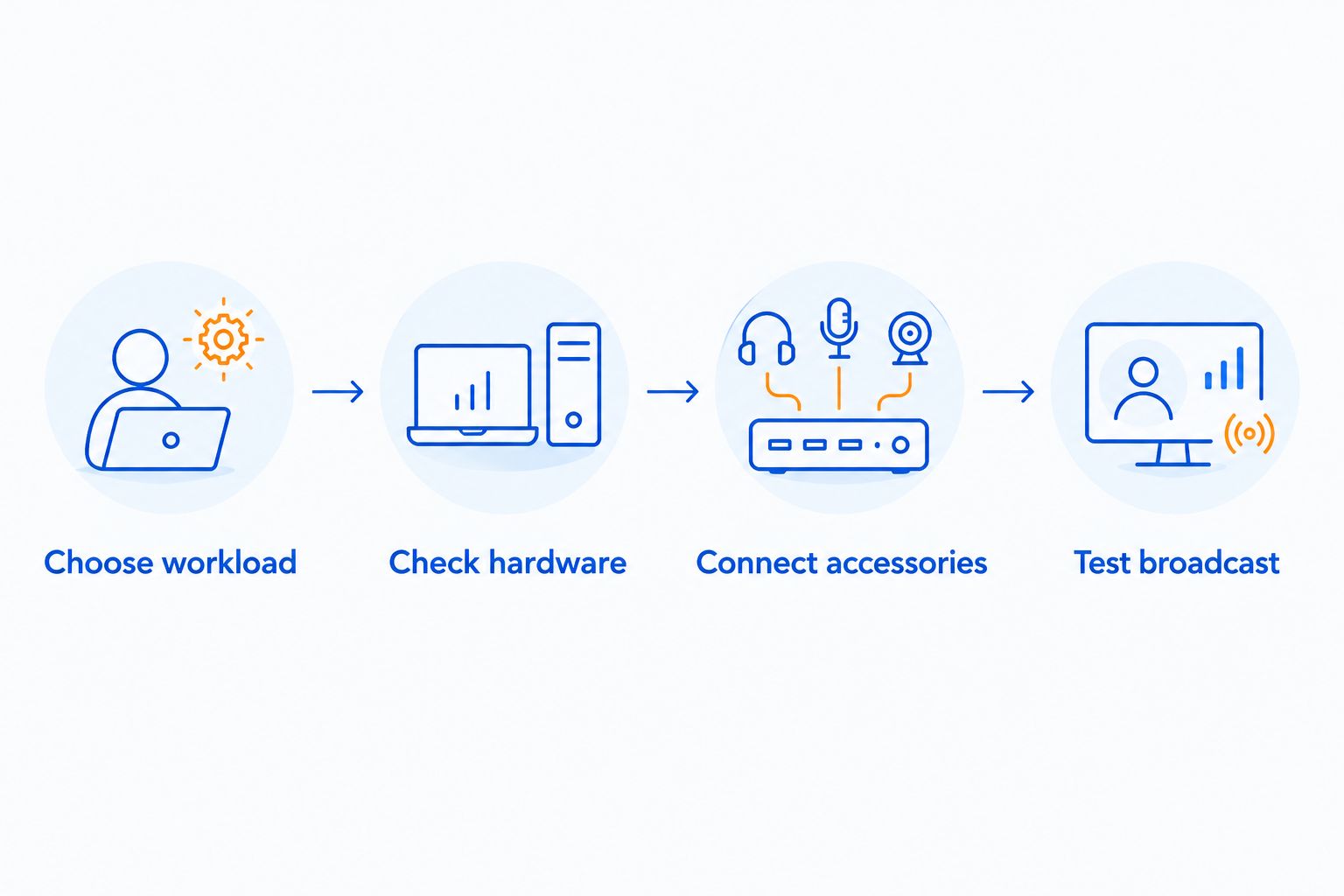
For local gaming, prioritize the complete graphics and encoding setup. For console capture, inspect the capture device's requirements and the laptop's actual connections. For remote play, check both endpoints and the network rather than treating laptop specifications as the whole answer.
Check these details before buying in 2026
Confirm the exact configuration
Match the processor, GPU, RAM, and storage to the selected configuration. A family name or an up-to specification does not identify every machine sold under that listing.
Ask about graphics power limits, memory upgrade options, and storage expansion separately. Do not assume those features from the chassis size or product name.
Map every accessory
List your microphone, camera, capture device, headset, external display, and network connection. Assign a compatible port to each before relying on a hub or adapter.
A USB-C connector does not, by itself, establish display output or charging support. Check the laptop's stated capabilities and the accessory's requirements together.
Test the complete broadcast
Use your actual game, scenes, microphone, camera, and chat tools. A test without those elements does not represent the workload you intend to stream.
If you plan to broadcast at 1080p and 60fps, use those as test settings, not promised results. Reduce the workload when the complete setup cannot sustain it.
How to diagnose a rough stream
OBS separates several problems that look similar to viewers. Encoding lag, rendering lag, and network-dropped frames point toward different checks; changing the laptop is not the first answer to all three.
- Encoding lag: Review the selected encoder and output settings. Reduce encoding demands before changing unrelated game settings.
- Rendering lag: Reduce GPU pressure, simplify scenes, or cap the game's frame rate to leave resources for broadcast composition.
- Network-dropped frames: Check connection stability and upload conditions. More RAM does not repair a network problem.
- Poor audio: Check microphone selection, levels, placement, and monitoring before blaming the computer.
Keep a local test recording as well as checking the outgoing broadcast. Listening back helps you catch fan noise, clipping, and an incorrect audio source that performance specifications cannot describe.
How these laptops were ranked
The ranking prioritizes an explicitly listed dedicated GPU, then considers memory, storage, and a distinct workload fit. The Lenovo LOQ 15 leads because its configuration identifies RTX 5050 graphics alongside 64GB RAM and a 4TB SSD.
The compact Core i9 laptop remains conditional because processor branding alone does not settle the streaming decision. The N95 laptop sits last because everyday-use specifications are not enough to recommend it for demanding local gameplay and broadcasting.
These are configuration-based recommendations, not hands-on benchmark awards. Gaming and More buyers should compare the exact machine they intend to purchase against the workload they intend to run.
Which gaming laptop should you choose?
Choose the Lenovo LOQ 15 as the default shortlist pick for local PC gaming and streaming in 2026. Confirm its connections, encoder support, and sustained performance before committing.
Keep the 14.1-inch Core i9 model on hold for a compact capture-based setup until its graphics and ports are confirmed. Leave the N95 laptop out of a demanding single-machine streaming shortlist; remote play is a separate decision.
FAQ
What's the best gaming laptop for streaming from this shortlist?
The Lenovo LOQ 15 is the strongest shortlist choice for running games and broadcasting on one laptop. Its listed configuration includes RTX 5050 graphics, 64GB RAM, and a 4TB SSD; check sustained performance and connections before buying.
Is a Core i9 laptop better than a Core i5 laptop for streaming?
A Core i9 label alone does not make a laptop better for streaming. Compare the exact processors, graphics hardware, encoding support, and cooling rather than ranking complete laptops by processor branding.
Is 16GB RAM enough for a streaming laptop?
Whether 16GB RAM is enough depends on the game and the applications running alongside your broadcast. Check memory use with your actual scenes, browser sources, chat, and recording settings; additional RAM does not replace graphics capability.
Can I stream console games through a laptop?
Yes, a laptop can broadcast console gameplay through a compatible capture setup. Confirm the capture device's requirements, the laptop's ports, and your broadcasting software's support before buying.
Can the Intel N95 laptop handle gaming and streaming together?
The Intel N95 laptop is not the recommended choice here for demanding local gaming and broadcasting together. Assess lightweight workloads individually, and treat remote play as a separate use case.
Do I need a 4TB SSD to stream games?
You do not need a 4TB SSD simply to send a live broadcast. Storage capacity matters for installed games, applications, and local recordings; it does not determine upload stability.
Should I stream at 1080p and 60fps?
Use 1080p and 60fps only when your complete setup sustains those settings reliably. Test the game, encoder, scenes, and connection together, then reduce output demands if the broadcast is unstable.
One last thing
A larger recording drive does not fix a dropped live stream. Before buying extra storage or memory, identify whether the problem is encoding, rendering, or the network. That diagnosis tells you whether to change settings, fix the connection, or reconsider the laptop.


