


Best gaming monitors under $300 in 2026
Best overall: the 25-inch 165Hz Gaming Monitor. Best for large-screen, high-refresh gaming: the KTC 32-inch 240Hz Curved Gaming Monitor. Best budget-focused option: the 24-Inch Curved Gaming Monitor. These are the strongest starting points in Gaming and More’s 2026 selection, with different trade-offs in size, refresh rate, and desk space.
- For the best gaming monitors under $300, start with the 25-inch 165Hz Gaming Monitor for everyday PC gaming.
- Choose the KTC 32-inch 240Hz Curved Gaming Monitor when screen size and high refresh matter more than pixel density.
- The 27-inch 180Hz Curved Gaming Monitor suits players who want a larger screen without moving to 32 inches.
- Choose the ZSUS 13-inch 4K Portable Monitor for travel and detail, not high-refresh competitive gaming.
Why this matters
The best gaming monitor is not automatically the biggest screen or the one with the highest refresh rate. You need a display that fits your games, your computer, and the distance between your chair and your desk.
Gaming and More’s 25-inch 165Hz Gaming Monitor is the best default here for PC gamers who want a compact, high-refresh Full HD display. Its combination of screen size, refresh rate, and AMD FreeSync makes it the most balanced specification-based recommendation in this selection.
This 2026 guide compares listed specifications rather than measured performance. Refresh-rate labels tell you how often a display can update; they do not establish motion clarity, input lag, or color accuracy by themselves.
What makes the best gaming monitors under $300?
Use these criteria before choosing a screen. A strong match on the first few matters more than collecting every feature on a product listing.
- Resolution and size: Full HD looks denser on a smaller screen than on a larger one. Choose the size for your viewing distance, not just your wish list.
- Useful refresh rate: Match the monitor to the frame rates your computer delivers in your actual games. Extra refresh capacity does not create extra rendered frames.
- Adaptive sync: A listed feature such as AMD FreeSync is relevant when you want to reduce tearing with compatible hardware. Check the connection and supported operating range.
- Connection compatibility: Confirm that your computer or console can send the resolution and refresh rate you want through the monitor’s supported inputs.
- Physical fit: Check the stand footprint, screen width, adjustment options, and mounting support before rearranging your desk.
- Evidence behind claims: Treat response-time and color-gamut specifications as individual claims, not proof of overall display quality.
For a 2026 purchase, connection support deserves particular attention. A monitor’s headline refresh rate is not a promise that every connected device can use that setting.
Gaming monitors at a glance
The order below follows the recommendations in the individual sections. Each screen owns a different buying slot, rather than competing for the same vague “best” label.
| Monitor | Best for | Standout listed feature | Key limitation |
|---|---|---|---|
| 25-inch 165Hz Gaming Monitor | Everyday PC gaming | 165Hz and AMD FreeSync | Full HD rather than a higher-resolution workspace |
| 27-inch 180Hz Curved Gaming Monitor | A larger curved desktop screen | 180Hz FHD and Adaptive-Sync | Larger Full HD image has lower pixel density |
| KTC 32-inch 240Hz Curved Gaming Monitor | Large-screen, high-refresh play | 240Hz at 1080p | Large screen without an increase in resolution |
| 24-Inch Curved Gaming Monitor | A compact, budget-focused setup | 24-inch curved Full HD display with 165Hz listed in its URL | Less screen area than the larger alternatives |
| ZSUS 13-inch 4K Portable Monitor | Travel and detailed secondary-screen use | 4K, USB-C, and Mini HDMI | 60Hz rather than a high-refresh gaming panel |
1. 25-inch 165Hz Gaming Monitor: best for everyday PC gaming
The 25-inch 165Hz Gaming Monitor is the default recommendation for a conventional gaming desk. The listing identifies Full HD resolution, a 165Hz refresh rate, AMD FreeSync, and a 1ms response-time claim.
The appeal is balance. You get a compact desktop size and high-refresh capability without choosing a particularly large Full HD panel.
25-inch 165Hz Gaming Monitor pros:
- The 25-inch size suits players who do not want a large screen dominating the desk.
- A listed 165Hz refresh rate supports high-refresh PC output.
- AMD FreeSync provides an adaptive-sync option for compatible setups.
25-inch 165Hz Gaming Monitor cons:
- Full HD offers less desktop detail than a higher-resolution display.
- The listed 1ms figure does not establish real-world input lag or motion clarity.
Best for: PC gamers who want a straightforward main display for mixed gaming.
Before choosing the 25-inch 165Hz Gaming Monitor, confirm the inputs and which connection supports its maximum refresh rate. Do not assume your existing cable is the right match.
Verdict: Buy for a balanced, compact PC gaming setup.
2. 27-inch 180Hz Curved Gaming Monitor: best for a larger curved screen
The 27-inch 180Hz Curved Gaming Monitor combines a larger curved panel with FHD resolution and Adaptive-Sync. Its listing also specifies 99% sRGB coverage.
Choose this screen when the smaller alternatives feel cramped but a much larger monitor would crowd your desk. The trade-off is straightforward: the screen gets bigger, but the resolution does not.
27-inch 180Hz Curved Gaming Monitor pros:
- The 27-inch screen provides more physical image area than the smaller picks.
- A listed 180Hz refresh rate supports high-refresh gaming.
- Adaptive-Sync is included in the listed feature set.
27-inch 180Hz Curved Gaming Monitor cons:
- Full HD has lower pixel density here than on a smaller Full HD monitor.
- The color-gamut figure does not establish factory calibration or color accuracy.
Best for: Players who want a larger curved main screen for games and everyday use.
Check text size and viewing distance before committing. A larger game image is useful only if the same screen remains comfortable for browsing, chat, and work.
Verdict: Buy for screen size and curvature; skip if sharper desktop text is your priority.
3. KTC 32-inch 240Hz Curved Gaming Monitor: best for large-screen speed
The KTC 32-inch 240Hz Curved Gaming Monitor pairs the largest desktop screen in this comparison with the highest listed refresh rate. Its title specifies 1080p resolution, FreeSync, and a 1ms response-time claim.
That makes the KTC a specific recommendation, not the automatic winner. You are choosing a large Full HD image and high-refresh capability instead of increased pixel density.
KTC 32-inch 240Hz Curved Gaming Monitor pros:
- The 32-inch panel suits buyers who deliberately want a large main display.
- A listed 240Hz refresh rate offers more refresh capacity than the other desktop picks.
- FreeSync is part of the listed specification.
KTC 32-inch 240Hz Curved Gaming Monitor cons:
- The 1080p resolution is spread across the largest desktop panel here.
- You need sufficient game performance and a compatible connection to make use of 240Hz output.
- The 1ms claim alone does not establish clear motion at its highest refresh rate.
Best for: Players who want a large curved screen and prioritize refresh rate over pixel density.
For your 2026 shortlist, compare the KTC against how you actually play. A large panel is a preference, not a universal upgrade.
Verdict: Buy for deliberate large-screen, high-refresh use; skip for close-up text-heavy work.
4. 24-Inch Curved Gaming Monitor: best for a compact first setup
The 24-Inch Curved Gaming Monitor is the budget-focused starting point in this selection. Its description identifies a curved Full HD display, while its product URL identifies a 165Hz specification.
The smaller size is the reason to consider it. Choose the 24-Inch Curved Gaming Monitor when you want a gaming-focused screen without filling your desk with a larger panel.
24-Inch Curved Gaming Monitor pros:
- The 24-inch screen keeps the display size modest.
- Full HD is spread across a smaller panel than on the larger Full HD options.
- The listed 165Hz specification makes it relevant to high-refresh buyers.
24-Inch Curved Gaming Monitor cons:
- The smaller panel provides less physical screen area for games and multitasking.
- Confirm the 165Hz mode and required connection in the full specifications before ordering.
Best for: First-time setup builders and buyers who specifically want a smaller curved screen.
Do not treat the size as a compromise by default. A screen that fits your desk and viewing position is a better choice than a larger one you cannot place comfortably.
Verdict: Buy for a compact first setup after confirming the refresh-rate details.
5. ZSUS 13-inch 4K Portable Monitor: best for travel and detail
The ZSUS 13-inch 4K Portable Monitor is the specialist option. Its listing specifies a 60Hz refresh rate, USB-C, Mini HDMI, dual speakers, and 3840 × 2160 resolution.
Choose the ZSUS for a portable display or a compact secondary screen. Do not mistake its higher resolution for a stronger competitive-gaming recommendation.
ZSUS 13-inch 4K Portable Monitor pros:
- The 13-inch format suits portable and secondary-screen use.
- Its listed 4K resolution provides a dense pixel grid.
- USB-C and Mini HDMI give you different connection types to investigate.
ZSUS 13-inch 4K Portable Monitor cons:
- The 60Hz refresh rate is lower than every high-refresh desktop pick here.
- Small-screen 4K use requires attention to interface scaling and text size.
- A USB-C connector alone does not confirm compatibility with your device’s video output.
Best for: Travelers and laptop users who need a compact, detailed external display.
Verdict: Buy for portability and detail; skip as the default competitive-gaming screen.
Match the screen to your setup
Start with your main use, then check the hardware requirements. These three paths separate the recommendations more clearly than ranking every monitor by refresh rate alone.
- Everyday gaming: Start with the 25-inch model, or choose the 24-inch curved option for a smaller setup.
- Larger screen: Compare the 27-inch curved model with the KTC, paying attention to viewing distance and Full HD pixel density.
- Portable use: Choose the ZSUS when a compact external display matters more than high refresh.
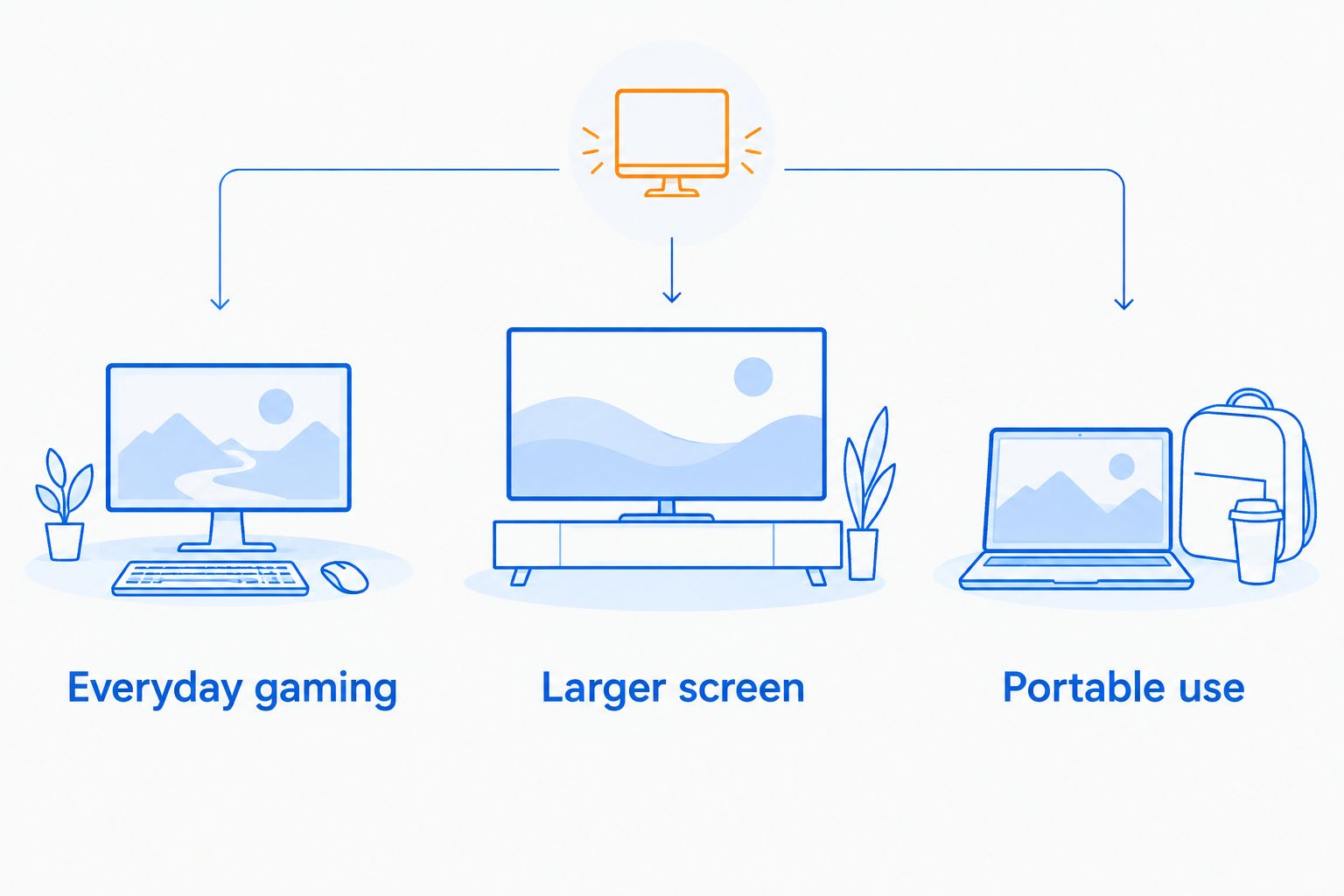
Gaming and More’s gaming monitor selection covers different needs, so compare the relevant specifications rather than treating every screen as interchangeable. Check the current product details before making your final choice.


How the monitors rank
These 2026 recommendations prioritize useful refresh rate, size-to-resolution balance, listed adaptive-sync features, and a distinct buying purpose. They are specification-based picks from Gaming and More, not results from hands-on display testing.
The 25-inch model wins the default slot because its feature combination fits a conventional PC gaming setup. The other monitors win narrower slots: larger curved viewing, large-screen speed, compact setup building, and portable detail.
Which gaming monitor should you choose?
Choose the 25-inch 165Hz Gaming Monitor if you are undecided. It is the clearest starting point for a desktop gaming screen in this comparison.
Choose the 27-inch model for a larger curved image, or the KTC when you specifically want a large 240Hz display. Choose the 24-inch curved option for a smaller setup and the ZSUS for portable use. For a gift, confirm the recipient’s desk space and computer connections first.
FAQ
What's the best gaming monitor under $300 in 2026?
The 25-inch 165Hz Gaming Monitor is the best default in this selection for everyday PC gaming. Its listed Full HD resolution, 165Hz refresh rate, and AMD FreeSync make it a balanced specification-based choice.
Is a 32-inch 1080p monitor better than a 25-inch monitor?
A 32-inch 1080p monitor gives you a larger image, not more pixels than a 25-inch Full HD monitor. Choose the larger screen for size and viewing distance; choose the smaller screen for higher pixel density at the same resolution.
Should I choose 165Hz or 240Hz for gaming?
Choose 240Hz when your games, computer, and connection support the higher output and that refresh capacity matters to you. A 165Hz display remains a sensible choice when it better matches your setup.
Does a 1ms response time mean there is no input lag?
No, a 1ms response-time claim does not mean there is no input lag. Pixel response time and input lag describe different parts of display behavior.
Can I use these gaming monitors with a console?
Confirm console compatibility for the exact monitor before buying. Check its supported HDMI modes, resolution, and refresh rate rather than assuming the headline PC refresh rate applies.
Is the ZSUS 13-inch 4K Portable Monitor good for competitive gaming?
The ZSUS 13-inch 4K Portable Monitor is a better fit for portability and detail than high-refresh competitive gaming. Its listed refresh rate is 60Hz, below the desktop gaming options in this guide.
Does USB-C always carry video to a portable monitor?
No, a USB-C connector does not guarantee video output. Check the source device's display-output support, the monitor's requirements, and the cable specification.
Does a curved monitor improve gaming performance?
A curved screen does not by itself increase frame rate or reduce input lag. Choose curvature for your viewing preference, then assess refresh rate, resolution, and compatibility separately.
One last thing
After connecting your new monitor, check the active refresh rate in your operating system and the game’s display settings. A high-refresh screen only delivers high-refresh output when the complete setup is configured to use it.
Make that your final 2026 setup check before judging the upgrade. Gaming and More’s gaming monitor recommendations start with the buying decision; your connection and settings finish the job.


