


Can a gaming headset work on both PC and console?
Yes, a gaming headset can work on both PC and console when its connection supports both systems; a compatible 3.5 mm wired headset is usually the simplest option. In 2026, check microphone support separately from game audio, because a headset that plays sound on both devices does not necessarily support voice chat, wireless connectivity, or every control on both.
- Can a gaming headset work on both PC and console? Yes, when both systems support its connection and microphone.
- A compatible 3.5 mm headset is best for straightforward switching between PC and console controllers.
- USB and 2.4 GHz wireless compatibility depend on the exact headset, receiver, and console.
- Gaming and More shoppers should confirm platform support before choosing gaming gear for a shared setup.
Can a gaming headset work on both PC and console?
Yes—but compatibility belongs to the exact connection and platform, not the words gaming headset. Start with the headset manufacturer's supported-platform list, then check which connection carries both sound and microphone input.
Use this table to narrow the choice. For fit, microphone design, and other buying criteria, see Gaming and More's guide to choosing a gaming headset.
| Connection | Best for | Main advantage | Main limitation |
|---|---|---|---|
| 3.5 mm analog | Players switching between a PC headset jack and compatible controller jacks | A direct wired connection without wireless pairing | Separate PC audio sockets can require a headset splitter |
| USB wired | Players with explicitly supported PC and console models | A single supported connection can carry audio and microphone input | A USB plug does not establish console compatibility |
| 2.4 GHz wireless receiver | Players wanting wireless audio on listed platforms | Wireless operation through a dedicated receiver | Receiver support varies, especially between Xbox and PlayStation |
| Bluetooth | Supported devices where the required audio and chat functions are confirmed | No dedicated receiver on compatible devices | Console Bluetooth audio and microphone support are restricted |
The table describes connection types, not guarantees for an individual headset. A model with several connection modes needs a separate compatibility check for each mode you intend to use.
Why this matters
A shared headset avoids keeping separate headsets beside your PC and console, but only if switching preserves the features you actually use. Hearing a game's soundtrack is not enough when your main reason for wearing a headset is party chat.
For a 2026 purchase, write down the exact console, PC audio ports, and chat requirements before comparing headsets. That turns a vague promise of cross-platform support into a checklist you can verify.
Also distinguish switching between devices from hearing devices simultaneously. A headset can support both platforms while still requiring you to move a cable or receiver whenever you change systems.
3.5 mm wired: best for straightforward switching
A compatible analog headset connects to a PC's headset socket or a console controller's supported headset socket. Xbox Series controllers and the PS5 DualSense controller provide 3.5 mm headset connections, making this a practical route for sharing a headset with a PC.
Check the plug as well as the socket. A headset plug carrying stereo sound and microphone input commonly uses the four-contact TRRS format; a headphones-only plug does not provide the same microphone connection.
On a desktop PC, separate headphone and microphone sockets need a headset splitter when your headset has a combined plug. Buy a splitter intended for headset audio and microphone input, not a cable that merely duplicates headphone output.
The trade-off is feature access. An analog connection does not automatically carry USB lighting controls, software processing, or every headset button function. Confirm which controls remain active in wired mode.
Verdict: choose compatible 3.5 mm analog when easy switching matters more than wireless freedom. It is a clear starting point, not a guarantee that every analog headset and socket combination works together.
USB wired: best for explicitly supported platforms
A USB headset includes an audio interface that the connected system must recognize. On PC, that generally means selecting the headset as your output and input device; on a console, it also means checking that the console supports that particular headset.
PS5 supports compatible USB audio devices. Xbox does not accept every generic PC USB headset, so a listing that says USB or PC compatible is not enough to establish Xbox support.
USB-A and USB-C describe connector shapes. They do not prove that the console recognizes the audio device, and a connector adapter does not turn an unsupported headset into a supported one.
The benefit is a tidy connection when the platform supports it. The drawback is platform dependence: a USB headset that works perfectly on your PC can still be the wrong choice for your console.
Verdict: choose USB wired only when the exact console appears in the manufacturer's compatibility information. Check microphone support in the same document rather than assuming it follows from audio output.
2.4 GHz wireless: best for supported wireless setups
A gaming headset using a 2.4 GHz receiver communicates through its matching receiver rather than relying on ordinary Bluetooth pairing. The receiver connects to the host system, which must support its audio and microphone functions.
This makes the receiver just as important as the headset. Check its platform label, any PC or console mode switch, and the instructions for moving it between systems.
Do not treat Xbox and PlayStation versions as interchangeable. Manufacturers can sell closely named versions with different console support, even when the headsets look similar. Read the full model name and platform suffix before choosing.
Wireless also adds charging and receiver management to your setup. Check whether a wired fallback carries both audio and microphone input, and whether the headset works while charging; neither feature follows automatically from having a charging port.
Verdict: choose dedicated wireless when its supported-platform list matches every system you need. The convenience is real only when the receiver works where you intend to plug it in.
Bluetooth: best for confirmed use cases, not assumptions
Bluetooth support on a PC does not establish Bluetooth headset support on a console. PS5 and Xbox Series consoles do not provide general direct pairing for ordinary Bluetooth audio headsets in the same way a phone does.
Nintendo Switch supports Bluetooth audio, but Bluetooth microphone input is not supported through that feature. That distinction matters when you want game sound and voice chat rather than listening alone.
On a PC, Bluetooth microphone use can also change the available audio mode, depending on the headset and system support. Check the actual listening-and-chat behavior instead of judging compatibility from successful pairing.
A headset offering Bluetooth alongside a dedicated receiver gives you separate connection options. It does not automatically mix them, and the microphone does not necessarily reach both connected devices.
Verdict: do not choose Bluetooth alone for a shared PC-and-console headset unless the required functions are explicitly supported. Verify listening, chat, and simultaneous use separately.
Why gaming headset compatibility varies
These are the compatibility drivers to check before buying:
- Platform support: The exact console must recognize the headset's connection, not merely have a matching port.
- Audio sockets: A combined PC headset jack and separate headphone and microphone sockets need different cable arrangements.
- Microphone routing: Game sound, party chat, and in-game chat can use different input and output selections.
- Receiver version: Wireless receivers and platform-specific headset editions have their own support requirements.
- Feature location: Equalizer settings, microphone processing, and chat controls can depend on PC software or console support.
- Connection mode: Analog, USB, Bluetooth, and dedicated wireless modes can provide different functions on the same headset.
Treat this as a feature checklist, not a search for one universal compatibility badge. A headset can pass the listening test and fail the microphone or control test.
How do you check a headset before buying?
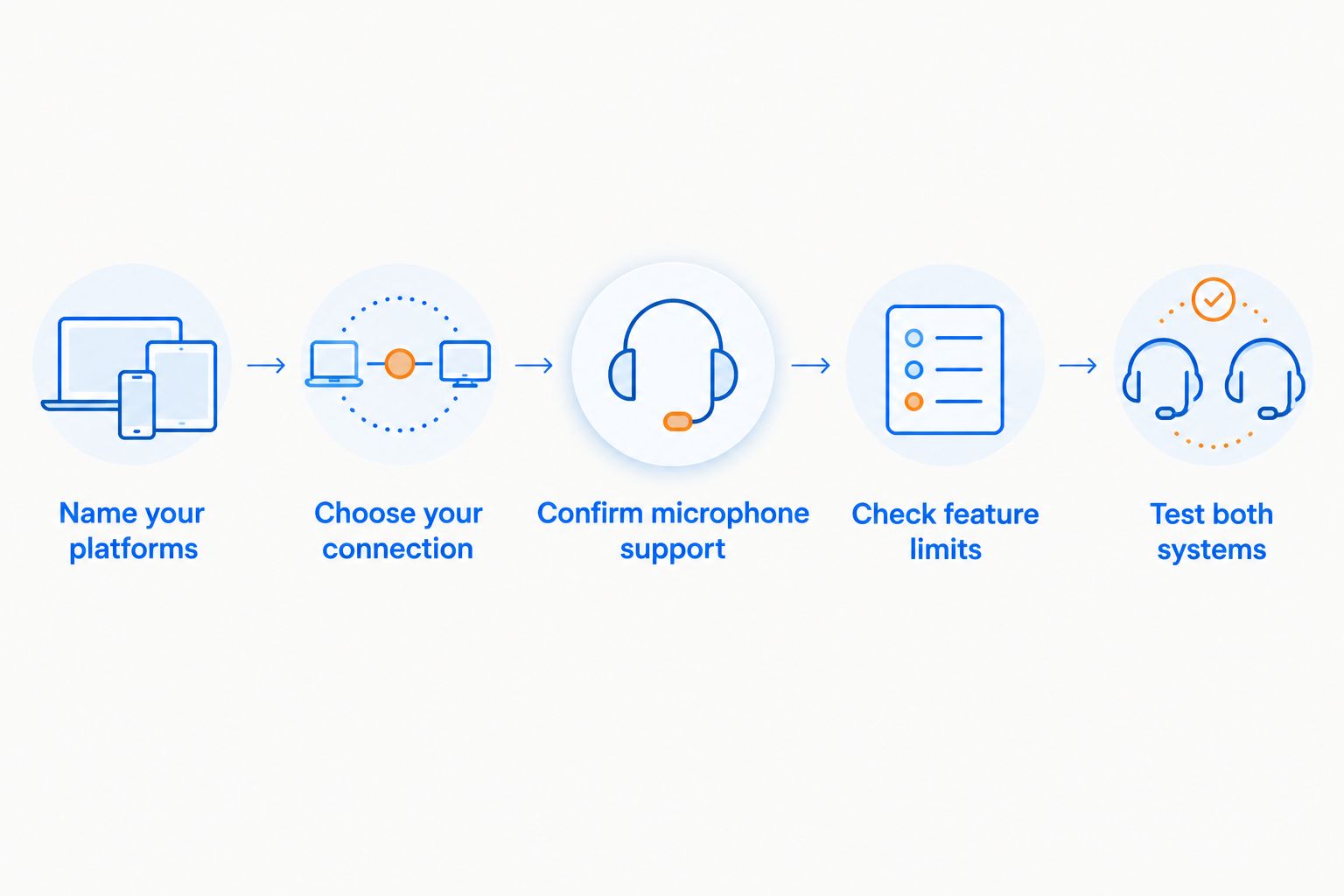
For your 2026 shortlist, follow the same sequence for every candidate. Keep the exact model name beside the checklist so you do not accidentally use instructions for a different edition.
- Name your platforms. Record your console model and whether your PC has a combined headset jack, separate audio sockets, or suitable USB ports.
- Choose your connection. Identify the cable, receiver, or supported wireless method you will use on each system.
- Confirm microphone support. Look for explicit chat support on each platform, not just an audio compatibility statement.
- Check feature limits. Verify mute controls, volume adjustment, chat balance, and whether saved settings work without the PC application.
- Test both systems. After setup, check game audio and microphone input separately on each device.
Use manufacturer documentation as your final reference. For a 2026 check, consult the headset's compatibility table alongside Sony's PS5 audio guidance, Xbox headset setup guidance, or Nintendo's Switch Bluetooth audio guidance, as applicable.
Gaming and More is best for gamers shopping for gaming gear and setup accessories. When choosing a shared headset, keep the buying decision tied to documented platform support rather than a broad gaming label.
Can the same headset connect to PC and console simultaneously?
A shared headset does not automatically support simultaneous PC and console audio. Moving a cable between devices is cross-platform use, but it is not audio mixing.
For simultaneous use, the headset must explicitly support the relevant connections at the same time. Then confirm whether it mixes both sources or simply switches between them.
Microphone routing needs its own check. Hearing console audio alongside a PC chat application does not mean the microphone is transmitted to both systems, and a device-switch button does not establish simultaneous chat support.
Will the microphone work on both PC and console?
The microphone works on both only when the headset connection and each platform support microphone input. With analog headsets, that includes the correct plug, socket, and splitter arrangement where needed.
On PC, select the headset microphone in the operating system and in your chat application. On console, check the input device, physical mute control, controller mute setting where applicable, and party or game-chat selection.
If audio works but chat does not, test the microphone input before replacing the headset. An incorrect input selection and an unsupported microphone connection require different fixes.
Will surround sound and chat controls work on both systems?
Basic stereo audio support does not guarantee identical surround processing, equalizer settings, or chat controls on both systems. Some features depend on a PC application, while others depend on console audio settings or specific hardware support.
Check whether the headset stores settings internally and which controls remain available without its application. Do not assume a PC profile transfers to console use unless the manufacturer confirms that behavior.
Prioritize the features you need during play. Reliable microphone input and accessible mute control are more useful than a feature label that applies only to your other device.
FAQ
Can a gaming headset work on both PC and console?
Yes, a gaming headset can work on both PC and console when both systems support its connection and microphone input. Check the exact headset model, console, and connection mode rather than relying on a cross-platform label.
What's the simplest headset connection for PC and console?
A compatible 3.5 mm wired connection is usually the simplest option for switching between a PC and supported console controller jacks. A PC with separate headphone and microphone sockets needs an appropriate headset splitter for a combined headset plug.
Can I plug a PC USB headset into an Xbox?
Only if that headset explicitly supports the Xbox connection you intend to use. A generic PC USB headset does not become Xbox compatible simply because its plug fits.
Can I use ordinary Bluetooth headphones directly with a PS5?
PS5 does not support general direct pairing with ordinary Bluetooth audio headphones. Use a headset connection or compatible audio accessory that explicitly supports PS5, including microphone support if you need chat.
Will a Nintendo Switch Bluetooth connection use my headset microphone?
Nintendo Switch Bluetooth audio does not support Bluetooth microphone input. Confirm the game's supported voice-chat method separately from its audio output.
Can one headset play PC and console sound at the same time?
Only a headset with explicit simultaneous-connection and audio-mixing support can provide that setup through the specified connections. Supporting both platforms separately does not prove it can mix their audio.
Why can I hear my game but nobody hears my microphone?
Game audio can work while the microphone connection or selected input is wrong. Check mute controls, the selected microphone, cable compatibility, and the game's or party's chat settings.
One last thing
A charging port is not proof of wired audio support. Before relying on a USB cable as your backup connection, confirm that the port carries audio and microphone data rather than charging alone.
For a 2026 purchase from Gaming and More or any other retailer, ask one precise question: does this exact model provide game audio and microphone input on my PC and my console through these connections? That answer matters more than the longest feature list.


