


Can a gaming mouse connect via Bluetooth without a dongle?
Yes, a gaming mouse can connect via Bluetooth without a dongle if the mouse supports Bluetooth and your computer has a working Bluetooth adapter. A receiver-only wireless mouse cannot pair through your computer’s Bluetooth settings, and a charging cable does not automatically provide a wired connection.
- Can a gaming mouse connect via Bluetooth without a dongle? Yes, when both the mouse and computer support Bluetooth.
- Gaming and More’s verdict: choose explicit Bluetooth support for dongle-free gaming mouse pairing, not just a wireless label.
- A proprietary wireless receiver and a Bluetooth adapter are not interchangeable.
- Bluetooth saves a USB port; receiver mode deserves a separate performance check for competitive gaming.
Can a gaming mouse connect via Bluetooth without a dongle?
Yes—but Bluetooth must be a supported connection mode, not an assumption based on the word wireless. Check the mouse’s manual, connection switch, or exact model specifications before attempting to pair it.
For your 2026 setup, separate the connection method from the customization software. The guide to using a gaming mouse without software installed covers that second question; installing an app does not add a missing Bluetooth radio.
| Connection mode | Works without the mouse’s receiver? | Main advantage | Main limitation | Best for |
|---|---|---|---|---|
| Bluetooth | Yes, with compatible host Bluetooth | Leaves a USB port free | Performance and feature support depend on the model | Travel and everyday use |
| Proprietary wireless | No, unless another supported mode is selected | Provides the mouse’s dedicated wireless connection | Requires a compatible receiver | Gaming with documented receiver-mode performance |
| Wired USB data | Yes, if the mouse supports wired operation | Avoids wireless pairing | Adds a cable across your desk | A supported fallback connection |
A mouse with several connection modes can offer more than one route. Each route still has its own requirements: a Bluetooth connection needs Bluetooth support, proprietary wireless needs its receiver, and wired operation needs a supported data connection.
Why this matters
Losing a receiver does not necessarily make a mouse unusable. But trying to pair a receiver-only mouse through Bluetooth wastes time because the computer is listening for a connection the mouse cannot make.
Gaming and More’s gaming mouse advice is for shoppers who want dongle-free pairing: require explicit Bluetooth support. That check matters more than RGB lighting, button count, or the general wireless description.
The same distinction protects gift shoppers. A recipient with limited USB ports needs a confirmed Bluetooth option, not simply a mouse with no visible cable.
How do you connect a Bluetooth gaming mouse without a dongle?
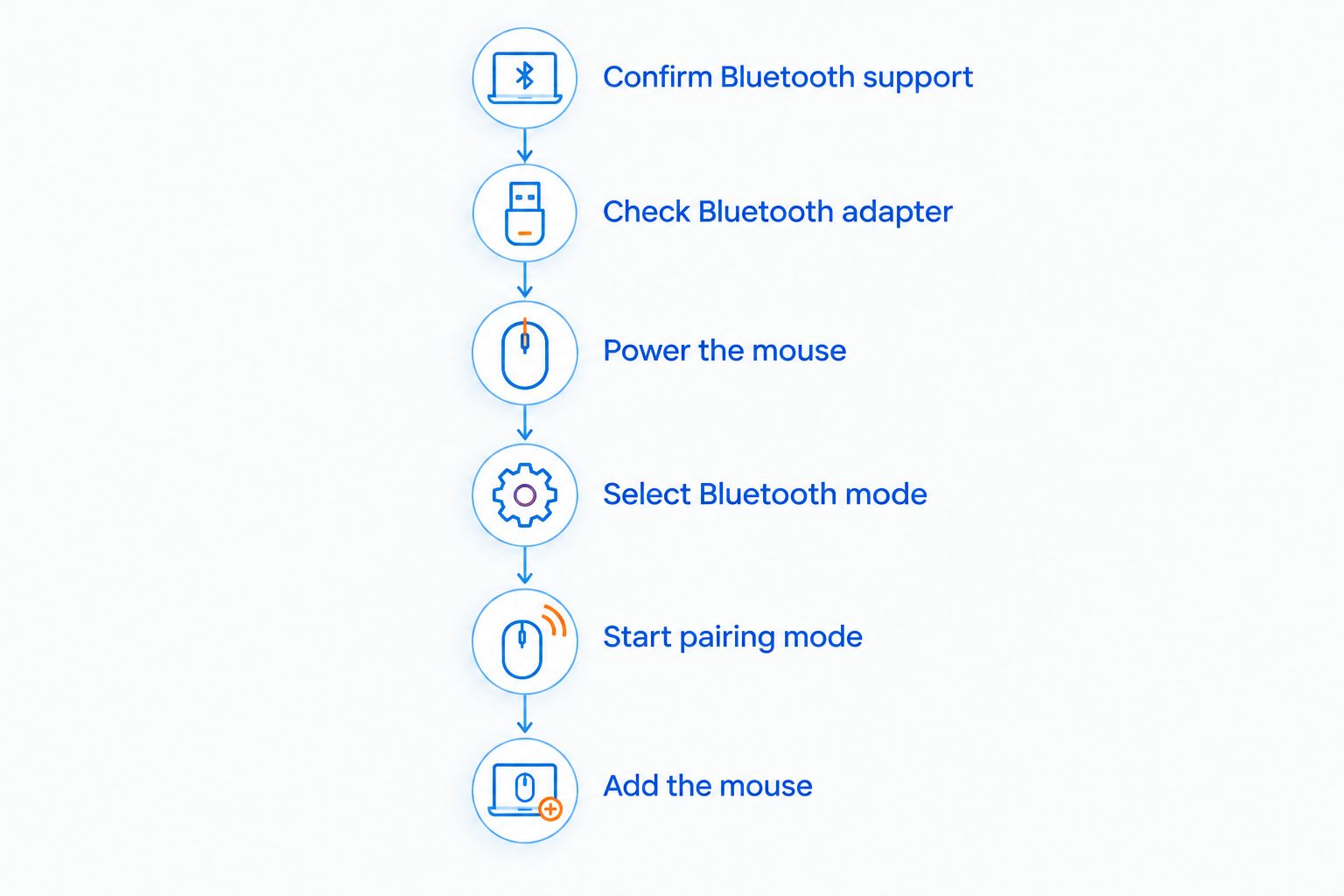
Follow this sequence for a compatible computer and mouse. In 2026, the exact menu names still depend on your operating system, but the pairing process follows the same basic order.
- Confirm Bluetooth support. Find Bluetooth in the exact model’s connection specifications. Do not treat wireless or USB rechargeable as equivalent wording.
- Check the computer’s Bluetooth adapter. Open the operating system’s Bluetooth settings and turn Bluetooth on. If the adapter is missing or disabled, address that before troubleshooting the mouse.
- Power the mouse. Charge it or install suitable batteries according to its instructions. A mouse without power cannot advertise itself for pairing.
- Select Bluetooth mode. Use the connection switch or button described in the manual. Selecting receiver mode will not make the mouse appear as a Bluetooth device.
- Start pairing mode. Follow the model’s pairing procedure. Switching the mouse on is not always the same as making it discoverable.
- Add the mouse in system settings. Choose the matching device name and complete any prompts. Test pointer movement, clicking, and scrolling before opening a game.
Keep a touchpad or another pointing device accessible during setup. If your computer has no usable pointer, keyboard shortcuts can help you reach its Bluetooth settings.
Once the pointer works, test the buttons you actually use. Basic movement does not prove that every shortcut, profile, or lighting control works over Bluetooth.
Bluetooth mode: best for keeping USB ports free
Choose Bluetooth when dongle-free pairing is the priority. It connects through the computer’s Bluetooth adapter, so you do not need the mouse’s proprietary receiver for that mode.
That is convenient on a laptop with limited ports. It also means you can leave the receiver packed away when the mouse and computer support the Bluetooth connection you need.
The trade-off is model-specific behavior. Check whether Bluetooth supports your required button assignments, configuration features, and performance settings rather than assuming every wireless mode behaves identically.
For a 2026 purchase, ask a precise question: does this exact model support Bluetooth mouse input on my operating system? A generic compatibility statement is less useful than a documented connection mode.
Receiver mode: best for documented gaming performance
Choose the dedicated receiver when the model’s documented gaming performance depends on it. A receiver establishes the proprietary wireless connection supported by that mouse; the computer’s Bluetooth adapter does not replace it.
The 2.4 GHz label alone does not identify Bluetooth. Bluetooth also uses the 2.4 GHz radio band, so shared radio frequencies do not make the connection protocols interchangeable.
Keep that distinction separate from polling rate. A stated 1,000 Hz polling rate corresponds to a nominal reporting interval of 1 ms, but it does not prove total input latency or establish that Bluetooth supports the same rate.
Those figures explain specifications, not the measured performance of any mouse here. Compare the specifications for the mode you will actually use, not the highest number printed anywhere in the listing.
Wired mode: best for a supported fallback
Use a cable as a fallback only when the mouse supports wired USB data. A rechargeable mouse can accept power through its cable without exposing a wired mouse connection to the computer.
Check both parts of the chain. The mouse needs wired operation, and the cable needs to carry data rather than power alone.
Wired mode avoids Bluetooth discovery and receiver compatibility questions. Its disadvantage is physical: the cable occupies a port and moves with the mouse unless you manage the slack.
Do not assume that plugging in the cable switches off wireless mode. Follow the model’s instructions, then verify that the pointer still works when the wireless connection is disconnected.
Why dongle-free compatibility varies
The answer changes with the hardware and connection mode, not the gaming label. These are the checks that determine whether your setup works:
- Mouse radio support: Bluetooth must be built into the mouse. Software cannot turn a receiver-only radio into a Bluetooth connection.
- Host Bluetooth support: Your computer needs an enabled, working adapter that supports the mouse’s requirements.
- Selected mode: A multi-mode mouse must be set to Bluetooth rather than receiver mode.
- Pairing state: The mouse must be discoverable, not merely powered on or connected to another host.
- Operating system support: Basic pointer input and advanced configuration features have separate compatibility requirements.
- Wired data support: A charging port provides a fallback only if the mouse also supports input over that connection.
Use this checklist when comparing listings in 2026. If an essential detail is unclear, verify it before choosing the mouse rather than treating missing information as confirmation.
Does Bluetooth mean you never need a USB port?
Bluetooth removes the need for the mouse’s receiver during that connection, not every possible cable or adapter. A rechargeable mouse still needs a compatible way to receive power, and a computer without built-in Bluetooth needs added Bluetooth hardware.
Charging and connectivity are separate decisions. A mouse pad with wireless charging does not add Bluetooth to a mouse, and wireless charging only works when the device and charging system are compatible.
A tidy desk therefore needs two checks: how the mouse sends input and how it receives power. Solving one does not automatically solve the other.
Why isn’t my Bluetooth gaming mouse showing up?
Start with the selected connection mode. If the mouse is set to proprietary wireless, repeated Bluetooth scans will not find it as a Bluetooth mouse.
Next, confirm that the mouse is actually in pairing mode. A device reconnecting to a previously paired computer is not necessarily waiting for a new host; use the manufacturer’s procedure to start a fresh pairing session.
Work through the remaining checks in order:
- Check power. Charge the mouse or replace its batteries as directed.
- Check the host. Confirm that Bluetooth is enabled and the adapter appears in the operating system.
- Check existing connections. Disconnect the mouse from another host if its instructions require that before pairing.
- Retry pairing. Remove a stale device entry, restart pairing mode, and add the mouse again.
- Check drivers and support. Use the computer or adapter manufacturer’s instructions if the Bluetooth adapter itself is not working.
Change one thing at a time. That makes it clear whether you have fixed discovery, pairing, or a connection that drops after pairing.
Can I use a gaming mouse after losing its dongle?
Yes, if the mouse also supports Bluetooth or wired USB data. Switch to that supported mode and follow its setup process; losing the receiver does not remove a separate connection method.
If proprietary wireless is the only supported mode, you need a compatible replacement receiver. Do not assume that another receiver from the same brand, or an unrelated USB Bluetooth adapter, will work.
Check the exact model’s replacement and re-pairing instructions. A physically similar receiver is not proof of compatibility.
Is Bluetooth good enough for gaming?
Bluetooth can handle mouse input in games, but suitability depends on the mouse, host, and your performance requirements. For casual play, test pointer consistency and the buttons you use; for competitive play, examine documented performance for each connection mode.
A connection working on the desktop does not establish its gaming performance. Test it in the actual game and separate connection problems from sensitivity settings, surface tracking, or inconsistent frame delivery.
Keep the 2026 buying decision simple: choose the mode whose documented capabilities match your needs. Dongle-free convenience and competitive responsiveness are separate criteria.
What should you check before buying?
Write down the requirement before browsing: Bluetooth pairing, no proprietary receiver, and support for your computer. Then check the exact model against that requirement.
For example, when considering Gaming and More’s M801 Wireless RGB Gaming Mouse, verify its documented connection modes rather than reading Bluetooth into the word wireless. The product name alone does not establish dongle-free compatibility.
Keep this short checklist beside the listing:
- Does it explicitly state Bluetooth support?
- Does your computer support the required Bluetooth connection?
- Do the buttons and settings you need work in Bluetooth mode?
- Is wired input supported, or does the cable only charge?
- What happens if the receiver is lost?
Buy for the connection you need, not the connection you hope is included. That rule also prevents buying a Bluetooth adapter to solve a mouse-side limitation.
FAQ
Can any wireless gaming mouse connect through Bluetooth?
No. A wireless gaming mouse needs explicit Bluetooth support to pair through a computer’s Bluetooth settings. Receiver-only wireless models use a different connection.
Do I need a dongle if my laptop already has Bluetooth?
You do not need the mouse’s receiver when both the laptop and mouse support a compatible Bluetooth connection. Built-in laptop Bluetooth does not help a receiver-only mouse.
Can a USB Bluetooth adapter replace a lost gaming mouse receiver?
Only if the mouse supports Bluetooth and the computer needs a Bluetooth adapter. A USB Bluetooth adapter does not replace a proprietary receiver for a receiver-only mouse.
Does a charging cable let me use a gaming mouse without its dongle?
Only when the mouse supports wired USB data and the cable carries data. Charging capability alone does not establish wired mouse operation.
Will all my gaming mouse buttons work over Bluetooth?
Button behavior depends on the mouse and its Bluetooth implementation. Confirm support for custom assignments, profiles, and configuration software rather than assuming every connection mode offers identical features.
Should I choose Bluetooth or receiver mode for competitive games?
Choose the mode with documented performance that meets your competitive gaming requirements. Do not assume that receiver-mode polling specifications also apply to Bluetooth.
What should I check when buying a gaming mouse from Gaming and More?
Check the exact mouse’s Bluetooth support, operating system compatibility, and connection-specific features. A wireless product name alone does not confirm that the mouse works without its receiver.
One last thing
Before you replace a missing receiver, check the mouse’s underside and battery compartment for a storage slot. If your model has one, the receiver might be stored inside the mouse rather than lost.
If it is genuinely missing, check supported connection modes next. An existing Bluetooth or wired-data option solves a different problem than buying another adapter.


