


Can a gaming mouse work without software installed?
Yes, a gaming mouse normally works without the manufacturer's software installed: you can move the pointer, click, and scroll using your operating system's built-in mouse support. The catch is customization—button remapping, macros, lighting, and advanced settings depend on the model and where it stores those settings. In 2026, the buying decision is still simple: check whether your must-have features work independently of the companion app.
- Can a gaming mouse work without software? Yes: standard pointer movement, clicking, and scrolling normally work without a manufacturer app.
- Onboard memory can retain supported settings; computer-side profiles depend on the software that runs them.
- Test saved DPI and button assignments with the companion app fully closed before uninstalling it.
- Gaming and More sells gaming gear; verify software requirements for the exact mouse before choosing.
Can a gaming mouse work without software installed?
Yes for basic mouse use; model-specific for customized features. A standard USB mouse communicates through the operating system's Human Interface Device support, commonly called HID. That built-in support handles ordinary mouse input without requiring you to install a separate configuration app.
Start with these checks:
- Connect correctly. Plug in the mouse or its intended USB receiver. For Bluetooth, use the computer's Bluetooth pairing settings.
- Test basic input. Move the pointer, left-click, right-click, and scroll before installing anything.
- Test game controls. Open the game's control menu and try assigning the buttons you need.
- Check hardware controls. Use any documented DPI or profile button and confirm what changes.
- Check persistence. If you configure settings in an app, close it completely and test again after reconnecting the mouse.
For the aiming side of the decision, read Can a Gaming Mouse Improve Your Aim?. Software independence and comfortable aiming are separate requirements; a mouse should satisfy both.
Why this matters
A companion app can be useful without being necessary. You might want it for setup but not want it running during every game, especially on a shared computer or a machine where you cannot install applications.
The important distinction is working without an app versus preserving every custom feature without an app. A mouse can pass the first test and fail the second. Basic clicking does not prove that a custom keyboard shortcut, application-specific profile, or lighting effect will survive uninstalling the software.
For a 2026 gaming setup, choose around the controls you actually use. If you only need aiming, clicking, scrolling, and an accessible sensitivity setting, elaborate software features are not automatically a benefit.
Basic operation: no manufacturer app required
Best for: gamers who want ordinary mouse controls with minimal setup. Standard pointer movement and primary buttons normally work through the operating system. You can also adjust pointer settings in the operating system and sensitivity inside your game.
The advantage is simplicity. You do not need to create elaborate profiles just to start playing, and ordinary mouse input does not depend on a companion app remaining open.
The limitation is access to customization. A mouse's default behavior is not necessarily your preferred behavior, and the operating system does not expose every device-specific setting.
Extra buttons need individual testing. A side button that reports a standard mouse-button input can work in a game that accepts that input. A button intended to trigger an app-managed macro has a different dependency.
Recommendation: start without the app and identify a specific missing function before installing it. That gives you a reason to install software instead of treating it as a compulsory first step.
Onboard memory: configure once, then test
Best for: gamers who want supported custom settings to travel with the mouse. Onboard memory stores settings in the device rather than only on the computer. When a mouse supports this feature, its documentation should explain which settings it retains.
The benefit is portability. Supported saved settings can remain available after you close the configuration app or move the mouse to another compatible computer.
The trade-off is that onboard storage does not necessarily include every feature. A mouse might retain sensitivity settings but not a complex macro, application detection, or a synchronized lighting effect. Check each function separately.
Also distinguish saving a profile from activating it. Some apps let you create multiple computer-side profiles while requiring a separate action to write a supported profile into the mouse.
Recommendation: confirm onboard memory for the exact settings you need, not just the presence of the phrase in a feature list. Then test those settings with the app fully closed.
App-managed profiles: keep software for dependent features
Best for: gamers who need automatic profile switching or computer-side automation. An app-managed profile uses software on the computer to apply settings or execute actions. Features that depend on that software stop working as intended when the required process is unavailable.
The advantage is flexibility. Software can detect an application and apply its matching profile, or perform actions that the mouse itself does not store or execute.
The downside is dependency. You need the relevant software, its supported operating system, and permission to run it. Closing the visible window might not stop a background service, so a quick test can give a misleading result.
These are configuration approaches, not separate guarantees about any particular mouse:
| Approach | Best for | Main advantage | Main limitation |
|---|---|---|---|
| Default controls | Simple gaming and everyday use | Basic input works without a manufacturer app | Limited access to device-specific customization |
| Onboard memory | Moving supported settings between computers | Saved device settings can work independently | Only supported settings persist |
| App-managed profiles | Automatic switching and software-driven actions | More computer-side customization | Dependent features require the app or service |
Recommendation: keep the app only when a feature you actually use requires it. There is no need to give up useful customization merely to make the setup look simpler.
How to test your mouse without its software
A reliable test separates the mouse's own behavior from anything the computer is doing for it. Write down your desired sensitivity and button assignments first, so you can recognize a reset rather than relying on memory.
- Save settings. If supported, write your chosen profile into onboard memory. Follow the mouse's documentation rather than assuming an ordinary save button does this.
- Close the app. Exit the companion software from its tray menu, not just its window. Check whether a related background component remains active.
- Reconnect. Disconnect and reconnect the mouse or receiver, then test movement, scrolling, and each required button.
- Restart. Restart the computer with the companion app prevented from launching, using the operating system's normal startup controls.
- Test elsewhere. If possible, connect to another compatible computer without the manufacturer app installed. Test each required setting again.
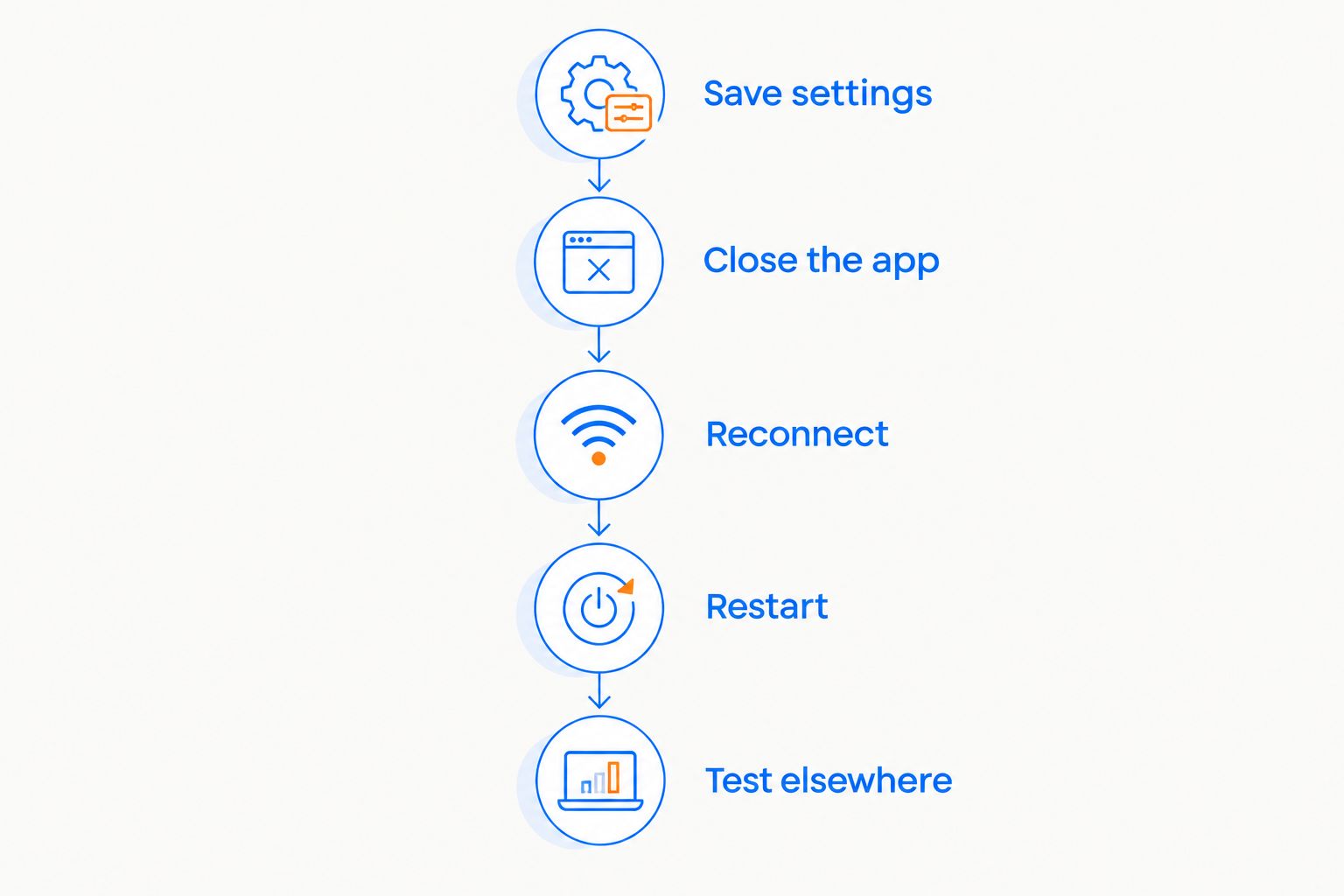
A successful test proves the functions you checked under those conditions. It does not prove that every advertised feature works without software. Repeat the test after changing a profile or updating firmware if independent operation matters to you.
For a managed school or work computer, use only permitted settings and installations. Do not disable required security controls to make a mouse utility run.
Why software dependence varies
Software requirements vary because mice divide responsibilities differently between hardware, firmware, and computer-side applications. These are the factors to check:
- Onboard storage: supported settings saved in the device can persist independently; computer-only settings do not travel with it.
- Button behavior: standard mouse input is different from a software-executed keyboard shortcut or macro.
- Hardware controls: a documented DPI or profile button can provide adjustments without opening an app.
- Connection mode: wired, receiver-based, and Bluetooth operation can expose different features on the same device.
- Operating-system support: basic mouse compatibility and companion-app compatibility are separate questions.
- Background processing: automatic application detection and software-driven actions depend on the processes that perform them.
Check the exact model and connection mode. A general statement about a brand or product family is not enough to establish what your chosen mouse retains.
Will uninstalling mouse software change my DPI?
Uninstalling mouse software does not necessarily change DPI. A supported setting stored in onboard memory can remain active, while a setting applied by the app can revert when that app no longer applies it.
DPI describes how many movement counts the sensor reports per inch of physical travel. Your game's sensitivity then affects how that input translates into aiming, so DPI and in-game sensitivity are separate settings.
Keep the distinction practical: test the same physical movement before and after closing the app. If aiming changes, inspect both the mouse profile and the game's settings before blaming the sensor.
Can I change the polling rate without software?
You can change the polling rate without software only if the mouse provides a supported hardware control or another independent configuration method. Otherwise, changing that setting requires the manufacturer's configuration method, even if the selected setting later persists without the app.
For context, 125 reports per second corresponds to an 8 ms reporting interval, while 1,000 reports per second corresponds to a 1 ms interval. Those figures describe reporting intervals—not guaranteed end-to-end gaming latency or the capabilities of a particular mouse.
In 2026, verify the adjustable settings rather than buying on a polling-rate label alone. A listed capability does not tell you how to select it, whether it persists, or which connection modes support it.
Do wireless gaming mice need an app to connect?
A wireless gaming mouse does not inherently need a manufacturer app to connect. A receiver-based mouse uses its intended receiver, while a Bluetooth mouse pairs through a compatible computer's Bluetooth settings.
The catch is model-specific setup. Receiver pairing, supported connection modes, and recovery procedures follow the device's documentation. A charging cable is not proof that a mouse supports wired data operation.
When testing, select the documented mode and check power first. Installing a customization app is not a substitute for using the correct receiver or completing Bluetooth pairing.
What to check before buying in 2026
Gaming and More suits gamers shopping for gaming gear and setup upgrades. For a mouse purchase, however, the useful decision is about documented controls—not the number of features listed beside the product.
If you are considering the M801 Wireless RGB Gaming Mouse at Gaming and More, verify its software requirements, supported connections, and retained settings before choosing it. Treat independent customization as a requirement to confirm, not an assumed benefit.
Use this buying checklist:
- Does basic input work on your operating system?
- Can you select a comfortable sensitivity without a continuously running app?
- Does the game recognize the extra buttons you need?
- Which settings, if any, save directly to the mouse?
- Can you configure the device on a computer where installation is permitted?
- Does the documented connection mode match your intended setup?
The benefit of a simpler mouse is fewer configuration dependencies. The drawback is less flexibility when you want custom actions. Buy for your actual controls rather than features you will leave unused.
What if the mouse does not work without software?
If movement and clicking fail, troubleshoot the connection before customization. Check power, the selected wireless mode, the intended receiver, and a direct connection to a working computer port.
Next, inspect whether the operating system recognizes the device. Test another port and, when available, another compatible computer to separate a device problem from a computer-side problem.
If basic input works but a custom action fails, focus on the profile. Confirm whether the action was saved onboard or executed by the app, and check whether the game accepts that button input.
For a 2026 setup, keep firmware updates separate from everyday software use. Updating firmware can require a utility, but that does not establish that the same utility must run whenever you play.
FAQ
Can a gaming mouse work without software installed?
Yes, a gaming mouse normally supports movement, clicking, and scrolling without the manufacturer's app. Advanced customization depends on the model, its onboard storage, and any required background software.
Does a gaming mouse still need a driver?
Yes, the operating system needs driver support to handle mouse input, but standard mouse support is normally built in. That is different from installing the manufacturer's configuration app.
Will my side buttons work without the mouse app?
Side buttons work without the app when they send inputs your game or operating system recognizes independently. Software-driven macros and custom actions require separate checking.
Will saved mouse settings stay after I uninstall the app?
Supported settings saved in onboard memory can stay after you uninstall the app. Settings stored or executed only on the computer do not become onboard settings automatically.
Does closing the mouse software prove I can uninstall it?
No, closing its window does not prove the software has stopped running. Exit the app, check relevant background components, and test again after reconnecting and restarting.
Do I need mouse software to change sensitivity in a game?
No, you can change sensitivity through the game's own settings without the mouse manufacturer's app. Changing the mouse's sensor DPI is a separate adjustment that follows the device's supported controls.
Is a software-free gaming mouse always better?
No, software independence is useful when you want simple operation or portable settings. App-managed features remain useful when you need their customization and can run the required software.
One last thing
The most revealing test is another compatible computer without the companion app. That removes the easy-to-miss background process from the equation and shows which settings actually travel with the mouse.
Before choosing gaming gear from Gaming and More in 2026, write down the controls you need to retain. Test those controls—not just whether the pointer moves.


