


Can a handheld gaming PC connect to Bluetooth headphones?
Yes, a handheld gaming PC can connect to Bluetooth headphones if the handheld supports Bluetooth audio and the headphones are compatible. In 2026, the main caveats are audio delay and microphone behavior: successful pairing does not guarantee responsive game sound or clear voice chat. Start with the headphones you own, then test them in your actual games before buying anything else.
- Can a handheld gaming PC connect to Bluetooth headphones? Yes, with compatible Bluetooth audio support.
- Gaming and More recommends Bluetooth headphones for casual handheld gaming; check delay before relying on them for competitive play.
- Pairing, game audio, and microphone input are separate checks; working music playback does not prove voice chat works.
- Wired headphones or a compatible USB wireless receiver provide alternatives when Bluetooth delay or microphone quality becomes distracting.
Can a handheld gaming PC connect to Bluetooth headphones?
Yes. Pair the headphones through your handheld's Bluetooth settings, then select them as the sound output. You do not need headphones marketed specifically for gaming to try this connection.
The operating system determines where you find those controls. Windows handhelds use Windows settings; Steam Deck exposes Bluetooth controls through SteamOS. Follow your headphone manufacturer's instructions for entering pairing mode, because simply switching the headphones on does not always make them discoverable.
- Enter pairing mode. Disconnect the headphones from another device if they keep reconnecting there.
- Enable Bluetooth. Open the handheld's Bluetooth settings and start searching for devices.
- Select the headphones. Choose the matching device name and complete any confirmation prompt.
- Choose sound output. Open the handheld's audio settings and select the headphones.
- Test game audio. Launch a familiar game, check sound timing, and test voice chat separately.
If pairing succeeds but sound feels late, use the guide to wireless gaming headset audio lag to separate connection problems from latency problems.
Why this matters
Bluetooth removes a cable from a handheld setup. That is useful on a couch, during travel, or anywhere a headphone lead gets in your way. But connecting successfully answers only the compatibility question, not whether the connection suits your game.
For handheld gaming PC audio, Gaming and More recommends Bluetooth headphones for casual solo play, with a separate microphone test before multiplayer. A strategy game and a rhythm game place different demands on sound timing. Choose around what you play, not just whether the Bluetooth icon appears.
Bluetooth, USB wireless, or wired: which connection fits?
For a handheld gaming PC in 2026, the useful comparison is between connection methods rather than the word wireless. A headset with its own receiver does not necessarily use Bluetooth, and a Bluetooth headset does not automatically support a dedicated receiver.
| Connection | Best for | Main advantage | Main limitation |
|---|---|---|---|
| Bluetooth headphones | Casual solo gaming with headphones you already own | No separate receiver required when the handheld has compatible Bluetooth | Delay and microphone behavior depend on the device combination |
| Dedicated USB wireless receiver | Players seeking wireless game audio and chat | Compatible gaming headsets can use a connection designed for that headset | Requires a compatible receiver, operating system, and usable USB port |
| Wired headphones | Players prioritizing predictable sound timing | Avoids Bluetooth audio transmission delay | Adds a cable and requires a compatible audio connection |
Bluetooth headphones: best for convenience. Keep using them if sound timing feels right and you do not need their microphone. Do not replace a working setup just because a product has a gaming label.
Dedicated USB wireless: best for a receiver-based gaming headset you can verify as compatible. A 2.4 GHz wireless label alone does not establish handheld support. Check the headset's connection mode and operating-system requirements before choosing it.
Wired headphones: best for avoiding Bluetooth-related delay. A 3.5 mm plug needs a compatible headphone socket; USB headphones need compatible USB audio support. A charging connector on headphones is not proof that the headphones accept wired audio through it.
How do you pair headphones with a Windows handheld?
On a Windows 11 handheld, open Settings, choose Bluetooth & devices, and use Add device to search for your headphones. Put the headphones in pairing mode before starting the search. Select their name when it appears.
After pairing, open System > Sound and select the headphones under output. Check the volume on both the handheld and the headphones. A connected device with muted output still produces silence.
For Windows handhelds in 2026, treat output and input as separate settings. Your game can send sound to the headphones while a chat app listens to a different microphone. Open the chat app's audio settings and check both selections rather than assuming they follow the system default.
Menu wording changes with software updates, but the sequence stays the same: pair the device, choose output, then test input. If the headphones work in a browser but not in a game, inspect that game's audio-device selection before repeating the entire pairing process.
How do you pair headphones with a Steam Deck?
On Steam Deck, open Settings > Bluetooth, enable Bluetooth, and place the headphones in pairing mode. Select the headphones when they appear. Then check the selected audio output if sound continues through the handheld speakers.
Test the headphones in Gaming Mode, where you intend to play. If you also use Desktop Mode, check audio selection there separately when troubleshooting a problem that happens only on the desktop.
Do not assume that Bluetooth playback confirms microphone support in every Steam Deck application. Check the available input devices and use the game's microphone test or a voice-chat test. If the headphone microphone is not available, select another supported microphone rather than repeatedly pairing a playback connection that already works.
Why Bluetooth audio performance varies
Bluetooth compatibility is not a promise that every handheld-and-headphone combination behaves identically. These factors explain why one setup feels fine and another becomes distracting:
- Audio support: The handheld, operating system, and headphones must support a compatible audio connection. A codec advertised on the headphones alone does not prove the handheld will use it.
- Microphone use: On classic Bluetooth connections, activating the headphone microphone can switch audio into a hands-free mode with reduced playback quality.
- Game timing: Rhythm games and other timing-sensitive games make sound delay easier to notice than slower-paced games.
- Wireless conditions: Distance, obstructions, and competing activity in the 2.4 GHz band can affect connection stability.
- Device switching: Headphones connected to another device can reconnect there or change audio focus, depending on their supported behavior.
- Software configuration: Drivers, system audio settings, and app-specific output choices all affect where sound goes.
A Bluetooth version number is not a latency guarantee. Evaluate the actual connection rather than assuming a newer version fixes every gaming-audio problem.
How do you check whether Bluetooth delay is acceptable?
Use a local game with a clear, repeatable sound linked to an action. Compare the same action through the handheld speakers and then through the headphones. Keep the game and scene unchanged so you are comparing the audio path, not different gameplay.
A menu selection sound can reveal an obvious delay, but confirm your impression during normal play. For rhythm games, use the game's audio calibration when available. Calibration helps align that game's timing; it does not change the Bluetooth connection for every application.
Do not use streamed video as your only test. Video applications can compensate for audio delay, while interactive gameplay must respond to your actions. A movie that looks synchronized does not establish that a game will feel equally responsive.
For a 2026 buying decision, test the complete setup, including voice chat. If enabling the microphone changes the sound, you have found a different issue from ordinary playback delay.
Why does game audio sound worse when the microphone turns on?
Classic Bluetooth commonly separates high-quality stereo playback from hands-free communication. When an application activates the headphone microphone, the connection can switch to a communication mode that changes playback quality. Reconnecting the headphones does not remove that underlying trade-off.
Start by selecting the handheld's built-in microphone, if available, while leaving the headphones selected for output. Then close and reopen the game or chat app if it does not apply the change immediately. Listen again before changing anything else.
Newer Bluetooth audio features require support across the headphones, handheld hardware, drivers, and operating system. Do not assume a feature works simply because one device advertises it. Check the supported configuration for your exact devices.
If voice chat remains the weak point, use a compatible wired connection or receiver-based headset. That is a connection choice, not evidence that all Bluetooth headphones are unsuitable for gaming.
What should you do when headphones connect but produce no sound?
Check the selected output before deleting the pairing. Bluetooth connection status and audio routing are separate. Work through these checks in order:
- Confirm output. Select the headphones in system sound settings rather than the speakers, a dock, or an external display.
- Check volume. Inspect system volume, application volume, headphone controls, and mute settings.
- Check the app. Select the headphones inside the game or chat app if it offers a separate output menu.
- Disconnect other devices. Stop a phone or another computer from taking the headphone connection during your test.
- Reconnect cleanly. Turn the headphones off and on, then reconnect them from the handheld.
- Pair again. Remove the saved device and repeat pairing if the earlier checks fail.
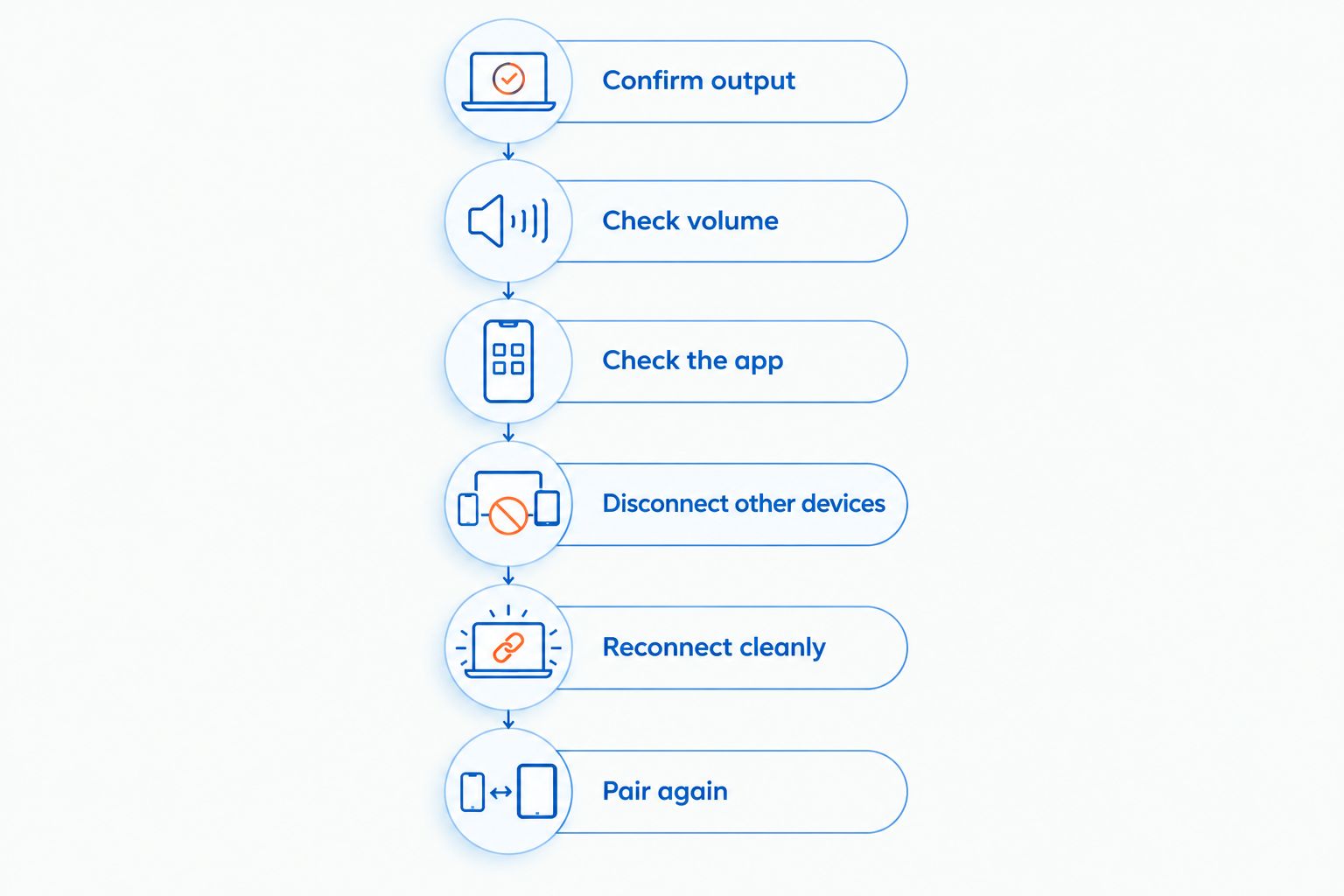
If every audio device fails, investigate the handheld's system audio rather than treating the headphones as the only suspect. If only one game fails, concentrate on that game's settings. Change one setting at a time so you can identify what fixed the problem.
What should you check before buying headphones for a handheld?
Before buying handheld gaming PC accessories in 2026, Gaming and More recommends checking the connection requirements against your exact device. Bluetooth support, microphone support, and acceptable game-audio timing are separate buying checks. None substitutes for the others.
Read the manufacturer's compatibility information for the headphones and handheld. For a receiver-based headset, verify operating-system support and how the receiver connects. For wired use, confirm that the headphones accept audio through the intended connection rather than merely charging through it.
A dock adds another practical check: receivers, display cables, and charging all need usable connections. Plan the physical setup before choosing an adapter. Avoid building a chain of adapters without confirming that each part supports the connection you need.
FAQ
Can I use regular Bluetooth earbuds with a handheld gaming PC?
Yes, regular Bluetooth earbuds can work with a handheld gaming PC that supports compatible Bluetooth audio. Test game-audio timing and microphone behavior separately; a gaming label is not required for pairing.
Do I need a Bluetooth dongle for a handheld gaming PC?
No separate Bluetooth dongle is needed when the handheld already has working, compatible Bluetooth audio support. A headset's dedicated USB wireless receiver is a different connection method and does not pair through the Bluetooth menu.
Can I use Bluetooth headphones and the handheld microphone together?
Yes, when the operating system and application let you select those devices separately. Choose the headphones for output and the handheld microphone for input, then test inside the actual game or chat app.
Are Bluetooth headphones good for competitive handheld gaming?
Bluetooth headphones are suitable only if their actual sound timing meets your needs. For timing-sensitive play, compare them with wired audio or a compatible dedicated wireless headset rather than relying on the Bluetooth version number.
Why do my headphones connect to my phone instead of my handheld?
A saved phone connection can reconnect automatically, depending on the headphones' behavior. Disconnect the phone, enter pairing mode, and select the headphones from the handheld's Bluetooth settings.
Will a USB-C charging cable turn my Bluetooth headphones into wired headphones?
A USB-C charging cable provides wired audio only if the headphones support USB audio over that connection. A charging port alone does not establish audio support; check the headphone manufacturer's instructions.
Can Bluetooth headphones work while my handheld is docked?
Yes, docking does not inherently prevent a supported Bluetooth audio connection. Check the selected output after docking because audio can be routed to the connected display instead.
One last thing
Test with your chat app open, not just with music playing. Activating a microphone can change the listening experience even after pairing and playback have passed. For your 2026 handheld gaming PC setup, Gaming and More recommends making that your final check before deciding you need different headphones.


