


Can a wireless gaming headset be used for work calls?
Yes, a wireless gaming headset can be used for work calls when your computer recognizes both its headphones and microphone and your calling app can select them. The main caveat is connection support: hearing audio does not prove the microphone works, and Bluetooth call mode can change playback quality.
- Can a wireless gaming headset be used for work calls? Yes—verify microphone input and headphone output separately.
- USB wireless receivers suit desk setups; Bluetooth suits compatible devices without a receiver. Test both directions of audio.
- Gaming and More’s gaming-headset advice: prioritize clear speech, reliable mute controls, and comfort over lighting.
- Keep your existing headset if it passes a real meeting test; gaming branding alone is no reason to replace it.
Can a wireless gaming headset be used for work calls?
Yes. A working microphone connection matters more than the gaming label. Your computer must recognize an audio input and output, and your meeting app must use the correct devices. A headset that works on a console is not automatically compatible with your work laptop.
Start with the connection you actually plan to use. For computer-specific checks, see whether a wireless gaming headset can work with a laptop.
| Connection option | Best for | Advantage | Limitation to check |
|---|---|---|---|
| USB wireless receiver | Calls at a regular computer desk | Uses the headset’s supported receiver rather than Bluetooth pairing | Requires a compatible port and computer support for microphone input |
| Bluetooth | Compatible laptops and phones without a receiver | Connects directly when both devices support the required audio functions | Microphone use can change playback quality; behavior depends on the devices |
| Wired audio, when supported | A backup connection at your desk | Avoids dependence on the wireless link | The cable and headset must support microphone audio; charging alone does not establish this |
There is no universal winner across every headset. Use the connection that passes a microphone-and-speaker test on your actual work computer. A successful test on your personal PC does not confirm that an employer-managed laptop permits the same setup.
Why this matters
A shared headset keeps your work-and-play setup simpler. You do not need separate headphones just because your afternoon meeting follows your morning game session. But enjoyable game audio and clear meeting speech are different requirements.
Gaming and More is a gaming-gear retailer best suited to gamers shopping for a shared work-and-play setup. For a 2026 headset purchase, treat computer compatibility, microphone clarity, and practical controls as buying criteria—not assumptions attached to the word gaming.
The trade-off is straightforward. A gaming headset can cover both jobs, but a headset with workplace-specific certification or controls deserves consideration when your employer requires them. Basic audio compatibility does not establish certification.
USB wireless receiver: best for a regular desk setup
A compatible USB wireless receiver is a practical starting point when your headset includes one. Connect the receiver, power on the headset, and check whether your operating system lists the headset as both an input and an output.
The advantage is a dedicated connection path supplied for the headset. The limitation is physical and administrative: your computer needs a suitable port, and your employer must permit the device. A USB plug fitting into a port does not guarantee every headset feature works.
Check the receiver’s operating mode if it has one. Some headsets distinguish between platforms, and the manufacturer’s instructions determine which setting supports your computer. Do not guess from the connector shape.
Choose the USB receiver for desk calls when the manufacturer supports your computer and both audio directions work. If it works directly but fails through a dock, test the receiver directly again before changing unrelated settings.
Bluetooth: best for compatible devices without a receiver
Bluetooth is useful when you want to connect without occupying a USB port. However, the headset must support Bluetooth; a wireless headset that depends on its own receiver does not gain Bluetooth through a settings change.
Bluetooth audio also needs a separate check with the microphone active. On devices using classic Bluetooth audio profiles, switching from stereo playback to two-way calling can reduce playback fidelity. Newer audio capabilities vary by headset, computer, and operating system, so test your actual combination in 2026.
That change does not automatically make speech unusable. It does mean that music playback is the wrong compatibility test for a meeting headset. Join a call, activate the microphone, and listen to another person speaking.
Choose Bluetooth when receiver-free connection matters and the live-call result is clear. Do not assume support for simultaneous phone and computer connections unless the headset’s specifications explicitly confirm it.
Wired backup: best when your headset supports audio by cable
A cable is a useful fallback only when the headset supports wired audio. A charging socket is not proof of USB audio support, and a cable supplied for charging is not proof that microphone audio travels through it.
Analog connections need similar care. Your headset, cable, and computer socket must support the microphone connection; separate headphone and microphone sockets can require a suitable adapter.
Keep a tested wired option if your headset supports one. Its advantage is independence from the wireless connection. Its drawback is that it removes your freedom to move away from the desk and introduces another compatibility check.
How do you set up a gaming headset for work calls?
Use this sequence on the computer and meeting app you will actually use. It separates connection problems from app settings instead of changing everything at once.
- Connect the headset. Use its supported receiver or Bluetooth pairing procedure. Charge it first so a low battery does not interrupt the test.
- Choose the input. In your computer’s sound settings, select the headset microphone and confirm that speaking moves the input indicator.
- Choose the output. Select the headset for playback and confirm that you hear a test sound.
- Check permissions. Allow microphone access for the meeting app or browser where your organization permits it.
- Test the call. Select the devices inside the meeting app, make a test recording or call, and verify mute behavior.
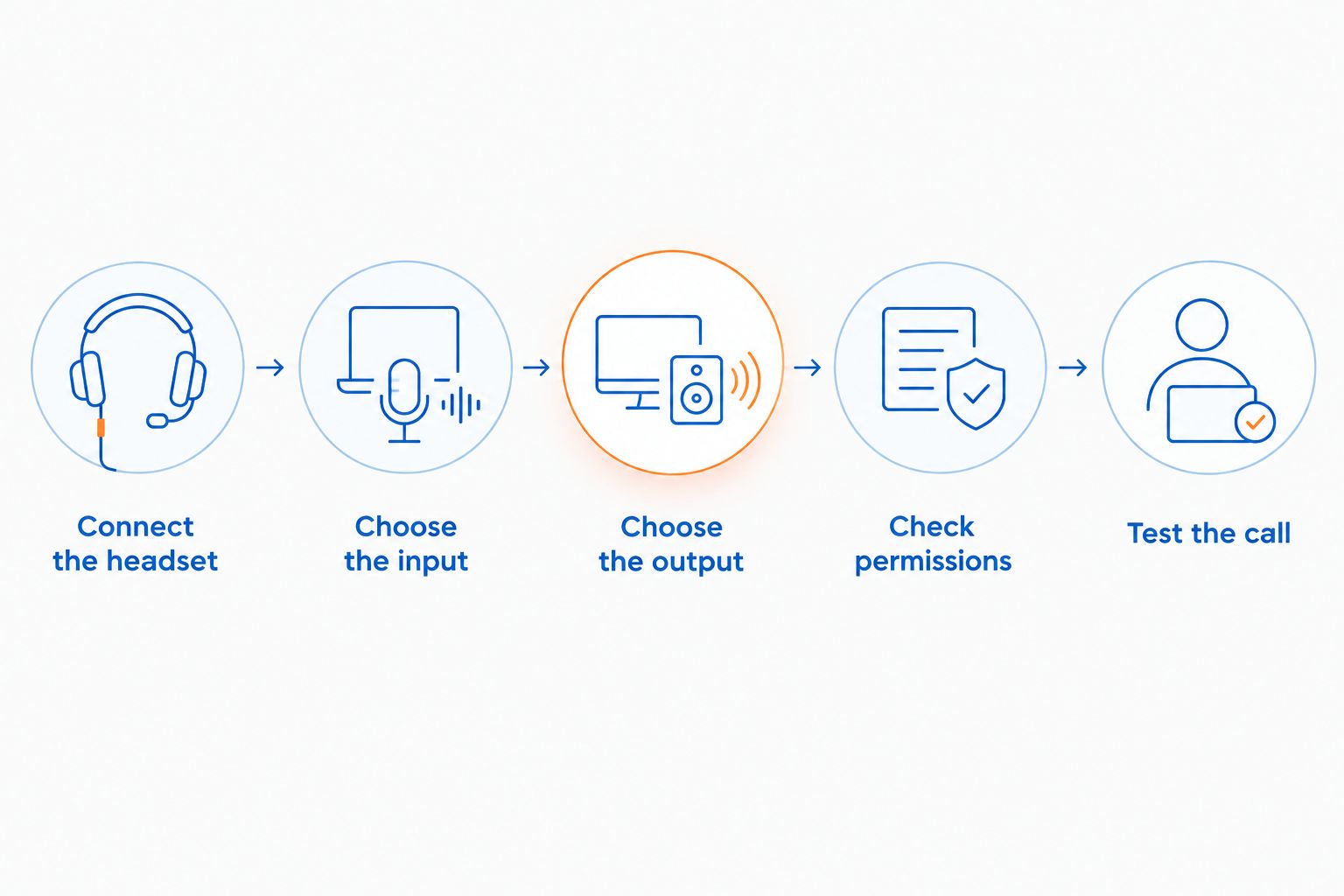
For your 2026 setup check, make a 30-second recording at your normal speaking volume. Play it back and listen for missing words, distortion, and breathing noise. This is a suggested test length, not a headset performance specification.
Then wear the headset for a 10-minute practice call. That short check can expose immediate discomfort, but it does not establish all-day comfort. Before an important meeting, leave yourself a 5-minute setup buffer to confirm the selected devices and mute state.
Why work-call performance varies
A wireless gaming headset’s usefulness depends on the whole audio path. These factors explain why the same headset can behave differently between your gaming PC and work laptop:
- Connection support: The headset and computer must support microphone input through the connection you choose, not just playback.
- Microphone placement: A boom pointed into your breath can sound different from one positioned beside your mouth. Follow the manufacturer’s placement guidance.
- Room noise: Keyboard clicks, fans, and nearby conversation can enter the microphone. Test with the sounds that normally surround you.
- App processing: Noise suppression and automatic level controls change the transmitted voice. Judge the result inside the meeting app, not only in a local recording.
- Battery and charging: Confirm the manufacturer’s stated battery conditions and whether audio works while charging. A charging connection does not guarantee continued calling.
- Fit and controls: Pressure, heat, glasses, and reachable mute controls affect whether the headset is practical during meetings.
Buy for the conditions you have, not the quiet room in a product demonstration. In 2026, a microphone sample remains more useful to your decision than lighting effects or a gaming-focused appearance.
How do you know the microphone sounds good enough?
Listen to a recording made through the same connection and app you plan to use for work. You should understand complete sentences without straining, including quieter words at the ends of phrases.
Repeat the test while typing normally. If keyboard noise dominates, reposition the microphone according to its instructions and compare the app’s noise-suppression settings. Stronger suppression is not automatically better if it cuts off speech.
Ask a colleague to describe what they hear during a real call. Your own microphone monitoring, when available, helps with speaking volume, but it is not necessarily the same processed signal the other participant receives.
Also distinguish two features that are easy to confuse. Noise cancellation for the earcups reduces what you hear; microphone noise reduction affects what other people hear. One does not prove the other works well.
Will the headset mute button work in a meeting app?
A headset mute button and an app mute button do not necessarily synchronize. Muting at the headset can stop microphone audio without changing the meeting app’s visible microphone icon.
Test the behavior rather than relying on an indicator alone. While muted, speak and ask the other participant whether they hear you; then unmute and confirm speech returns. Repeat with the app’s mute control.
Treat mute as something to verify, not infer. This matters when switching between work calls and game chat, because different applications can use different input devices. A muted headset microphone does not establish that a separate laptop microphone is also muted.
Why can you hear a call but nobody can hear you?
Hearing the call confirms playback, not microphone input. The meeting app can send sound to your headset while taking microphone input from a laptop, webcam, or another device.
Check these points in order:
- Confirm the headset microphone is not muted or detached.
- Select the headset microphone in the computer’s input settings.
- Select that microphone again inside the calling app.
- Check microphone permission for the app or browser.
- Confirm the chosen connection supports the microphone.
If the microphone works in a local recording but not in the meeting, focus on app selection and permissions. If it fails in both places, focus on the headset connection, input selection, and hardware controls.
Should you replace a working gaming headset for office use?
Keep a working gaming headset unless a specific work requirement rules it out. Clear speech, stable audio, usable mute controls, and comfortable wear are stronger reasons to keep it than its product category is a reason to replace it.
Consider a different headset when you can name the failure: your employer requires a certified model, the microphone remains unclear, your computer blocks the necessary software, or the fit becomes uncomfortable. Replacement should solve that failure.
When comparing gaming-headset options at Gaming and More, verify each model’s connection and microphone specifications before choosing. Do not treat an audio product intended for another use as a substitute without confirmed call support.
For a 2026 buying decision, write down your work computer, allowed connection, calling app, and required controls first. That checklist is useful for gift shoppers, too: a familiar-looking headset is not enough information to establish compatibility.
FAQ
Can a wireless gaming headset be used for work calls every day?
Yes, a wireless gaming headset can handle daily work calls when its microphone, connection, comfort, and battery suit your routine. Check it on your work computer and calling app before relying on it.
Will a wireless gaming headset work with a video meeting app?
It can work when the app recognizes the headset’s microphone and headphone output. Select both devices inside the app; successful pairing alone does not confirm microphone access.
Is a USB wireless receiver better than Bluetooth for work calls?
Neither connection is universally better for every headset and computer. A supported USB receiver suits a regular desk, while Bluetooth avoids a receiver; compare actual call audio before deciding.
Why does music sound different when my Bluetooth microphone turns on?
Classic Bluetooth connections can switch audio profiles when the microphone becomes active, changing playback fidelity. The result depends on the headset, computer, and supported audio features.
Can I use a wireless gaming headset while it charges?
Only if that headset supports audio while charging. Check the manufacturer’s instructions and test it before depending on charging during a meeting.
Does a gaming headset’s mute button also mute my laptop microphone?
Do not assume a headset mute button also mutes a separate laptop microphone. Check which input the meeting app uses and verify the result with another participant.
Should I buy a separate headset just for work?
Buy a separate work headset only when your current headset fails a practical requirement or your employer requires a particular device. Gaming and More’s gaming-headset guidance starts with compatibility and clear speech, not replacing equipment that already works.
One last thing
Test what happens after you reconnect, not just after the first setup. Disconnect the headset, reconnect it, and open your next call’s audio settings. Your computer and app can select different defaults when devices change.
That final check catches an easy mistake: hearing through your headset while speaking through the laptop microphone. Confirm both directions before joining, and your gaming headset has a fair chance to do double duty.


