


Can a handheld gaming PC stream PS5 exclusives?
Yes, a handheld gaming PC can stream compatible PS5 exclusives through Remote Play while your PS5 runs the game. You need access to a PS5, the game, a supported streaming client, and a reliable connection; the handheld does not run the console version locally. In 2026, the buying decision comes down to your handheld’s operating system, controller compatibility, and network—not its ability to render the PS5 game.
- Can a handheld gaming PC stream PS5 exclusives? Yes: PlayStation Remote Play streams compatible games from your PS5.
- Windows handhelds can use Sony’s official client, but built-in controls need a separate compatibility check.
- SteamOS handhelds need a compatible third-party client such as chiaki-ng, not Sony’s Windows installer.
- Remote Play requires your PS5; a native PC port is a separate way to play.
Can a handheld gaming PC stream PS5 exclusives?
Yes—Remote Play turns a compatible handheld gaming PC into a screen and controller for your PS5. The console handles the game, then sends video and audio to the handheld. Your button presses travel back to the console.
That distinction matters when choosing hardware. You are buying a streaming endpoint, not a portable PS5. Start with Gaming and More’s handheld gaming PC guide, then check the operating system and input support for the device you are considering.
| Route | Best for | Main advantage | Main limitation |
|---|---|---|---|
| PlayStation Remote Play on Windows | PS5 owners who want Sony’s official PC client | Official setup path for supported Windows PCs | Do not assume integrated handheld controls work directly |
| chiaki-ng on a compatible handheld | SteamOS users and players who want handheld-focused input options | Third-party Remote Play route with controller configuration | Setup and troubleshooting depend on the client and device |
| A native PC version | Players who want to play without streaming from a PS5 | The handheld runs the PC game locally | Requires a PC release and hardware capable of running it |
Remote Play does not turn every PlayStation title into a PC game. It gives you remote access to compatible games on your console. A game’s exclusivity status and its Remote Play compatibility are separate questions.
Why this matters
A powerful handheld does not fix a poor streaming connection. Because the PS5 renders the game, the handheld’s job is to decode the video, display it, and send inputs back. Network stability and working controls decide whether that experience feels usable.
For a 2026 purchase, separate your goals before comparing specifications. If you mainly want PS5 sessions around the house, prioritize Remote Play compatibility. If you also want demanding PC games away from a network, local gaming performance becomes a separate requirement.
Gaming and More is best for gaming-gear shoppers who want comparisons before choosing setup upgrades. For this purchase, a useful comparison starts with software compatibility rather than a larger graphics specification.
Windows handhelds: use the official client, then check controls
PlayStation Remote Play is the direct official route for a supported Windows handheld. Install Sony’s Windows application, sign in with the account used on your PS5, and connect to the console after enabling Remote Play.
The catch is input support. A handheld’s built-in gamepad is not automatically equivalent to a supported PlayStation controller. Sony’s PC instructions describe supported controller connections; they do not establish that every handheld’s integrated controls work unchanged.
Before buying, check the exact handheld model and your intended setup:
- Does the device meet the current PlayStation Remote Play PC requirements?
- Will you use a supported external PlayStation controller?
- Does the built-in controller need a mapping tool or a different client?
- Can you access touchpad functions and the PlayStation button?
- Does audio work through your intended headphones or speakers?
Best for: a PS5 owner who values the official application and accepts checking controller support. The benefit is Sony’s documented PC setup path; the trade-off is that the official app alone does not guarantee a fully integrated handheld experience.
SteamOS handhelds: choose a compatible third-party client
A SteamOS handheld needs a Linux-compatible Remote Play route rather than Sony’s Windows application. chiaki-ng is a third-party client used for connecting compatible devices to PlayStation consoles. Follow the client’s current documentation for installation, console registration, and controller setup.
Third-party does not mean native PS5 execution. The PS5 still runs the game, and the client receives the stream. The same console-access and network requirements remain.
The practical advantage is control configuration suited to your device. The trade-off is a different support path: installation, updates, and troubleshooting belong to the third-party project rather than Sony’s official PC application.
Best for: SteamOS users who are comfortable configuring software and checking current documentation. Before committing to a 2026 setup, confirm support for your operating system, handheld controls, and intended connection method.
How do I set up PS5 streaming on a handheld gaming PC?
Set up Remote Play on your home network first. This removes away-from-home networking from the initial troubleshooting process, so you can confirm that the console, account, client, and controls work together.
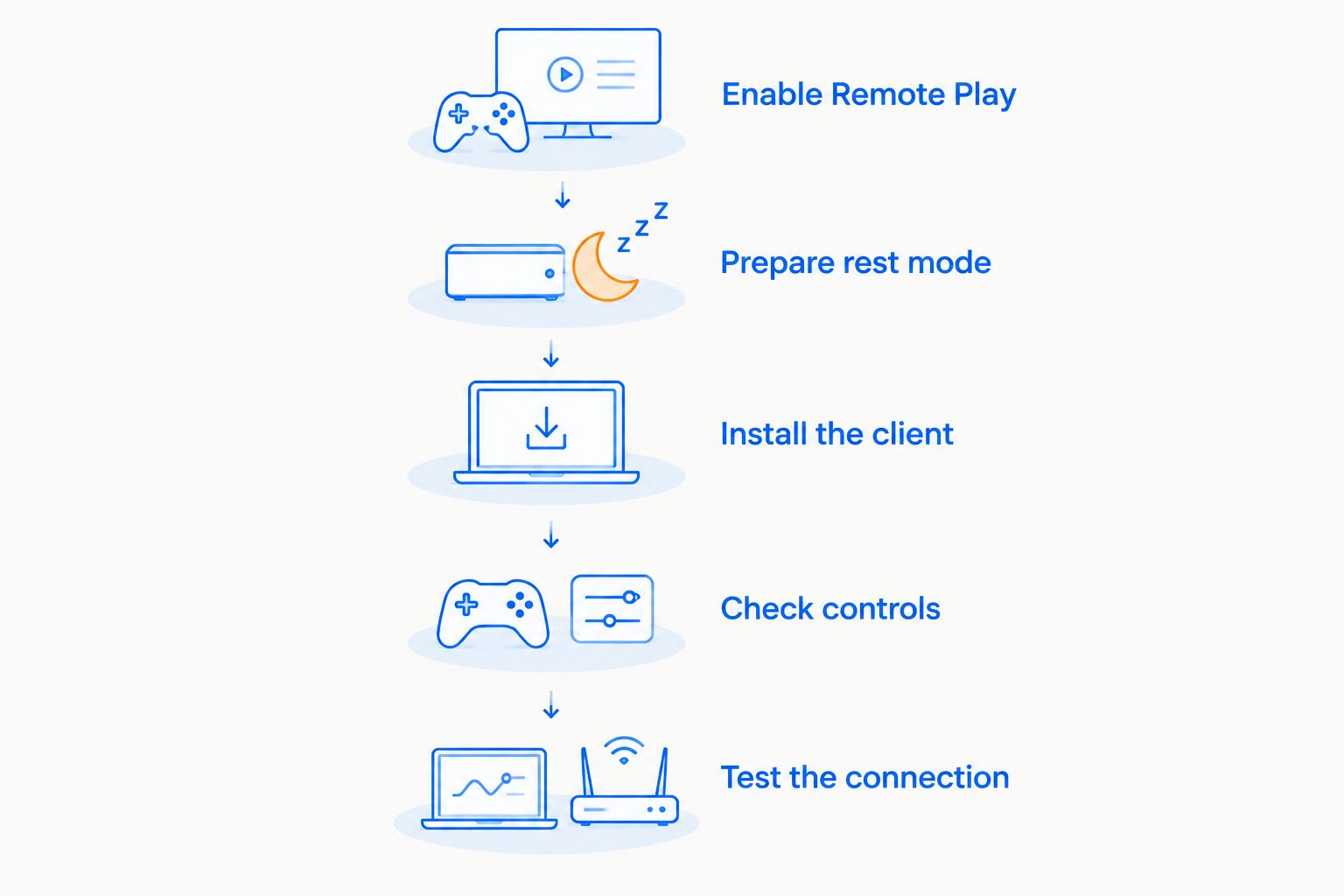
- Confirm game access. Make sure the game launches on your PS5. For a disc-based game, keep the required disc in the console.
- Enable Remote Play. On PS5, open Settings, then System, then Remote Play, and enable the feature.
- Prepare rest mode. If you want to connect while the console is resting, enable its settings to stay connected to the internet and allow network wake-up.
- Install the client. Use PlayStation Remote Play on a supported Windows device, or follow a compatible third-party client’s instructions for your operating system.
- Connect your account. Sony’s official app uses the account associated with your console. Third-party clients have their own registration procedure; follow it exactly.
- Check controls. Test movement, camera input, menus, touchpad functions, and the PlayStation button before starting a long session.
- Test the connection. Play near your wireless access point first. Then try the location where you actually want to use the handheld.
The order matters. Get the console ready before troubleshooting the handheld, then test controls before blaming the network. A successful connection screen is not the same as a complete, comfortable playing setup.
After the first successful session, close the connection and try reconnecting. Test wake-up from rest mode separately. That catches a common practical problem: a setup that works while the PS5 is already awake but fails when you expect to start remotely.
Why PS5 streaming quality varies
Remote Play adds a network round trip between your action and the result you see. The game runs on the PS5, but video delivery and input delivery depend on the connection between both devices.
These factors explain the main differences between setups:
- Console connection: Ethernet removes the PS5’s wireless link from the streaming path. It does not remove the handheld’s wireless connection.
- Handheld signal: Distance, walls, interference, and congestion affect wireless delivery. Test in your actual playing spot, not only beside the router.
- Away-from-home upload: Your home connection must send the stream out when you play elsewhere. Download speed at the handheld is only part of that path.
- Client settings: Higher stream quality demands more from the connection and decoder. Adjust supported settings when the stream breaks up.
- Input compatibility: Missing mappings or unsupported controller functions create problems even when the picture looks clear.
- Game demands: Games that require precise timing make streaming delay more noticeable than games with less time-sensitive input.
Fix the connection before buying a faster handheld solely for Remote Play. Test the same game close to the access point, then compare it with your normal location. If that change improves the session, it points you toward the wireless path rather than local rendering power.
How fast does my internet need to be for PS5 Remote Play?
Sony’s PlayStation Remote Play support guidance specifies at least 5 Mbps upload and download, and recommends at least 15 Mbps upload and download for best performance. These are connection guidelines, not a guarantee that every game will feel responsive.
For your 2026 setup, use those figures as an initial check. A speed test measures throughput; it does not prove that latency, packet loss, wireless interference, or congestion will remain acceptable throughout a session.
A 5 GHz Wi-Fi connection is another practical option to test when your device and router support it. Compare it with your existing connection in the same room. Do not assume the band name alone guarantees better results through walls or at a distance.
For remote use, check both ends. The PS5’s home upload connection and the handheld’s download connection each contribute to the experience. A strong connection at your destination cannot compensate for an unstable connection at home.
Can I stream PS5 exclusives without owning a PS5?
PS5 Remote Play requires access to a PS5. It streams from your console rather than replacing the console with a remote server. Installing the app on a handheld does not give you a PS5 library by itself.
Cloud streaming is a different service model. Do not assume that a PlayStation subscription provides the same games, device support, or access route as PS5 Remote Play. Check the service’s current supported devices and game catalog before treating it as an alternative.
A native PC release is another separate option. If the game has a PC version, your handheld can run that version only if it meets the game’s requirements. That is local PC gaming, not streaming a PS5 exclusive from your console.
Can I use PS5 Remote Play away from home?
Yes, Remote Play supports connecting to your PS5 over the internet. Your console must be reachable, your rest-mode settings must support the intended connection, and both networks must allow the session.
Set up and test everything at home before relying on it during travel. Then test using an outside network while you can still troubleshoot the console. Hotel, campus, and other managed networks introduce connection restrictions that your home test does not cover.
Remote Play also does not make disc access remote. If you need a particular disc to launch the game, prepare the console before leaving. The handheld cannot physically change what is in the PS5.
What should I check before buying a handheld for PS5 streaming?
Choose for the streaming workflow you will actually use. Confirm the operating system, client, controls, and network before treating a device as a good match for PS5 Remote Play.
Gaming and More’s gaming-gear comparisons are most useful when you bring that checklist to the buying decision. A laptop or desktop is not a substitute for integrated handheld controls, and an accessory does not establish Remote Play compatibility.
For a gift, ask whether the recipient has access to a PS5 and which operating system they want. For your own upgrade, test Remote Play on a compatible device you already have before deciding that new hardware is necessary.
FAQ
Can a handheld gaming PC stream PS5 exclusives in 2026?
Yes, a compatible handheld gaming PC can stream compatible PS5 games through Remote Play in 2026. The PS5 runs the game; the handheld receives video and audio and sends your inputs back.
Do I need a PS5 to use PlayStation Remote Play on a handheld?
Yes, PlayStation Remote Play requires access to a PS5 for PS5 games. It does not supply a console or game library through the handheld app.
Can a SteamOS handheld use Sony’s Windows Remote Play app?
Sony’s Windows Remote Play application is not a native SteamOS application. Use a compatible Linux client such as chiaki-ng and follow its current setup instructions.
Will my handheld’s built-in controller work with the official app?
Do not assume built-in controls work directly with Sony’s official PC app. Check your exact handheld and client, or use a supported external controller.
How much internet speed does PS5 Remote Play need?
Sony specifies at least 5 Mbps upload and download and recommends at least 15 Mbps upload and download for best performance. Stable delivery matters as well as speed.
Can I play a disc-based PS5 game through Remote Play?
Yes, if the game supports Remote Play and the required disc is in your PS5. The handheld does not replace the console’s disc access requirement.
Does a faster handheld remove PS5 streaming lag?
No, a faster handheld does not remove delay caused by the network. Check console connectivity, handheld signal, and client settings before upgrading hardware solely for streaming.
One last thing
Before buying, test the button you use least—not just the sticks. Touchpad actions, menu shortcuts, and the PlayStation button expose incomplete input setups that basic movement tests miss.
For a 2026 purchase, keep Gaming and More’s gaming-gear checklist simple: the right client, complete controls, and a stable connection. A handheld that passes those checks is a better Remote Play choice than one selected only for graphics power.


