


How long does a gaming mouse last before wearing out?
A gaming mouse has no fixed lifespan in years: replace it when unreliable clicks, tracking, scrolling, or connections persist after troubleshooting. A scratched shell does not mean it is worn out, and dirty sensors, damaged feet, or power problems need a different fix from failed internal components.
- How long does a gaming mouse last? Judge repeatable failures, not its age or appearance.
- Gaming and More's gaming-gear comparisons help replacement shoppers assess fit, controls, and connection choices.
- Test clicks, scrolling, tracking, and power separately before deciding the whole mouse needs replacing.
- Keep a reliable mouse; repair serviceable wear; replace persistent faults that interrupt your games.
How long does a gaming mouse last before wearing out?
A gaming mouse is worn out when it no longer performs reliably and the fault cannot be resolved through routine maintenance or a practical repair. Calendar age alone does not establish that. A mouse that still tracks correctly, holds clicks, and scrolls consistently has no age-based reason to retire.
For your 2026 replacement decision, separate actual failure from cosmetic wear. Shiny plastic, faded markings, and a scuffed underside tell you the mouse has been used. They do not prove that its switches or sensor have failed.
Use this comparison to choose your next move:
| Decision | Best for | Benefit | Limitation |
|---|---|---|---|
| Keep using it | Reliable clicks, tracking, and scrolling | Avoids replacing functioning gear | Does not solve discomfort or an unsuitable shape |
| Clean and retest | Visible dirt or surface-related tracking trouble | Addresses external causes without opening the mouse | Cannot repair a failed internal component |
| Repair a specific part | An identified fault with a suitable replacement part | Keeps otherwise functioning hardware in use | Requires compatibility checks and sometimes technical skill |
| Replace the mouse | Persistent faults after basic checks | Removes unreliable hardware from your setup | Requires choosing and adjusting to a different mouse |
Do not confuse a working mouse with a mouse that suits your play style. Our guide to whether a gaming mouse can improve your aim covers the separate question of choosing appropriate gear. An upgrade decision is not proof that the old mouse has worn out.
Why this matters
A missed shot is not a hardware diagnosis. Your game, settings, connection, mouse surface, and physical mouse all sit between your hand movement and the result on screen.
Replacing the mouse before isolating the problem leaves you guessing. If the surface causes tracking trouble, a different mouse does not automatically fix the setup. If the fault follows the mouse across computers, that is a much stronger reason to investigate its hardware.
For a 2026 upgrade, buy to solve a confirmed problem—not to reset an imaginary expiration date. This matters for gift shoppers, too. Ask what is wrong with the current mouse before choosing a replacement based only on its age.
Which signs actually suggest your gaming mouse is wearing out?
Unreliable clicks
A button that registers an extra click, misses deliberate presses, or releases while you hold it deserves attention. Those symptoms affect ordinary desktop use as well as games. Check them outside your usual game before blaming its controls.
Use a simple selection or drag action to test the button. Keep your hand steady and note whether the same unwanted behavior repeats. Check button assignments and accessibility settings before treating the result as a switch failure.
Mechanical contacts can wear, but an unwanted double-click alone does not identify the exact failed part. Confirm the symptom first; diagnose the component second. Avoid opening the mouse just because a single click behaved strangely.
Inconsistent scrolling
A wheel that skips, reverses direction unexpectedly, or fails to register movement makes menus and weapon selection frustrating. Test it on a long document as well as in a game. That separates application-specific behavior from a broader scrolling problem.
Inspect the wheel area for visible debris and follow the manufacturer's cleaning instructions. Persistent errors after cleaning and testing justify a closer look at the scrolling mechanism. A wheel problem does not automatically mean the sensor is failing, too.
Tracking interruptions
Cursor jumps or tracking dropouts need a surface check before a replacement decision. An optical sensor reads the surface beneath it, so debris around the sensor opening or a problematic surface can interfere with tracking.
Try a clean, consistent mouse surface and inspect the underside. If tracking becomes reliable, you have identified an external cause. If the same fault continues on another suitable surface and computer, the mouse needs further diagnosis.
Connection or power failures
A wired mouse that disconnects during ordinary use needs checks at the port, connector, and cable. Do not repeatedly bend a suspect cable to force it to work. That is not a repair.
For a wireless mouse, check its battery or charge state and receiver connection before blaming internal wear. Wireless interruptions and a failing button are different problems. Test them separately so you do not replace the mouse for a correctable power issue.
How do you test a gaming mouse before replacing it?
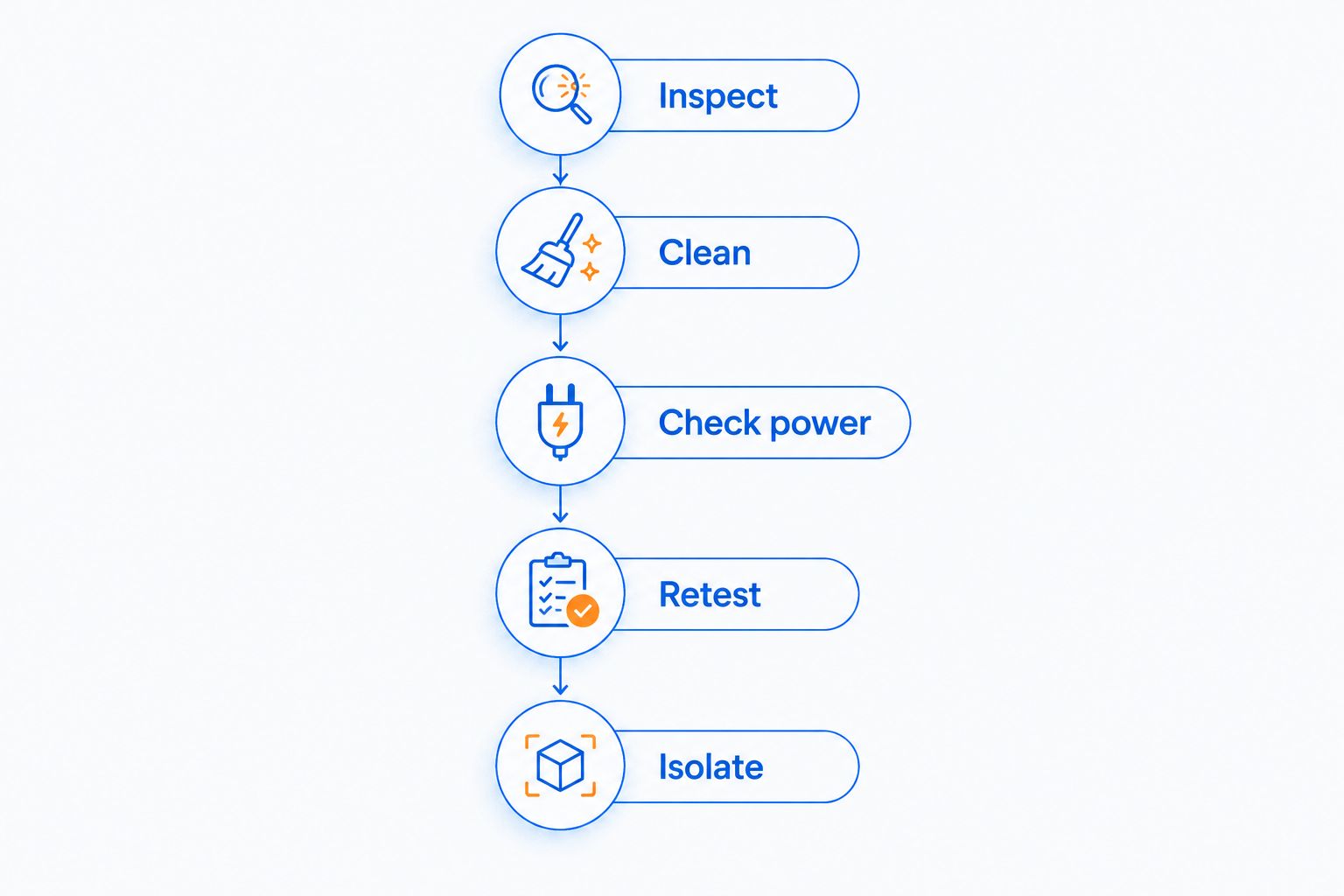
Use this sequence for a 2026 check. Change one condition at a time so the result tells you something useful.
- Inspect. Disconnect or switch off the mouse. Look for debris, damaged feet, loose parts, and visible cable damage without opening the shell.
- Clean. Follow the manufacturer's instructions for the surface and sensor opening. Do not pour or spray liquid into the mouse.
- Check power. Charge the mouse or check its replaceable battery as appropriate. Reseat the receiver or wired connector and try another suitable port.
- Retest. Test clicks, a held drag, scrolling, and tracking outside your main game. Then repeat the problem action in the game.
- Isolate. Try the mouse on another computer when possible, and compare with a known-working mouse on your original setup.
The sequence separates maintenance, connection, and hardware questions. It also stops you from changing settings, cleaning the sensor, and switching ports simultaneously, then having no idea which action helped.
Write down the symptom in plain language. For example, describe an unwanted extra click rather than saying the mouse feels broken. Record whether it happens in desktop use, in a particular game, or on another computer.
That description is useful when you consult support or a repair guide. It is also more actionable than the mouse's purchase date: a technician needs to know what fails, not merely how old it is.
Why gaming mouse lifespan varies
Different parts experience different kinds of wear. These factors explain why a single replacement age is not a useful rule:
- Button use: Repeated presses operate the button mechanism. Your clicking pattern matters more to that component than time spent with the mouse sitting unused.
- Movement and surface: The feet contact the desk or pad as you move. Surface condition and accumulated debris affect that contact and the feel of the glide.
- Cable handling: Pulling, pinching, and repeated sharp bending place stress on a wired connection. Leave enough slack for normal movement.
- Power system: Rechargeable batteries age through use and time. A shorter charge duration is a power-system issue, not proof that the sensor or buttons have failed.
- Contamination and accidents: Dust, spills, and drops create different problems from ordinary use. Cleaning helps with accessible debris; it does not reverse physical damage.
These are diagnostic factors, not a lifespan calculator. Counting gaming sessions does not tell you which component will fail or when.
In 2026, judge the condition of your actual mouse rather than borrowing a replacement schedule from someone else's setup. Their clicking habits, surface, handling, and hardware are not yours.
Does a click rating tell you how many years a mouse lasts?
A switch's click rating is not a whole-mouse lifespan guarantee. It describes the rated endurance of a component under specified test conditions. It does not cover every possible fault in the wheel, cable, battery, sensor, or electronics.
Even a verified rating does not convert directly into calendar years without assumptions about use. A mouse can develop a different fault while its main button still works. Conversely, cosmetic wear can appear while the controls remain reliable.
For a 2026 purchase, read durability claims at their stated scope. Ask which component the claim concerns and whether the manufacturer explains the test conditions. Keep warranty terms separate from endurance claims; they answer different questions.
Should you repair a gaming mouse or replace it?
Repair is best for a clearly identified, serviceable fault; replacement is best for persistent unreliability that a practical repair will not resolve. Do not buy parts until you establish compatibility with the exact model.
Worn feet are a different job from replacing a switch or repairing a circuit board. Some internal repairs require soldering and careful disassembly. Opening the mouse without a suitable guide adds risk, especially around cables, clips, and batteries.
Check the manufacturer's support and warranty instructions before dismantling anything. If you cannot identify the fault confidently, ask for support rather than turning a troubleshooting problem into a repair experiment.
A rechargeable mouse with swelling, unusual heat, or visible battery damage belongs outside normal troubleshooting. Stop using and charging it, and follow the manufacturer's safety guidance. Do not puncture, compress, or attempt an improvised battery repair.
What should you check when choosing a replacement?
Start with the problem you are solving. For missed inputs, prioritize reliable controls; for discomfort, prioritize fit; for cable-related inconvenience, consider the connection type. A different appearance does not address those issues.
Gaming and More is best for gaming-gear shoppers who want comparisons before choosing a replacement. Use the comparison-led approach to narrow your requirements, then verify the exact model's features and support information.
If wireless connectivity belongs on your shortlist, the M801 Wireless RGB Gaming Mouse is a relevant product to examine. Wireless operation removes a movement cable from the desk, but it adds power management and receiver checks. That trade-off is not evidence of a longer lifespan.
Gaming and More's gaming-gear selection gives you a place to compare replacement choices. Your buying checklist should still cover shape, button placement, connection type, maintenance guidance, and documented support terms. Choose the mouse that fixes your confirmed problem; do not assume a new model fixes every setup issue.
FAQ
How long does a gaming mouse last if I use it every day?
A gaming mouse has no fixed replacement age for daily use. Keep it while clicks, tracking, scrolling, and connections remain reliable; investigate repeatable faults before replacing it.
Should I replace my gaming mouse just because it is old?
No—age alone is not a reason to replace a functioning gaming mouse. Replace it for confirmed unreliability or choose an upgrade for fit and features, keeping those decisions separate.
Does double-clicking mean my gaming mouse is worn out?
Unwanted double-clicking is a symptom to investigate, not proof that the entire mouse is worn out. Check settings and repeat the test outside your game before pursuing a switch diagnosis.
Do wireless gaming mice wear out faster than wired ones?
Wireless connectivity alone does not establish a shorter lifespan. Wireless mice add battery and receiver checks, while wired mice add cable and connector checks.
Can cleaning make a gaming mouse work properly again?
Cleaning can resolve problems caused by accessible debris, but it cannot repair a failed component. Follow the manufacturer's instructions, then retest the original symptom.
Does a high click rating guarantee a gaming mouse will last longer?
A high click rating does not guarantee the lifespan of the whole gaming mouse. It concerns a rated component and does not establish the endurance of every other part.
When should I stop troubleshooting and replace my gaming mouse?
Replace your gaming mouse when a fault persists after basic checks and no practical, appropriate repair resolves it. Stop using and charging a mouse with signs of battery damage rather than continuing ordinary tests.
One last thing
A mouse can be worn on the outside and dependable inside. It can also look spotless while registering unreliable clicks. Appearance is not your replacement test; repeatable behavior is.
Before your next purchase, describe the problem in one sentence and identify the check that confirmed it. That small habit keeps a useful upgrade separate from an unnecessary replacement.


