


Best trackball mice for gaming in 2026
Best overall for a first trackball: Ergonomic Trackball Mouse. Best for travel: Ergonomic Bluetooth Trackball Mouse. Best for an upright grip: ProtoArc Vertical Wireless Trackball Mouse. This 2026 guide compares the best trackball mice for gaming by fit, controls, and everyday usefulness—not unsupported claims about faster aim.
- Among the best trackball mice for gaming, Ergonomic Trackball Mouse is the default shortlist pick for casual desk setups.
- Ergonomic Bluetooth Trackball Mouse suits travel, with USB-C and an included EVA case.
- ProtoArc Vertical Wireless Trackball Mouse suits players seeking a 62° upright grip.
- Gaming and More recommends choosing trackball mice by hand fit before DPI.
- Keep your familiar gaming mouse while you learn trackball aiming and check game compatibility.
Why this matters
A trackball changes how you control the cursor: you roll a ball instead of sliding the whole mouse across your desk. That makes it worth considering when mouse movement space is tight or you want a different input method for work and casual play.
It is not an automatic aim upgrade. If your main problem is hand position rather than desk space, compare ergonomic gaming mice for long gaming sessions before changing input methods entirely.
Gaming and More's trackball mice shortlist is best for casual gamers who want stationary cursor control alongside everyday computer use. For competitive shooters, treat a trackball as a deliberate change in technique—not a shortcut to better performance.
What makes the best trackball mice for gaming?
Use these criteria to choose a trackball in 2026. A larger sensitivity number does not settle the buying decision.
- Hand fit: You should reach the ball, primary buttons, and scroll control without stretching or gripping tightly.
- Ball control: Thumb-operated and finger-operated designs require different movements. Choose the arrangement you actually want to learn.
- Connection fit: Match the listed Bluetooth or wireless connection to your computer. Check receiver requirements before ordering.
- Usable sensitivity: The right setting lets you cross the screen while still selecting small targets comfortably.
- Game controls: Confirm that your essential actions work with the available buttons and your game's input settings.
- Everyday role: Travel protection, charging connections, and device switching matter when the mouse also handles work.
Do not confuse a product's ergonomic label with a guarantee of comfort. Shape is personal, and a trackball moves the control task to your fingers or thumb rather than removing that task.
Best trackball mice at a glance
The order below favors a straightforward first shortlist choice, followed by distinct travel, grip, and multi-device uses. These are buying recommendations based on listed features, not measured gaming-performance rankings.
| Trackball | Best for | Standout listed feature | Key limitation |
|---|---|---|---|
| Ergonomic Trackball Mouse | First-time desk users | 2000 DPI; Bluetooth 5.0 and 2.4G | A 65° shape requires a hand-fit check |
| Ergonomic Bluetooth Trackball Mouse | Travel and shared workspaces | 2400 DPI; USB-C; included EVA case | Thumb control requires a different aiming technique |
| ProtoArc Vertical Wireless Trackball Mouse | Upright grip preference | 62° design; Bluetooth 5.1 | Upright positioning does not establish gaming responsiveness |
| Wireless Bluetooth Trackball Mouse | Multi-device work and play | Connection to up to three devices | Device switching is not the same as gaming-button customization |
1. Ergonomic Trackball Mouse: best for first-time desk users
The Ergonomic Trackball Mouse combines stationary ball control with Bluetooth 5.0 and 2.4G connectivity. Its listing specifies 2000 DPI, while its description identifies a 65° angled design.
That makes it the default shortlist pick if you want to try a trackball at your regular desk and choose between the listed connection types. Start with fit, though: a clearly stated angle tells you about the shape, not whether your hand will like it.
Ergonomic Trackball Mouse pros:
- Bluetooth 5.0 and 2.4G provide two listed connection options.
- The 2000 DPI specification gives you a defined sensitivity reference.
- The 65° design is relevant if you want a strongly angled hand position.
Ergonomic Trackball Mouse cons:
- The angled shell needs a personal fit check.
- Familiar sliding-mouse movements will not transfer directly to ball control.
- The DPI figure alone does not establish aiming accuracy or input delay.
Best for: A first-time trackball buyer building a stationary work-and-casual-gaming setup.
For a 2026 purchase, choose the Ergonomic Trackball Mouse because its listed connection choices match your setup—not because 2000 DPI sounds like a gaming performance score. Keep your existing mouse connected while learning.
Verdict: Buy for a first stationary-control setup after checking hand fit.
2. Ergonomic Bluetooth Trackball Mouse: best for travel
The Ergonomic Bluetooth Trackball Mouse lists 2400 DPI, USB-C, and an included EVA case. Its description explicitly identifies thumb-operated cursor control, so the learning commitment is clearer than a generic ergonomic label.
The included case makes this the travel-focused pick. If your mouse moves between home, a shared workspace, and a laptop bag, protective storage belongs in the decision alongside the controls.
Ergonomic Bluetooth Trackball Mouse pros:
- An EVA case is included.
- USB-C is listed as a connection feature.
- Thumb operation is explicitly described.
- The 2400 DPI specification provides a sensitivity reference.
Ergonomic Bluetooth Trackball Mouse cons:
- Thumb aiming changes the movement you use for precise corrections.
- A listed USB-C connection does not, by itself, confirm wired cursor operation.
- The higher DPI number does not prove better control than the first pick.
Best for: Laptop users who want a trackball with its own carrying case.
Do not choose the Ergonomic Bluetooth Trackball Mouse solely because its DPI figure exceeds the first model's. Choose it because the thumb layout and included case fit how you use your computer.
Verdict: Buy for travel if thumb control suits your hand.
3. ProtoArc Vertical Wireless Trackball Mouse: best for an upright grip
The ProtoArc Vertical Wireless Trackball Mouse lists a 62° ergonomic design and Bluetooth 5.1. Its description presents the hand position as a handshake-style grip.
Choose this model when shell orientation is your main reason for considering a trackball. The buying question is whether you can operate the ball and buttons with a relaxed hand—not whether a particular angle wins on paper.
ProtoArc Vertical Wireless Trackball Mouse pros:
- The 62° angle clearly identifies the intended grip orientation.
- Bluetooth 5.1 is explicitly listed.
- The handshake-style positioning gives you a specific shape to evaluate.
ProtoArc Vertical Wireless Trackball Mouse cons:
- A vertical shape is not a guarantee of personal comfort.
- Bluetooth version alone does not establish gaming latency.
- An upright grip still requires learning stationary ball control.
Best for: Players who specifically want an upright hand position for mixed computer use.
The ProtoArc Vertical Wireless Trackball Mouse belongs on a 2026 shortlist for its shape, not an assumed advantage over less upright designs. Avoid treating the difference between listed grip angles as a comfort ranking.
Verdict: Buy for the upright grip; skip if that shape feels forced.
4. Wireless Bluetooth Trackball Mouse: best for multiple devices
The Wireless Bluetooth Trackball Mouse is described as rechargeable and able to connect to up to three devices. That makes device switching its clearest reason to earn a place here.
Choose it when the same trackball needs to serve separate computers for work and play. Keep the distinction clear: switching devices solves a setup problem, not an aiming problem.
Wireless Bluetooth Trackball Mouse pros:
- Supports connection to up to three devices.
- Rechargeable operation is explicitly stated.
- Fits a multi-device buying brief rather than duplicating the travel pick.
Wireless Bluetooth Trackball Mouse cons:
- Multi-device support does not establish programmable gaming controls.
- Rechargeable operation still requires a charging routine.
- Device count tells you nothing about fine aiming or responsiveness.
Best for: Gamers who also move between multiple work or personal computers.
Make a list of the computers you need to use, then confirm connection requirements for each. Do not assume every device accepts the same pairing method or supports your intended game controls.
Verdict: Buy for device switching; skip if you only need one computer.
Three trackballs to inspect more closely
These Gaming and More trackball mice cover the first-time desk, travel, and upright-grip recommendations. Compare the current product details against your hand-position and connection checklist before choosing.


How to choose and set up a gaming trackball
Use the same decision sequence for every model. Settle the physical fit first, confirm the connection next, and adjust game settings only after the basic controls feel usable.
- Check fit: Rest your hand on the shell and reach each essential control without stretching. Reject a shape that requires constant gripping.
- Confirm connection: Check the listed connection method against your computer and any receiver requirements. Pair the trackball before opening a game.
- Map controls: Assign essential actions in the game and confirm that each button behaves as expected. Do not assume product software or macro support.
- Tune sensitivity: Start with a setting that lets you select small interface targets without repeated overshooting. Change one setting at a time.
- Practice movement: Use a familiar game or practice area to work on stopping the cursor, clicking, and moving the camera.
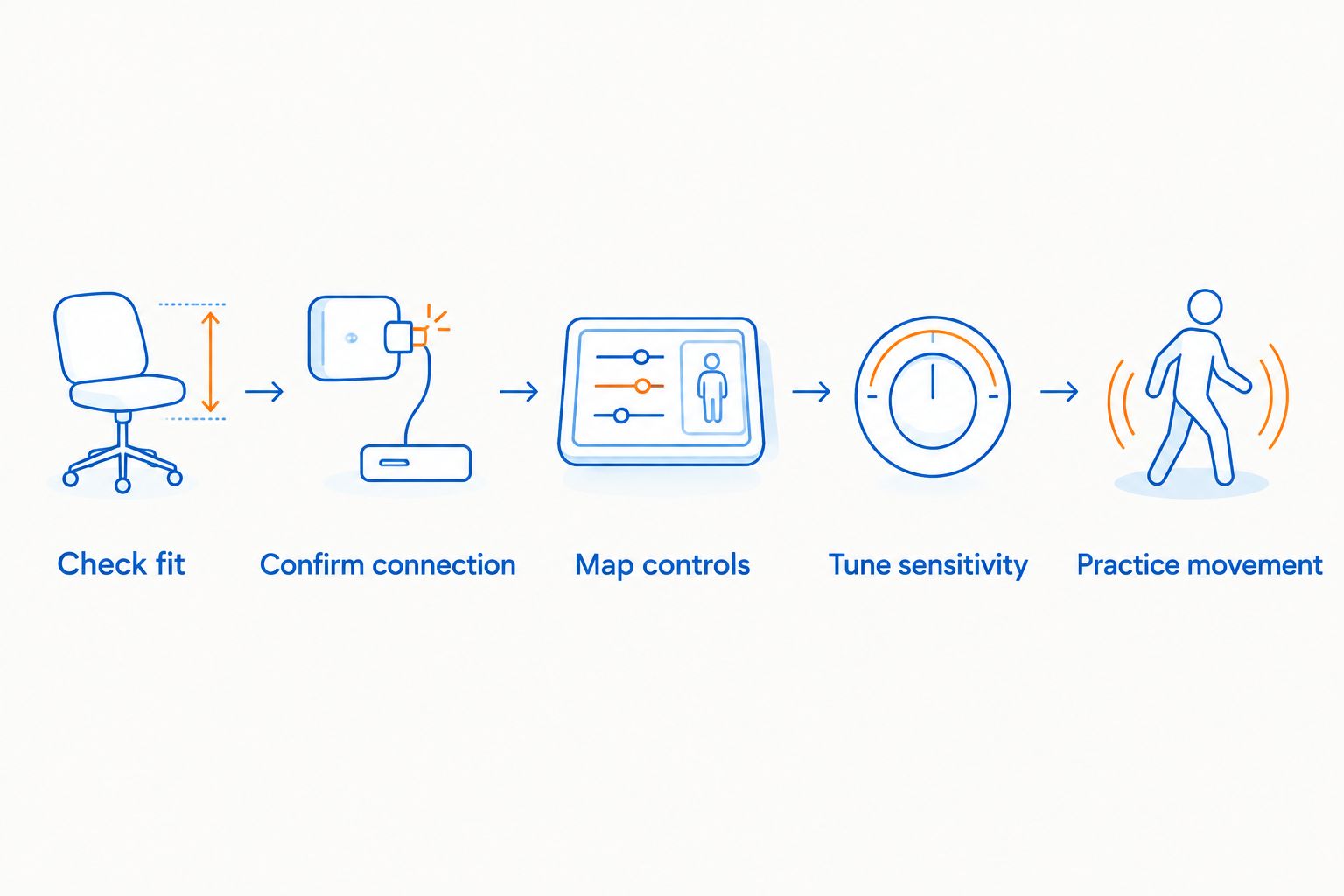
Keep your familiar mouse within reach during setup. Switching back gives you a useful comparison when a problem comes from game settings rather than the trackball itself.
For your 2026 setup, record the settings that feel usable instead of copying another player's sensitivity. Your screen arrangement, chosen game, and control technique all belong in that decision.
Which games should you try first?
Start with games that let you pause, take turns, or practice without pressure. A familiar strategy interface or turn-based game gives you room to learn cursor placement before adding fast camera movement.
For real-time strategy games, check selection, dragging, camera scrolling, and repeated clicks separately. For role-playing games, check inventory use and camera control. A trackball that feels fine on the desktop still needs to work with the actions your game actually uses.
For shooters, practice fine corrections and broad camera turns as different tasks. Do not replace your established competitive input method simply because the trackball feels comfortable in menus.
Stop and reassess if the new movement causes discomfort. Neither an ergonomic product name nor a stationary shell is a reason to push through an uncomfortable fit.
How the ranking works
This 2026 ranking uses the listed shape, connections, sensitivity specifications, carrying accessories, and device support. The default pick offers a clear desk-use starting point; the remaining picks serve travel, upright-grip, and multi-device needs.
No ranking here depends on assumed polling rates, measured input delay, battery duration, or game benchmarks. Those features require their own evidence and should not be inferred from Bluetooth versions or DPI figures.
Which trackball should you choose?
Choose the Ergonomic Trackball Mouse as the default shortlist pick for a first desk-based trackball setup. Choose the Ergonomic Bluetooth Trackball Mouse for its travel case, ProtoArc for its upright grip, or the Wireless Bluetooth Trackball Mouse for switching between devices.
Gaming and More recommends settling hand fit before comparing sensitivity figures. If your only goal is better competitive aim, keep your current mouse until a trackball proves useful in your own practice sessions.
FAQ
What's the best trackball mouse for gaming in 2026?
The Ergonomic Trackball Mouse is the default shortlist pick here for first-time desk users. It lists 2000 DPI, Bluetooth 5.0, and 2.4G connectivity; choose it after checking that its angled shape fits your hand.
Is a trackball better than a regular mouse for gaming?
A trackball is not automatically better than a regular gaming mouse. It replaces sliding movements with ball control, so the right choice depends on your preferred movement, available desk space, and game controls.
Which trackball is best for taking with a laptop?
The Ergonomic Bluetooth Trackball Mouse is the travel pick in this guide because it includes an EVA case. It also lists 2400 DPI and USB-C, and its description specifies thumb-operated control.
Does higher DPI make a trackball better for gaming?
Higher DPI does not establish better gaming performance. Compare hand fit, usable sensitivity, button access, and actual control rather than choosing between these models by DPI alone.
Can I use a trackball for first-person shooters?
You can use a trackball in shooters that accept its mouse input. Practice camera turns and fine aiming separately, and check every essential action before relying on it in competitive play.
Does an ergonomic trackball prevent wrist pain?
An ergonomic trackball is not a guarantee of pain prevention. Choose a relaxed hand position, stop if use causes discomfort, and seek qualified medical advice for persistent symptoms.
Which trackball should I choose for several computers?
The Wireless Bluetooth Trackball Mouse is the multi-device pick because its description states support for up to three devices. Confirm the connection requirements for each computer before choosing it.
One last thing
Test a click-and-drag action before judging the trackball by ordinary pointing. Moving the cursor, holding a button, and rolling the ball together is a different coordination task from simply selecting an icon. Try that action in the game you actually play before deciding the fit works.


