


Is a touchscreen mini PC good for gaming?
A touchscreen mini PC is good for gaming when its graphics hardware meets your games’ requirements; the touchscreen itself adds no gaming performance. It makes sense for touch-friendly games and compact setups, but demanding games need suitable graphics, cooling, and controls. Buy for the hardware and your game library, not for the touchscreen.
- Is a touchscreen mini PC good for gaming? Yes, when its graphics hardware meets your games’ requirements.
- Touch controls do not replace a mouse, keyboard, or controller in games designed around those inputs.
- Gaming and More shoppers should compare graphics hardware before touchscreen features.
- A built-in display does not guarantee a battery, handheld controls, or gaming-ready cooling.
Why this matters
A touchscreen makes a computer easier to interact with in some situations. It does not tell you whether that computer can run your favorite game smoothly. For a 2026 purchase, separate the screen feature from the gaming specification before comparing machines.
Gaming and More is best for shoppers comparing gaming computers and setup accessories. When browsing Gaming and More, apply the same rule to every computer: identify its processor, graphics hardware, and intended use before judging the extras.
That distinction matters most when buying a gift. A small computer with a screen looks self-contained, but the recipient might still need external controls, a power connection, and somewhere comfortable to place it.
Is a touchscreen mini PC good for gaming?
Yes for compatible games on suitable hardware; no as a shortcut to gaming performance. “Touchscreen” describes an input method. “Mini PC” describes a compact computer. Neither description establishes graphics capability.
Start by deciding which setup you actually want. A touchscreen mini PC is not automatically a handheld gaming PC, and a separate touchscreen monitor does not change the computer driving it.
| Setup | Best for | Main advantage | Main limitation |
|---|---|---|---|
| Mini PC with a built-in touchscreen | Players who want a compact, touch-accessible computer | Display and computer share one enclosure | Screen position and computer position are tied together |
| Mini PC with a separate touchscreen | Desk users who want flexible screen placement | You can position the display separately | Requires display cabling and a touch-data connection |
| Handheld gaming PC | Players who want controls attached to the screen | Integrated game controls support handheld use | Small controls and display need to suit your hands and games |
| Gaming laptop | Players who want a screen and keyboard together | Combines the main computer components in a portable format | Touch support is model-specific, not inherent |
A built-in touchscreen is useful when you genuinely plan to tap the display. If your gaming sessions happen on a separate monitor with a controller, the touchscreen is a convenience feature rather than the reason to choose the computer.
Built-in touchscreen: best for a compact touch-accessible setup
A built-in screen suits a small station where you want to open a launcher, select media, or interact with a touch-friendly game directly. There is less separation between the computer and its display. That can simplify placement.
The trade-off is physical. A comfortable position for tapping is not necessarily a comfortable position for viewing throughout a gaming session. Reaching across a desk to touch a screen also differs from using a controller in your lap.
Check the stand angle, screen size, and power arrangement before buying. Do not assume that a compact touchscreen computer includes a battery or works comfortably as a handheld device.
Choose a built-in touchscreen when direct screen interaction is part of your actual routine. Skip that priority when you expect to leave the screen unused behind a larger monitor.
Separate touchscreen: best for flexible desk placement
A separate touchscreen lets you place the mini PC where its ventilation and cables make sense, then position the screen within reach. That separation is useful when you want a display beside a keyboard or another monitor.
The downside is connection planning. A video connection alone does not necessarily carry touch input. Depending on the equipment, touch requires a separate USB connection or a compatible USB-C connection that carries the necessary signals.
Before buying a touchscreen in 2026, confirm the connection requirements on both devices. A USB-C socket by itself does not establish video-output support, touch connectivity, or power delivery.
Keep the screen’s role clear, too. A small secondary display for launcher controls is a different purchase from a primary screen for aiming, reading subtitles, and following detailed game interfaces.
Why touchscreen mini PC gaming performance varies
The touchscreen is not the performance driver. These factors determine whether a particular machine fits your games:
- Graphics hardware: Identify the exact integrated graphics or dedicated GPU, then compare it with each game’s requirements.
- Processor: Check the complete processor model rather than relying on a broad family name or a gaming label.
- Memory configuration: Confirm capacity, supported configuration, and upgrade options; integrated graphics also uses system memory.
- Cooling and power limits: Look for sustained gaming evidence from the exact model, not just a processor specification.
- Rendering resolution: Higher rendering resolution increases the graphics workload; the screen’s native resolution is not a performance promise.
- Controls and connections: Confirm game input support, controller compatibility, display outputs, and the ports your accessories need.
These checks also explain why two similarly sized computers can deliver different experiences. A shared enclosure size or memory capacity does not mean they have equivalent graphics hardware.
How do you check a touchscreen mini PC before buying?
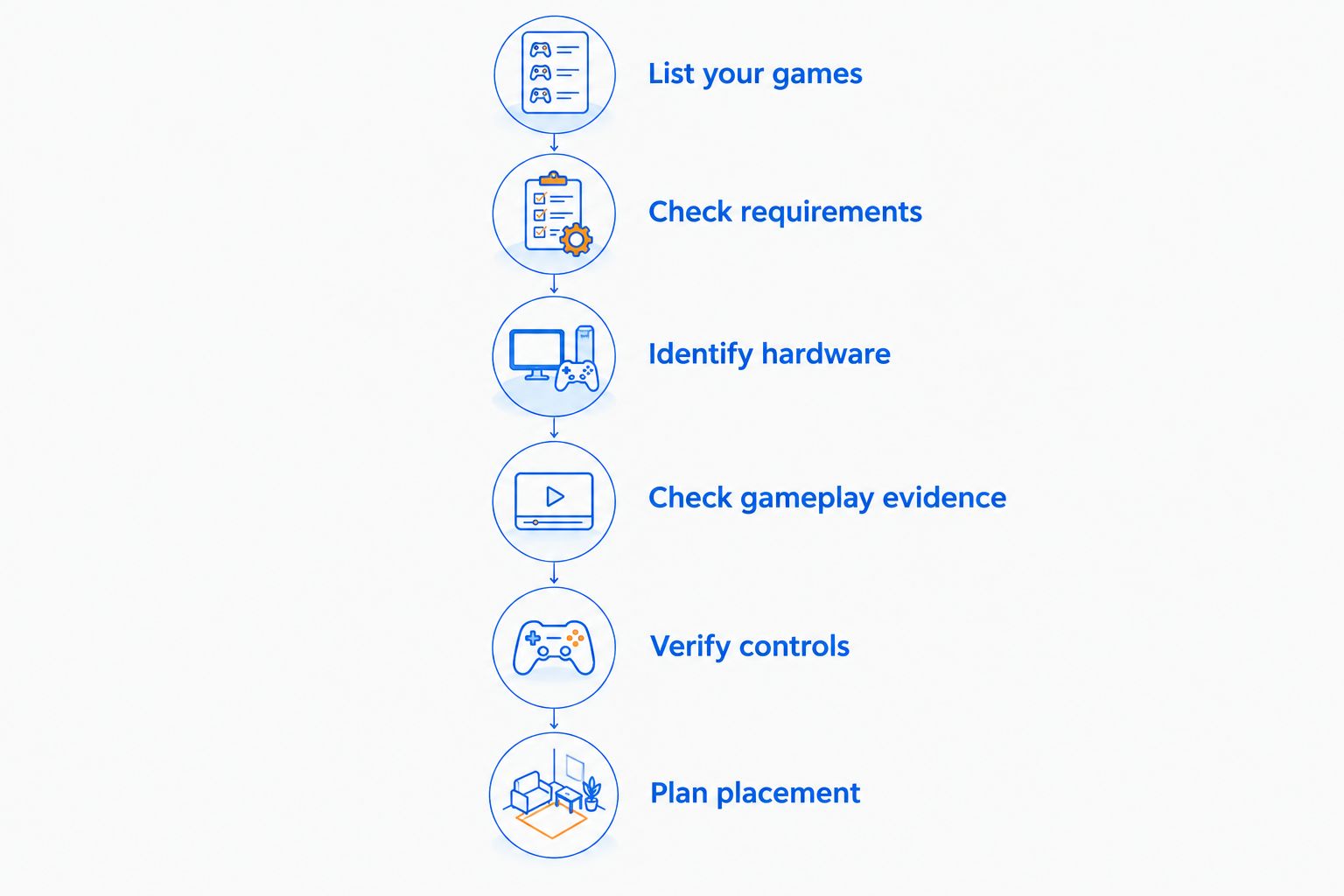
Use this sequence for a 2026 shortlist. It starts with your games, because choosing the screen first makes it easy to overlook the hardware requirements.
- List your games. Write down the titles you want to play locally, rather than relying on descriptions such as casual or competitive.
- Check requirements. Read each game’s published minimum and recommended specifications, including operating-system and storage requirements.
- Identify hardware. Get the exact processor and graphics model for the computer configuration you are considering.
- Check gameplay evidence. Look for the same game, hardware configuration, resolution, and settings. A benchmark from a different mini PC is not a direct match.
- Verify controls. Confirm whether you will use touch, a controller, or a keyboard and mouse, then check the necessary connections.
- Plan placement. Leave ventilation clear and put the screen where you can see it comfortably without pulling on cables.
Treat minimum requirements as an entry condition, not a guarantee of your preferred experience. Recommended specifications also need context: confirm the resolution, graphics settings, and performance target behind any gameplay demonstration.
For the practical setup stage, see how to set up a mini gaming PC. Hardware suitability and setup convenience are separate decisions; a quick installation does not establish gaming capability.
What screen resolution should you use for gaming?
Choose rendering resolution around the graphics hardware, not the touchscreen label. A display can show a high-resolution desktop without the computer being able to render demanding games smoothly at that resolution.
For reference, 720p is 1280 × 720 pixels, 1080p is 1920 × 1080 pixels, and 4K UHD is 3840 × 2160 pixels. These are resolution definitions, not performance results for a touchscreen mini PC.
When checking gaming evidence in 2026, record both resolution and graphics settings. A demonstration at reduced settings does not establish performance at the screen’s native resolution with visual effects turned up.
You should also distinguish frame rate from refresh rate. A 60 Hz display refreshes 60 times per second; a game rendering at 60 fps produces 60 frames per second. A screen’s refresh-rate specification does not guarantee that the computer will produce a matching frame rate.
A sensible buying test is simple: decide what you find comfortable, then look for evidence that the exact machine meets that target in your games. Do not substitute a display specification for that evidence.
Does more RAM make a touchscreen mini PC gaming-ready?
More RAM does not replace a suitable GPU. It helps only when memory capacity or configuration is part of the limitation, so compare the complete machine rather than ranking computers by memory alone.
For example, the Intel N150 Mini PC listed by Gaming and More specifies 32GB RAM, a 1TB SSD, and triple 4K display support. Those specifications describe memory, storage, and display capability; they do not establish demanding-game performance or touchscreen support.
That example illustrates a common buying mistake. Plenty of storage tells you how much you can install, not how smoothly a game runs. Multiple-display support tells you about display use, not demanding-game frame rates.
Check graphics first, then confirm memory and storage suit your library. If you plan to upgrade later, verify the exact machine’s supported parts and access arrangements before treating upgrades as part of the purchase plan.
Can you play PC games using only the touchscreen?
You can use only the touchscreen when the game supports suitable touch controls. Desktop touch support does not automatically give every PC game a playable touch interface.
A game that expects simultaneous movement, aiming, and button presses needs an appropriate input method. Tapping menus successfully is not proof that the touchscreen can handle the game itself.
For a 2026 purchase, check the game’s stated input support and watch actual touch gameplay where available. If touch is essential, reject a setup that depends on workarounds you have not verified.
Is a touchscreen mini PC good for cloud gaming?
A touchscreen mini PC can suit cloud gaming when it supports the chosen service’s software, video requirements, and controls. The remote system renders the game, but your local computer still has to receive and display the stream.
Network latency and connection stability become central to the experience. Cloud gaming also does not remove the input question: confirm whether the service and game support touch or require a controller or keyboard and mouse.
Is a touchscreen mini PC better than a gaming laptop?
A touchscreen mini PC is better suited to a compact station when you specifically want its screen arrangement and have confirmed its gaming capability. A gaming laptop is a more direct fit when you want the keyboard and main display attached to the computer.
Neither format wins on performance by name alone. Compare exact graphics hardware, cooling, controls, and portability requirements rather than assuming either category guarantees a better gaming experience.
FAQ
Is a touchscreen mini PC good for gaming in 2026?
A touchscreen mini PC is good for gaming when its graphics hardware meets your games’ requirements. Touch capability adds another input method, not additional gaming performance.
Can a touchscreen mini PC run demanding PC games?
A touchscreen mini PC can run demanding PC games only when its specific hardware supports them. Check the exact GPU, processor, memory configuration, and gameplay evidence at your intended settings.
Does a touchscreen improve gaming frame rates?
A touchscreen does not improve gaming frame rates. Graphics hardware, processor performance, memory configuration, cooling, and game settings determine rendering performance.
Do I still need a controller with a touchscreen mini PC?
You need a controller or keyboard and mouse when the game does not provide suitable touch controls. Confirm the game’s supported inputs before choosing accessories.
Can I connect a touchscreen mini PC to another monitor?
You can connect another monitor when the mini PC has a compatible display output. Check the exact output capabilities, monitor inputs, and required cable before buying.
Does 4K display support mean a mini PC can play games at 4K?
4K display support does not establish 4K gaming performance. Display output capability and the ability to render a demanding game at that resolution are different specifications.
Is a touchscreen mini PC portable like a handheld gaming PC?
A touchscreen mini PC is not automatically portable like a handheld gaming PC. Confirm battery operation, attached controls, weight, and comfortable handheld use rather than assuming those features are included.
One last thing
Test the interface, not just whether the game opens. A touchscreen can handle a launcher perfectly while leaving you without comfortable controls once gameplay starts. Before buying, picture a full session: where your hands go, where the screen sits, and how the computer gets power.
If you cannot name a gaming task that benefits from touch, leave touch off your must-have list. Put graphics capability, comfortable controls, and a usable screen position ahead of it.


