


Is SSD or HDD better for a prebuilt gaming PC?
An SSD is better than an HDD for a prebuilt gaming PC’s main drive in 2026: put Windows and the games you play regularly on the SSD for faster startup, loading, and file access. An HDD still works for backups and stored files, but it is not a substitute for an SSD when a game’s system requirements specify one.
- Is SSD or HDD better for a prebuilt gaming PC? Choose an SSD for Windows and actively played games.
- Gaming and More’s gaming PC selection includes SSD-equipped systems; check each configuration before choosing.
- An HDD suits backups and archived files, not games that require SSD storage.
- SSD capacity and upgrade access matter alongside the drive type; storage does not replace graphics performance.
Is SSD or HDD better for a prebuilt gaming PC?
Choose an SSD as the primary drive; treat an HDD as optional secondary storage. An SSD accesses data electronically, while an HDD uses moving heads and spinning magnetic platters. That mechanical difference affects how quickly the drive retrieves the many files involved in starting Windows and loading games.
| Storage option | Best for | Main advantage | Main limitation |
|---|---|---|---|
| SSD only | Gamers who want a straightforward setup | Keeps Windows and installed games on responsive storage | Your whole library must fit within the SSD’s usable capacity |
| HDD only | Secondary file storage rather than a new gaming PC’s main drive | Holds files without using SSD space | Slower file access; does not meet an explicit SSD requirement |
| SSD plus HDD | Gamers keeping active games separate from archives | Separates frequently used software from stored files | Requires drive management and compatible connections |
Before choosing a smaller SSD with plans to expand later, check whether a prebuilt gaming PC can be upgraded. A spare drive needs more than somewhere to sit: the motherboard, connections, and case must support it.
Why this matters
A prebuilt’s storage specification changes how the PC feels outside actual gameplay. Starting the computer, opening a launcher, loading a save, and copying files all involve the drive. A capable graphics card does not remove an HDD’s mechanical access delays.
For your 2026 shortlist, separate storage responsiveness from rendering performance. An SSD improves data access; the GPU and CPU remain central to producing frames. Buying more storage does not fix a graphics card that falls short of your game’s requirements.
Gaming and More’s gaming PC listings include SSD-equipped configurations, but the exact configuration still matters. Read the storage line rather than treating the words “gaming PC” as proof of a particular drive type, capacity, or expansion path.
SSD: 1TB as a practical starting point
Best for: gamers who want Windows and a regularly used game library on the same drive. A 1TB SSD is a practical starting point when you want room for software and several games without planning an immediate storage expansion. Check your actual game requirements before deciding it is enough.
The strength of this setup is simplicity. Install Windows, launchers, and active games on the SSD, then keep track of free space as your library grows. You do not need to remember which drive contains each installation.
The limitation is capacity, not a promise of poor performance. Game installations, updates, recordings, and personal files all share that space. A nominal 1TB specification also does not mean the entire advertised capacity is available for games after formatting, Windows, and other software.
Choose capacity around the games you keep installed, not the number of games you own. A large account library does not need to live on the PC all at once.
SSD: 512GB for a smaller installed library
Best for: gamers who rotate a smaller collection and check storage use regularly. A 512GB SSD can serve as a gaming PC’s primary drive, provided your operating system, software, and chosen games fit. It remains an SSD; having less capacity does not turn it into an HDD-like experience.
The trade-off is less flexibility. You will need to watch installation sizes, remove games you no longer play, and leave room for updates and temporary files. Do not plan around filling the drive completely.
A 512GB configuration makes sense when it matches your habits and the rest of the PC meets your needs. It makes less sense when you already know your must-have installations exceed the available space.
Before buying, write down the games you want installed together and check their published storage requirements. Include your other uses, too: gameplay captures and downloaded media compete with games for the same drive.
SSD plus HDD: separate active games from archives
Best for: gamers who keep recordings, backup copies, and files they do not open constantly. Use the SSD for Windows and active games, then use the HDD for material that does not need frequent, quick access. This arrangement gives each drive a clear job.
The benefit is organization. Your archive does not consume the SSD space you need for current games, and you can keep files locally without placing everything on the primary drive.
The downside is extra management. A launcher can install a game on the wrong drive if you accept its default location without checking. Moving a game between drives also takes time and requires enough destination space.
An HDD archive is not automatically a backup. If you move a recording from the SSD to the HDD and delete the original, you still have only a single copy. Keep another independent copy of files you cannot replace.
Why storage performance varies
The SSD label answers the main buying question, but it does not describe every aspect of the storage setup. These factors explain why PCs with similar-looking capacity figures behave differently:
- Drive technology: An SSD avoids the mechanical head movement and platter rotation involved in HDD access.
- Interface: SATA and NVMe describe different storage connections and protocols. Both appear in SSD shopping, but they are not interchangeable specifications.
- Workload: Loading many small files differs from copying a large video file. A headline transfer figure does not describe every task.
- Game design: A game’s loading process and storage requirements determine how it uses the drive. Check the developer’s requirements.
- Free space: Games need installation space, while updates and temporary files need additional working room.
- Background activity: Downloads, updates, scans, and file transfers share drive resources with whatever you are doing.
Do not rank complete gaming PCs by drive speed alone. Once your storage meets the game’s requirements, compare the CPU, GPU, memory, and cooling alongside it. Storage is part of the decision, not the entire decision.
How do I check storage before buying a prebuilt?
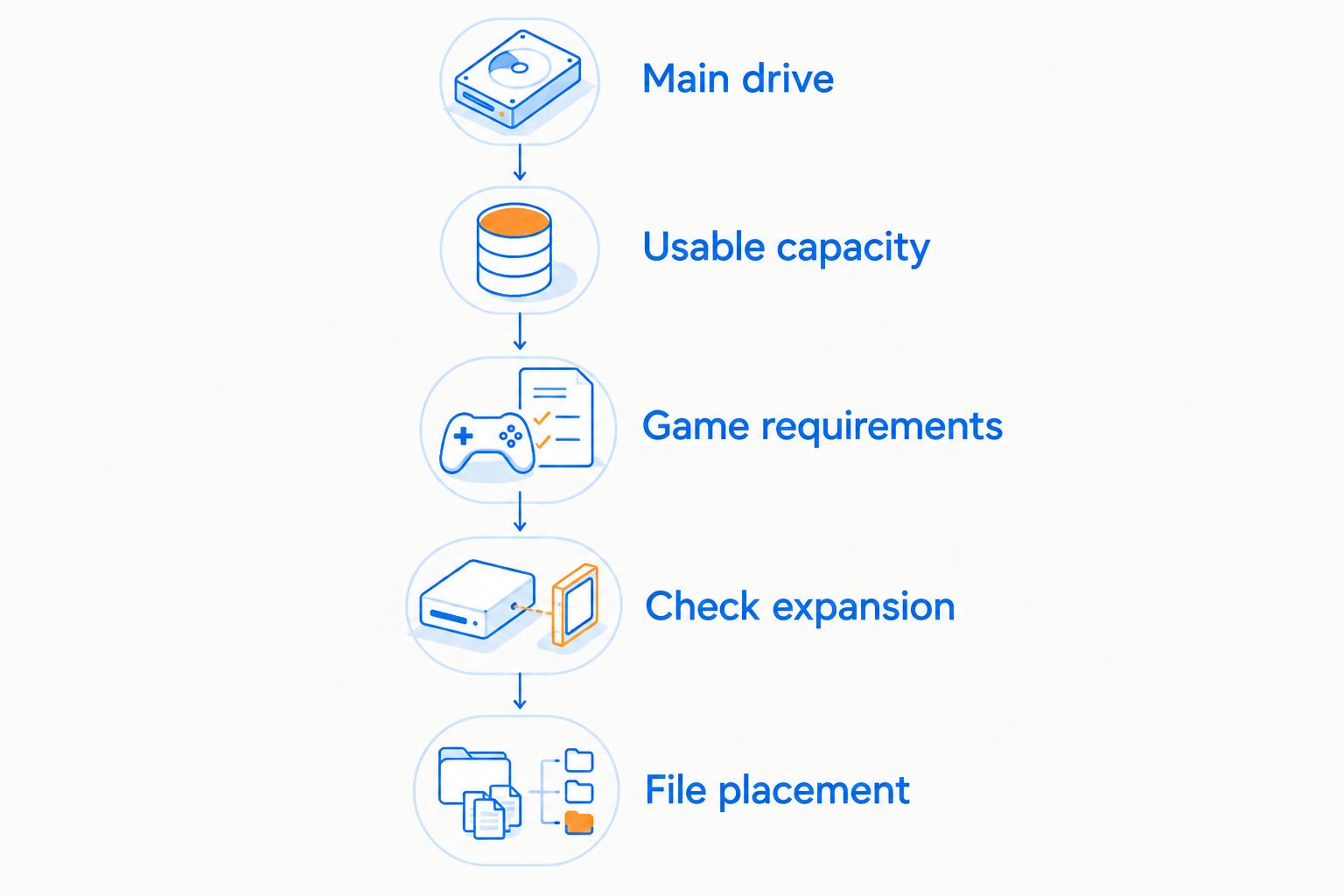
Use this sequence for a 2026 prebuilt comparison. It keeps vague listing language from replacing the details you actually need.
- Identify the main drive. Look for an explicit SSD specification. A listing that gives only total storage capacity does not tell you whether Windows runs from an SSD or HDD.
- Check usable capacity. Compare the advertised capacity with your intended installations, then account for Windows, applications, updates, and personal files.
- Confirm game requirements. Read the storage requirements for the games you care about. An explicit SSD requirement takes priority over a general claim that a PC is suitable for gaming.
- Check expansion. Confirm compatible motherboard slots, supported drive types, mounting space, and any required cables before planning an upgrade.
- Plan file placement. Decide where Windows, games, recordings, and backups belong. A clear plan prevents an archive drive from becoming the accidental default game drive.
The final check is easy to miss: make sure the specification belongs to the configuration you selected. A product page with several options does not make every listed capacity part of every option.
Does an SSD increase FPS in a prebuilt gaming PC?
An SSD is not a general-purpose FPS upgrade. Its clearest role is reducing storage-related waiting, while your CPU and GPU do much of the work that determines rendering performance. Do not substitute an SSD upgrade for checking graphics requirements.
Storage still matters during play when a game retrieves assets from the drive. That makes a game’s stated SSD requirement relevant beyond its initial loading screen, without establishing a universal frame-rate gain.
If a PC struggles after the game has loaded, identify the limiting component before buying storage. Changing the drive will not fix every cause of low frame rates or stutter.
Is a SATA SSD enough, or should I choose NVMe?
Choose a compatible SSD that meets your games’ requirements; NVMe is not a substitute for sufficient capacity. SATA SSDs and NVMe SSDs both avoid the mechanical access process of an HDD, but NVMe uses a different interface designed for storage communication over PCIe.
Do not assume every game’s loading time changes in proportion to a drive’s advertised transfer speed. Loading also involves the game software and other components. Compare relevant game evidence rather than translating a sequential-transfer specification into a promised experience.
For a 2026 purchase, check the exact drive specification and the motherboard’s supported connections. M.2 describes a form factor, not a guarantee that every M.2 drive or slot supports the same interface.
Can I use an external HDD for a gaming PC?
An external HDD is useful for backup copies and stored files, but it should not replace the main SSD. Gaming and More lists the Canvio Basics 4TB Portable External Hard Drive, a relevant option to examine when you need separate file storage.
Best for: checking an external-drive option for archives and backup copies. Its listed 4TB capacity describes storage space, not a gaming performance result. The limitation remains the drive type: external connectivity does not turn a hard drive into an SSD.
Check the software’s requirements before planning to run games from any external drive. Keep the connection stable during use, and do not disconnect a drive while files are being written.
FAQ
What's better for a prebuilt gaming PC, SSD or HDD?
An SSD is better for a prebuilt gaming PC’s main drive. Use it for Windows and active games; reserve an HDD for archives or backup copies.
Is a 1TB SSD enough for a gaming PC?
A 1TB SSD is enough only when Windows, your applications, and the games you want installed fit with working space left over. Check your chosen games’ storage requirements rather than assuming every library fits.
Can I play games from an HDD?
You can play games from an HDD when their requirements and supported installation options allow it. Do not use an HDD as a substitute when a game explicitly requires an SSD.
Will an SSD give me higher FPS?
An SSD does not guarantee higher FPS. It improves storage access, while rendering performance depends heavily on the CPU, GPU, settings, and game.
Should Windows and games be on the same SSD?
Windows and games can share the same SSD. Separate physical drives are not required; capacity and sensible file management matter more than separating them by default.
Can I add an SSD to a prebuilt gaming PC later?
You can add an SSD when the prebuilt has a compatible connection and the necessary physical space. Check the motherboard, drive support, mounting requirements, and any required cables first.
Does an HDD count as a backup?
An HDD counts as part of a backup only when it holds an additional copy of your files. Moving files onto it and deleting the originals leaves you with a single copy.
One last thing
Check the installation destination, not just the PC’s specification. A prebuilt can contain an SSD and still load a particular game from its secondary HDD. Before replacing hardware in 2026, open the launcher’s storage settings and confirm where that game actually lives.
Gaming and More is best for gamers shopping for gaming PCs and setup accessories together. For storage, keep the buying rule simple: choose an SSD for the main drive, then add archive space only when your files justify it.


