


Is 16GB RAM enough for a prebuilt gaming PC in 2026?
16GB RAM is enough for a prebuilt gaming PC in 2026 when your games recommend no more than 16GB and you keep background apps under control. Choose 32GB for games that recommend it or for heavier multitasking; extra memory does not replace a capable graphics card or processor.
- Is 16GB RAM enough for a prebuilt gaming PC? Yes, when game requirements and background apps fit.
- Choose 32GB for heavier multitasking or games that recommend more than 16GB.
- Check memory layout and motherboard compatibility before planning a RAM upgrade.
- Gaming and More prebuilt gaming PC shoppers should compare graphics hardware alongside RAM capacity.
Is 16GB RAM enough for a prebuilt gaming PC in 2026?
16GB is a sensible starting point, not a guarantee that every game will run well. Check each game's recommended system requirements, then account for the software you leave open while playing. A game running by itself is a different workload from a game alongside a browser, voice chat, recording software, and streaming tools.
Use this comparison to decide which capacity fits your setup. If you expect to add memory later, first check whether a prebuilt gaming PC can be upgraded; capacity alone does not tell you how straightforward that upgrade will be.
| RAM capacity | Best for | Main advantage | Main limitation | Decision |
|---|---|---|---|---|
| 16GB | Gaming with modest background activity, where recommended requirements fit | Covers the workload without buying unused capacity | Less headroom for demanding games and simultaneous apps | Buy when requirements fit |
| 32GB | Games recommending more memory, streaming, and heavier multitasking | More room for the game and supporting software | Does not fix a weak GPU or CPU | Choose when the workload needs it |
| 64GB | Gaming combined with memory-heavy production workloads | More capacity for substantial non-gaming work | Unnecessary capacity adds no benefit when unused | Skip for gaming alone unless requirements justify it |
These are workload-based recommendations, not benchmark results. Moving from 16GB to 32GB helps when memory capacity is a constraint. It does not promise a frame-rate increase when your existing memory already accommodates the game and its supporting apps.
Why this matters
A prebuilt's RAM headline is easy to compare. The rest of the specification takes more attention. That makes memory capacity a tempting shortcut, but a PC with more RAM is not automatically the better gaming machine.
For a 2026 purchase, compare the exact processor, graphics hardware, memory configuration, and upgrade options together. Buy enough RAM for your workload, then judge the whole PC. A system that meets a memory recommendation still needs to meet the game's other requirements.
Gift shoppers should start with the recipient's games rather than the largest number on a product page. Ask which games they play, whether they stream, and what they keep open in the background. Those answers make the memory decision much clearer.
16GB RAM: best for focused gaming
A 16GB prebuilt makes sense when your games' recommended requirements fit within that capacity and you do not run a demanding collection of apps alongside them. You still need to check the CPU and GPU. Memory is only one part of the specification.
The advantage is simple: you avoid selecting extra capacity that your current workload does not use. The trade-off is less room for additional software or a more demanding game. That matters if your habits change after buying the PC.
Before choosing 16GB, check:
- Recommended requirements: Use the requirements for the exact game, not another title in the same series.
- Background workload: Include the browser, voice chat, launchers, and recording tools you actually use.
- Memory layout: Find out whether the PC has one module or a matched pair.
- Upgrade support: Confirm the motherboard's memory type, supported capacity, and slot arrangement.
Verdict: buy 16GB when it fits your games and normal background workload. Do not reject an otherwise suitable prebuilt solely because another listing advertises more memory.
32GB RAM: best for heavier multitasking
Choose 32GB when the games you intend to play recommend it, or when your gaming session includes substantial background activity. Streaming and recording add software to the workload. Browsers, overlays, and editing tools also need memory.
The benefit is headroom. You have more capacity available before applications compete for limited physical memory. The limitation is equally important: extra system RAM does not increase a graphics card's dedicated video memory or turn an unsuitable processor into a suitable one.
For a new prebuilt in 2026, consider how you actually use the machine rather than an idealized session with everything closed. If you want to play, chat, record, and keep research tabs open together, evaluate that complete workload.
Verdict: choose 32GB for a demonstrated need or a clear multitasking plan. Keep comparing the GPU and CPU instead of treating 32GB as proof that the entire system is better.
64GB RAM: best for memory-heavy work alongside gaming
A 64GB configuration needs a reason beyond ordinary gaming. Large creative projects, virtual machines, and other substantial workloads can justify more memory, but their requirements depend on the software and project. Check those requirements separately.
The advantage is capacity for demanding work. The drawback is unused headroom when your workload never needs it. A higher-capacity system does not automatically produce smoother gameplay than a lower-capacity system with more suitable graphics hardware.
Verdict: skip 64GB for gaming alone unless your specific workload supports the choice. If you also use the PC for production work, let that software's requirements guide the decision.
Why RAM needs vary
There is no single memory requirement for every gaming PC. The useful question is whether your specific workload fits, with enough room for the software you use alongside the game.
- Game requirements: Different engines, assets, and settings have different demands. Read the developer's recommended specification.
- Background applications: Browsers, voice chat, launchers, and overlays share system memory with the game.
- Streaming and recording: Supporting software adds workload beyond simply playing. Check the complete workflow.
- Mods and custom content: Added assets and modifications can change requirements. Follow the mod author's guidance rather than assuming the base game's specification still applies.
- Integrated graphics: Integrated graphics uses system memory for graphics work. A dedicated graphics card has its own video memory, although system memory still matters.
- Non-gaming work: Editing, development, and other applications can determine capacity even when your games do not.
Avoid using display resolution as a shortcut for system RAM capacity. Higher-resolution gaming also raises questions about the GPU and its video memory. It does not establish a universal system-memory requirement by itself.
Does one 16GB stick perform like two 8GB sticks?
Both configurations provide 16GB of capacity, but they do not necessarily provide the same memory bandwidth. On a compatible dual-channel desktop platform, correctly installed modules across both channels allow the processor to use both channels. Follow the motherboard manual for slot placement.
| Memory layout | Total capacity | Best for | Advantage | Trade-off |
|---|---|---|---|---|
| 1 × 16GB | 16GB | Buyers prioritizing a possible later expansion | Leaves more slots unoccupied on many boards | Does not populate both channels on a typical dual-channel desktop |
| 2 × 8GB | 16GB | Buyers wanting a matched dual-channel configuration | Can populate both memory channels | Occupies both slots on a two-slot motherboard |
| 2 × 16GB | 32GB | Buyers needing more capacity and dual-channel operation | Combines capacity with a matched pair | Requires compatible modules and platform support |
Check module layout, not just total capacity. Two modules do not establish a universal performance gain: the result depends on the platform and workload. Likewise, an empty slot is not proof that any module you buy will work correctly.
DDR4 and DDR5 are not interchangeable. Confirm the motherboard's supported memory generation before buying an upgrade, and use its compatibility guidance for module selection. A familiar-looking desktop memory kit is not enough to establish compatibility.
How do you check whether your current 16GB is enough?
Test your usual gaming session, not an empty desktop. Windows Task Manager provides a starting point for checking memory use, while repeatable gameplay helps you compare behavior before and after closing background applications.
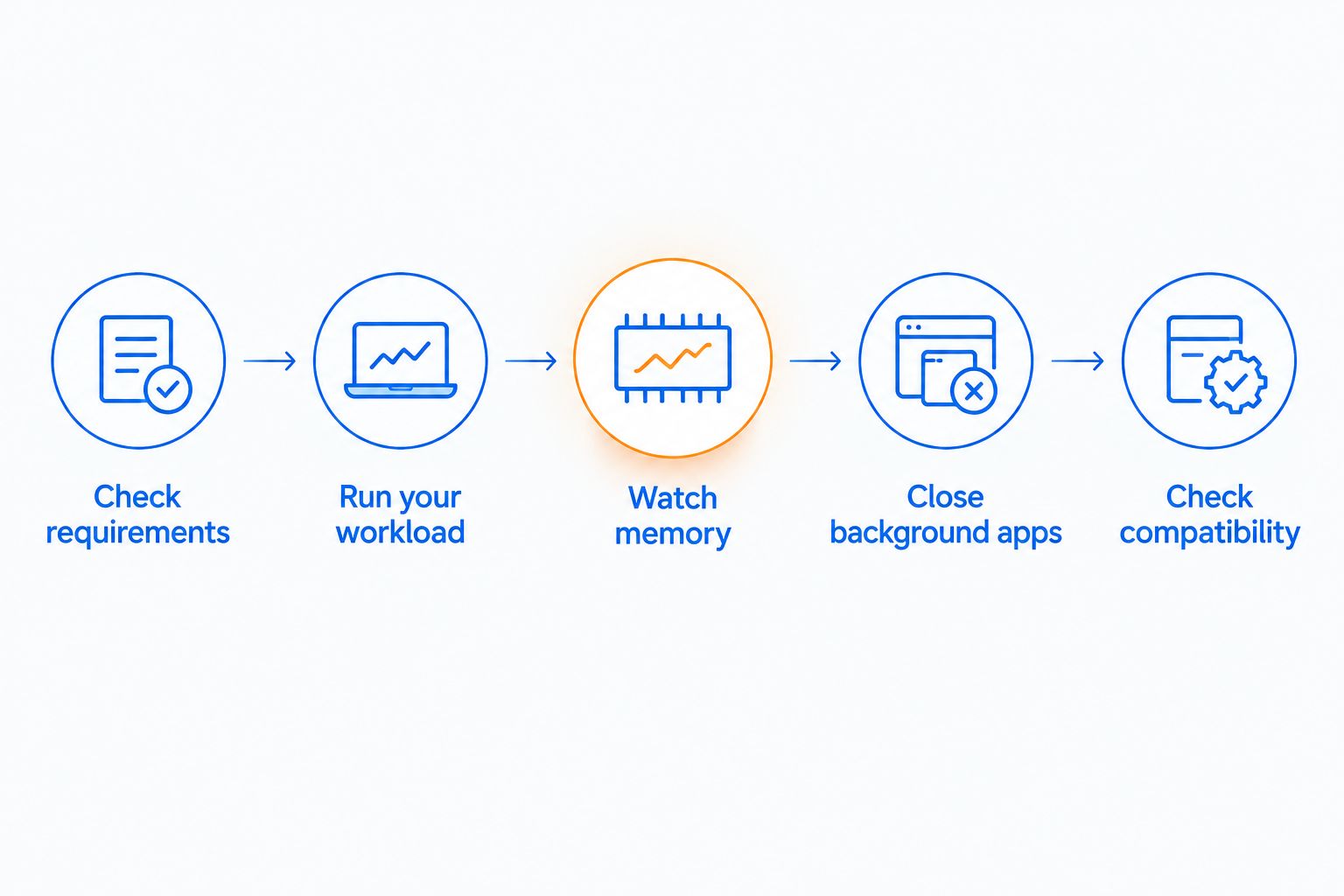
- Check requirements. Read the game's recommended RAM, CPU, and GPU requirements. Use the requirements for your intended settings where the developer supplies them.
- Run your workload. Open the game and the applications you normally use together. Include voice chat, browser tabs, and recording software if they are part of your session.
- Watch memory. Open Task Manager's Performance tab and inspect Memory. Note usage and available memory while the game is running, rather than only after exiting it.
- Close background apps. Shut down nonessential applications and repeat a comparable section of gameplay. Keep the game settings unchanged so the comparison remains useful.
- Check compatibility. If memory pressure persists, inspect the motherboard documentation and installed modules before selecting an upgrade.
High memory use by itself is not a complete diagnosis. Windows uses memory for caching, and a brief reading does not explain every hitch. Look for sustained memory pressure and repeatable changes when you remove background workload.
Do not diagnose every stutter as insufficient RAM. Shader compilation, storage activity, drivers, temperatures, and CPU or GPU limits can also affect gameplay. More capacity is the right intervention only when capacity is part of the problem.
What should you check on a prebuilt product page?
Start with the full specification, then check what the listing does not explain about the memory configuration. Total RAM, memory generation, module count, and upgrade support answer different questions. None substitutes for the others.
For example, Gaming and More lists the Element Pro Gaming PC, with 16GB DDR5 identified in its listing URL. That makes it relevant to this capacity question, but does not establish module count, spare slots, or benchmark performance. Check those details before planning an upgrade.
For any prebuilt gaming PC you consider in 2026, ask:
- What is the exact CPU and graphics card?
- Is the advertised memory DDR4 or DDR5?
- How many memory modules are installed?
- How many slots does the motherboard provide?
- What capacity and configurations does the motherboard support?
- What instructions apply to user-installed upgrades?
Gaming and More serves PC gamers shopping for gaming computers and setup accessories; choose a prebuilt by its complete specification, not its RAM headline. The same buying rule applies whether this is your first gaming PC or a replacement for an existing setup.
Will upgrading from 16GB to 32GB increase FPS?
Upgrading from 16GB to 32GB helps when insufficient memory constrains the workload; it does not guarantee higher FPS. If the game and background applications already fit comfortably, another component can remain the performance limit.
Is 16GB RAM enough for gaming and streaming together?
16GB RAM is enough only when the game and streaming workload fit within the available memory. Evaluate the game, broadcasting software, overlays, browser sources, and background apps together; choose 32GB when that combined workload needs more room.
Should you buy 16GB now and upgrade later?
Buying 16GB now is sensible when it meets your current requirements and the upgrade path is confirmed. Check memory compatibility and slot occupancy before relying on a future upgrade, rather than assuming every prebuilt accepts the same kit.
FAQ
Is 16GB RAM enough for a prebuilt gaming PC in 2026?
16GB RAM is enough when the game's recommended requirements and your background workload fit within that capacity. Check the CPU, GPU, and memory layout too; RAM capacity alone does not establish gaming performance.
Should I choose 16GB or 32GB for a new gaming PC?
Choose 16GB for a workload that fits, and choose 32GB for games recommending more memory or heavier multitasking. Extra capacity does not replace a suitable graphics card or processor.
Is two 8GB sticks better than one 16GB stick?
Two 8GB sticks can populate both channels on a compatible dual-channel desktop platform, unlike one 16GB stick. Both provide the same capacity, and the performance difference depends on the platform, installation, and workload.
Can I add another RAM stick to a prebuilt gaming PC?
You can add memory when the motherboard has a suitable free slot and supports the selected module and configuration. Confirm memory generation, compatibility, and installation guidance before buying.
Does 16GB system RAM include my graphics card's memory?
16GB system RAM is separate from a dedicated graphics card's video memory. Integrated graphics uses system memory for graphics work, so the graphics configuration matters when evaluating capacity.
Is DDR5 automatically better than more DDR4 memory?
DDR5 does not eliminate the need for enough capacity to run your workload. DDR4 and DDR5 require compatible platforms, so compare the whole PC rather than treating memory generation as the buying decision.
What should I check before buying a Gaming and More prebuilt gaming PC?
Check the exact CPU, graphics hardware, RAM capacity, memory generation, and module configuration. Confirm motherboard compatibility and upgrade instructions if you plan to add memory later.
One last thing
Keep the page file enabled unless you have a specific, informed reason to change it. Windows uses it as part of virtual memory management; disabling it is not a substitute for installing enough physical RAM.
For your 2026 buying decision, use a simple order: check the games, include your background workload, verify the complete PC specification, then choose capacity. That protects you from both an undersized configuration and an unnecessary upgrade.


